
















Last Update: September 2, 2026
This guide explains what form integration is in Gutenverse Form, how to set it up, and how to check or resend it later from the entry details page.
What Form Integration Is
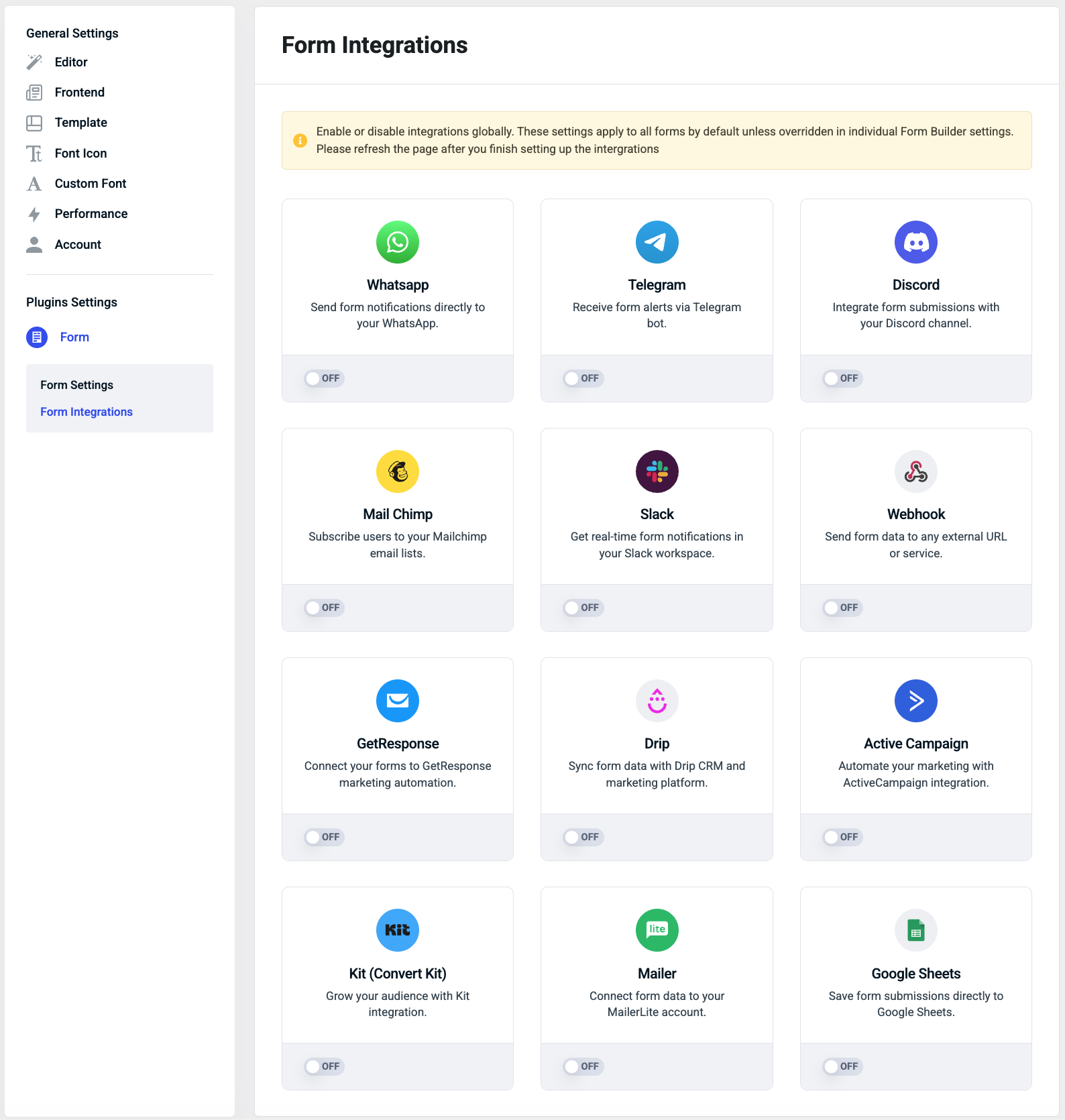
Form integration lets you automatically send form submissions to another service after someone submits your form.
Instead of copying entries manually, you can connect your form to services such as:
In short, integrations help you move entry data from Gutenverse Form into the tools you already use for marketing, notifications, reporting, or automation.
How It Works
There are two parts to form integration:
1. Global setup in the dashboard
2. Form-level setup in the form action
The dashboard setup is where you connect and save the service credentials or settings.
The form action setup is where you decide which integration should run for a specific form submission.
You usually need both parts:
Before You Start
Before setting up an integration, make sure:
If you are not sure which credentials are required, open the integration setup screen in the dashboard. Each service can show different fields depending on what it needs.
Set Up an Integration in the Dashboard
Use the dashboard setup when you want to connect Gutenverse Form to a service globally.
Steps
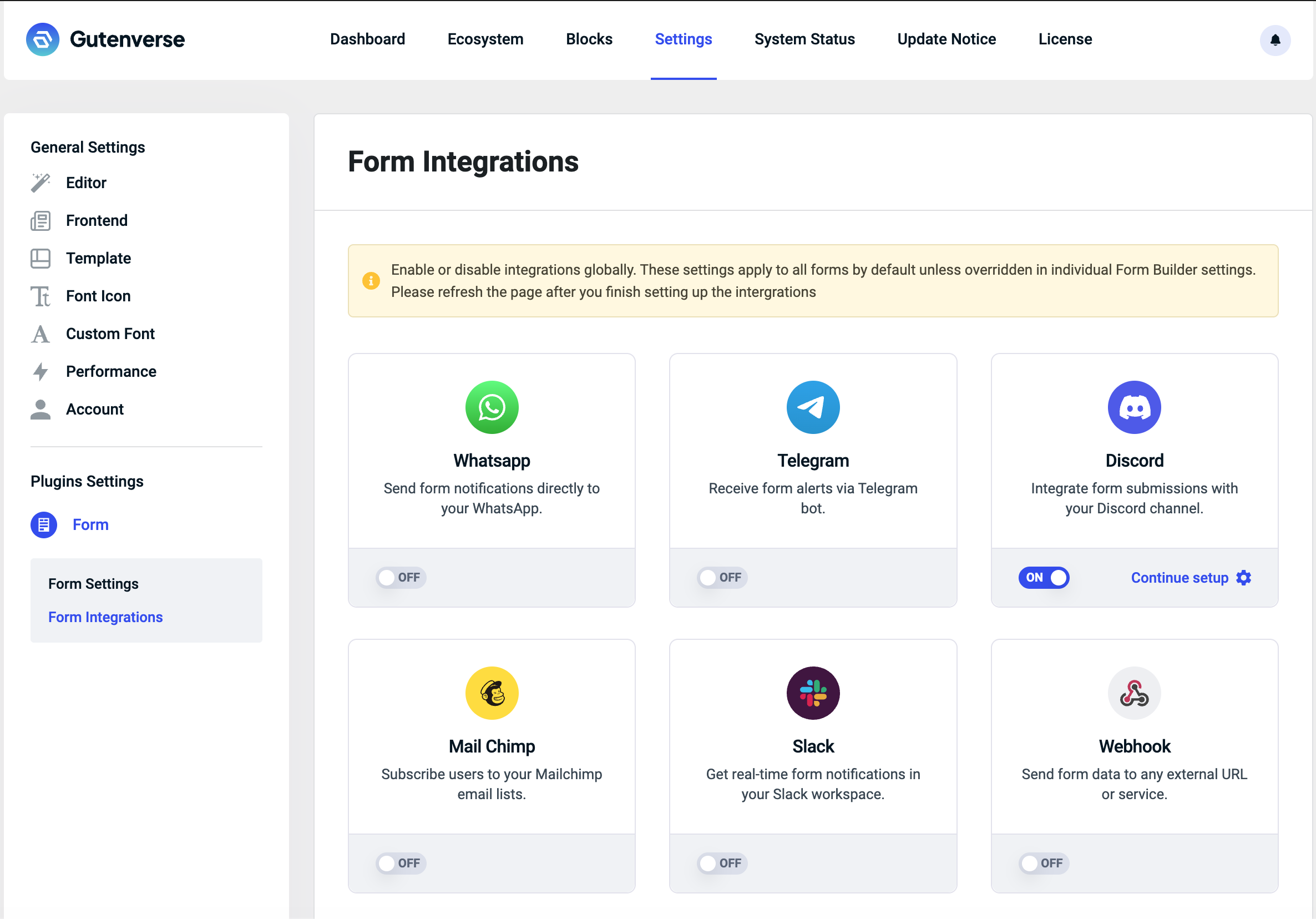
1. Open the Gutenverse dashboard.
2. Go to Settings.
3. Open Form Integrations.
4. Find the service you want to use.
5. Enable the integration globally if needed.
6. Click Setup for that service.
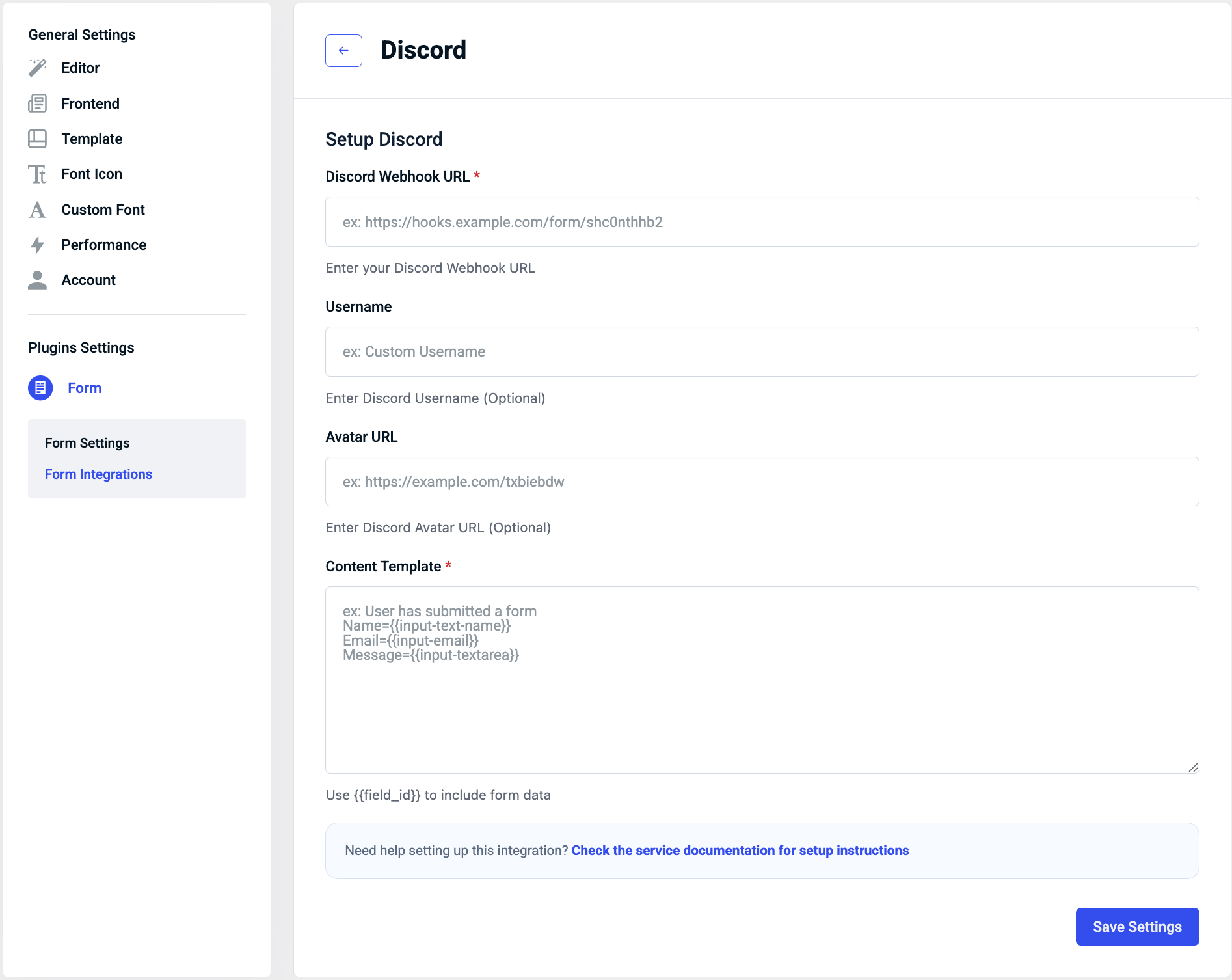
7. Fill in the required settings, such as API keys, tokens, webhook URLs, or other connection fields.
8. Click Save Settings.
9. Refresh the page after finishing the setup if the dashboard asks you to do so.
What This Dashboard Setup Does
This setup acts as the main connection for the service.
Think of it as telling Gutenverse Form, “Here is my account and how to talk to this platform.”
After that, your forms can use the connected service inside their own form action settings.
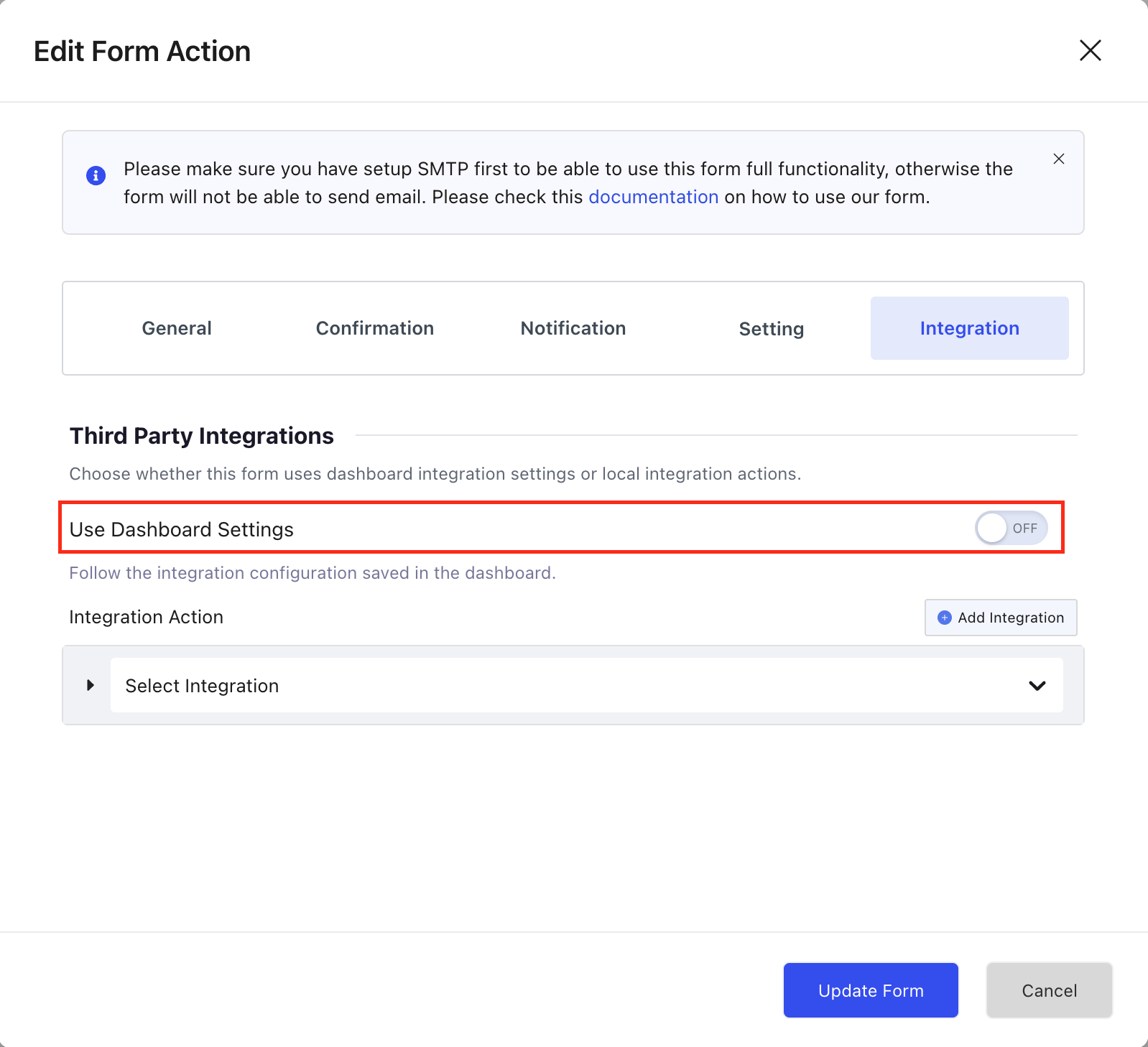
Set Up an Integration in Form Action
After the dashboard connection is ready, you can decide how a specific form should use it.
Steps
1. Open the page or template that contains your form.
2. Edit the form in the builder.
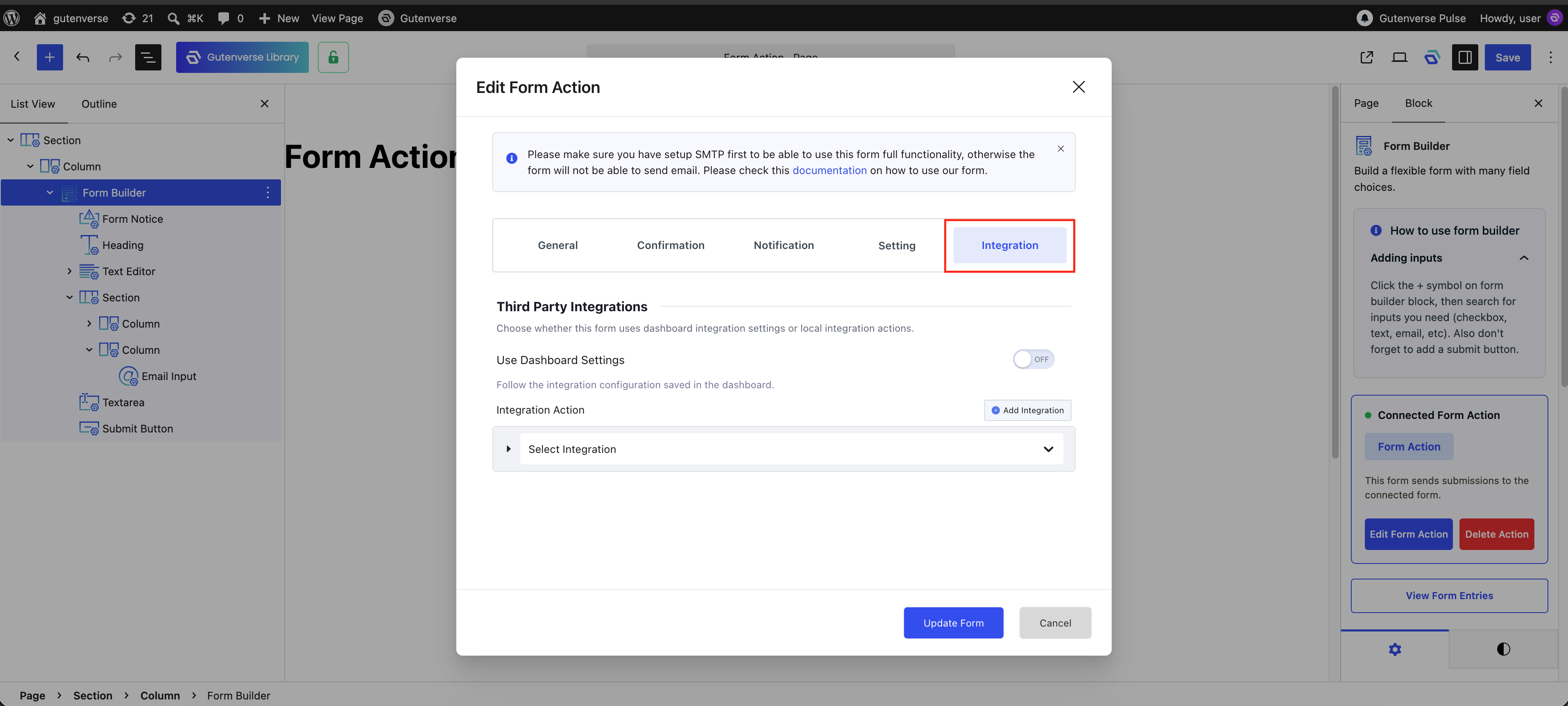
3. Open the form action settings.
4. Go to the Integration tab.
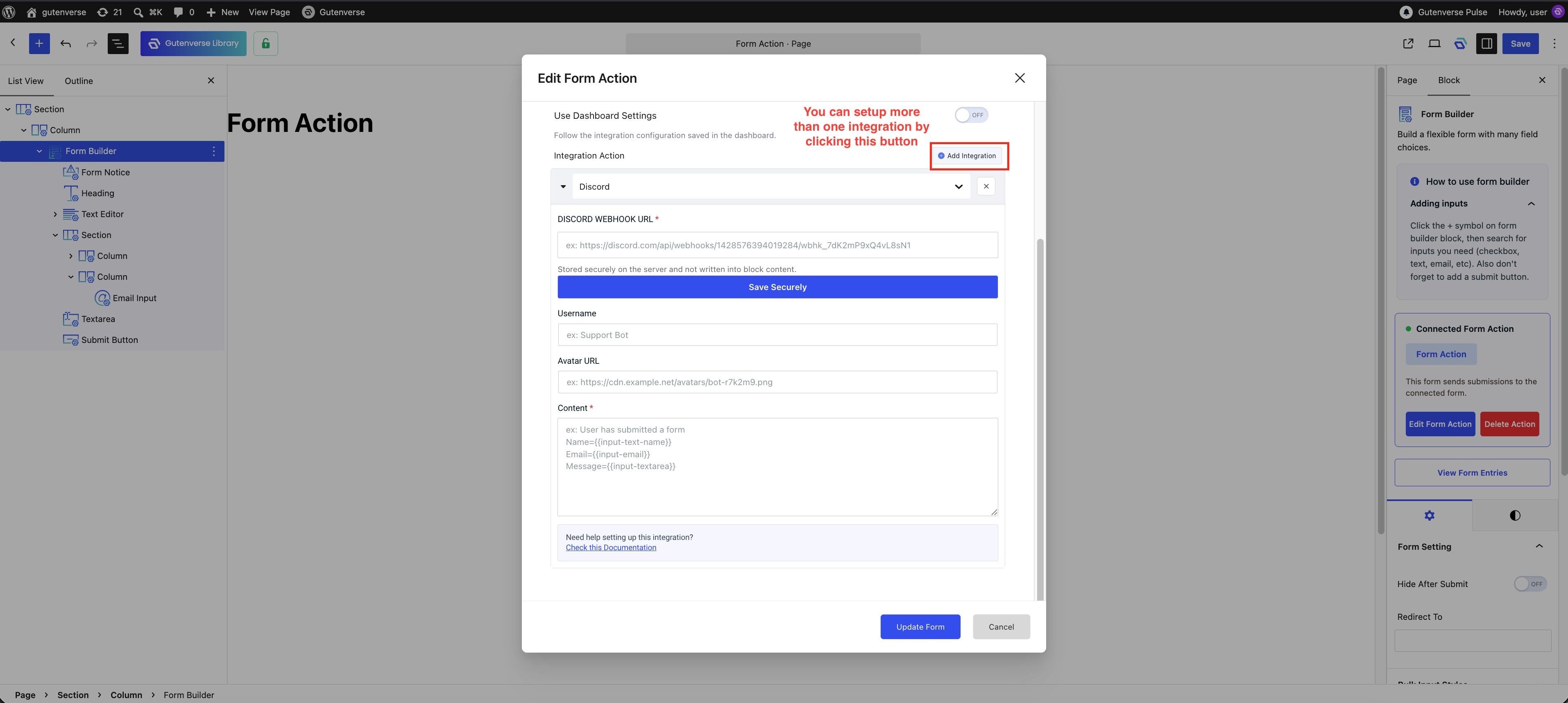
5. Add or select the integration you want to use.
6. Configure the integration action for that form.
7. Save or update the form.
Why This Step Matters
The dashboard setup connects the service.
The form action setup tells the form what to do with each submission.
This means:
Dashboard Setup vs Form Action Setup
If you are new to integrations, this is the easiest way to remember it:
If the service is connected in the dashboard but nothing happens on submission, the form action probably has not been configured yet.
If the form action is configured but the service is not connected properly in the dashboard, the integration may fail because Gutenverse Form does not have the correct credentials.
What Happens After a Form Is Submitted
When a visitor submits the form:
1. Gutenverse Form stores the entry
2. The configured integration tries to send the data to the connected service
3. The result is recorded so you can review it later from the entry details
This helps you confirm whether the integration worked, failed, or needs to be sent again.
Check Integration Status in Entry Details
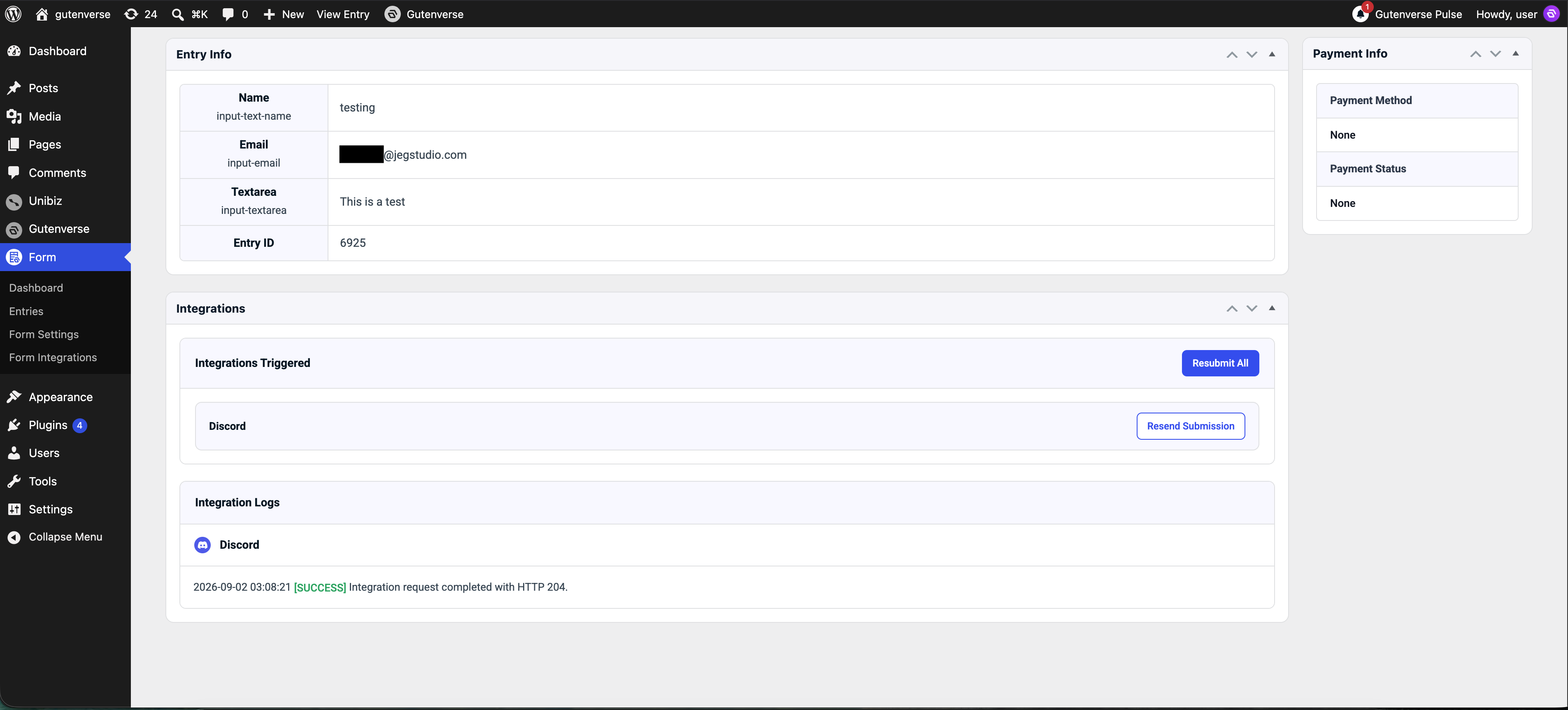
You can review the integration result for each individual submission from the entry details page.
Steps
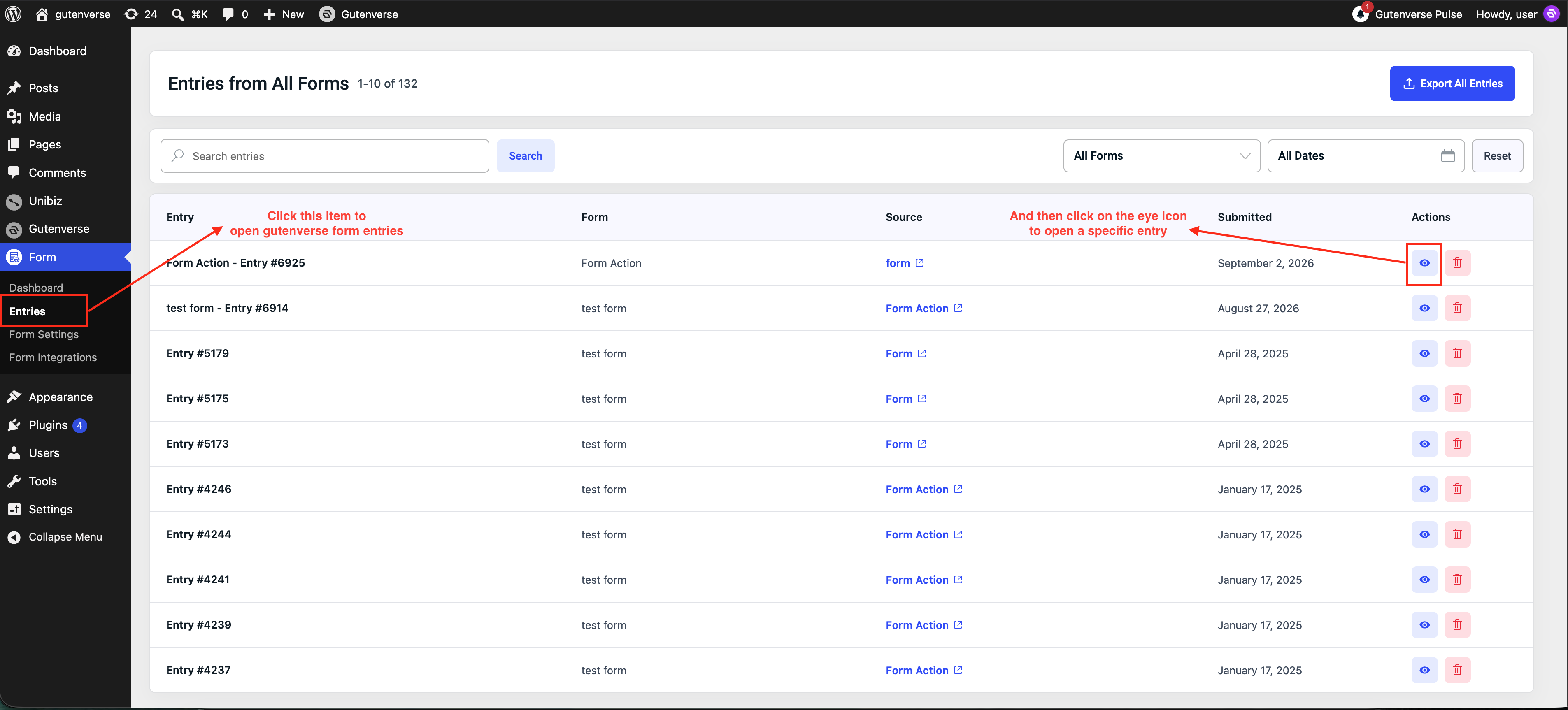
1. Open the form entries list from the WordPress admin dashboard > Form > Entries.
2. Choose the entry you want to inspect.
3. Open the entry details page.
4. Look for the integration section or integration log.
There you can see the integration status for that entry.
Depending on the integration result, this area helps you understand whether the submission was sent successfully or not.
Resend an Integration from Entry Details
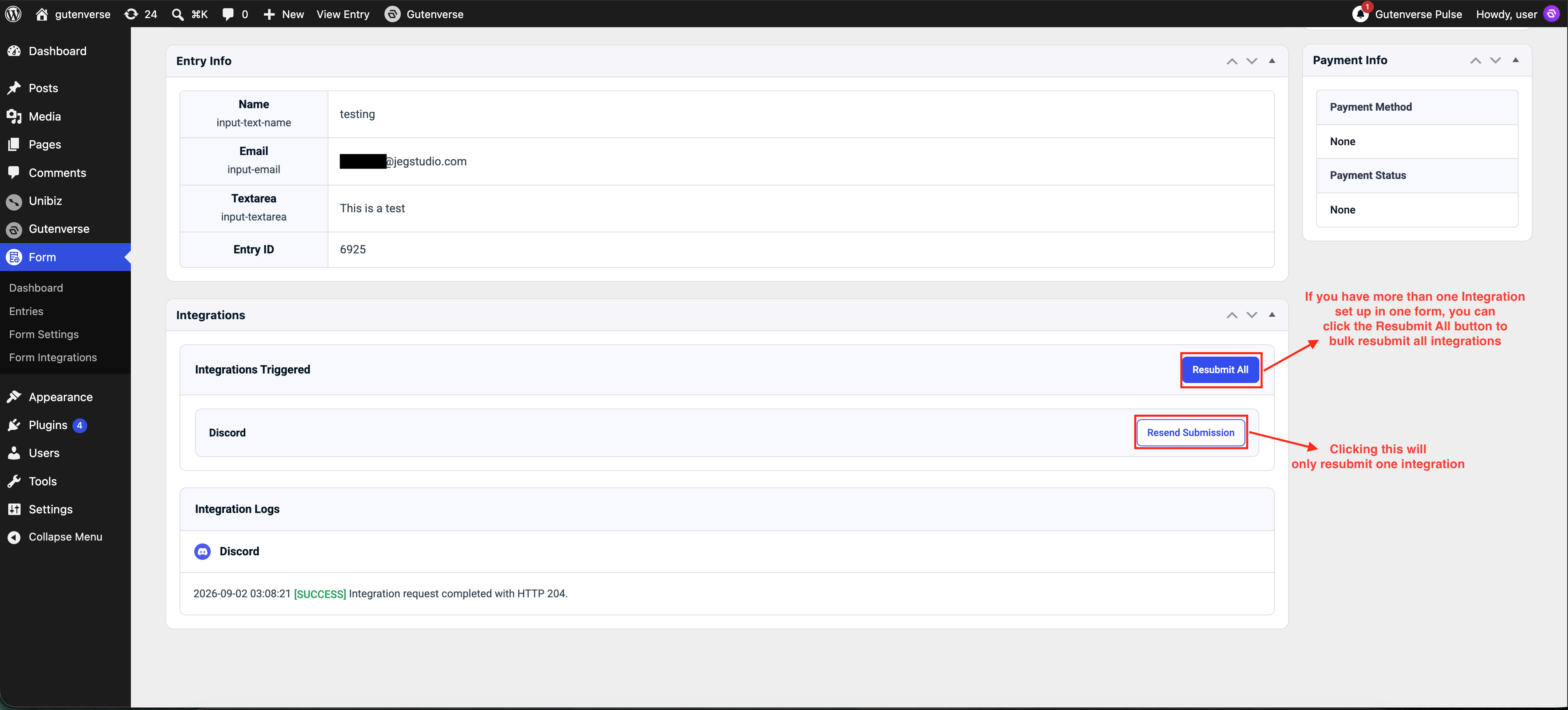
If an integration did not send correctly the first time, you can resend it from the entry details page.
Steps
1. Open the relevant entry details page.
2. Find the integration section.
3. Use the resend or retrigger action for the integration you want to run again.
This is useful when:
When to Resend
Resend the integration only after checking the likely cause of the failure.
For example:
Then resend the integration from the entry details page so the same submission can be processed again without asking the visitor to submit the form a second time.