

















Last Update: August 31, 2026
Use this guide to send Gutenverse Form submissions to Drip as subscribers/prospects.
What You Need
Official Drip references:
Get the Drip API Token
1. Log in to Drip.
2. Open Settings.
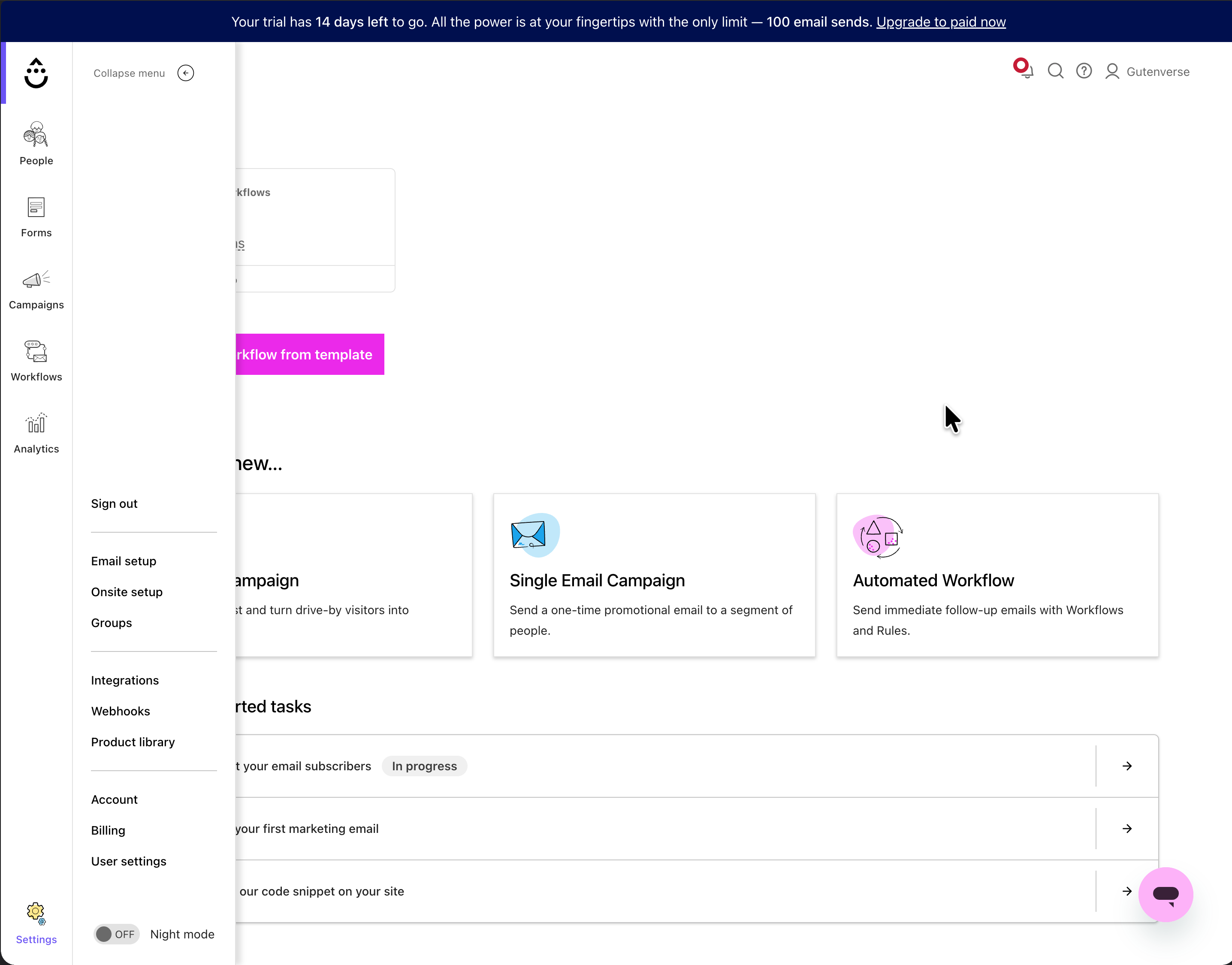
3. Open User Settings.
4. Copy the API Token.
Note: Keep your API Key private. Anyone with this key can access your Drip account through the API.
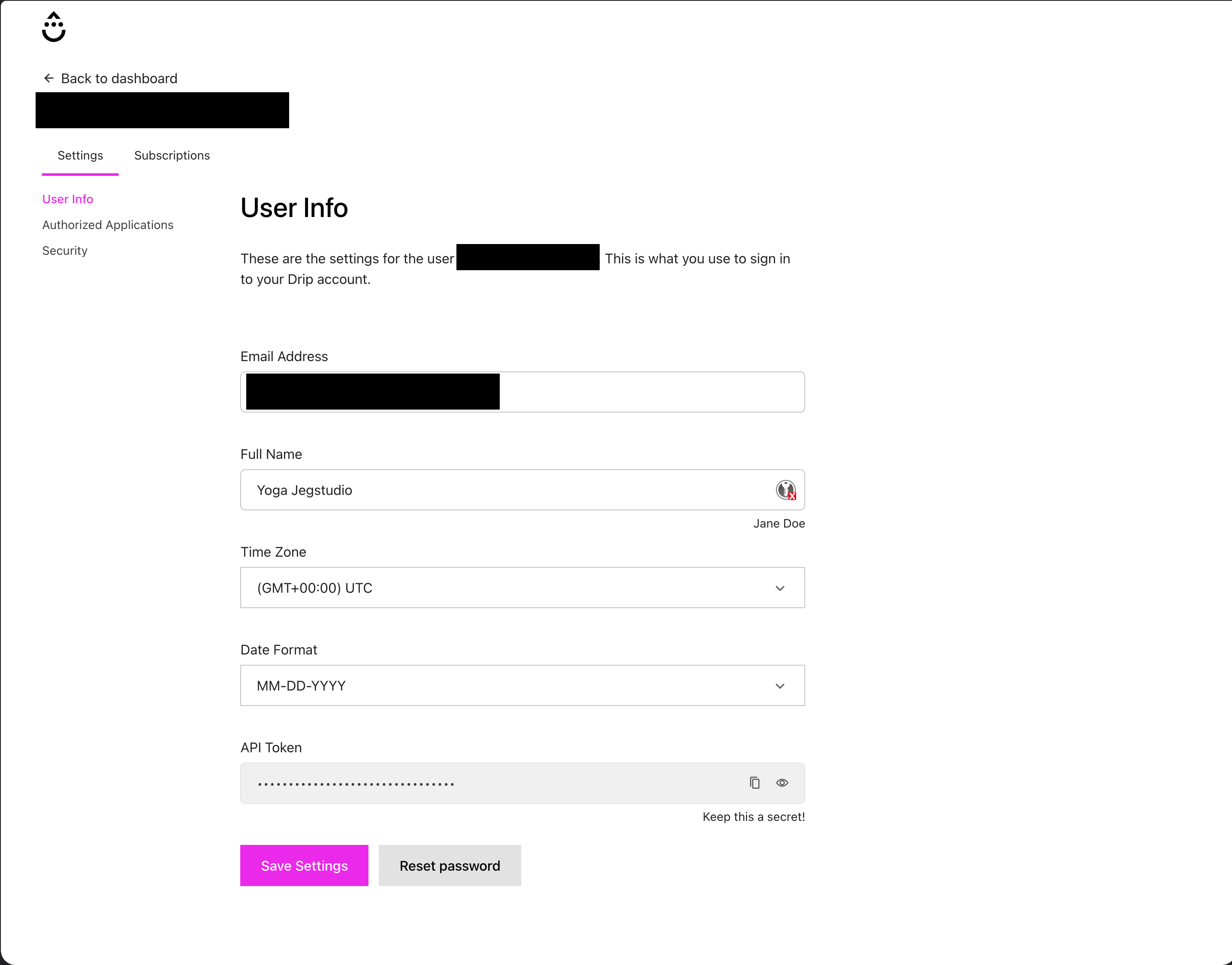
Get the Drip Account ID
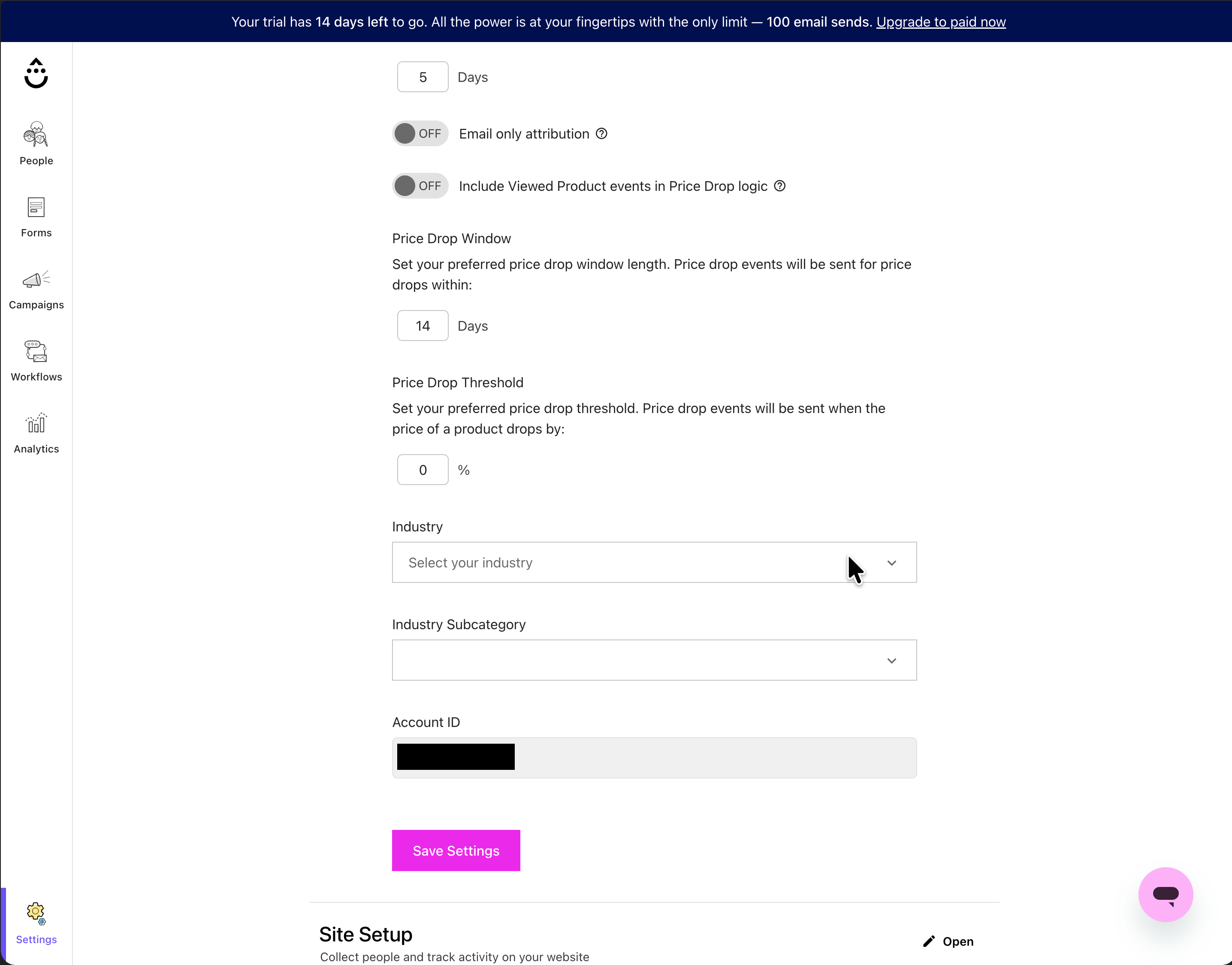
1. In Drip, open Settings.
2. Open Account Settings.
3. Find Account ID.
4. Copy the Account ID.
Enable Drip in Gutenverse Form
You can configure these settings either in the Form Action or globally in the integration settings.
The global settings serve as a fallback and are used only when the integration settings are not configured in the Form Action.
Note: If any Integration settings are configured in the Form Action, the form will use only the Form Action settings. It will not combine or merge them with the global settings.
Setup Globally
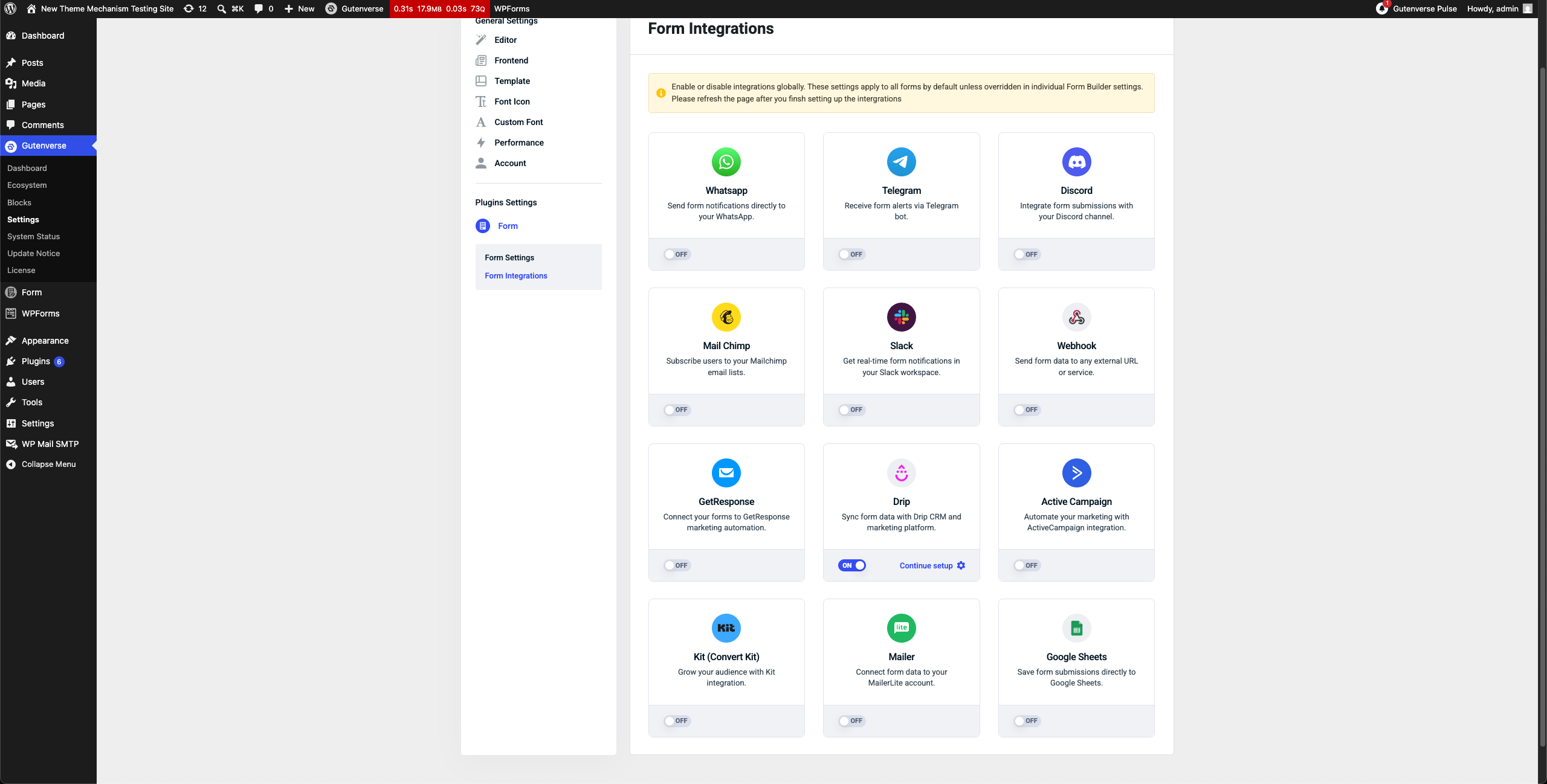
1. Navigate to Gutenverse → Form Integrations.
2. Enable the Drip integration.
3. Then Click “Continue Setup”
4. Configure the required settings:
| Field | What to enter |
| API Key | Paste the Drip API Token from User Settings. |
| Account ID | Paste the Drip Account ID from Account Settings. |
Use the email input placeholder from your form, for example {{email}}. | |
| First Name | Optional. Use a placeholder such as {{first_name}} or {{name}}. |
| Last Name | Optional. Use a placeholder such as {{last_name}}. |
| Tags | Optional JSON array of tags to add to the subscriber. Use tags to label people created from this form. The Tags field must be valid JSON array text. Example : [“contact-form”, “website-lead”] |
| Custom Fields | Optional JSON object for extra subscriber fields. Use custom fields to send extra form data to Drip. The Custom Fields field must be valid JSON object text. Example: { “source”: “{{form_title}}”, “phone”: “{{phone}}”, “message”: “{{message}}” } |
| Time Zone | Optional time zone value, for example America/New_York. |
| Double Opt-in | Optional. Enable/use this only if you want Drip to require confirmation. |
| Prospect | Optional. Use this if you want the person stored as a prospect based on your Drip workflow. |
| EU Consent | Optional. Use this if your Drip compliance setup requires EU consent. |
| EU Consent Message | Optional consent message stored with the person. |
Minimum recommended setup:
API Key: your Drip API Token
Account ID: your Drip Account ID
Email: {{email}}
First Name: {{name}}
Gutenverse Form supports placeholders in Drip fields. Placeholders are replaced with submitted values.
Common placeholders:
| Placeholder | Output |
| {{site_title}} | WordPress site title |
| {{form_title}} | Form title |
| {{form_id}} | Form ID |
| {{entry_id}} | Submission entry ID |
| {{all_fields}} | All submitted fields |
| {{field-id}} | Value from a specific Form Builder input |
For field placeholders, use the input ID from the Form Builder field.
Examples:
Setup in Form Action
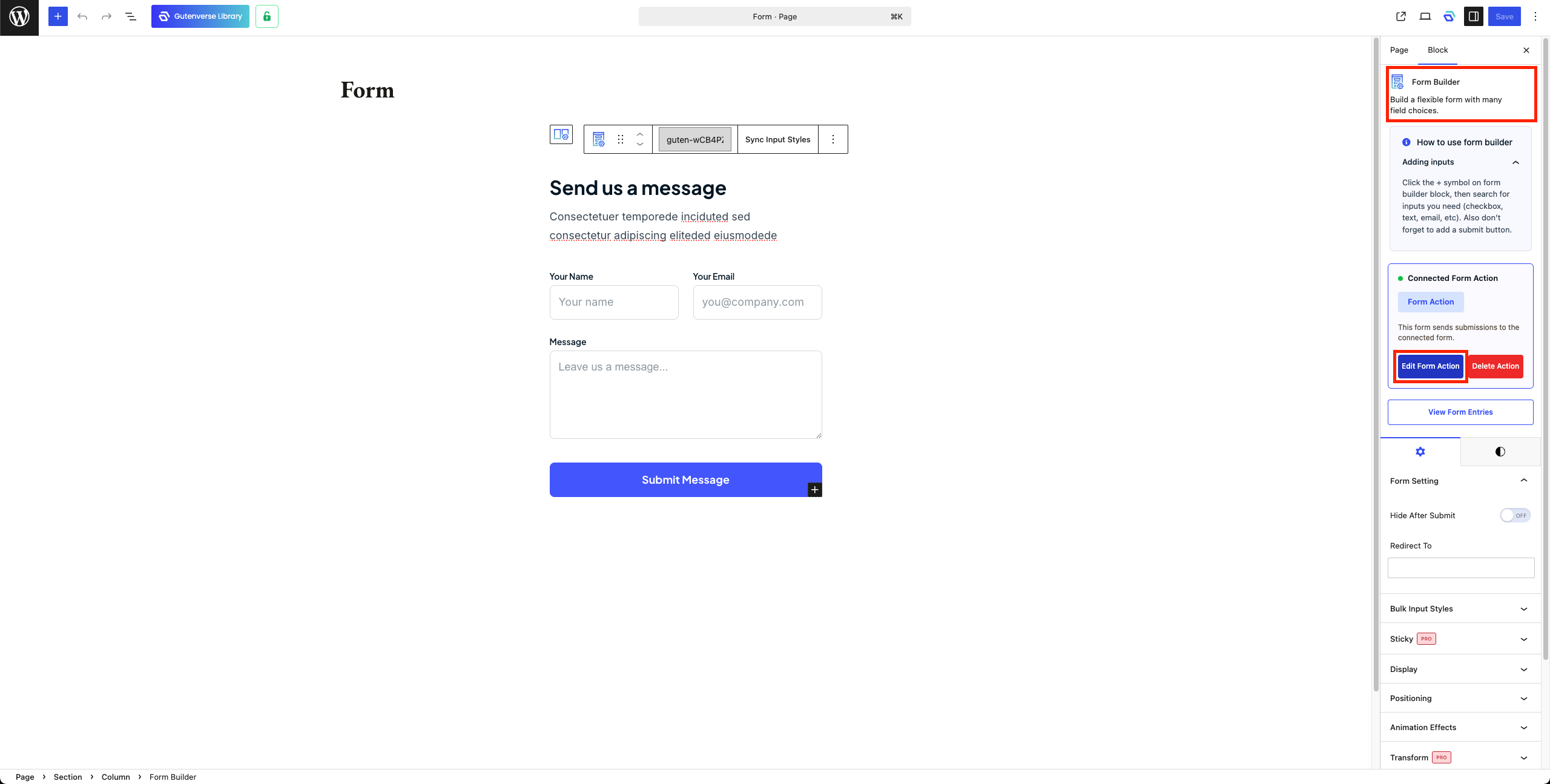
1. In Editor, Select Form Builder then open Form Action.
2. Open Integration Tab.
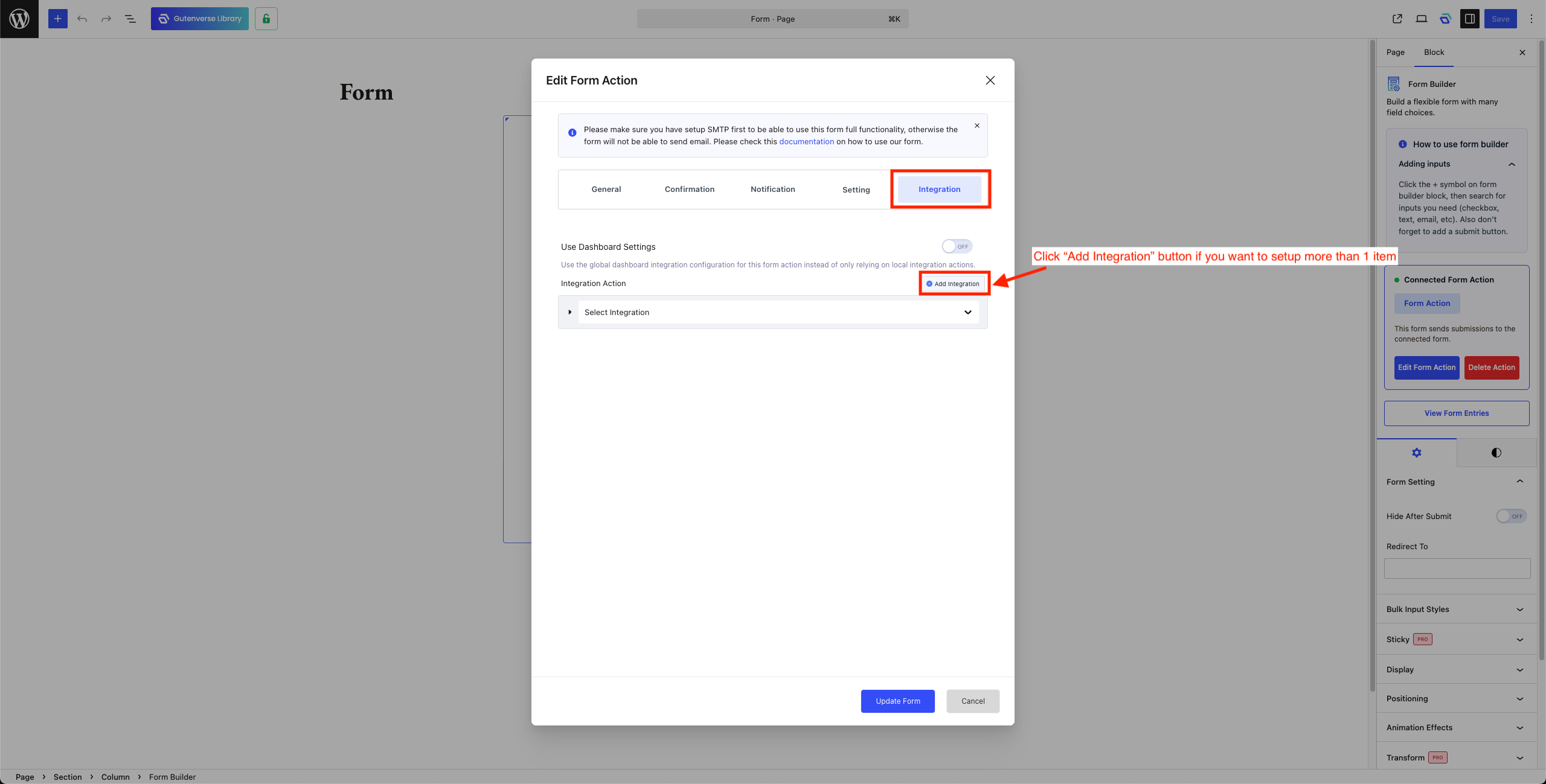
3. Select “Drip” to setup Drip integration.
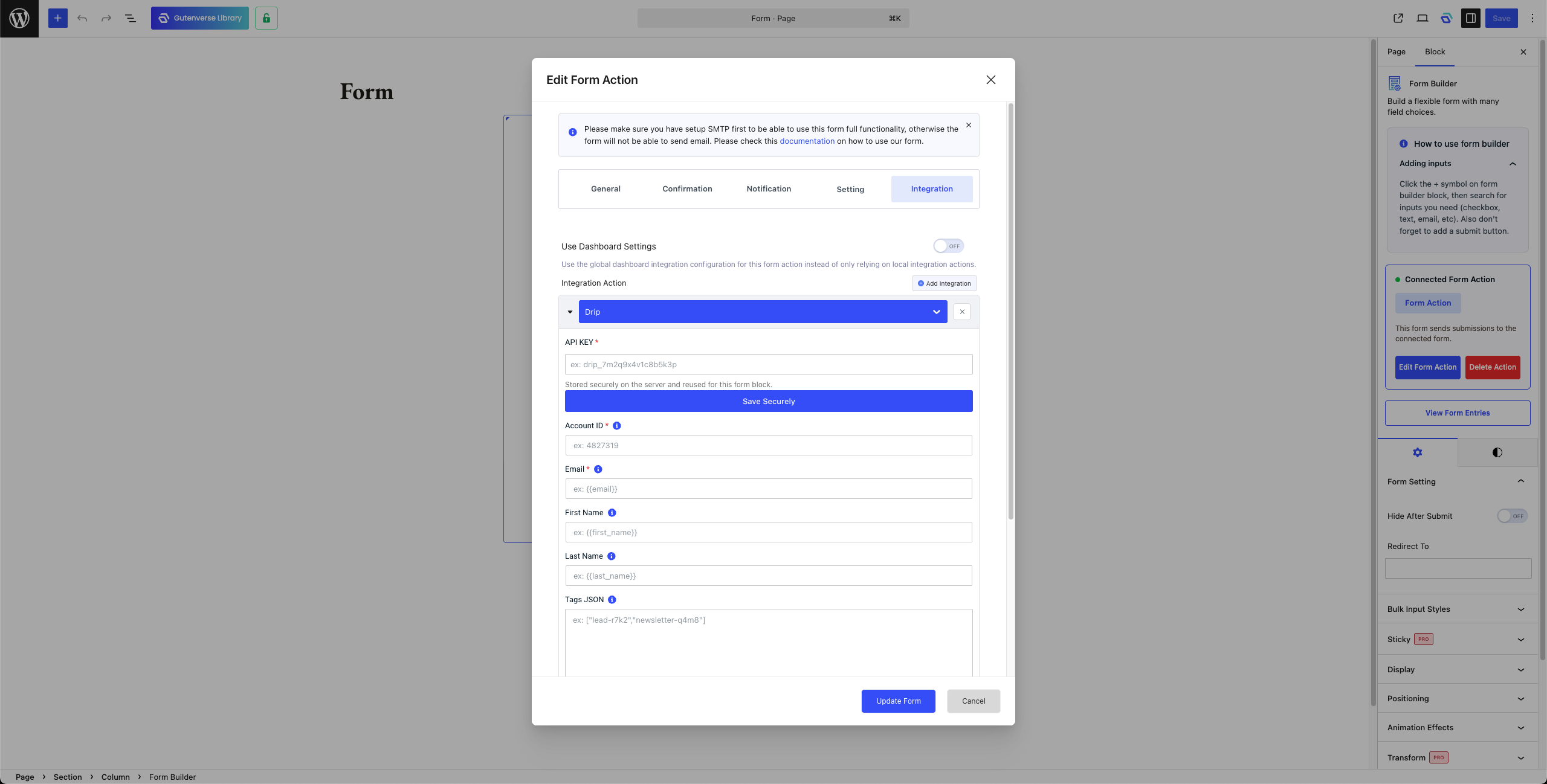
4. Configure the required settings.
Note: API Key need to be saved securely so after paste the API Key click on Save Securely
5. Click Update Form.