















Last Update: August 31, 2026
This guide explains how to connect Gutenverse Form submissions to a Slack channel by using a Slack Incoming Webhook. The webhook receives each form submission and posts it as a message in the Slack channel you choose.
Official Slack reference: SlackSending messages using incoming webhooks | Slack Developer Docs
What You Need
Slack Setup
1. Go to Slack API: Applications | Slack.
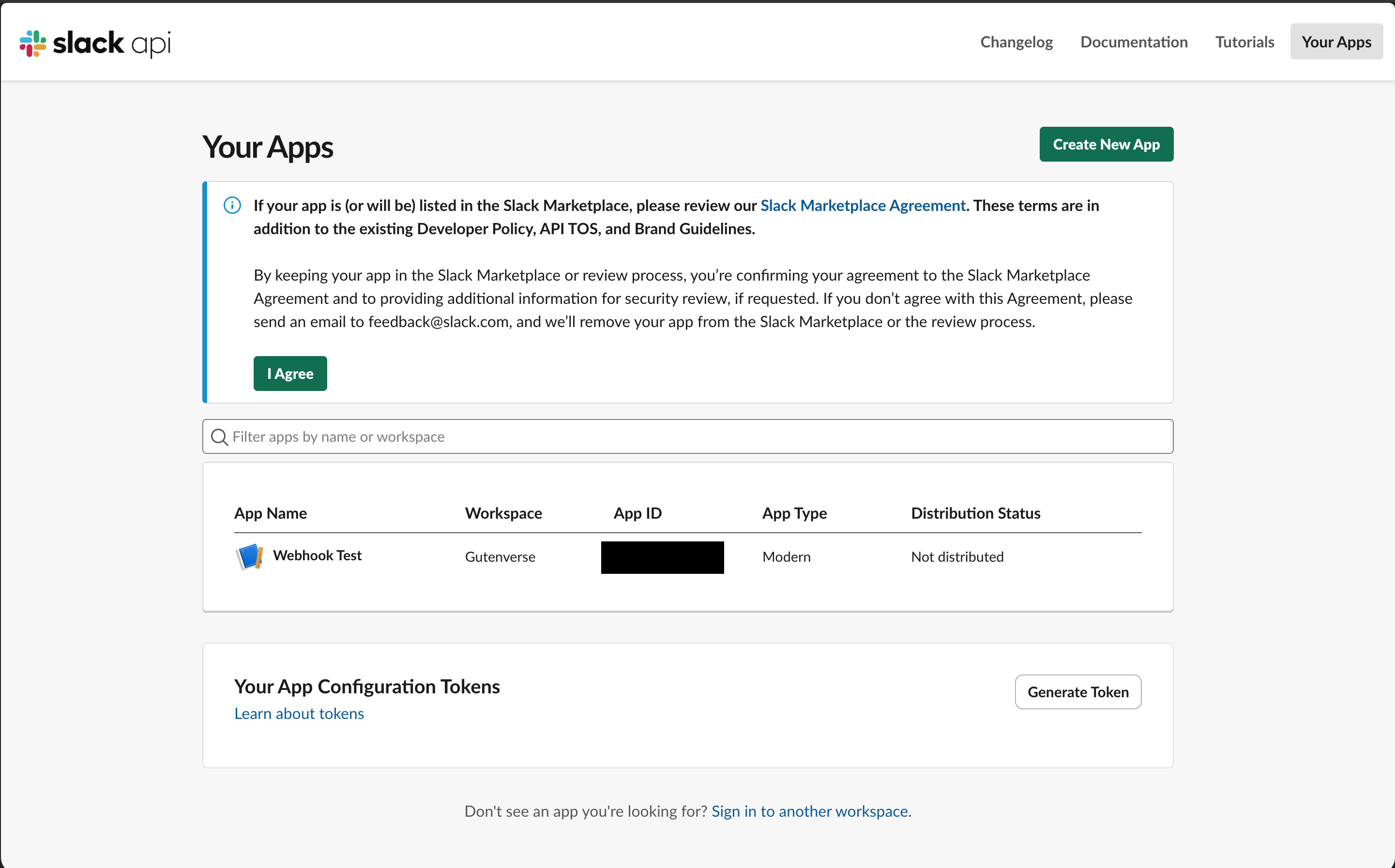
2. If you already have a workspace, you can use that workspace. But if not, you can create a new one by clicking “Create New App”.
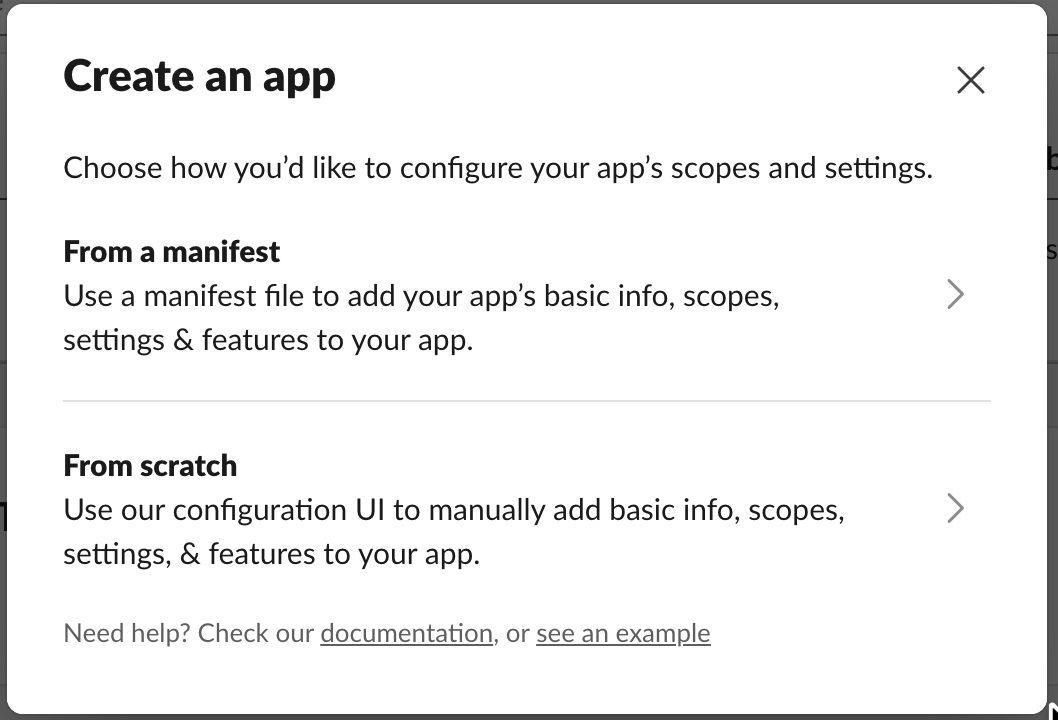
3. Choose From scratch.
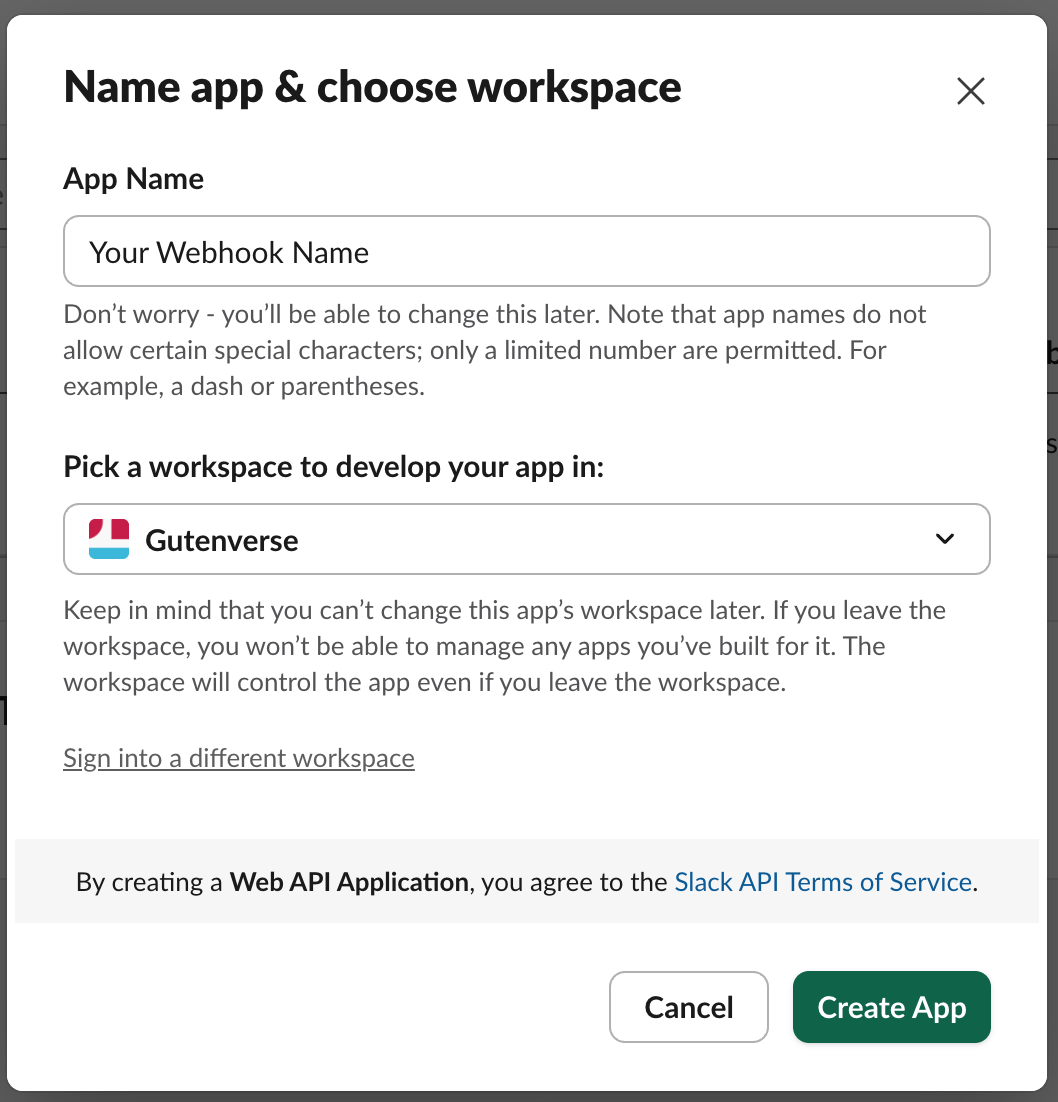
4. Enter an app name, for example: Gutenverse Form Notifications.
5. Select the workspace where the app should post form submission alerts.
6. Click Create App.
7. After the app is created, Slack opens the app settings page.
8. If Slack returns you to the apps dashboard instead, click the app you just created to open it.
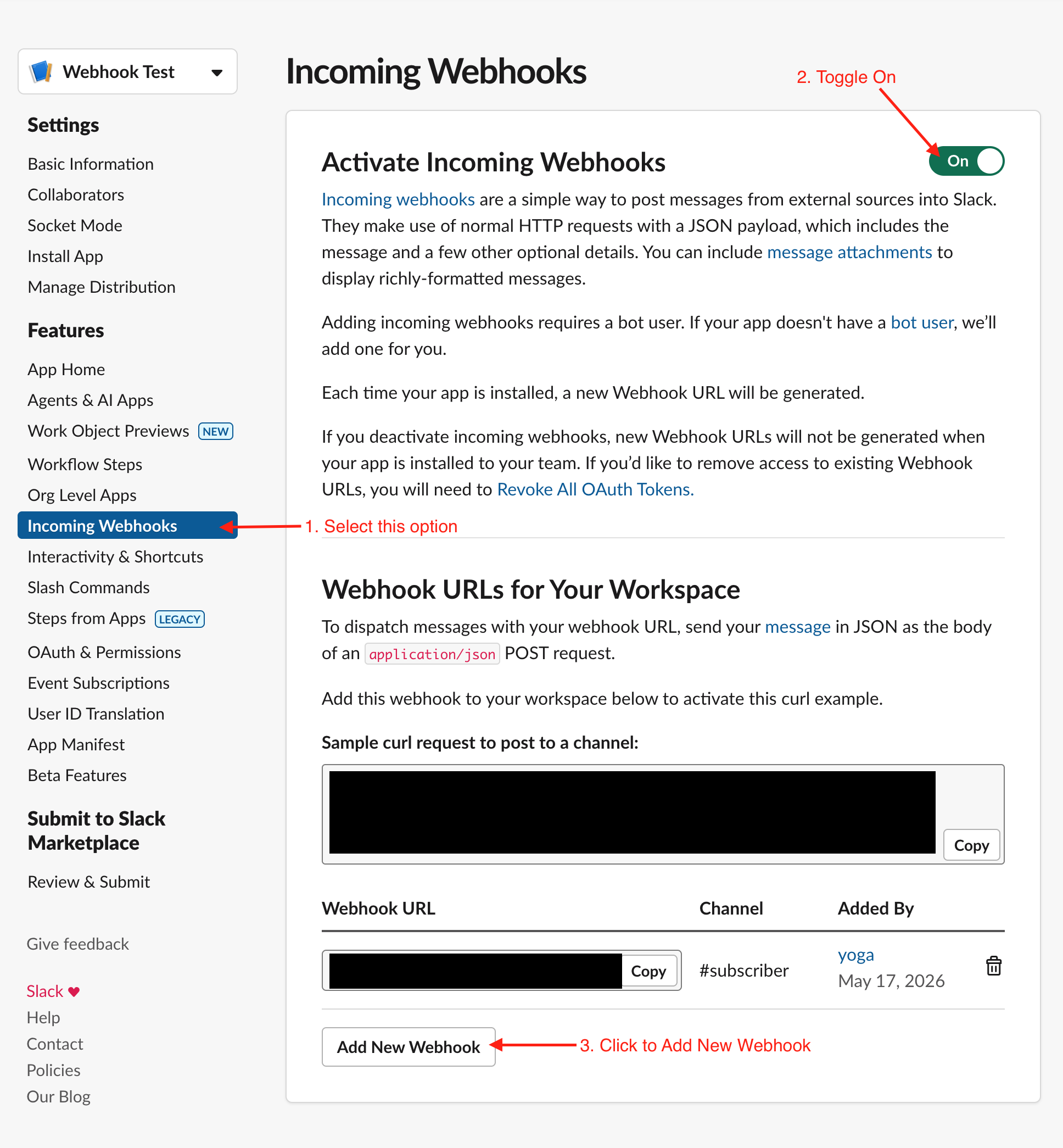
9. In the left sidebar, find the Features section.
10. Select the workspace where the app should post form submission alerts.
11. Click Incoming Webhooks.
12. On the Incoming Webhooks page, find Activate Incoming Webhooks.
13. Turn the toggle on.
14. Scroll to the Webhook URLs for Your Workspace section.
15. Click Add New Webhook to Workspace.
16. Select the channel where Gutenverse Form should send submission notifications.
17. Click Continue, Allow, or Authorize. The exact button text can vary depending on Slack’s current interface.
18. In Webhook URLs for Your Workspace, find the newly created webhook row. Copy the webhook URL.
Important: the webhook URL is a secret. Do not share it publicly, commit it to Git, paste it into support tickets, or include it in screenshots.
Enable Active Campaign in Gutenverse Form
You can configure these settings either in the Form Action or globally in the integration settings.
The global settings serve as a fallback and are used only when the integration settings are not configured in the Form Action.
Note: If any Integration settings are configured in the Form Action, the form will use only the Form Action settings. It will not combine or merge them with the global settings.
Setup Globally
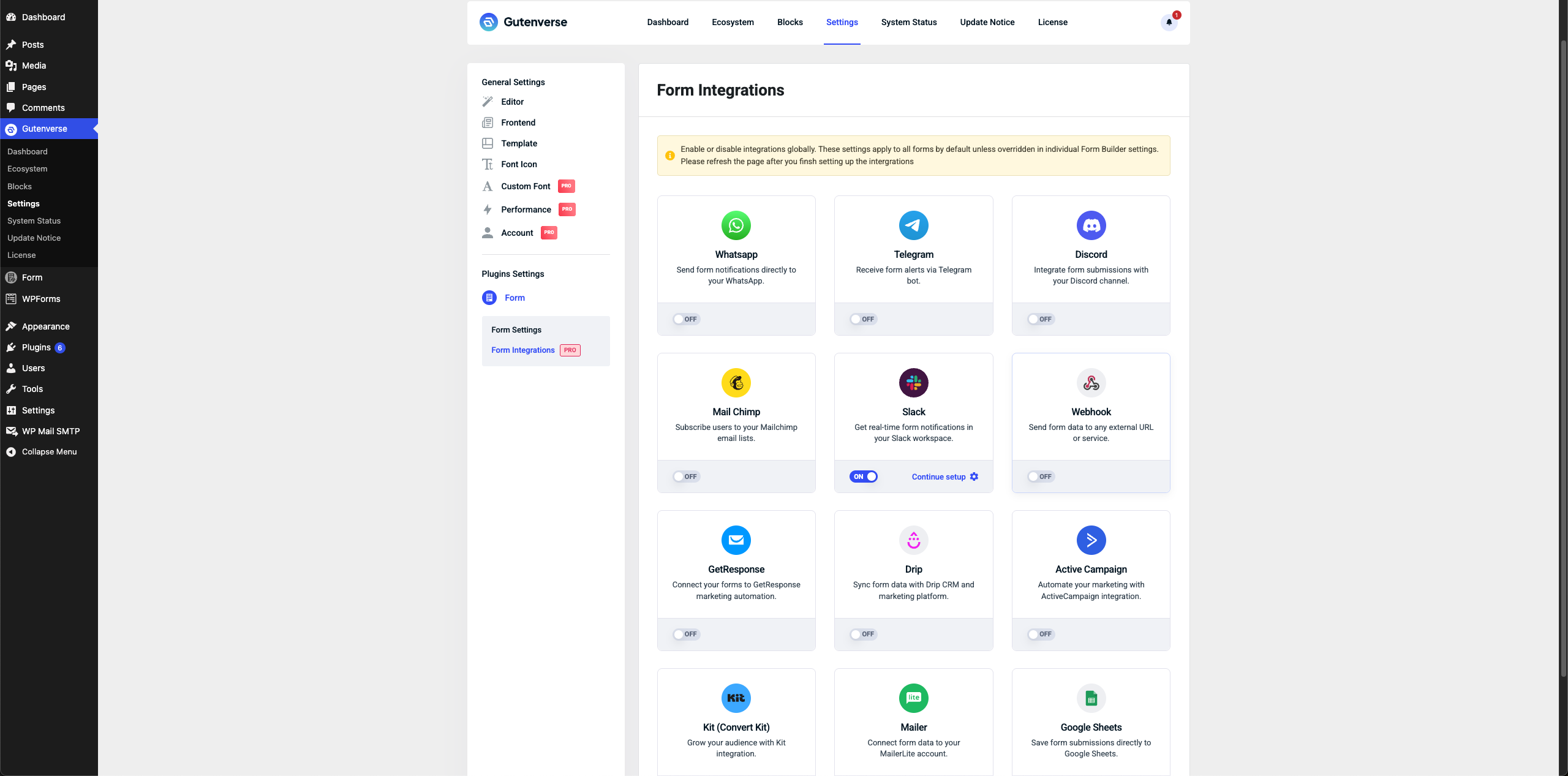
1. Navigate to Gutenverse → Form Integrations.
2. Enable the Slack integration.
3. Then Click “Continue Setup”
4. Configure the required settings:
Minimum recommended setup:
*New form submission*
*Form:* {{form_title}}
*Entry ID:* #{{entry_id}}
*Site:* {{site_title}}

*Submitted data*
{{all_fields}}
Gutenverse Form supports placeholders in Drip fields. Placeholders are replaced with submitted values.
Common placeholders:
| Placeholder | Output |
| {{site_title}} | WordPress site title |
| {{form_title}} | Form title |
| {{form_id}} | Form ID |
| {{entry_id}} | Submission entry ID |
| {{all_fields}} | All submitted fields |
| {{field-id}} | Value from a specific Form Builder input |
For field placeholders, use the input ID from the Form Builder field.
Examples:
5. After filling the settings, click Save.
Setup in Form Action
1. In Editor, Select Form Builder then open Form Action.
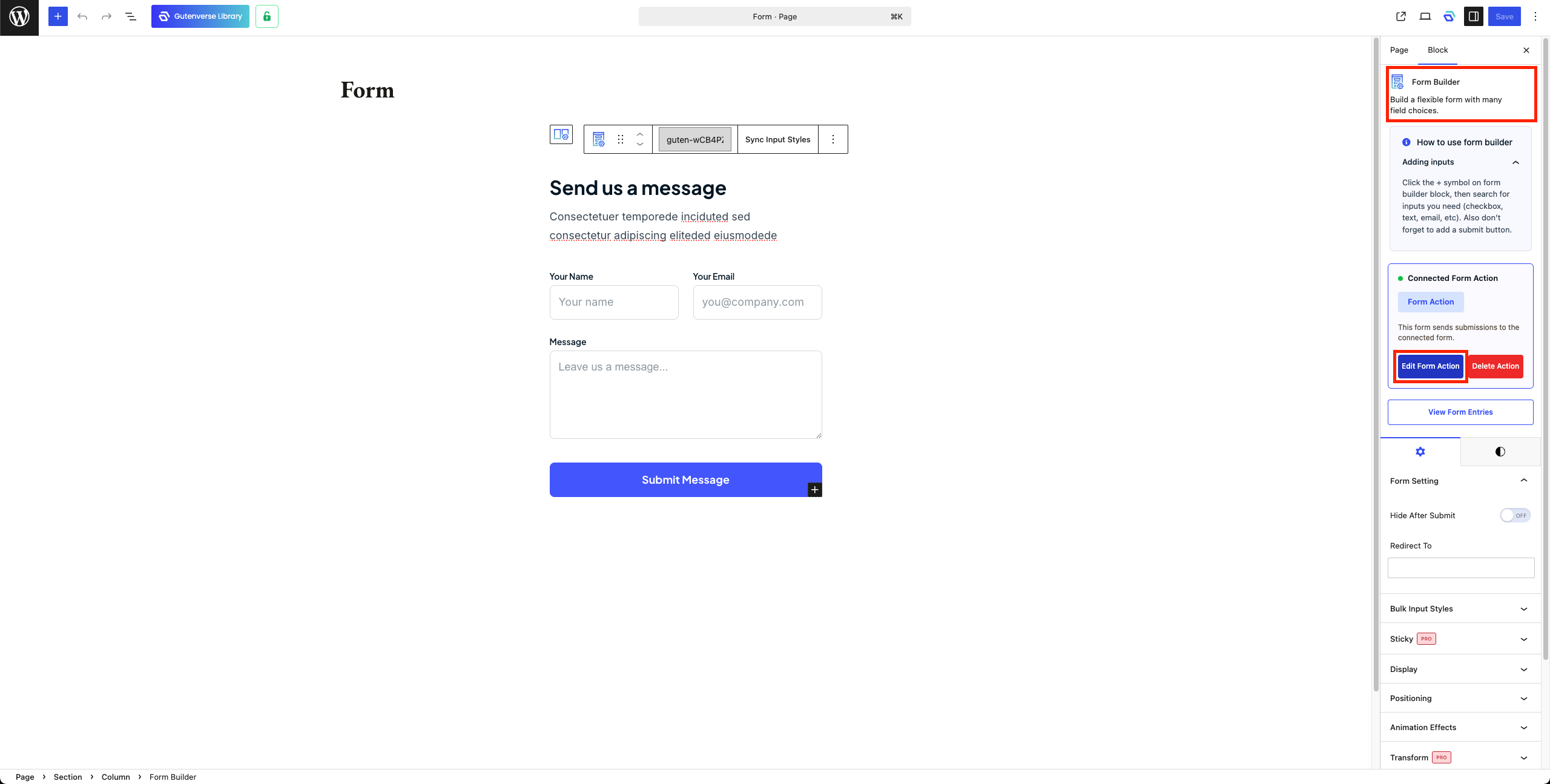
2. Open Integration Tab.
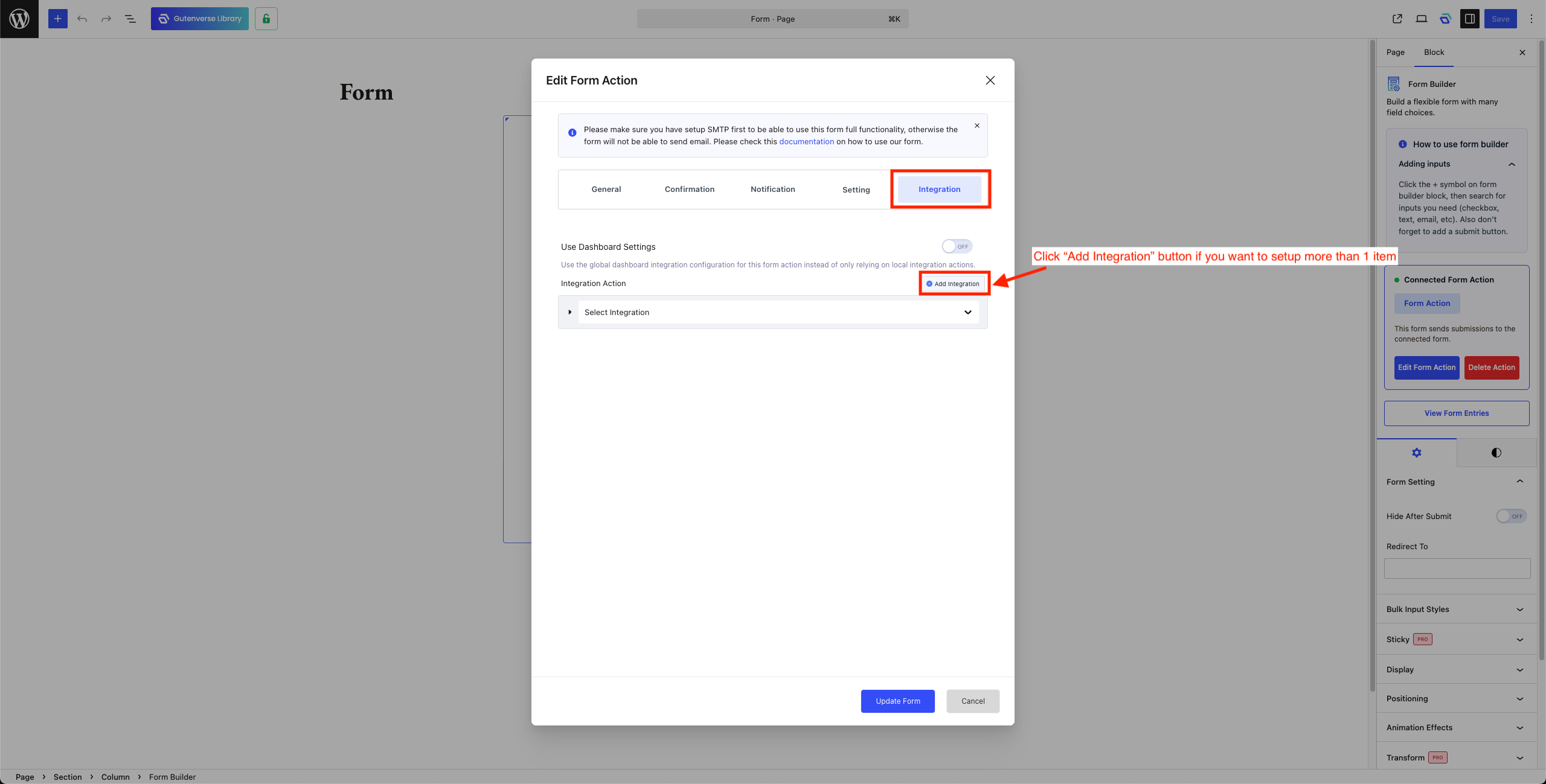
3. Select “Slack” to setup Slack integration.
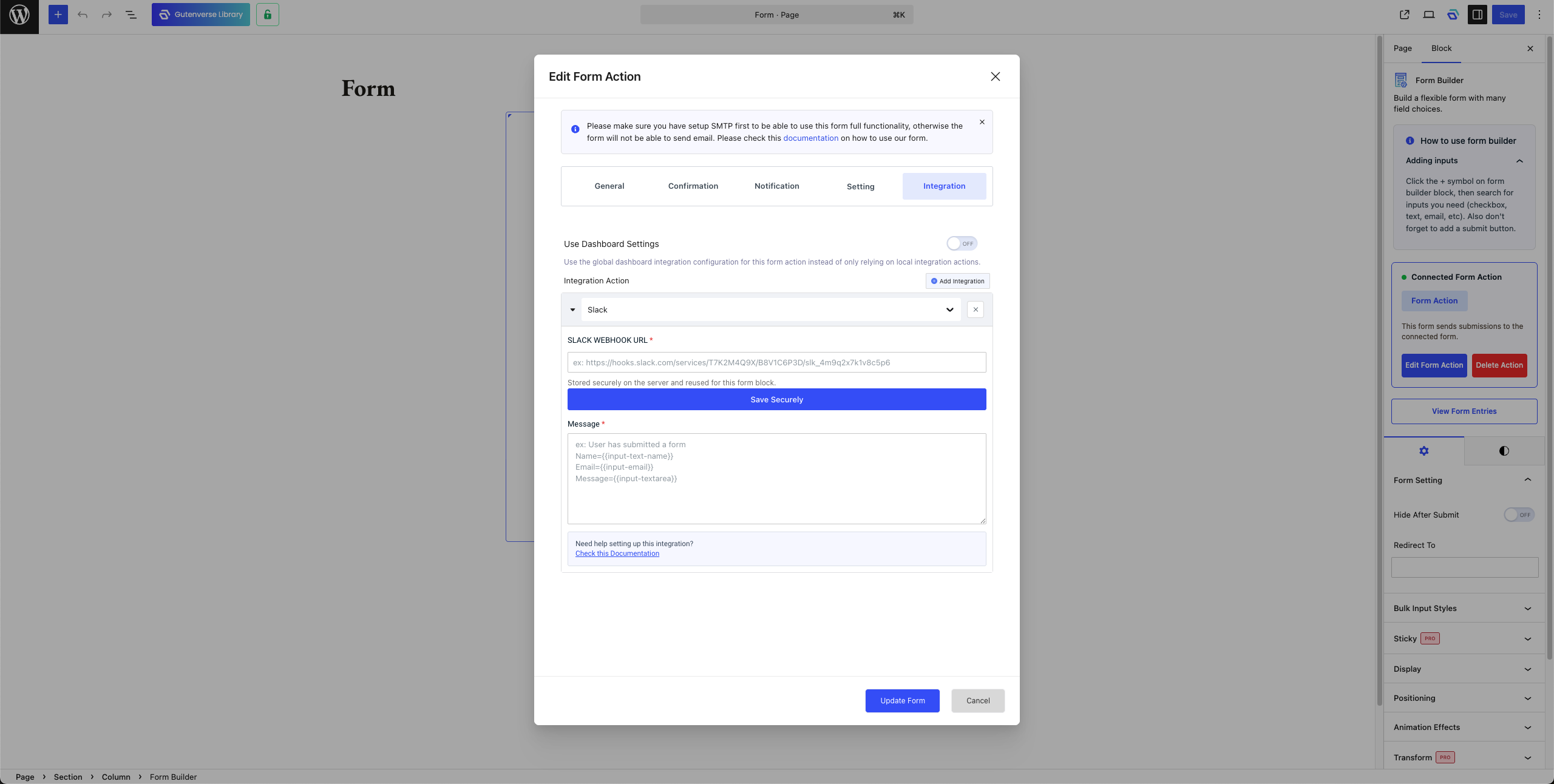
4. Configure the required settings.
Note: API Key need to be saved securely so after paste the API Key click on Save Securely
5. Click Update Form.