

















Last Update: August 31, 2026
Use this guide to send Gutenverse Form submissions to a Telegram chat, group, or channel.
What You Need
1. Create a Telegram Bot
1. Open Telegram.
2. Search for @BotFather.
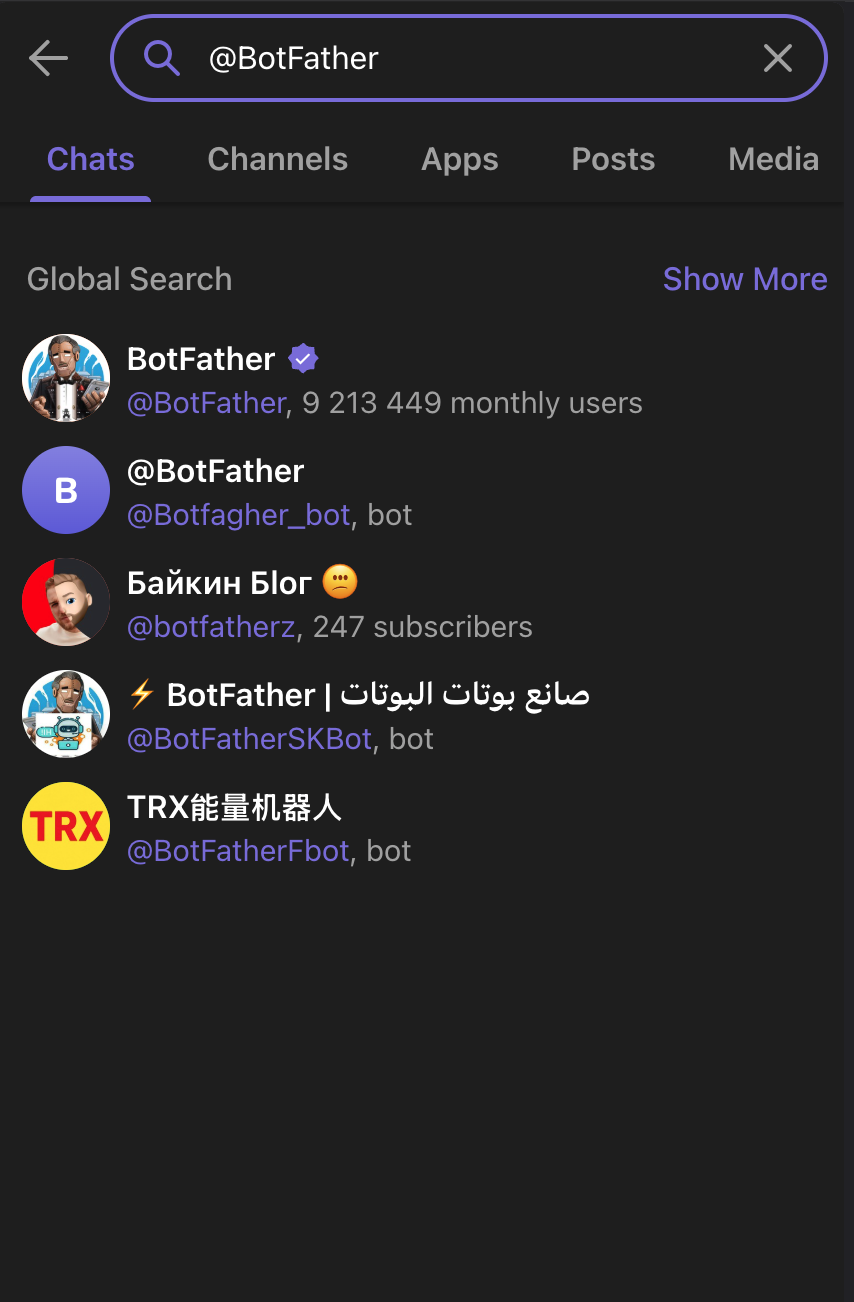
3. Open the official BotFather chat.
4. Send /newbot.
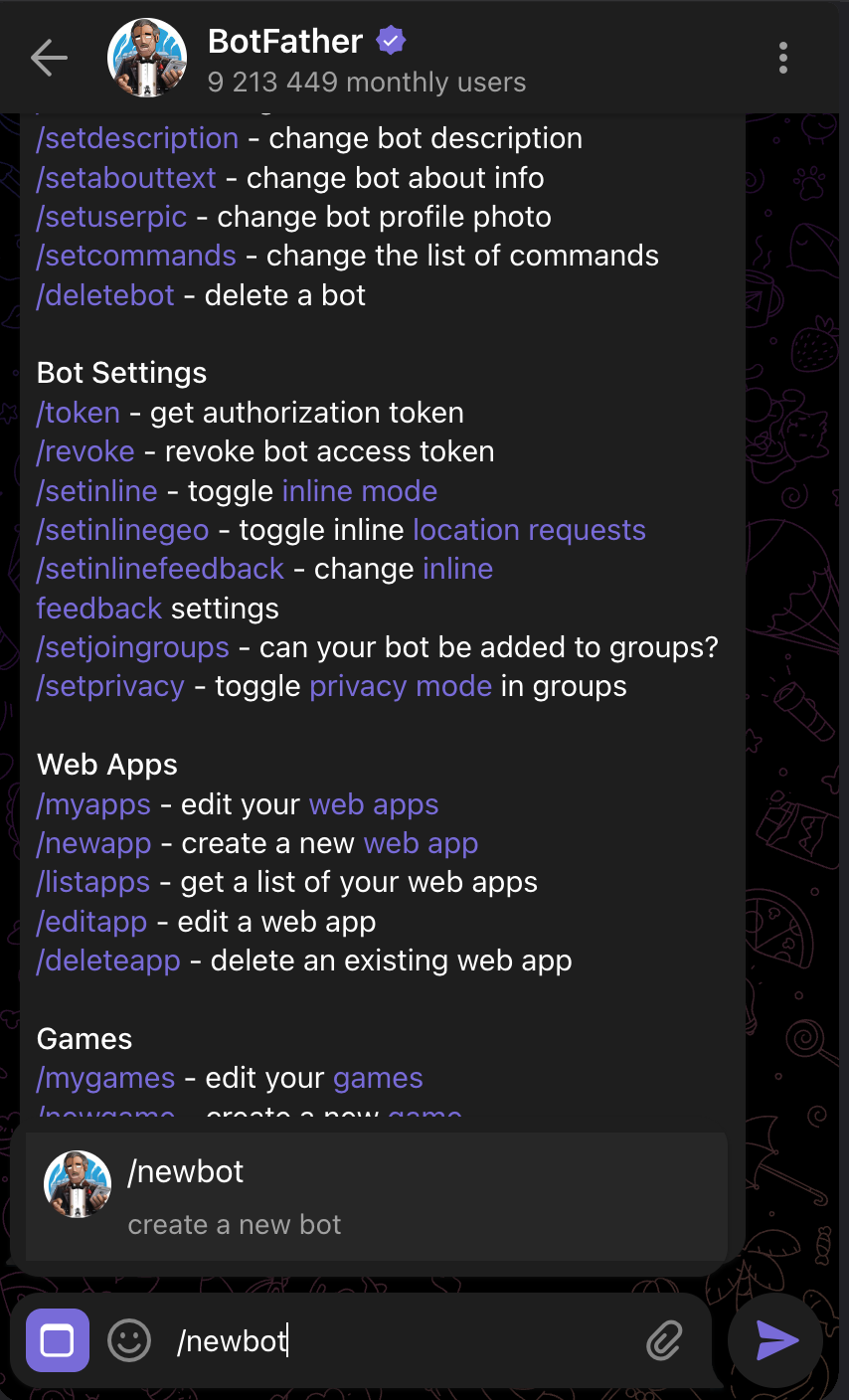
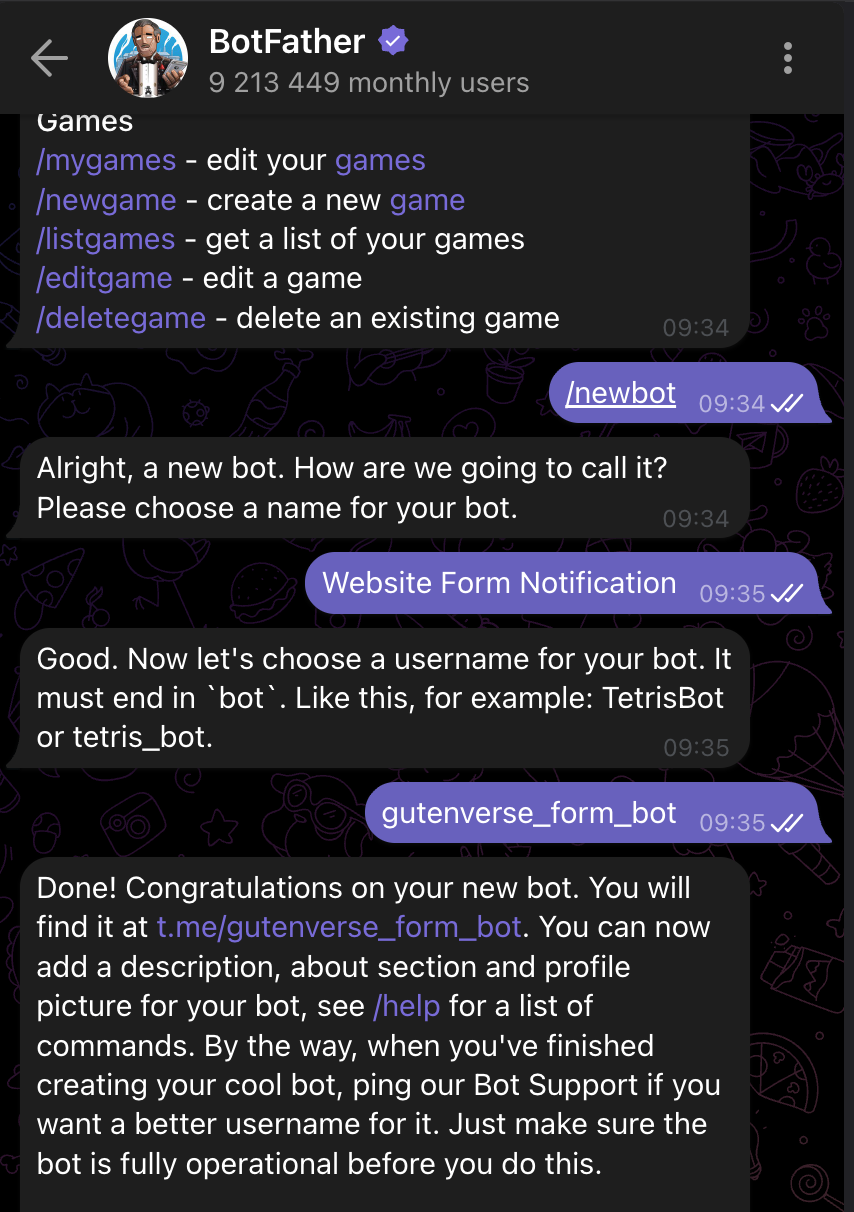
5. Enter a display name for the bot. Example: Website Form Notification
6. Enter a bot username. The username must end with bot. Example: mywebsite_form_bot
7. BotFather will create the bot and show an API token.
8. Copy the API token.
9. This is the value you will paste into the Bot Token field in Gutenverse Form.
Add the Bot to Telegram
Send to Your Private Chat
Send to a Group
Send to a Channel
For a public channel, you can usually use the channel username as the Chat ID.
Example: @yourchannelusername
For a private channel, use the numeric Chat ID from the next step.
Get the Chat ID
The Chat ID tells Gutenverse Form where to send the Telegram message.
Example private chat ID: 123456789
Example group or private channel ID: -1001234567890
Copy the number exactly. If the ID starts with -, include the -.
If the page does not show a chat ID:
Enable Telegram in Gutenverse Form
You can configure these settings either in the Form Action or globally in the integration settings.
The global settings serve as a fallback and are used only when the integration settings are not configured in the Form Action.
Note: If any Integration settings are configured in the Form Action, the form will use only the Form Action settings. It will not combine or merge them with the global settings.
Setup Globally
1. Navigate to Gutenverse → Form Integrations.
2. Enable the Telegram integration.
3. Then Click “Continue Setup”
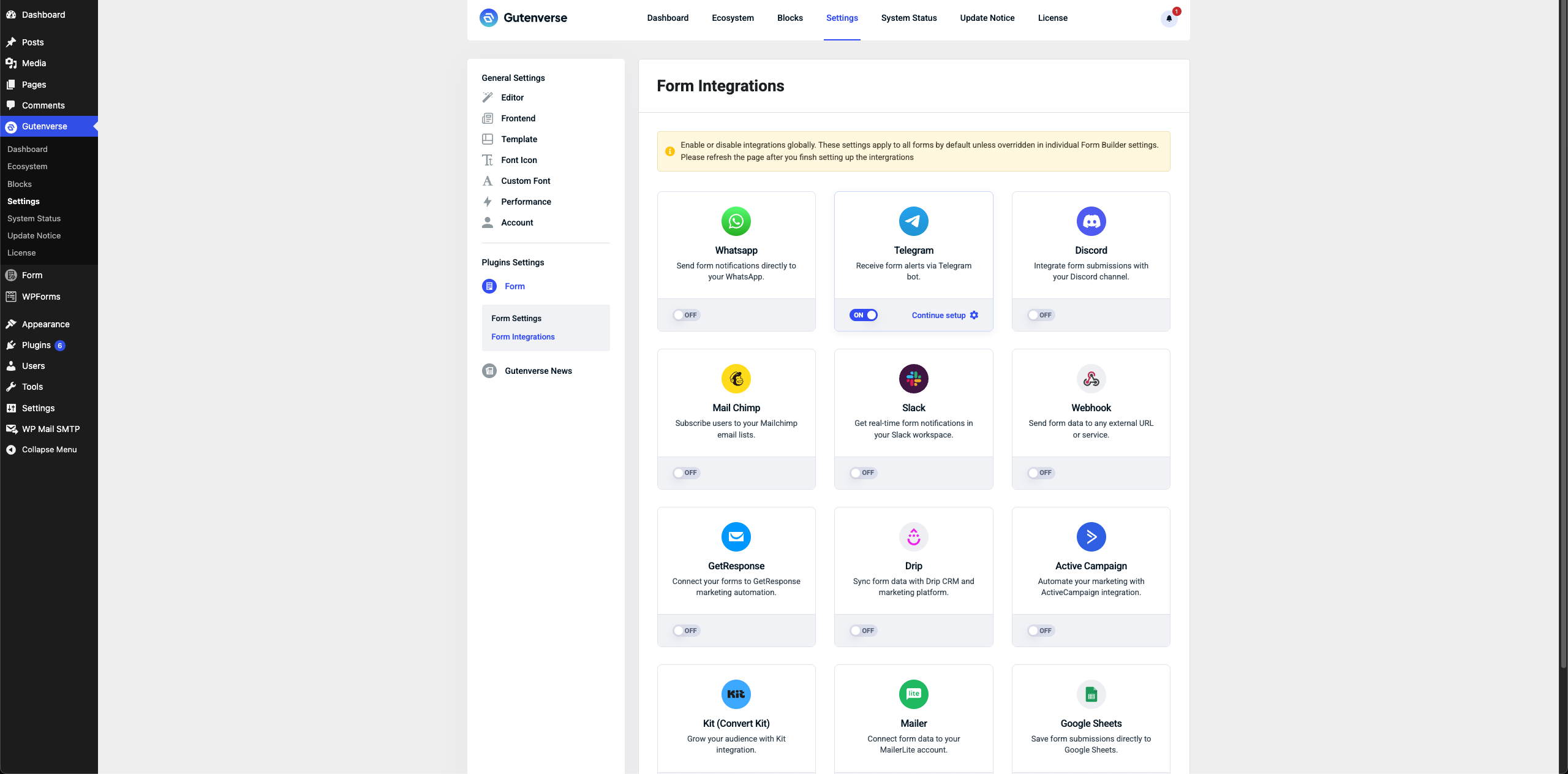
4. Configure the required settings:
Use placeholders to include submitted form values in the Telegram message.
Example message:

Common Placeholders:
| Placeholder | Output |
| {{form_title}} | Form title |
| {{form_id}} | Form ID |
| {{entry_id}} | Entry ID |
| {{site_title}} | Website title |
| {{all_fields}} | All submitted fields |
| {{name}} | Value from a form field with the ID name |
| {{email}} | Value from a form field with the ID email |
| {{phone}} | Value from a form field with the ID phone |
| {{message}} | Value from a form field with the ID message |
Note:
– The placeholder must match the form field ID. If your email field ID is your_email, use {{your_email}}.
– Telegram messages have a message length limit. If the notification does not send, try shortening the Message field or remove {{all_fields}}.
5. After filling the settings, click Save.
Setup in Form Action
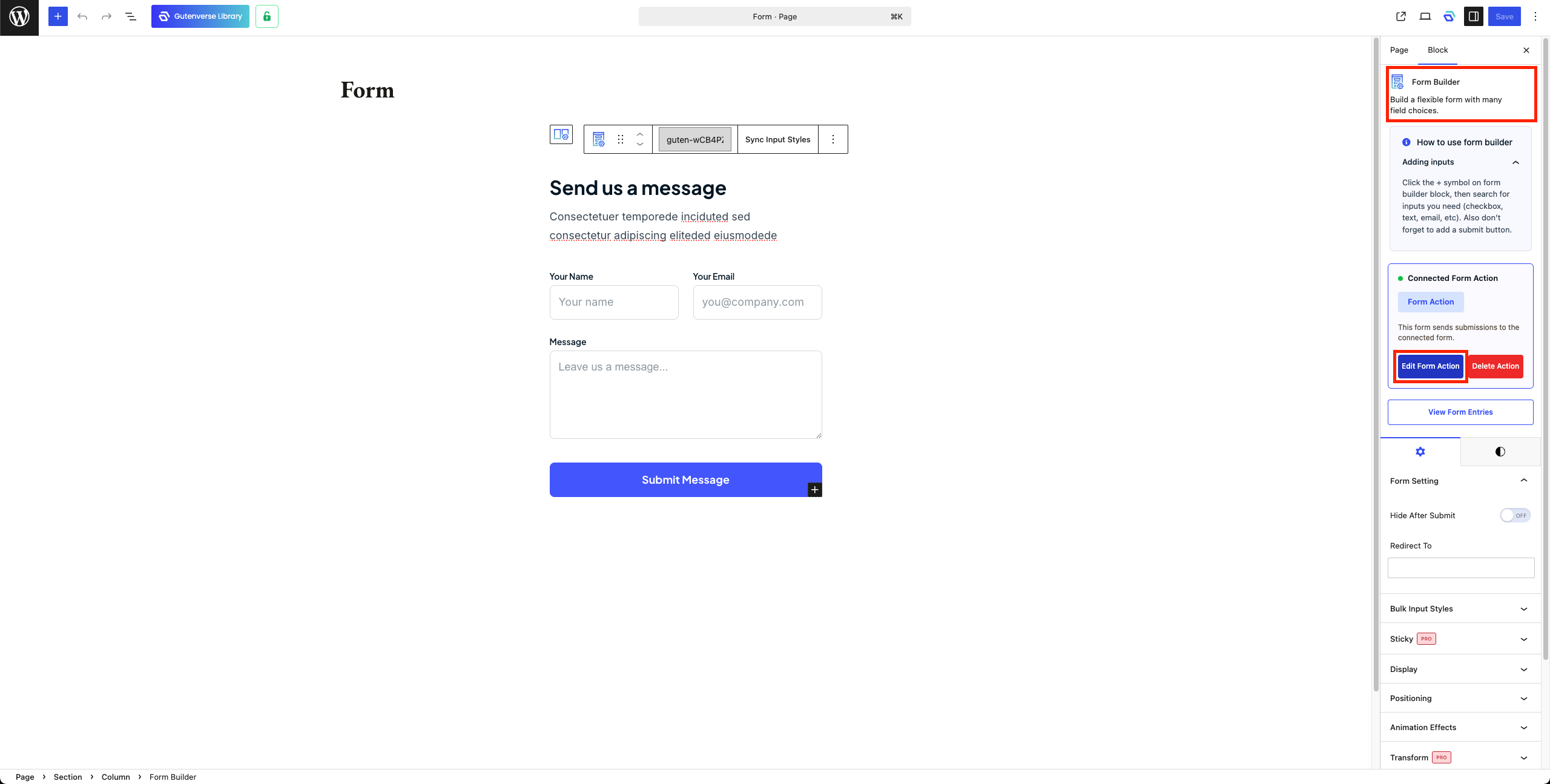
1. In Editor, Select Form Builder then open Form Action.
2. Open Integration Tab.
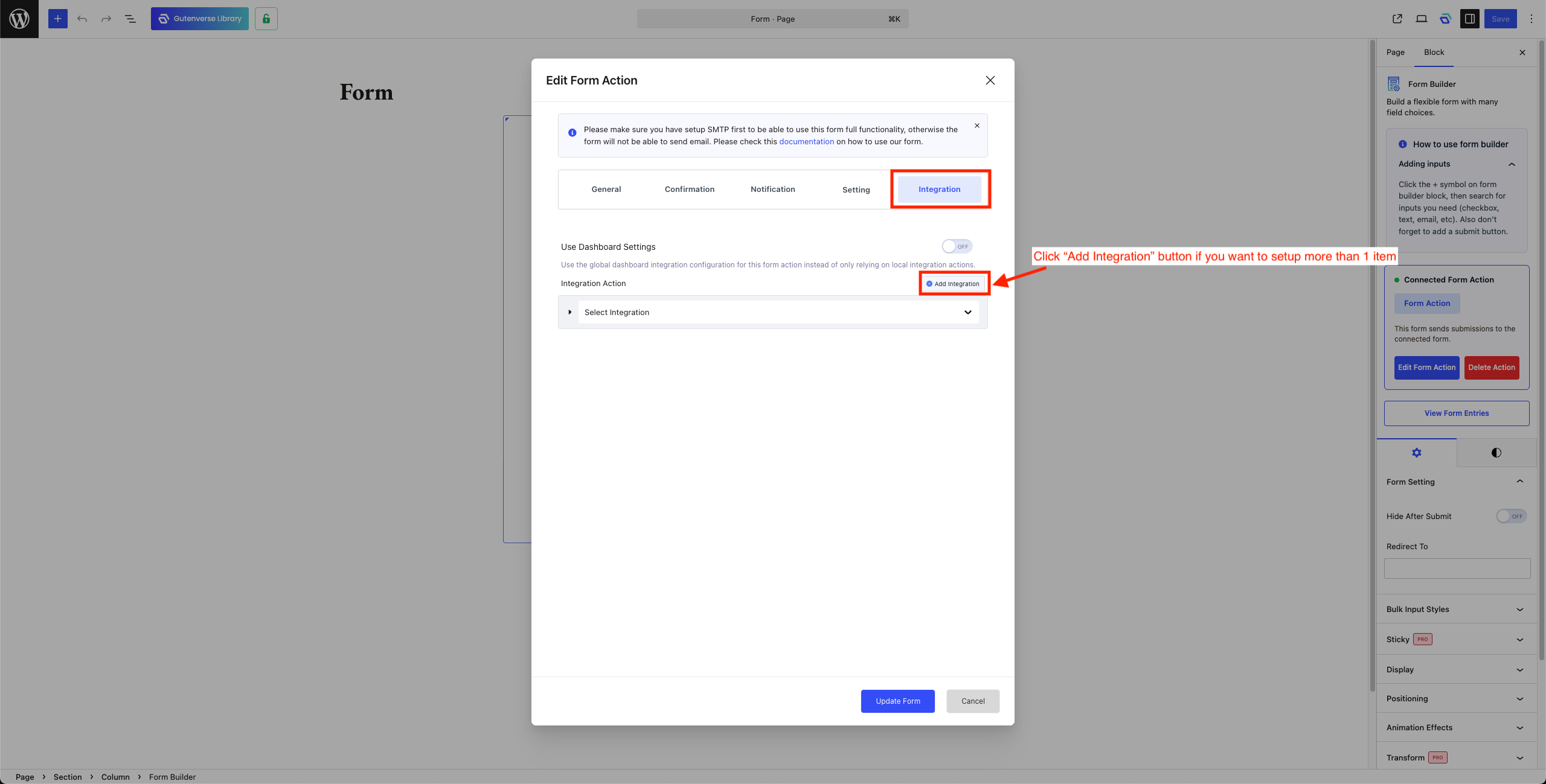
3. Select “Telegram” to setup Telegram integration.
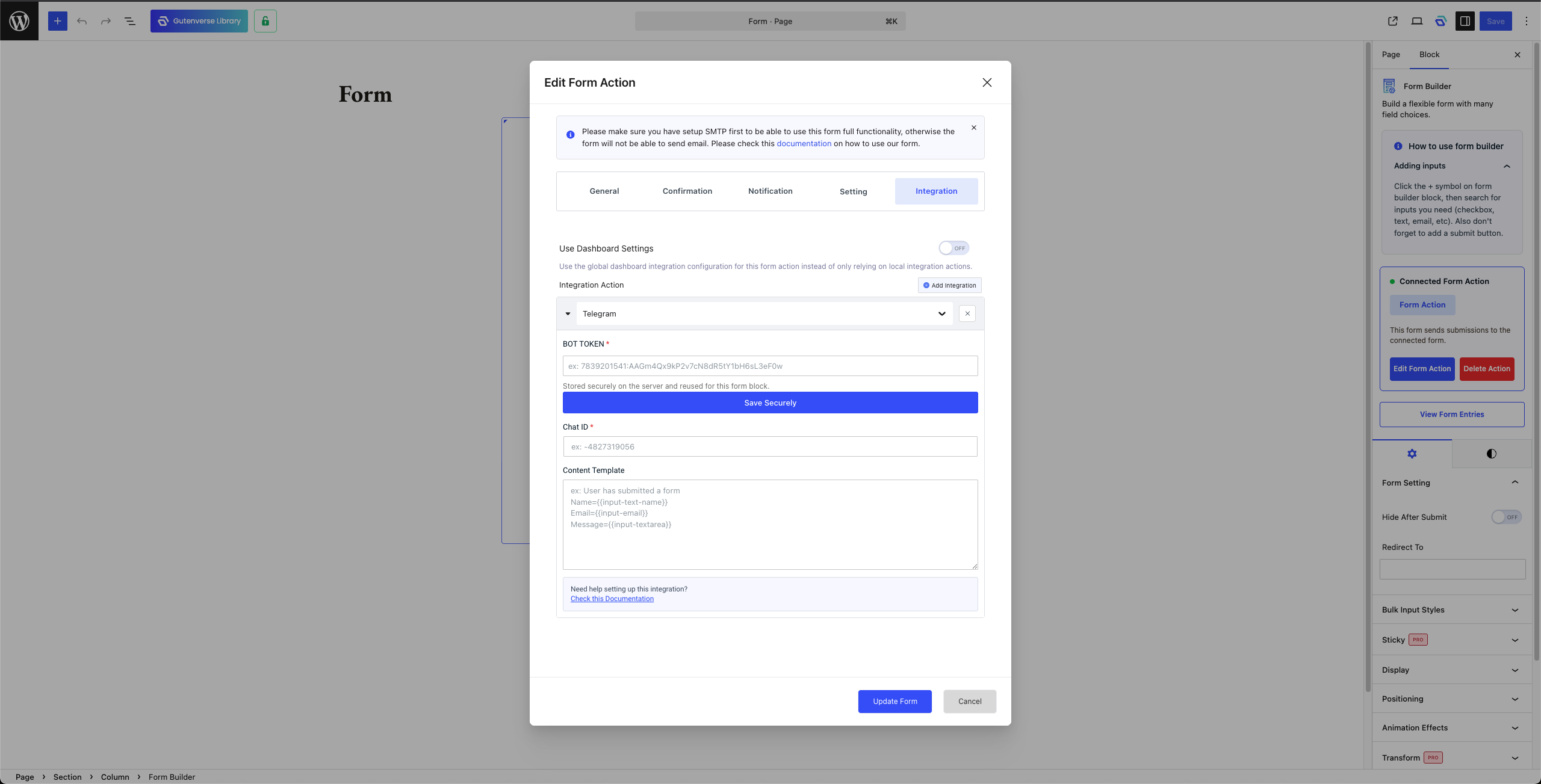
4. Configure the required settings.
Note: API Key need to be saved securely so after paste the API Key click on Save Securely
5. Click Update Form.