













Last Update: August 31, 2026
This guide explains how to connect Gutenverse Form submissions to a Discord channel by using a Discord webhook. The webhook receives each form submission and posts it as a message in the Discord channel you choose.
What You Need
Setup on Discord
1. Log In to Discord → Select the server where Gutenverse Form should post notifications
2. Open the Channel Settings
3. Then Click “Continue Setup”
Enable Discord in Gutenverse Form
You can configure these settings either in the Form Action or globally in the integration settings.
The global settings serve as a fallback and are used only when the integration settings are not configured in the Form Action.
Note: If any Integration settings are configured in the Form Action, the form will use only the Form Action settings. It will not combine or merge them with the global settings.
Setup Globally
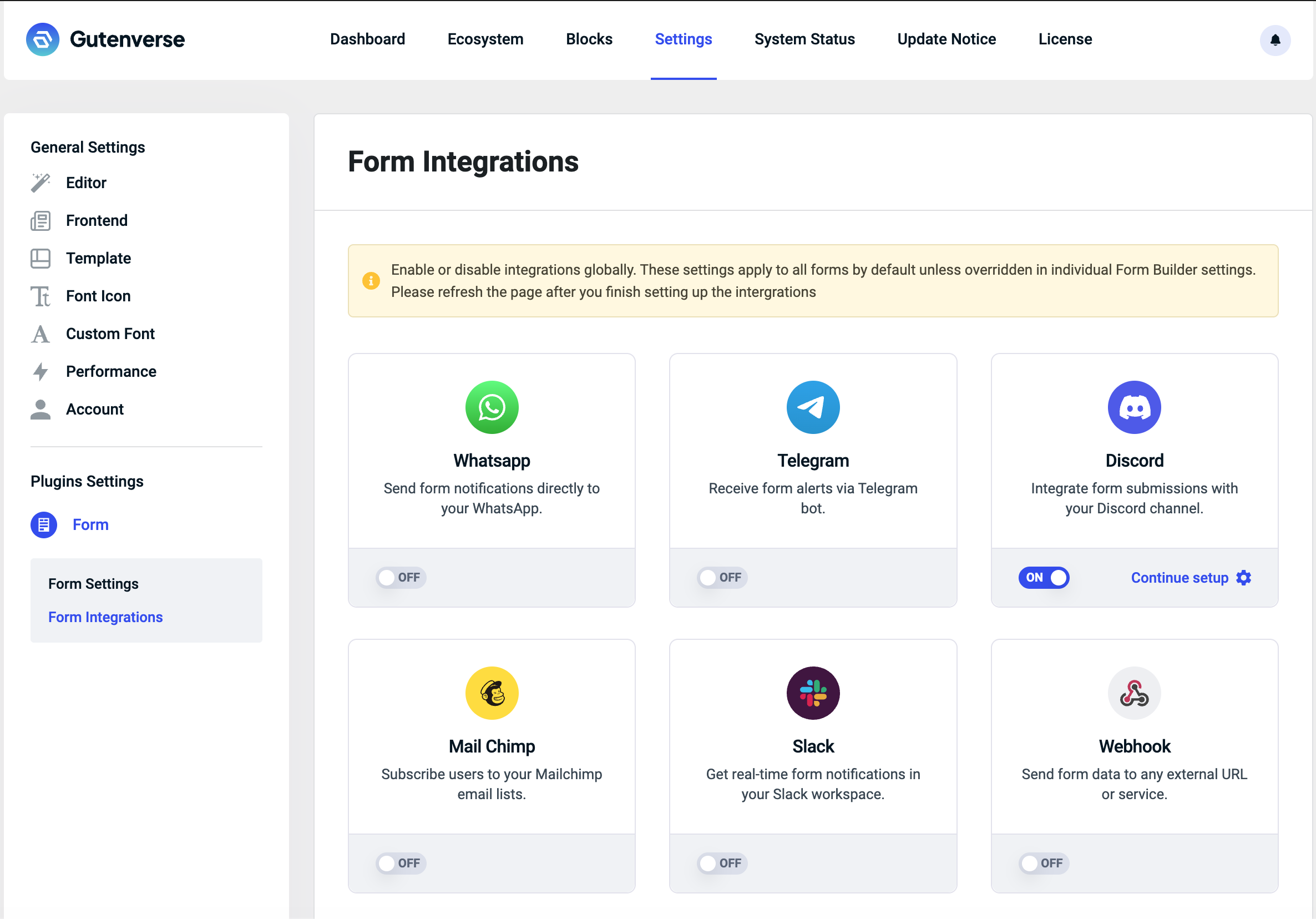
1. Navigate to Gutenverse → Form Integrations.
2. Enable the Discord integration.
3. Then Click “Continue Setup”
4. Configure the required settings:
You can include dynamic form data by using the input ID enclosed in double curly braces.
For example:{{input-email}} has subscribed!
If the submitted email is example@email.com, the message will appear as:example@email.com has subscribed!
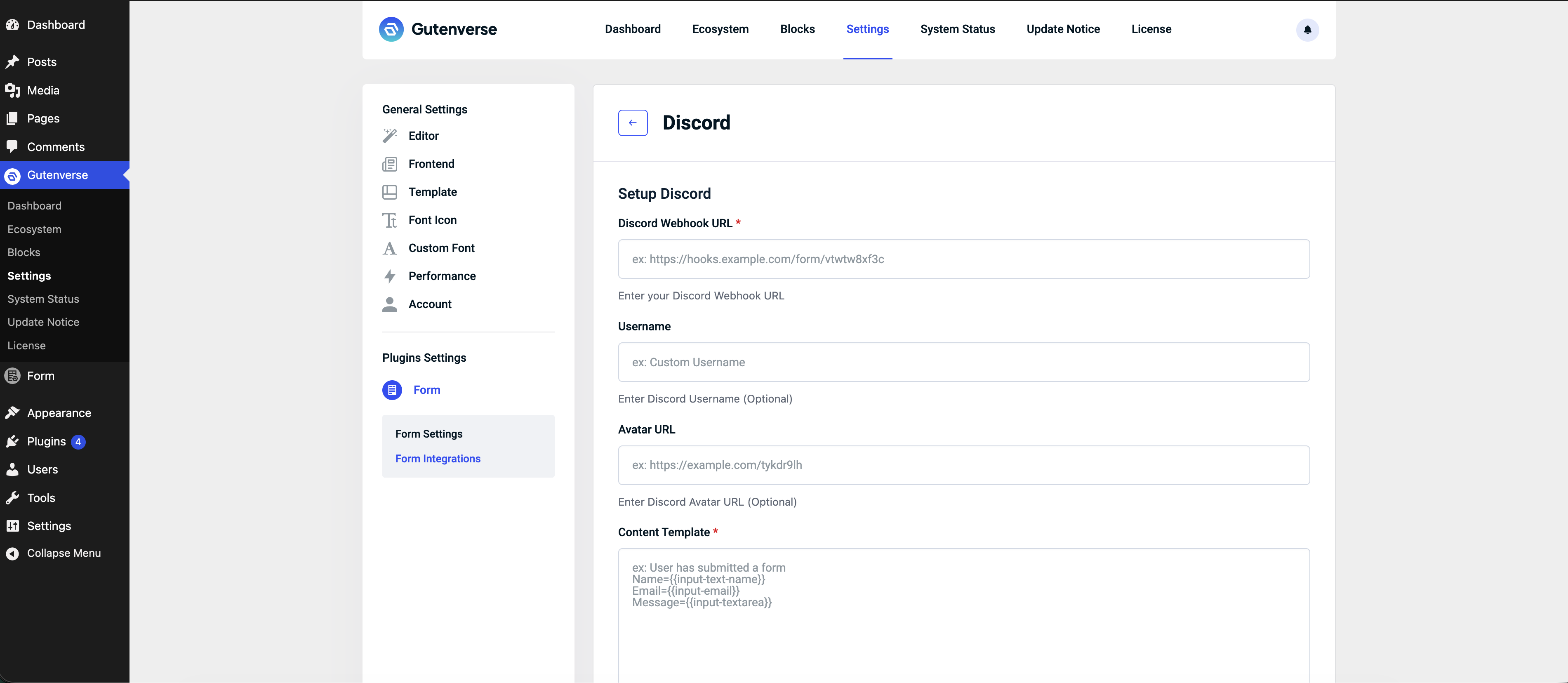
5. Configure the optional settings:
6. After filling the settings, click Save.
Setup in Form Action
Note: To use integration settings in form action, make sure you do not enable the ‘Use Dashboard Settings‘ toggle.
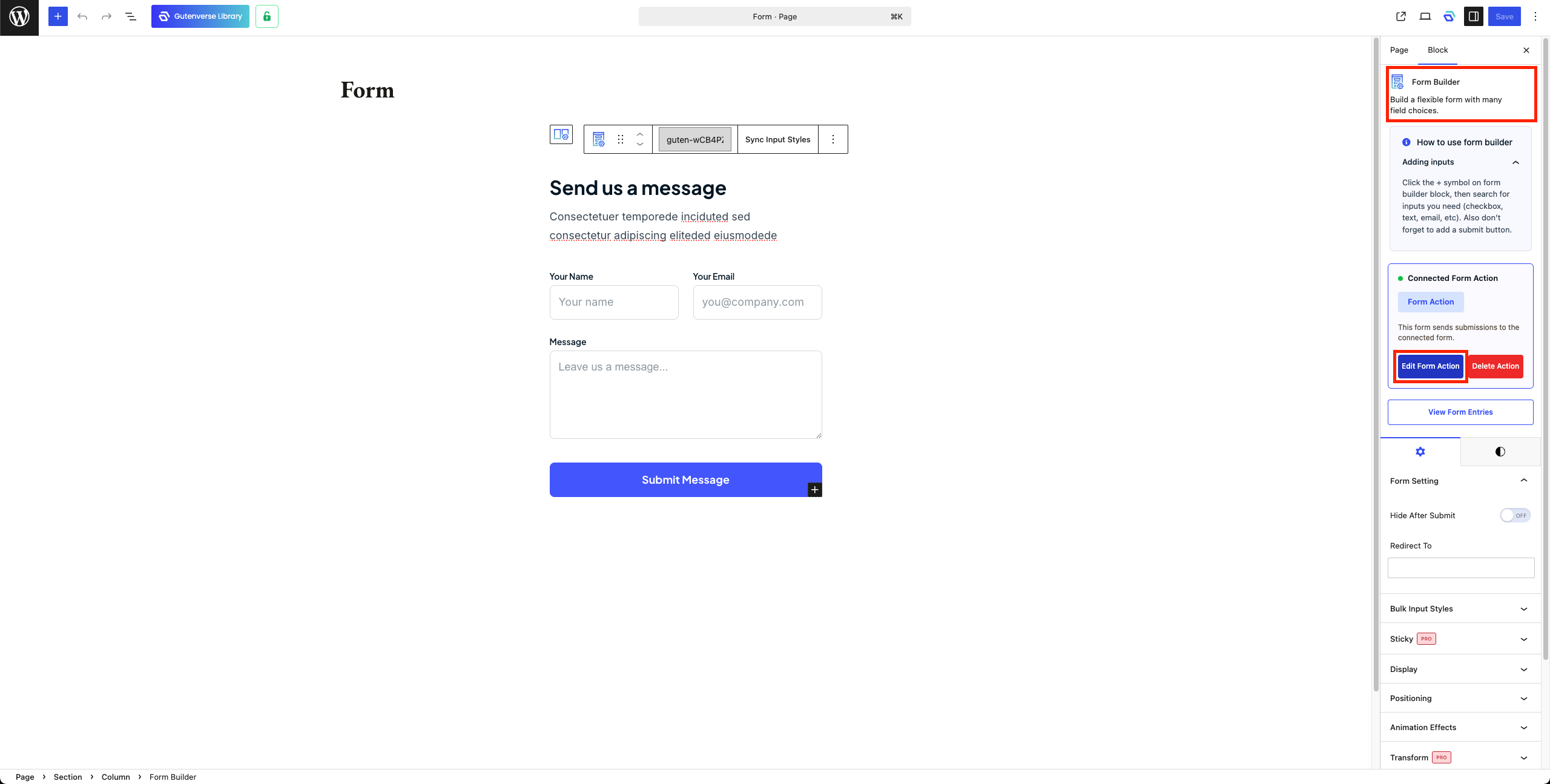
1. In Editor, Select Form Builder then open Form Action.
2. Open Integration Tab.
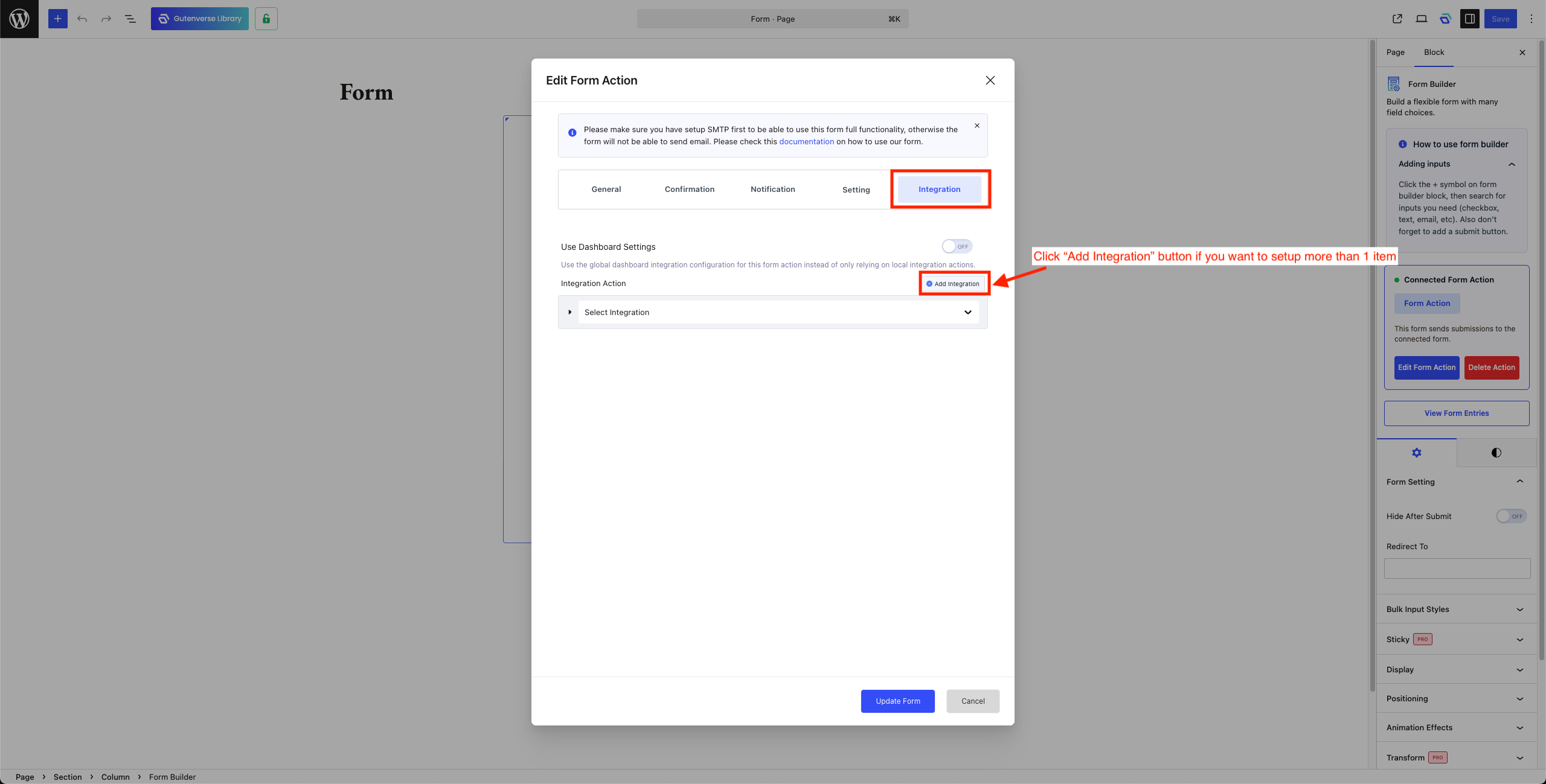
3. Select “Discord” to set up the Discord integration.
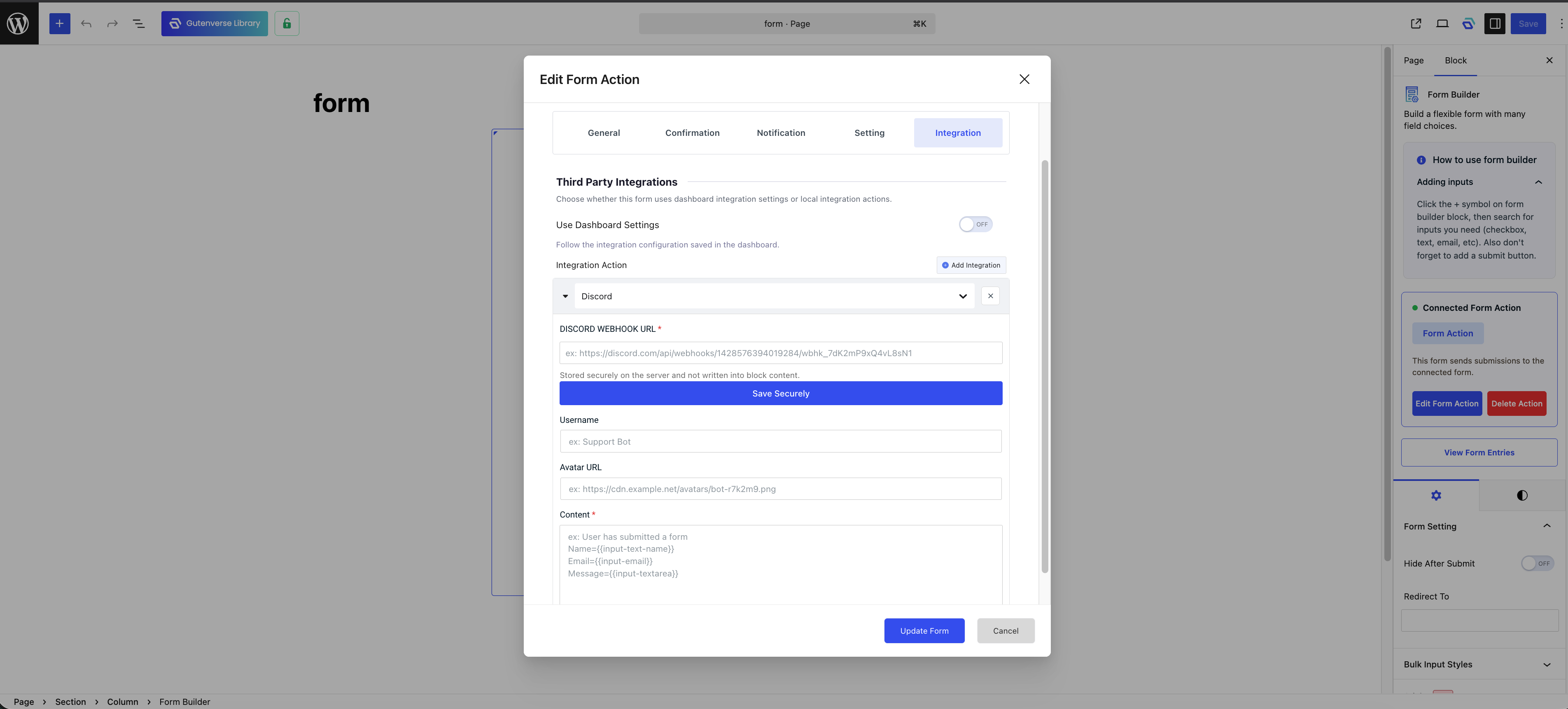
4. Configure the required settings:
You can include dynamic form data by using the input ID enclosed in double curly braces.
For example:{{input-email}} has subscribed!
If the submitted email is example@email.com, the message will appear as:example@email.com has subscribed!
5. Configure the optional settings:
Note: Discord Webhook URL need to be saved securely so after paste the API Key click on Save Securely
6. Click Update Form.
Where to Find Your Discord Webhook URL
1. Log In to Discord
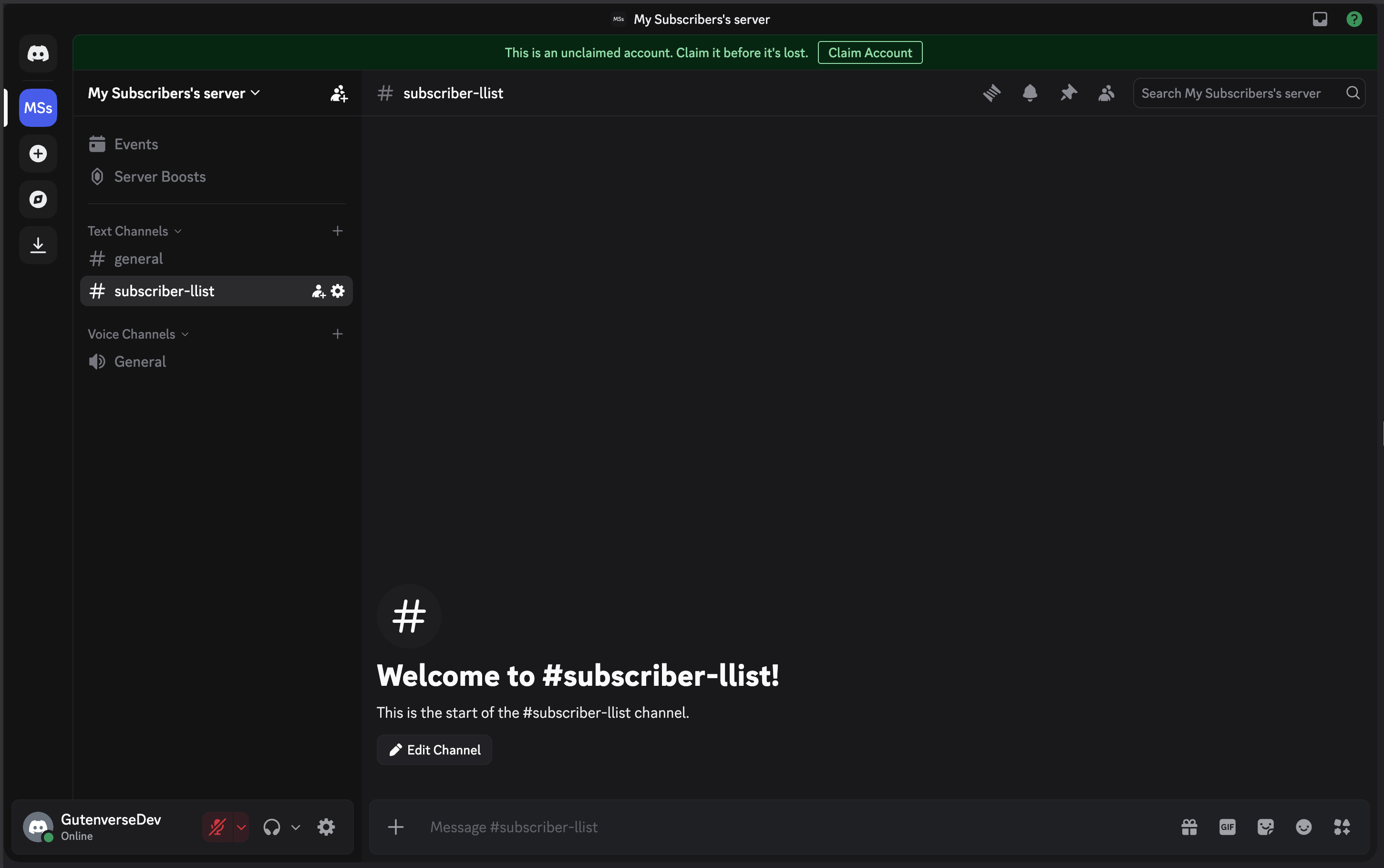
2. Open the Channel Settings
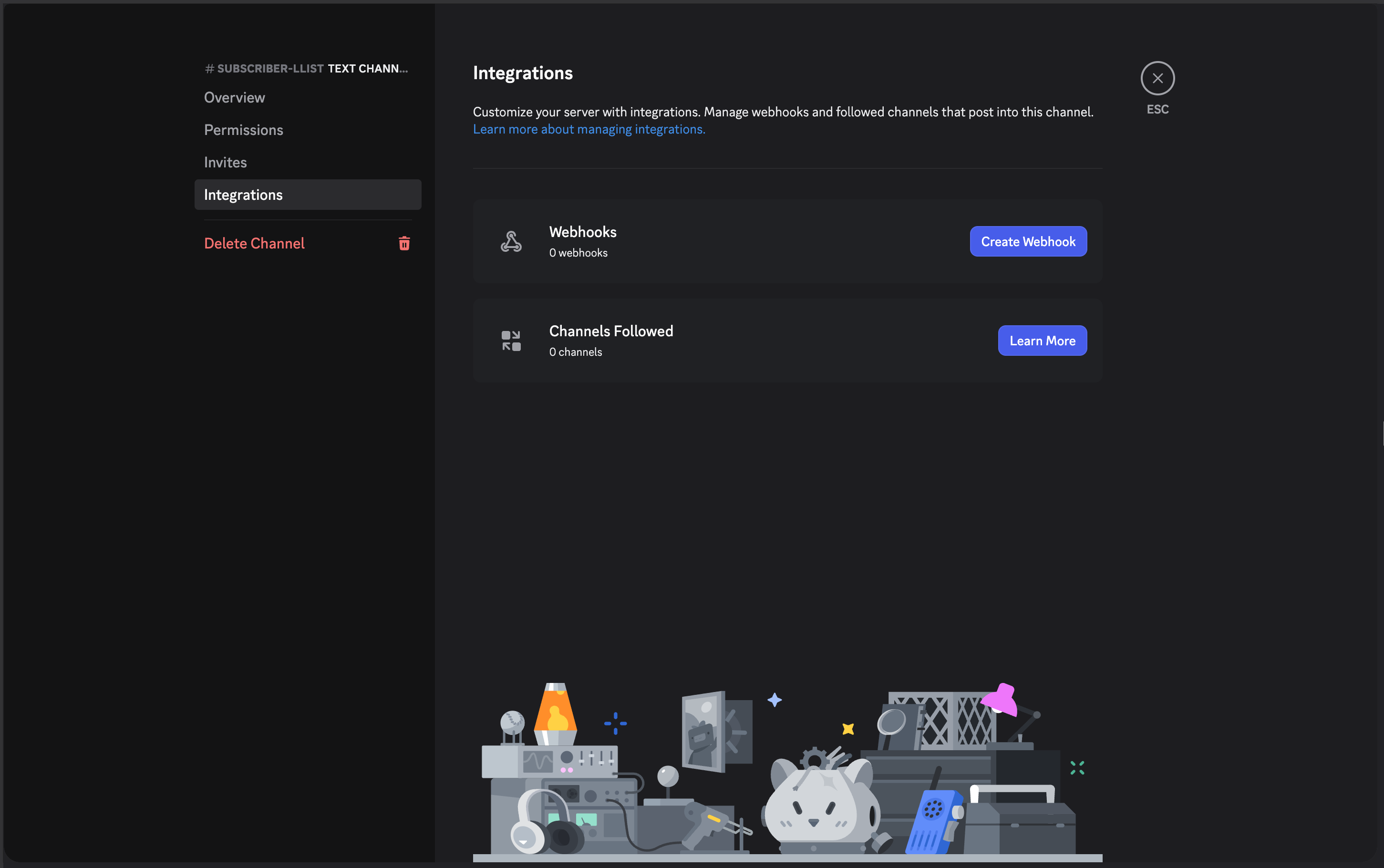
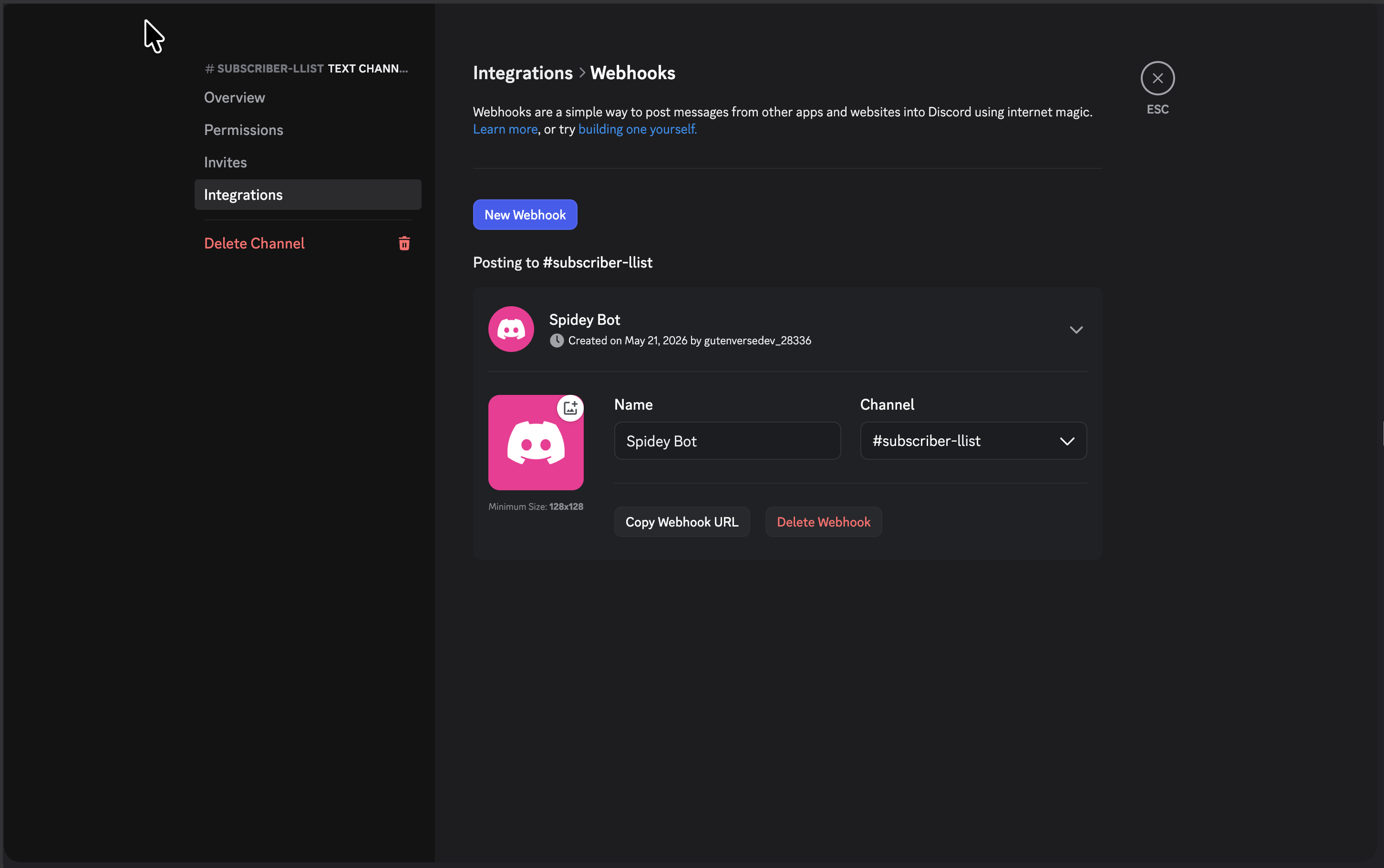
3. Create a New Webhook
References
Official Discord references: