














Last Update: August 31, 2026
Use this integration to send a WhatsApp template message after someone submits your form.
What You Need
Facebook Setup
1. Open the Meta App Dashboard to create a new Meta app with the WhatsApp use case.
2. Click Create App.
3. Add your app’s name and your email.
4. Select the Connect with customers through WhatsApp use case and click Next.
5. Select an existing business portfolio or create a new one.
6. A list of publishing requirements are listed. You may not have any at this point. Click Next.
7. Confirm your details, use case, and business portfolio. Click Previous to make changes or Create app to complete app creation.
8. Go to Use cases Tab on your Meta App Dashboard and customize Connect with customer through Whatsapp.
9. Click the Start using the API button to set up the API by adding a phone number and sending your first message. You are redirected to the API Setup page.
10. In the API Setup section, connect your app to a WhatsApp Business Account. This connection allows your app to access the WhatsApp Cloud API and send messages on behalf of your business. Select an existing WhatsApp Business Account or create a new one:
11. Once connected, you will see your WhatsApp Business Account ID displayed in the API Setup panel.
Note: If you created a new Meta Business Portfolio during app creation, a WhatsApp Business Account may have been automatically created for you. Verify the connection in the API Setup section before proceeding.
Where To Get The IDs And Keys
Business Number ID
Access Token
Template Name
Enable Whatsapp in Gutenverse Form
You can configure these settings either in the Form Action or globally in the integration settings.
The global settings serve as a fallback and are used only when the integration settings are not configured in the Form Action.
Setup Globally
1. Navigate to Gutenverse → Form Integrations.
2. Enable the Whatsapp integration.
3. Then Click “Continue Setup”
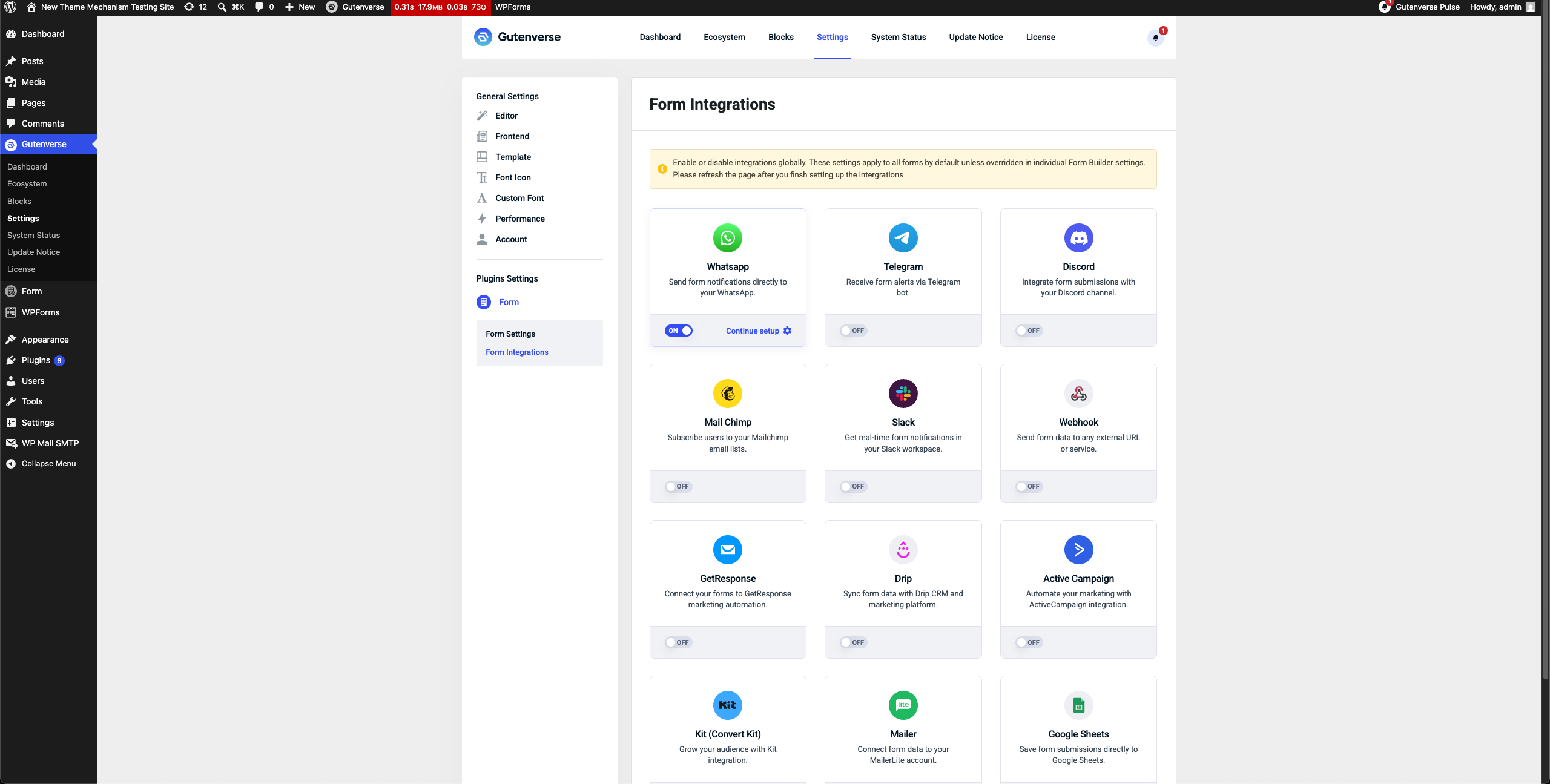
4. Configure the required settings:
5. After filling the settings, click Save.
Setup in Form Action
1. In Editor, Select Form Builder then open Form Action.
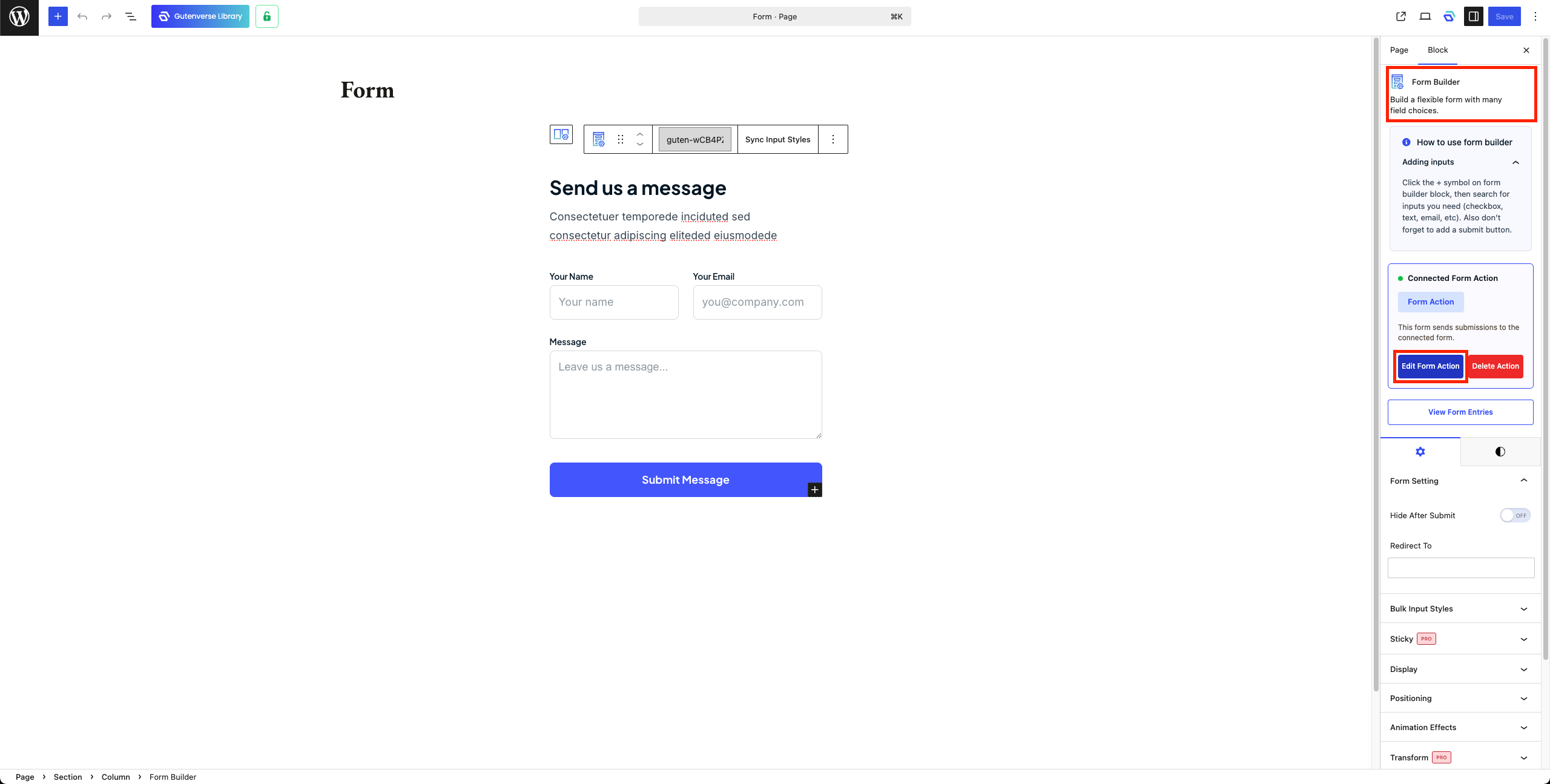
2. Open Integration Tab.
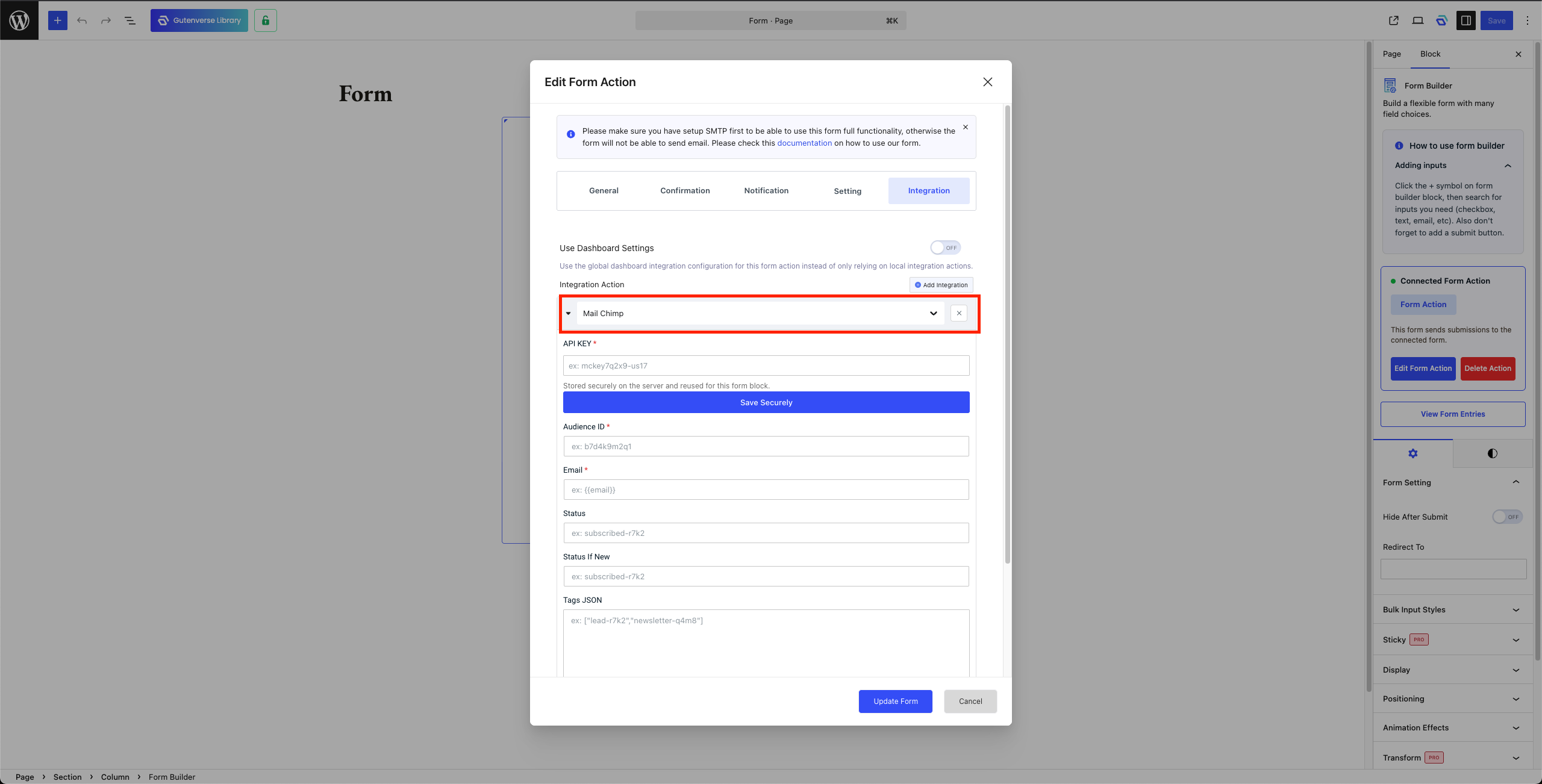
3. Select “Whatsapp” to setup Whatsapp integration.
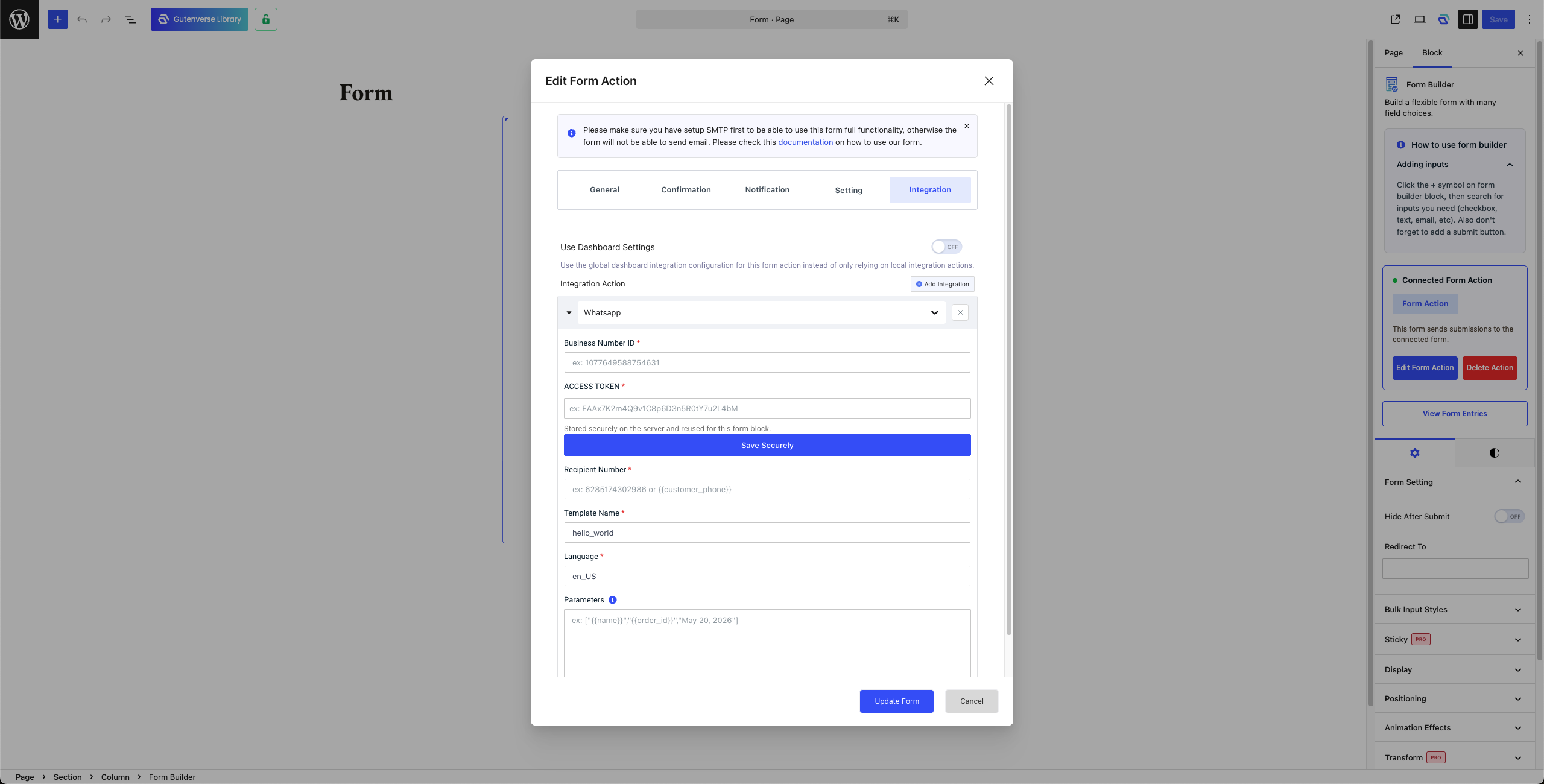
4. Configure the required settings.
Note: API Key need to be saved securely so after paste the API Key click on Save Securely
5. Click Update Form.