
















Last Update: August 31, 2026
Use the ActiveCampaign integration to create or update a contact whenever a form is submitted. You can also subscribe the contact to a list, apply tags, update custom fields, and add them to an automation.
What You Need
Getting Your ActiveCampaign API Credentials
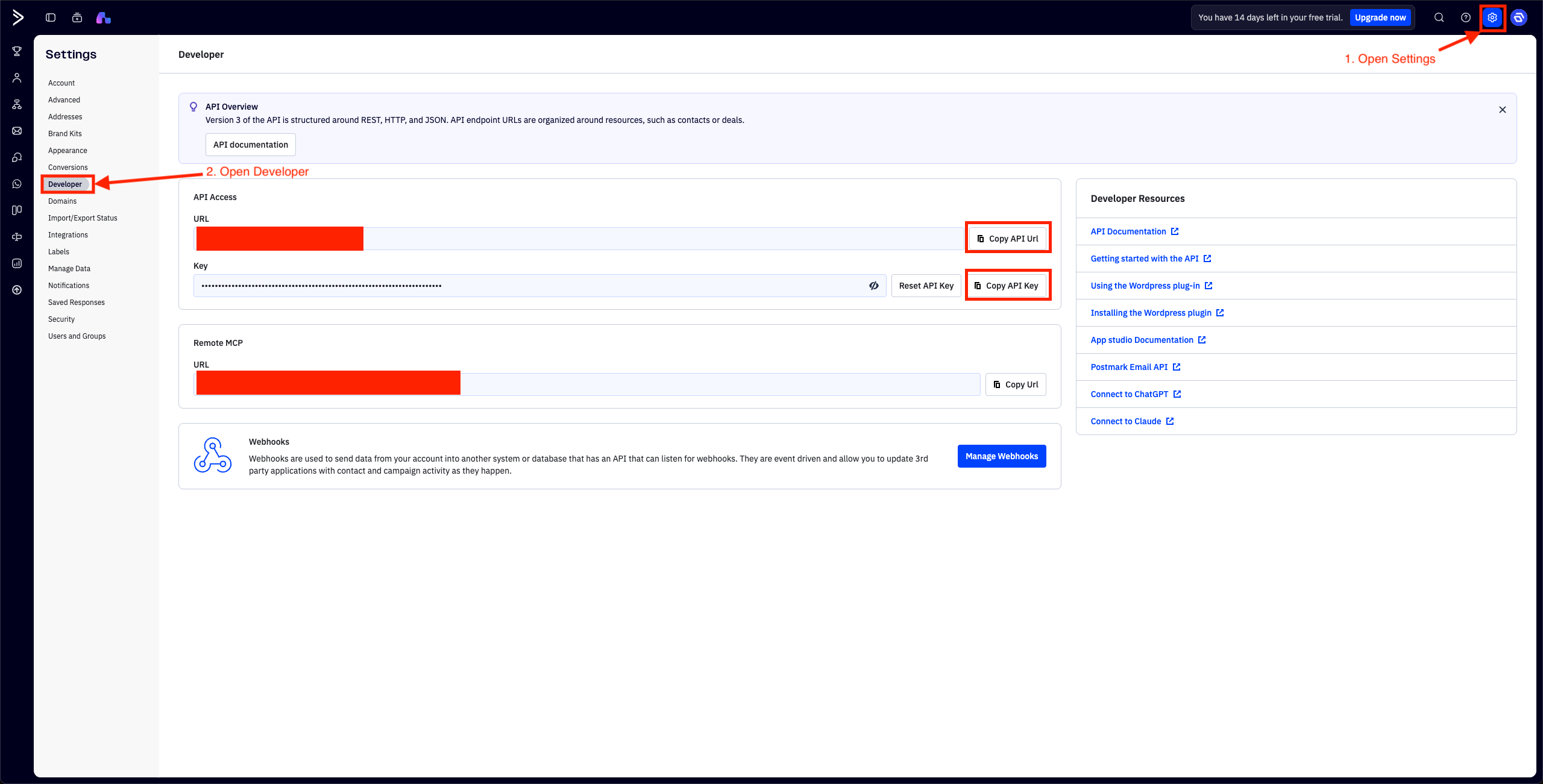
Before you can connect ActiveCampaign to Gutenverse Forms, you’ll need your API URL and API Key.
1. Log in to your ActiveCampaign account.
2. Open Settings.
3. Select Developer.
4. Copy the following values:
Note: Keep your API Key private. Anyone with this key can access your ActiveCampaign account through the API.
Enable Active Campaign in Gutenverse Form
You can configure these settings either in the Form Action or globally in the integration settings.
The global settings serve as a fallback and are used only when the integration settings are not configured in the Form Action.
Note: If any Integration settings are configured in the Form Action, the form will use only the Form Action settings. It will not combine or merge them with the global settings.
Setup Globally
1. Navigate to Gutenverse → Form Integrations.
2. Enable the Active Campaign integration.
3. Then Click “Continue Setup”
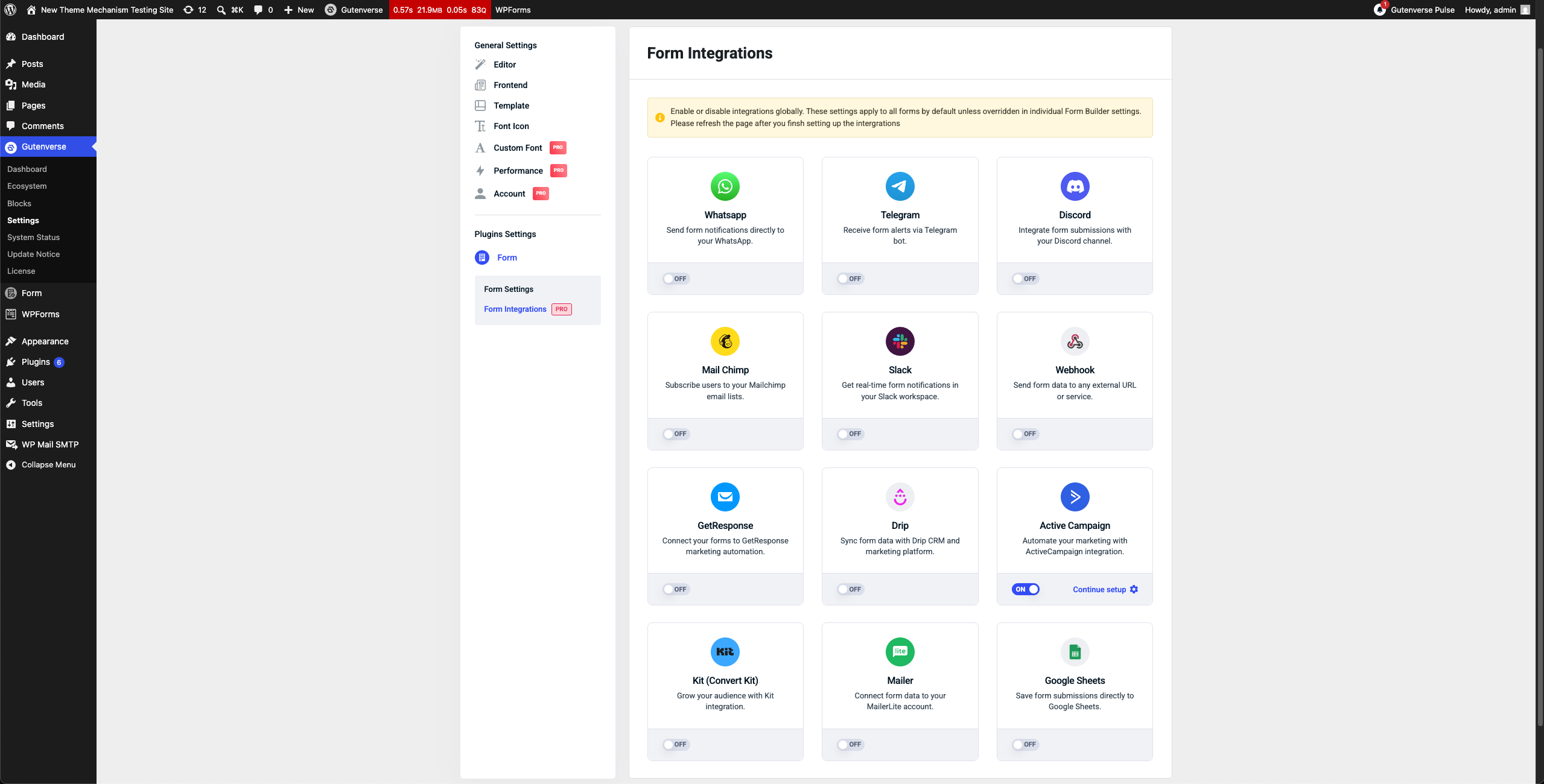
4. Configure the required settings:
5. After filling the settings, click Save.
Setup in Form Action
1. In Editor, Select Form Builder then open Form Action.
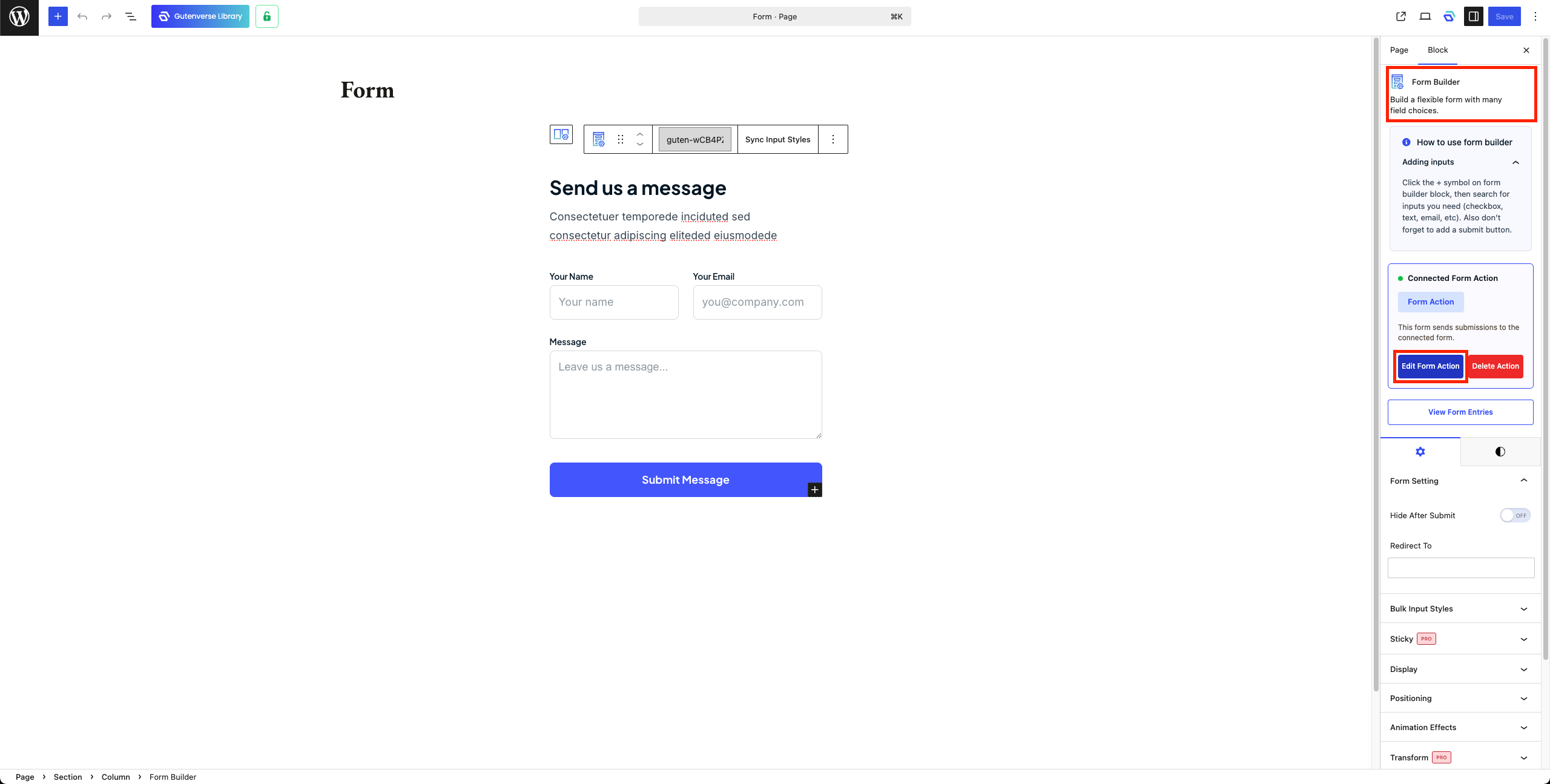
2. Open Integration Tab.
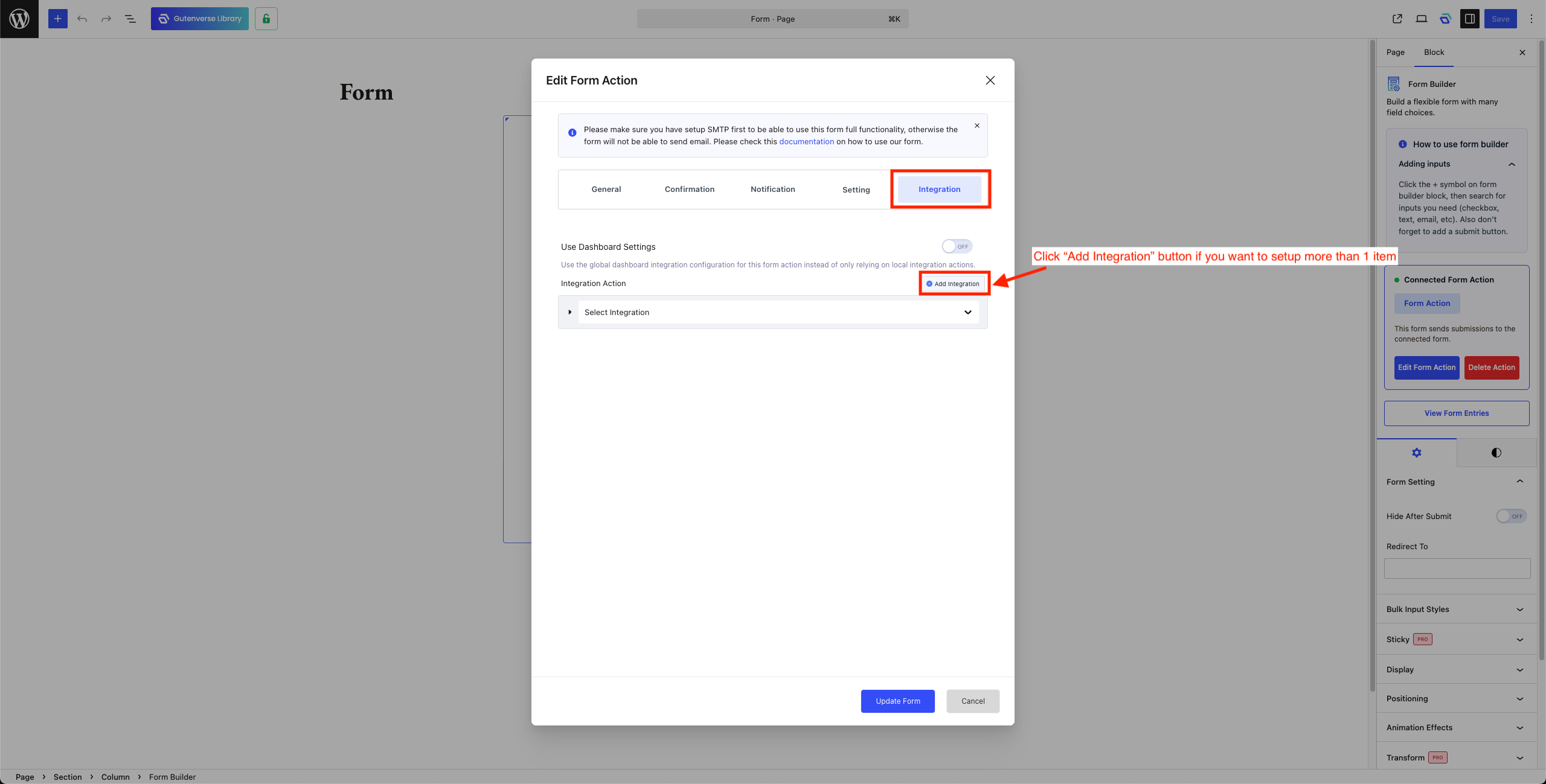
3. Select “Active Campaign” to setup Active Campaign integration.
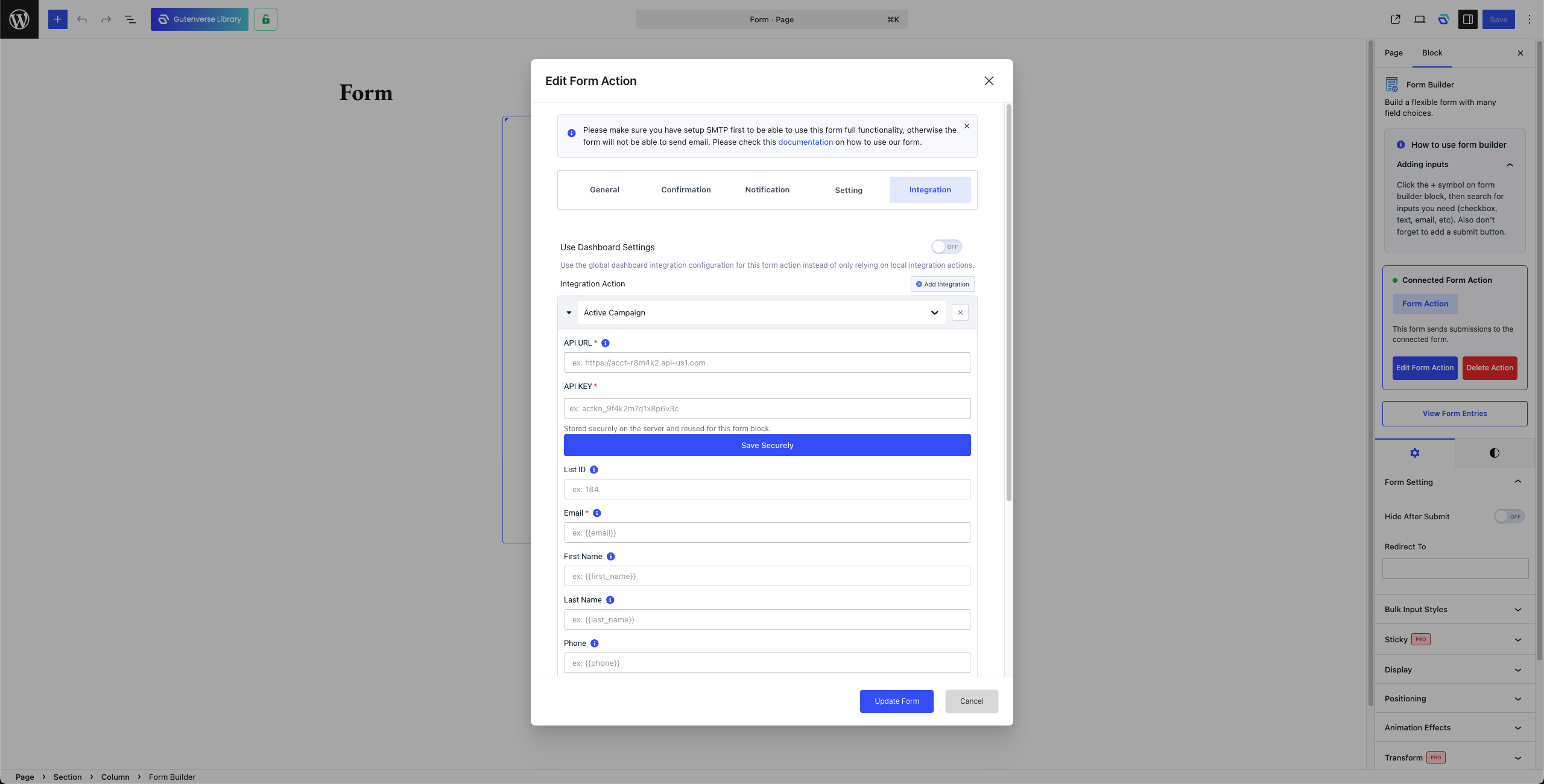
4. Configure the required settings.
Note: API Key need to be saved securely so after paste the API Key click on Save Securely
5. Click Update Form.