














If you have used WordPress for a while, you may have come across terms like Full Site Editing, FSE, Site Editor, block theme, and Gutenberg FSE. These terms can feel confusing at first because they sound like separate features. However, they are all connected to the same idea: WordPress is making it easier to build and customize more parts of your website with blocks.
Previously, the WordPress Block Editor was mainly used to create and edit content inside posts and pages. You could add text, images, buttons, columns, and other blocks to build your content layout. However, areas like the header, footer, blog archive, single post template, and global design settings usually depended more on your theme settings or custom code.
WordPress Full Site Editing changes that experience. It allows you to edit your website visually using blocks, not only for page content but also for the main structure of your site. With Full Site Editing, you can customize your header, footer, page templates, archive layouts, single post layouts, and global styles directly from the WordPress editor.
This gives you more control over your website design without needing to touch theme files or write code. You can adjust layouts, update colors, change typography, manage reusable template parts, and keep your website design more consistent from one place.
In this guide, we will explain what WordPress Full Site Editing means, how it relates to Gutenberg, what you can edit with it, and when it is a good choice for your website.
So, What Is WordPress Full Site Editing?
WordPress Full Site Editing, often shortened to FSE, lets you design and manage more parts of your website using blocks. With FSE, you can edit posts and pages, but you can also customize templates, headers, footers, navigation menus, archive pages, and site-wide styles.
In simple words: Full Site Editing lets you build more parts of your WordPress website inside the Block Editor.
According to the official WordPress Site Editor documentation, the Site Editor lets you work on your site layout with blocks, including areas like the header, footer, and the main content area.
However, you need to use a block theme to access the Site Editor. This part is important because not every WordPress theme supports Full Site Editing. Your website needs a theme that supports blocks and the Site Editor before you can use these features.
Why Full Site Editing Exists
Before Full Site Editing existed, WordPress kept content editing and site design separately.
You could write and edit posts or pages in the editor. But when you wanted to change other parts of your website, you usually had to look somewhere else. For example:
This setup worked, but it wasn’t always easy for beginners. If your theme didn’t provide the header, footer, or layout option you wanted, you had limited choices. You might need to add custom code, install a page builder, or switch to another theme.
Full Site Editing makes this easier. It brings more website design controls into the visual Block Editor, so you can change more parts of your site without editing theme files directly.
How Gutenberg and FSE Are Related
Gutenberg is the project that introduced the Block Editor to WordPress. It changed the way people create content in WordPress by replacing one large editing area with smaller content blocks.
For example, a paragraph is a block. An image is a block. A button is a block. Even a column layout is made from blocks.
Full Site Editing builds on that same idea.
Instead of using blocks only inside posts and pages, FSE lets you use blocks to build and edit bigger parts of your website. This includes areas like the header, footer, templates, archive pages, and other site layouts.
That’s why many people use the term “Gutenberg FSE”. They are usually talking about how the Gutenberg block system now helps users design more than just page content.
Here is the easiest way to think about it:
Term
Simple meaning
Gutenberg
The block-based editing system in WordPress
Block Editor
The editor where you add and arrange blocks
Full Site Editing
A set of features that brings blocks to the whole site
Site Editor
The interface where you edit templates, styles, navigation, and more
Block theme
A theme built to work with the Site Editor
Gutenberg gives WordPress its block-based editing system. Full Site Editing uses that system to help you edit more parts of your website.
What Can You Edit with WordPress Full Site Editing?
Full Site Editing lets you change parts of your website that were usually harder to customize without code.
What you can edit depends on the block theme you use. In general, you can customize areas such as:
However, you don’t need to edit all of these areas. Most users only need to adjust a few important parts of their website.
For example, a small business owner may only need to update the header menu, change the homepage layout, and adjust the main colors. A blogger may want to improve the single post layout and blog archive page. A designer may use Full Site Editing to create reusable sections, manage patterns, and keep the site design more consistent.
What Is the WordPress Site Editor?
The WordPress Site Editor is where you use Full Site Editing in WordPress.
You can usually find it from your WordPress dashboard by going to: Appearance > Editor
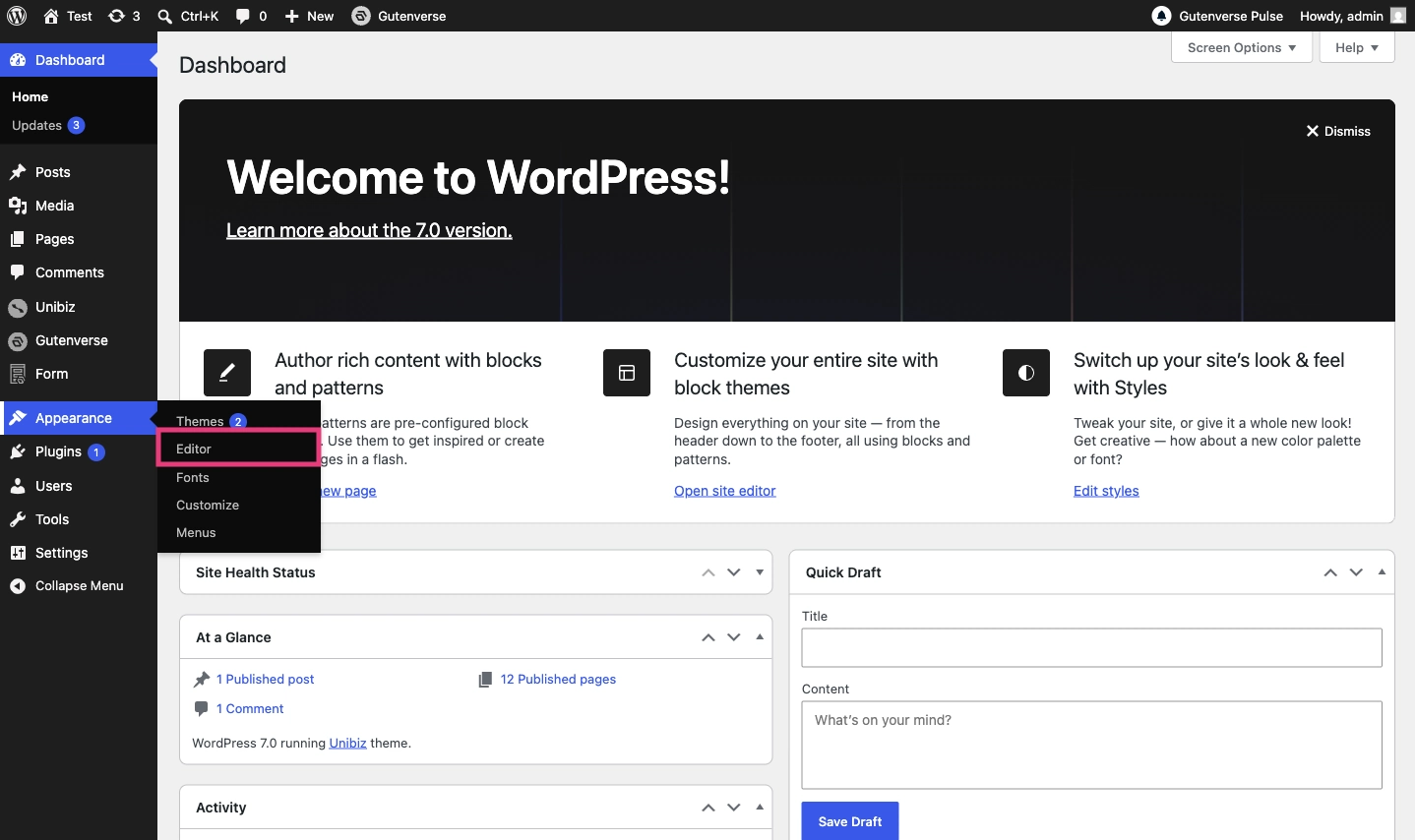
If you don’t see the Editor option, your current theme may not support Full Site Editing. This usually means your site is not using a block theme, or the theme doesn’t support the Site Editor.
Inside the Site Editor, WordPress groups your site settings and layouts into several main areas, such as:
These areas help you control both content and design from one visual interface.
What Is a Block Theme?
A block theme is a WordPress theme that works with the Block Editor and the Site Editor. It lets you use blocks to build and edit different parts of your website, including the navigation, header, content area, footer, and other layout sections.
This is different from a classic WordPress theme. In many classic themes, the theme controls most layout areas through PHP files, widgets, theme options, or the Customizer. Because of that, you may have less direct control over some parts of the site unless the theme provides the option.
The WordPress developer handbook explains that block themes let you use the Block Editor for all areas of the site, including headers, footers, and sidebars. This is why block themes are an important part of Full Site Editing.
If you want to use Full Site Editing, you need to choose a theme that supports it. A block theme is usually the best choice because it is built for the Site Editor. You can also use Gutenverse-compatible themes if you want the plugin and theme works more smoother.
Templates vs Pages: What Is the Difference?
This is one of the parts of Full Site Editing that can feel confusing at first, so let’s make it simple.
A page is the actual content people see and read on your website. On the other hand, a template controls the layout used to display that content.
For example:
When you edit a regular page, the update usually stays on that page. For example, changing your About page only affects the About page.
Templates work differently. Since one template can be used by many pages or posts, any layout changes you make there can appear in multiple places. For example, updating the single post template can affect all blog posts on your site.
That’s why template editing is powerful, but you need to be more careful when saving changes. If you edit a header template part, for example, that change may appear across your whole website, not just on one page.
Template Parts, Patterns, and Styles
Full Site Editing also uses a few terms that may sound similar. Here is what each one means.
Template Parts
Template parts are reusable sections of your website, such as the header, footer, or sidebar. They are usually used inside templates and can appear on many pages.
For example, your header might be used on the homepage, service pages, blog posts, and contact page. If you update the header template part, the change can apply wherever that header is used.
Patterns
Patterns are groups of blocks arranged into a ready-made design. You can insert a pattern, then change the text, images, colors, and layout.
For example, instead of building a testimonial section from zero, you can insert a testimonial pattern. After that, you can change the text, images, colors, spacing, and layout to match your website.
Styles
Styles control the overall look of your website. In the Site Editor, you can use Styles to manage things like colors, fonts, layout width, spacing, and block design.
This helps you keep your website design consistent. For example, instead of changing every button one by one, you can adjust the global button style and apply a more unified look across your site.
How Gutenverse Fits into Full Site Editing
Full Site Editing is useful because it gives WordPress users more control over their website without requiring them to write code.
Here are the biggest benefits.
You Can Edit More Parts of the Site Visually
Gutenverse helps you build better WordPress websites inside the Block Editor and the Site Editor.
The default WordPress editor gives you the basic tools to create and edit your site. Gutenverse adds more design options on top of that, such as extra blocks, templates, forms, popups, animations, and workflows that work well with Full Site Editing.
Your Site Can Feel More Consistent
Global styles help you keep your colors, fonts, spacing, and block styles consistent across your website. This is important because inconsistent design can make a website look unfinished or less professional.
With FSE, you can set your main design styles once, then use them across different parts of your site.
You Can Build Faster with Patterns and Templates
FSE works well with patterns and templates. These give you a starting point instead of a blank page.
For example, Gutenverse includes a Template Library with layouts and sections. You can access it from the site editor, then import designs and customize them.
This can help you build faster, especially when creating a business website, portfolio, landing page, agency website, or other professional site.
It Fits the Direction of Modern WordPress
WordPress has been moving deeper into block-based editing for years. Full Site Editing is part of that direction.
When you understand how templates, blocks, patterns, and styles work, you can follow the modern WordPress workflow more easily. You will also feel more comfortable as WordPress continues to improve its block-based editing experience.
What Are the Limits of Full Site Editing?
Full Site Editing gives you more control over your WordPress website, but it may not fit every user or every project.
At first, some users may find it confusing because WordPress now has more areas to understand, such as:
If you are new to WordPress, you may need some time to learn which area controls which part of your website. For example, editing a page is different from editing a template. Changing a template part, such as a header, can also affect more than one page.
Full Site Editing also depends a lot on the theme you use. A well-made block theme can make the editing experience easier and smoother. But if your theme has limited support for Full Site Editing, the workflow may feel more confusing or limited.
Do You Need Full Site Editing?
You may want to use Full Site Editing if you want more control over your WordPress website design without creating a custom theme from scratch.
FSE can be a good choice if:
However, FSE may not be the best choice for every website.
It may not be the right choice if:
You don’t have to switch to Full Site Editing right away. But if you are starting a new WordPress website, learning FSE from the beginning can help you build your site in a way that follows the direction of modern WordPress.
How Gutenverse Fits into Full Site Editing
Gutenverse helps you build better WordPress websites inside the Block Editor and the Site Editor.
The default WordPress editor gives you the basic tools to create and edit your site. Gutenverse adds more design options on top of that, such as extra blocks, templates, forms, popups, animations, and workflows that work well with Full Site Editing.
This is useful when the default Block Editor feels too limited for the website you want to build.
For example, you can use WordPress Full Site Editing to manage your header, footer, templates, and global styles. Then, you can use Gutenverse blocks and templates to create richer sections for your homepage, service pages, landing pages, portfolio, or other important pages.
Gutenverse can also help beginners start faster. Instead of building every section from scratch, you can choose a prebuilt template, import a section, and customize it with your own text, images, colors, and layout.
Common FSE Mistakes to Avoid
Full Site Editing becomes easier once you know which parts can affect your whole website. Here are some common mistakes to watch out for.
Editing a Template When You Meant to Edit One Page
Templates can affect many pages or posts. If you only want to change one specific page, make sure you edit the page content, not the template used by that page.
For example, changing your About page content only affects the About page. But changing the page template may also affect other pages that use the same template.
Changing the Header Without Knowing It Can Affect Other Pages
Headers and footers are often used across the whole website. If you edit a header template part, WordPress may show that change on many pages, not just the page you are working on.
Before saving, check whether you are editing a single page, a template, or a template part.
Skipping List View
List View helps you see the structure of your blocks more clearly. This is useful when you work with nested blocks, such as groups, columns, containers, and template parts.
If something feels hard to select or move, open List View first. It can help you find the exact block you want to edit.
Starting with Too Many Design Changes
It can be tempting to change everything right away, but that can make your site harder to manage.
Start with the most important parts first, such as global colors, typography, header, footer, and one main page layout. Once those parts feel right, you can continue improving the rest of the website step by step.
FAQ
FSE means Full Site Editing. It refers to WordPress features that let you edit more parts of your site with blocks, including templates, headers, footers, and global styles.
No. Gutenberg is the block editor project, while Full Site Editing is a set of features that expands block editing to the whole site. FSE uses the Gutenberg block system, but they are not exactly the same thing.
If you don’t see Appearance > Editor, your active theme may not support the Site Editor. You usually need a block theme or a theme that supports Full Site Editing.
Usually, no. WordPress already includes the Block Editor and Site Editor features in the core software. You only need the Gutenberg plugin if you want to try newer block editor features before they become part of WordPress core.
Yes. Gutenverse works with the Gutenberg and Full Site Editing workflow. You can use Gutenverse blocks, templates, and design features to build pages, sections, and site layouts inside WordPress.
Final Thoughts
WordPress Full Site Editing can feel unfamiliar at first, but the idea is simple: it lets you edit more parts of your website with blocks, not just posts and pages.
With the Site Editor, you can manage templates, headers, footers, patterns, and styles in one place. With a block theme, you can make more areas of your site easier to customize. And with tools like Gutenverse, you can use extra blocks and ready-made templates to build pages faster without starting from a blank canvas.
If you are new to FSE, you don’t have to try to learn everything at once. Start with one page, one template, or one section. Learn how blocks, templates, and styles work together.
Once you understand that connection, Full Site Editing will feel less confusing and much more useful for building and managing your WordPress website.
We hope this guide helps you understand Full Site Editing in WordPress more clearly. See you in the next post!