












Showcasing your work visually plays a big role in how visitors experience your website. Whether you’re displaying a portfolio, featured projects, or product visuals, those things matter. Lucky you, Gutenverse’s Image Marquee block is here. Instead of a static grid, you can build a smooth, scrolling image section that feels modern and interactive, without adding complexity to your workflow.
In this guide, you’ll learn why it’s a great option for highlighting your work and how to use the Image Marquee block.
What Is Image Marquee?
An image marquee is a web design element that displays images in a continuous scrolling motion, usually horizontally (left-to-right or right-to-left) or vertically.
Instead of showing images in a static grid, a marquee adds subtle movement that naturally draws attention while still keeping the layout simple and clean.
It works well for:
Why an Image Marquee Is a Smart Way to Highlight Your Work
It makes a strong first impression
People judge a website in seconds. A marquee puts your best visuals in the spotlight, so visitors instantly see the quality of your work. It makes the whole site feel more polished and professional.
It grabs attention during scrolling
Most visitors scroll quickly and only stop when something catches their eye. A smooth moving image strip naturally stands out more than a normal grid. It helps your visuals get noticed without needing heavy animations on your site.
It’s simple to manage
A marquee is easy to update because the structure doesn’t change. You only need to manage the images, not the layout. It’s a low-effort way to keep your work updated.
Getting Started with Gutenverse Image Marquee
Before you begin, make sure both Gutenverse and Gutenverse PRO plugins are installed and active on your WordPress site.
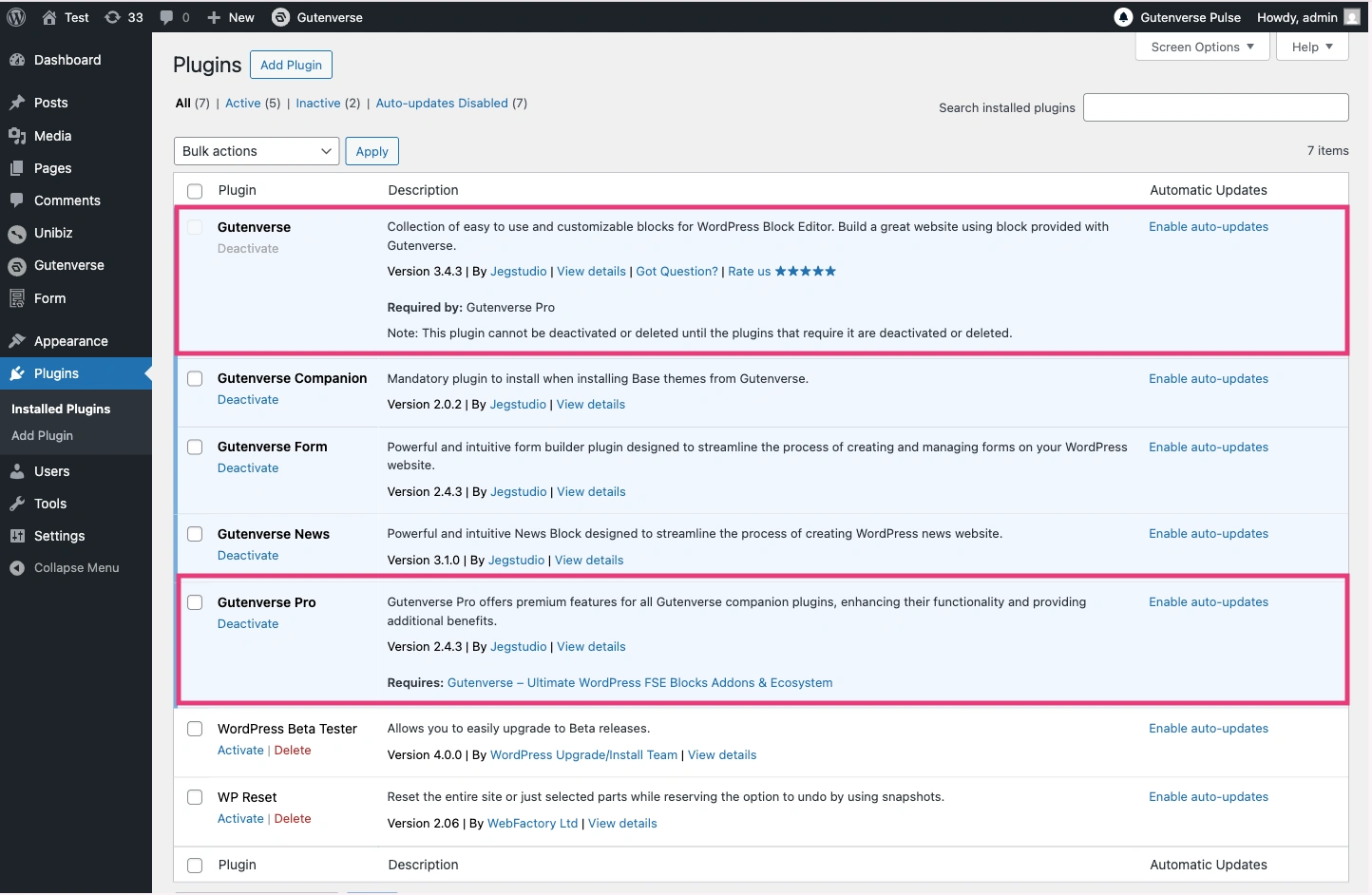
Once it’s ready, open the page where you want to showcase your work. This could be a portfolio page, landing page, or any section that needs a bit more visual impact.
Add or select the section where the images should appear, then search for the Image Marquee block in the block editor and insert it into your layout.
Customizing the Image Marquee
After adding the block, you can start customizing it right away. Upload the images you want to display, such as project previews or design samples. You can also add labels to give context to each image if needed.
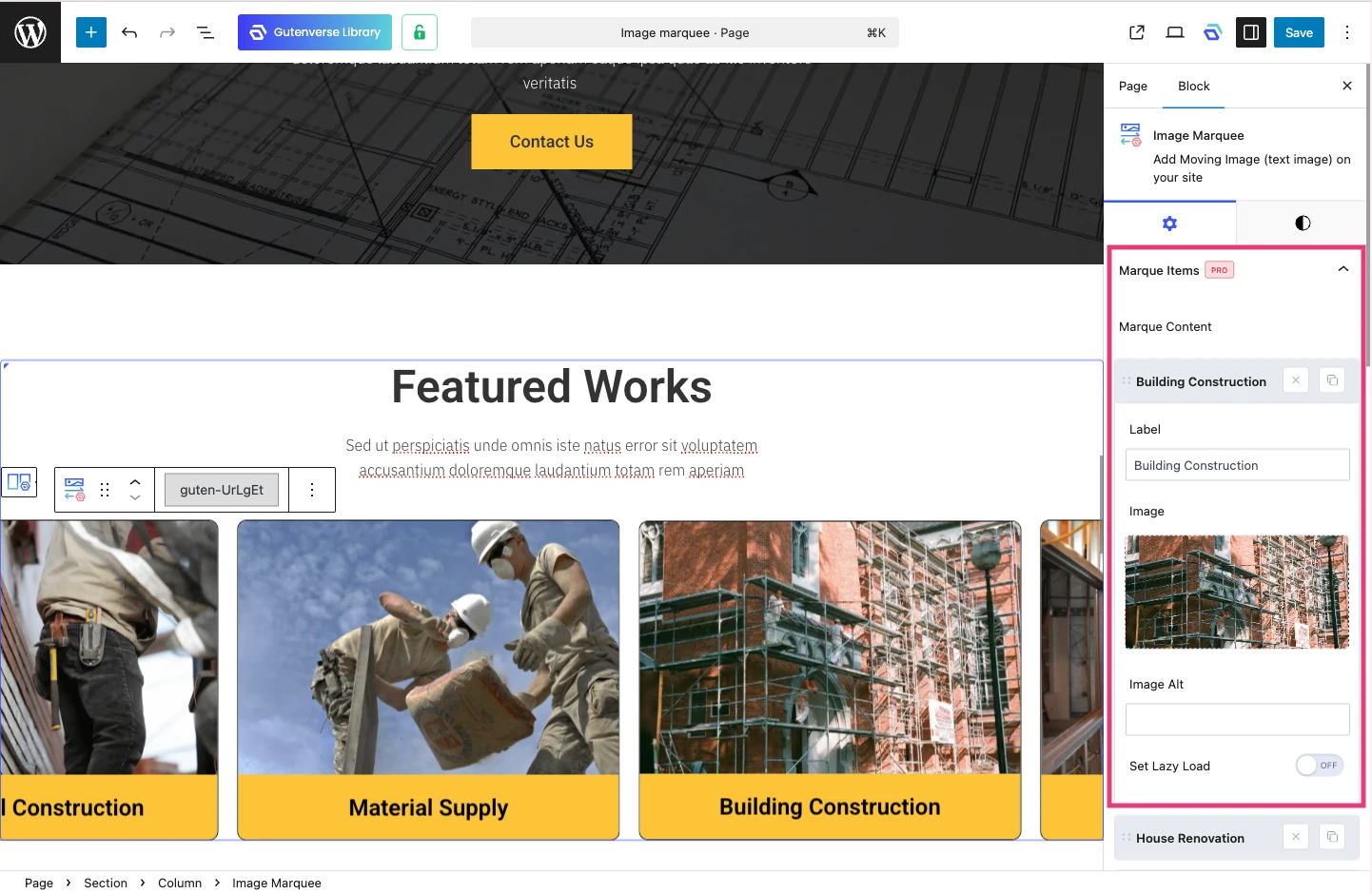
From there, you’ll be able to customize how the images scroll, adjust the spacing, and style the marquee to match your site’s design. The customization options are flexible and easy to manage, even if you’re a beginner.
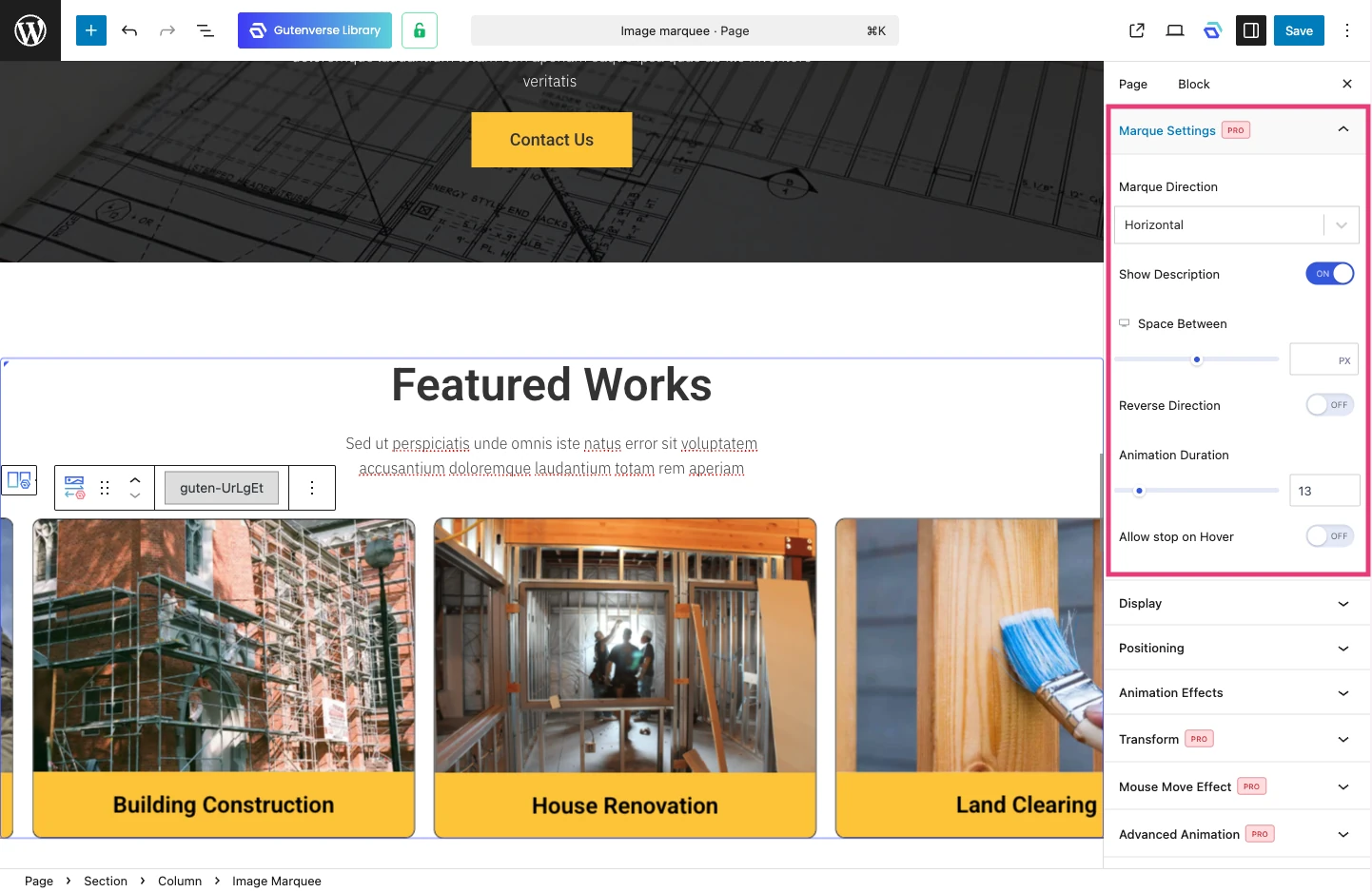
Finally, Your Image Marquee Is Done!
After finishing these steps, your work is now displayed using the Gutenverse Image Marquee. There’s no need to build everything from scratch or rely on other plugins just to get a smooth, scrolling showcase. It’s easy to manage, works well with your existing layout, and keeps your page looking clean and modern without adding extra complexity to your workflow.
Now you can simply update the images anytime, reorder them, or swap in new projects as your portfolio grows. It’s a simple way to make your website feel more alive and help visitors notice your work faster, especially when they are scrolling.
So, what are you waiting for? Try Gutenverse PRO today and experience a more engaging way to present your work to present your work, whether it is a portfolio, case studies, or featured projects.