
















Last Update: September 15, 2026
Spam submissions are a common issue for online forms. To protect your website from bots and unwanted messages, Gutenverse Form provides built-in support for Google reCAPTCHA integration.
This guide will walk you through the complete process of enabling reCAPTCHA in your Gutenverse Form, from generating your Google reCAPTCHA API keys to configuring them inside WordPress and activating the reCAPTCHA field in your form.
Before you begin, make sure you have:
Once everything is ready, you can proceed with the setup to ensure your forms are secure and protected against automated spam submissions.
How to set reCaptcha on Gutenverse Form
1. Setting Google Recaptcha
Access https://www.google.com/u/2/recaptcha/admin/create to create your recaptcha key
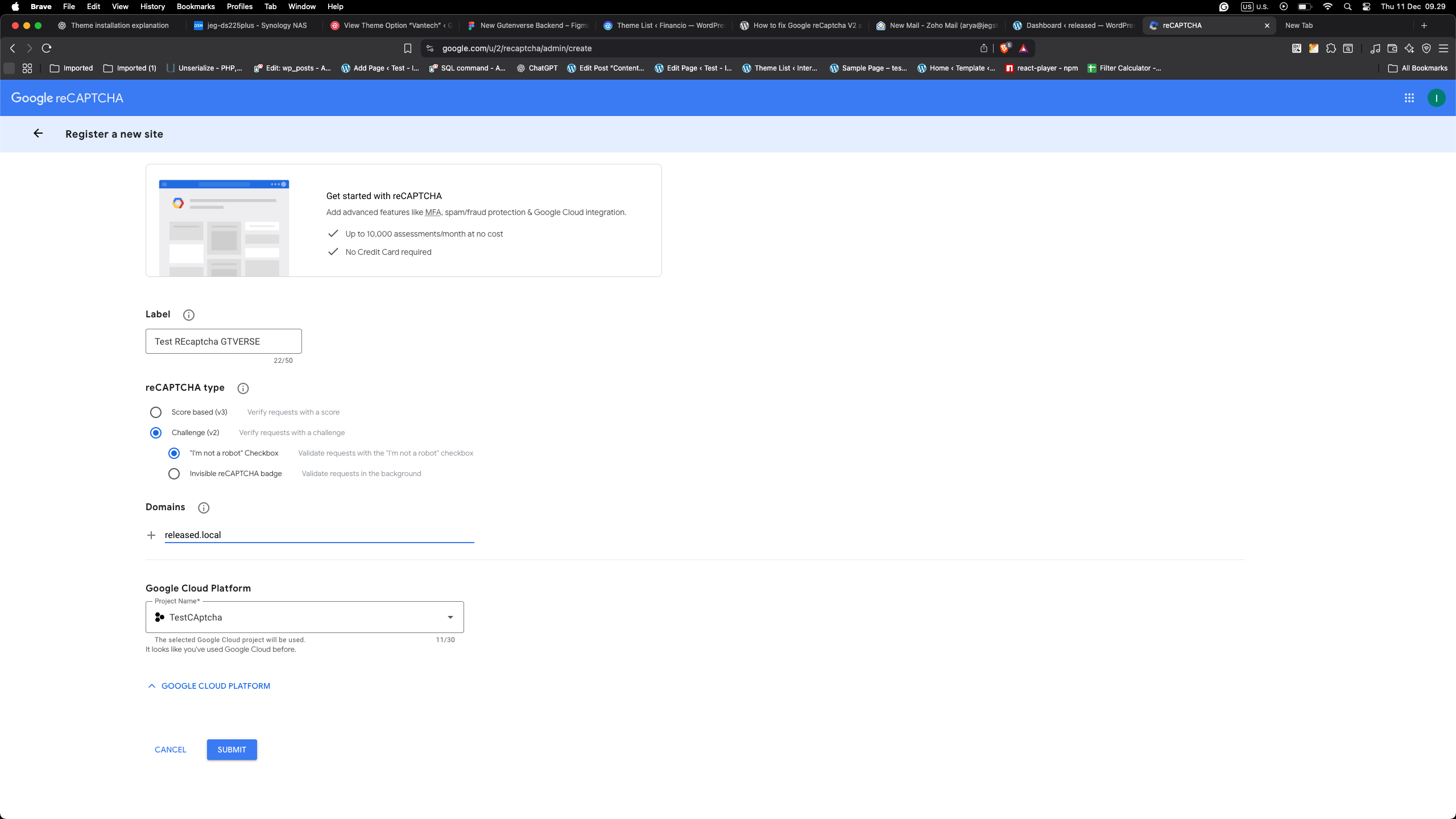
2. Create your reCAPTCHA to Get Secret and Site Keys
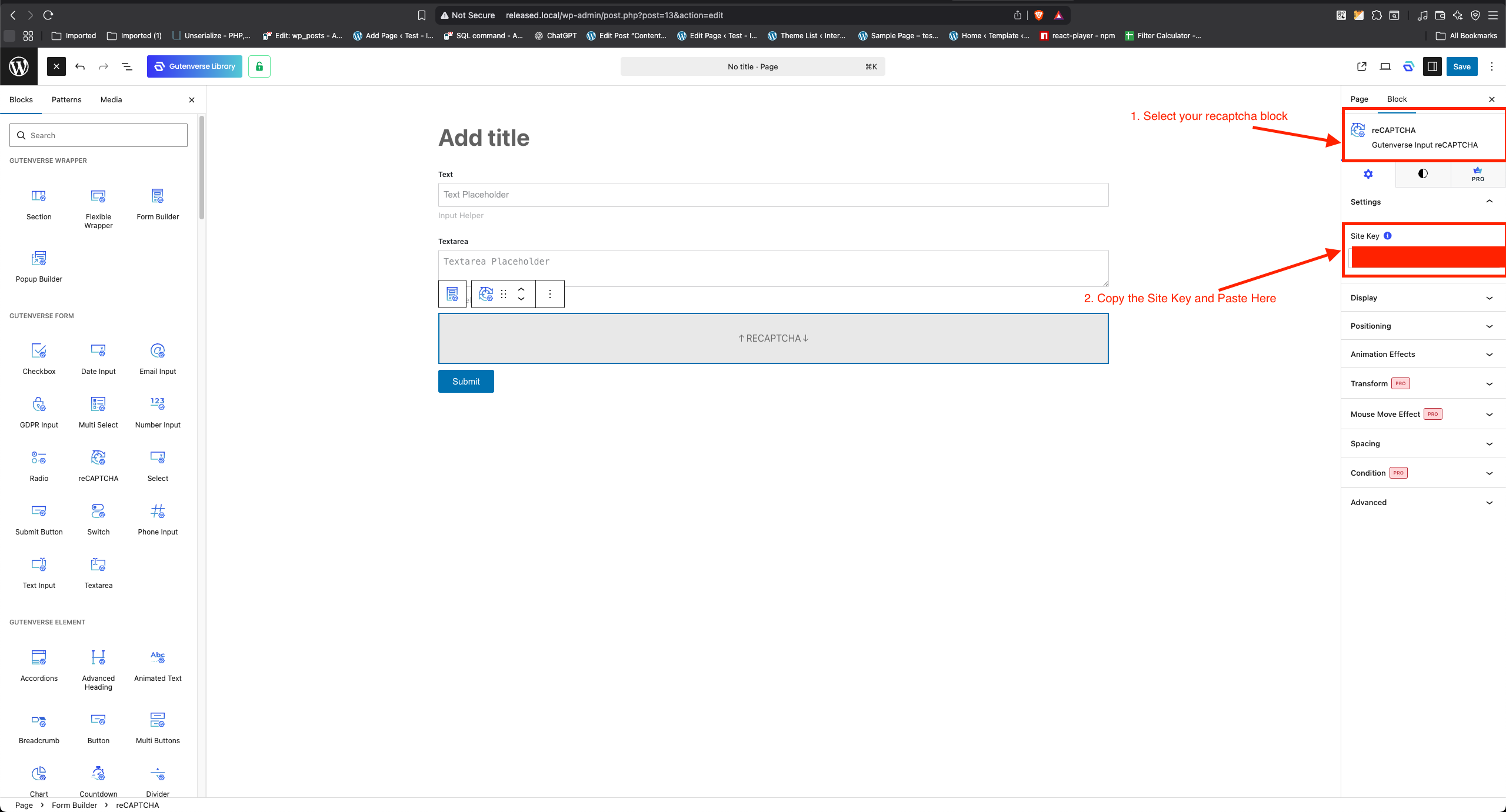
Copy site key to your Gutenverse reCAPTCHA Block Setting. And Secret Key to your Gutenverse Dashboard > Settings > Form.
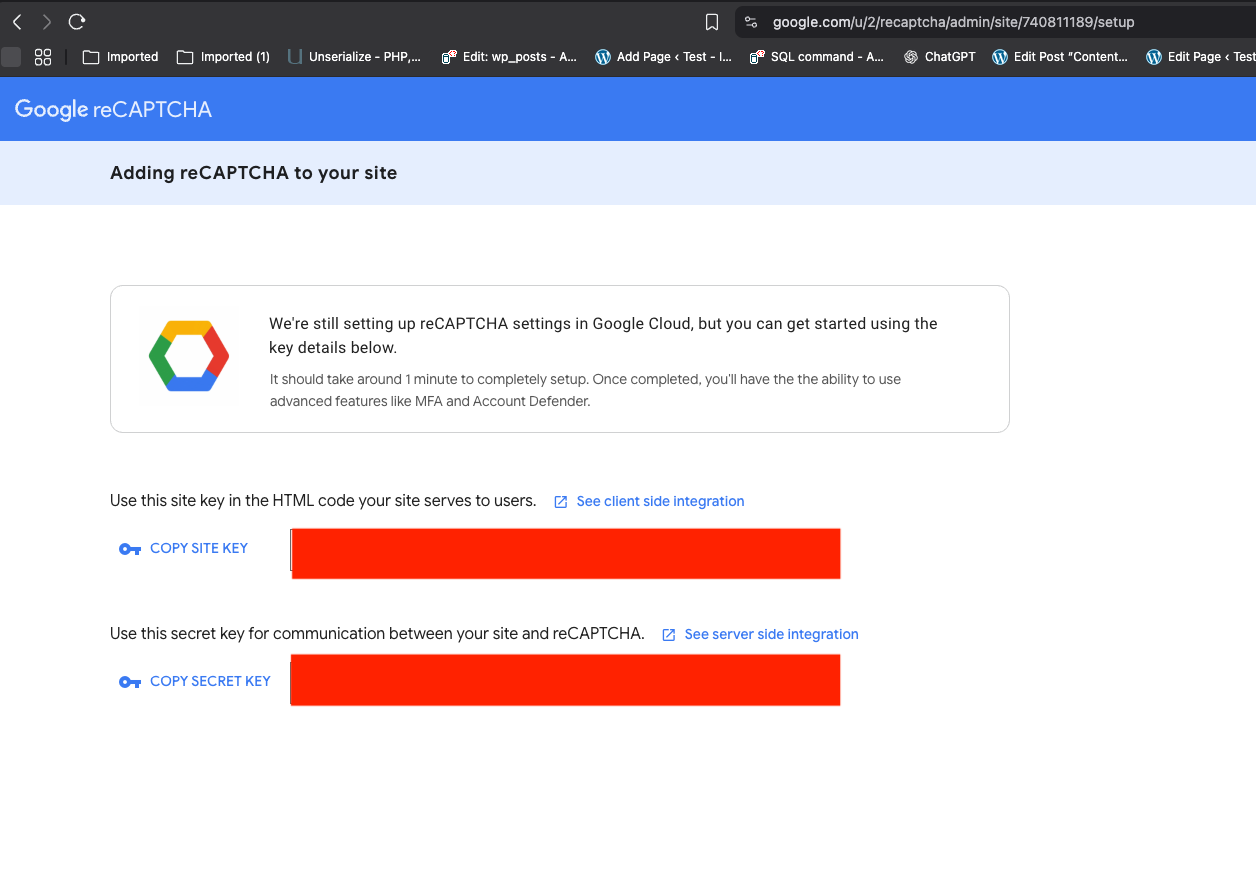
3. Navigate to your Form Action.
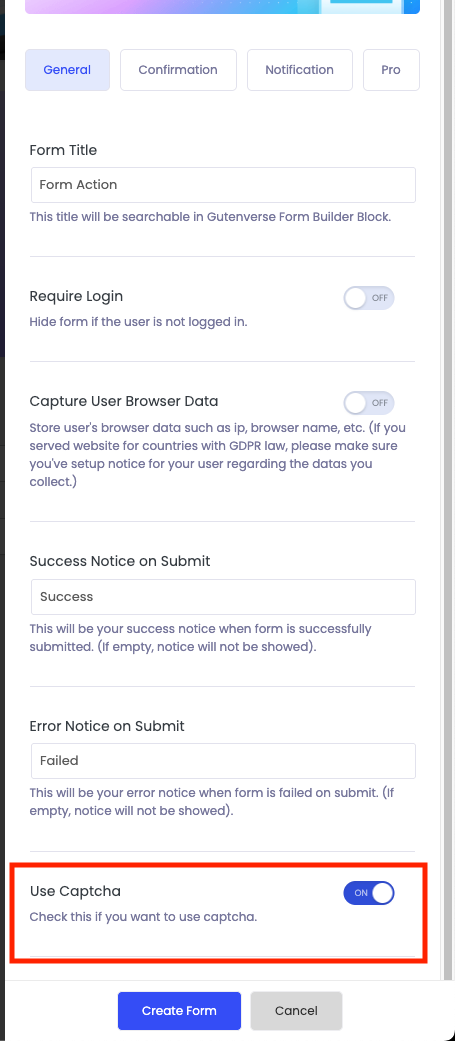
Navigate to your Form Action. You can access it from Dashboard > Form > Form Action. If you don’t have a Form Action yet, you can create it first (https://gutenverse.com/doc/how-to-setup-form-settings/). If you already have the Form Action, edit it and turn on Use Captcha to use reCaptcha upon form submit. You can turn it on when creating the Form Action, too.
4. Navigate to Gutenverse Setting.
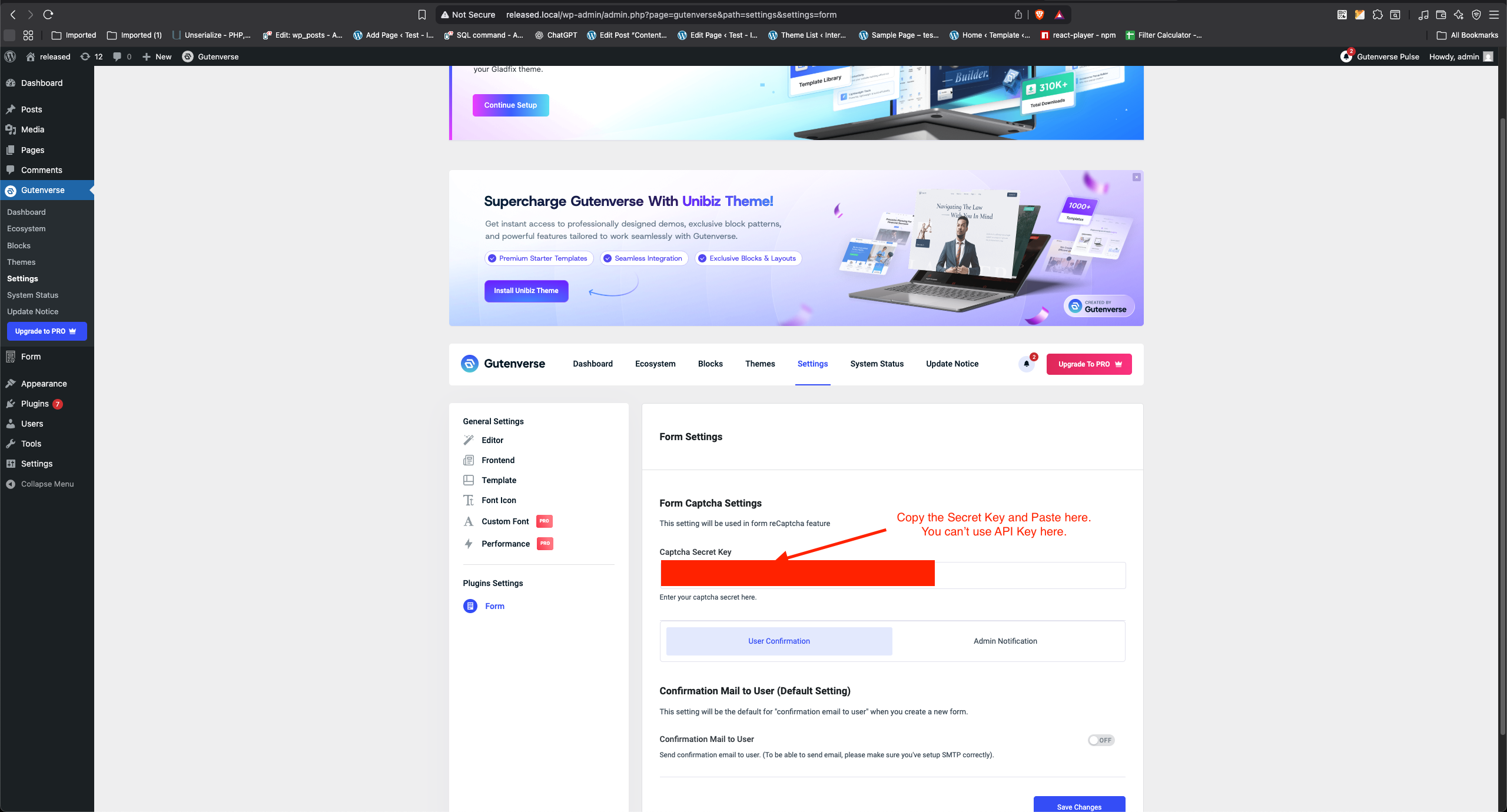
Navigate to Gutenverse Settings. You can access it from Dashboard > Gutenverse > Settings > Form. You need to paste the secret key you get from Google reCAPTCHA to the Captcha Secret Key input. Then save changes.
Note:
You can’t use reCAPTCHA from Google Cloud here. Because they have different keys. The Google Cloud reCAPTCHA using API key. But the google reCAPTCHA uses its own secret key. So you can’t use an API Key here.
5. Add Form Action
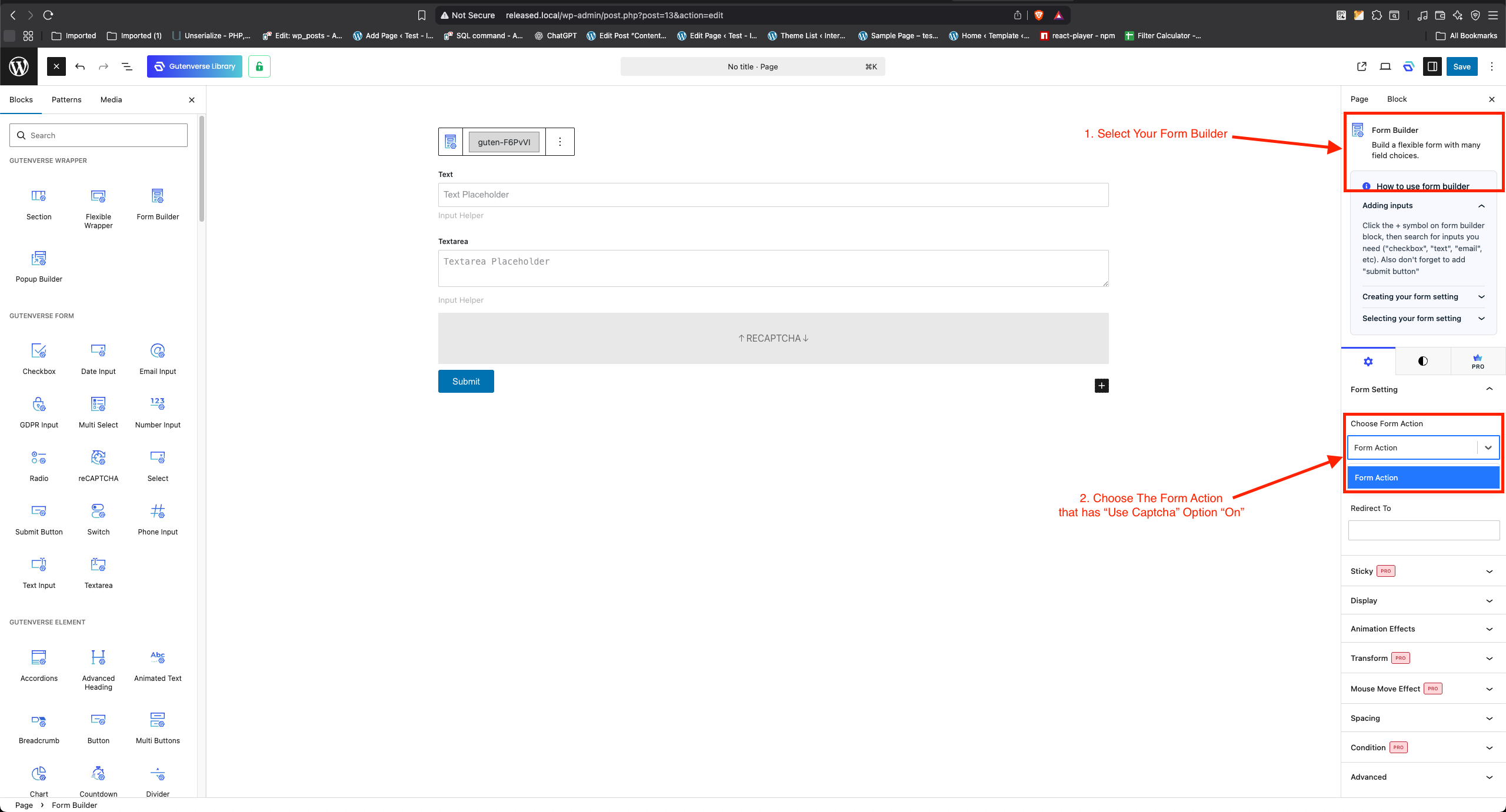
In the editor, check your Form Builder Block. It needs to use the Form Action that has the option Use Captcha activated. If it uses a different Form Action, you can change it or you can turn on the option on that Form Action ( follow step 3 ).
6. Add Site Key
Still in Editor, if you haven’t added the Gutenverse reCAPTCHA, go ahead and add it to your Form Builder. Then select your reCAPTCHA block and paste your site key in the Site Key input.