












Last Update: April 10, 2026
Upgrading your license ensures you get access to the latest features, improvements, and support available. In this tutorial, we’ll walk you through the steps to upgrade your license quickly and smoothly, so you can continue using the product without any interruptions.
How to upgrade your license
1. Access your Gutenverse Account
Access your Gutenverse Account and find your license
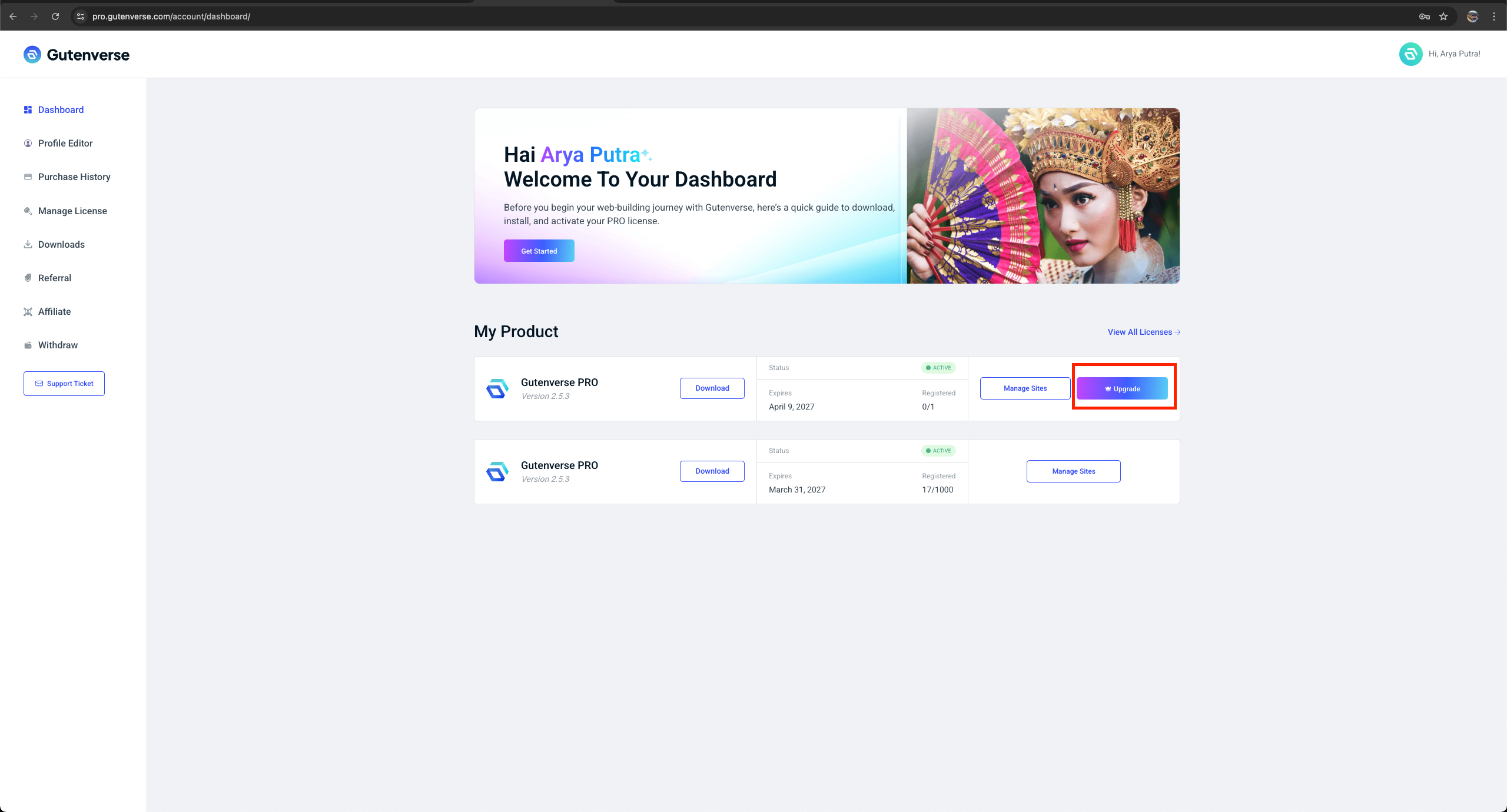
2. Click on Upgrade Button on your License
You can access the Upgrade button from your dashboard (if you have fewer than three licenses or have just purchased one), or you can find it in the Manage License Tab.
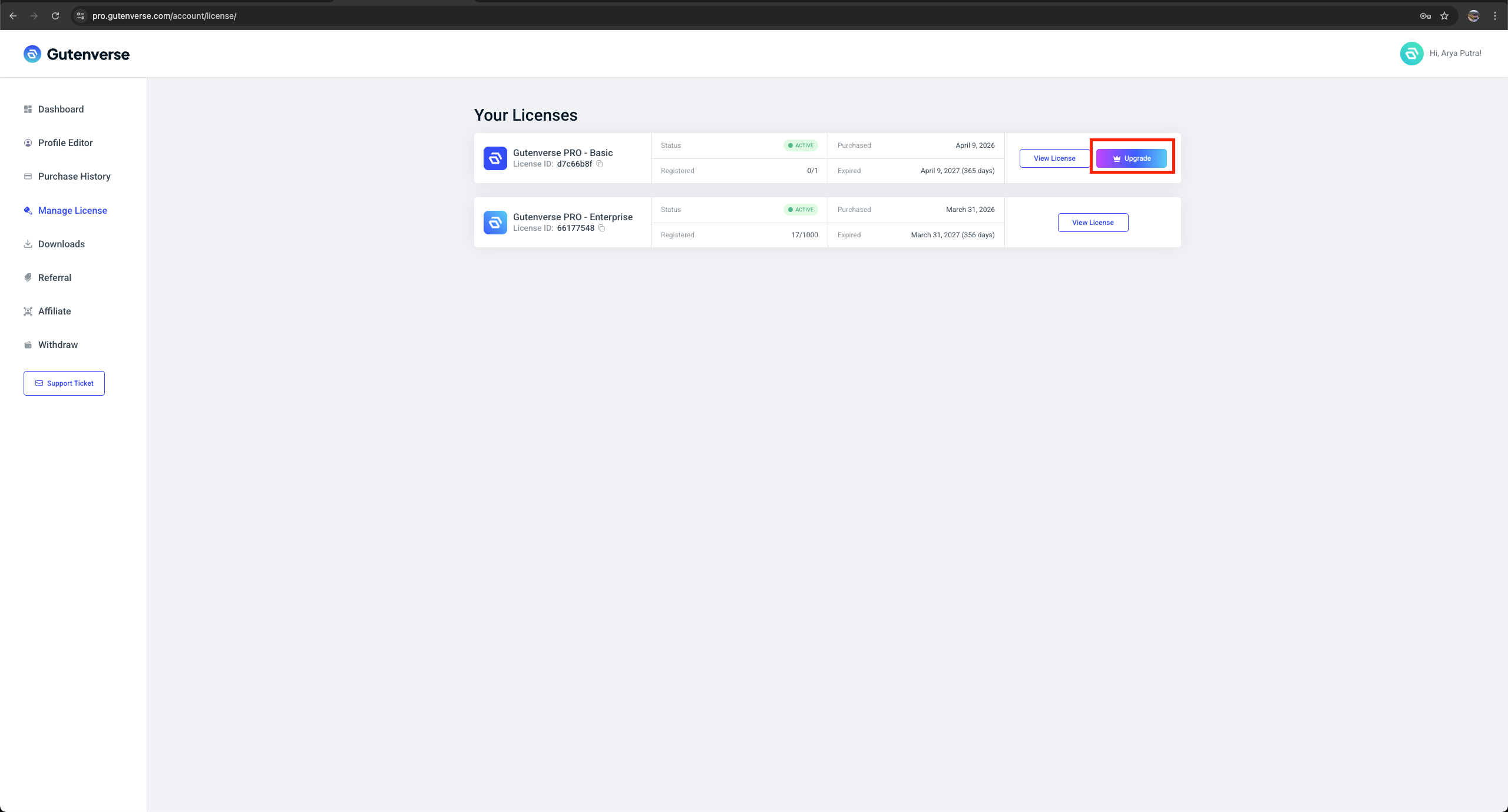
3. Choose the plan
Choose the plan you’d like to upgrade to from the available options. You will get a discount based on how long you have your current license.
So to calculate the discount will be:
The formula is:
Simple Example
Let’s say:
Price = 55.2 ( the price you pay after discount )
Discount used = 13.8 ( disc 20% )
Total duration = 365 days
Used = 1 days
Remaining = 364 days
Then:
discount=floor(364/365 * ( 55.2 + 13.8 ))=floor(68.81)=68 👉 User gets 68 as upgrade discount.
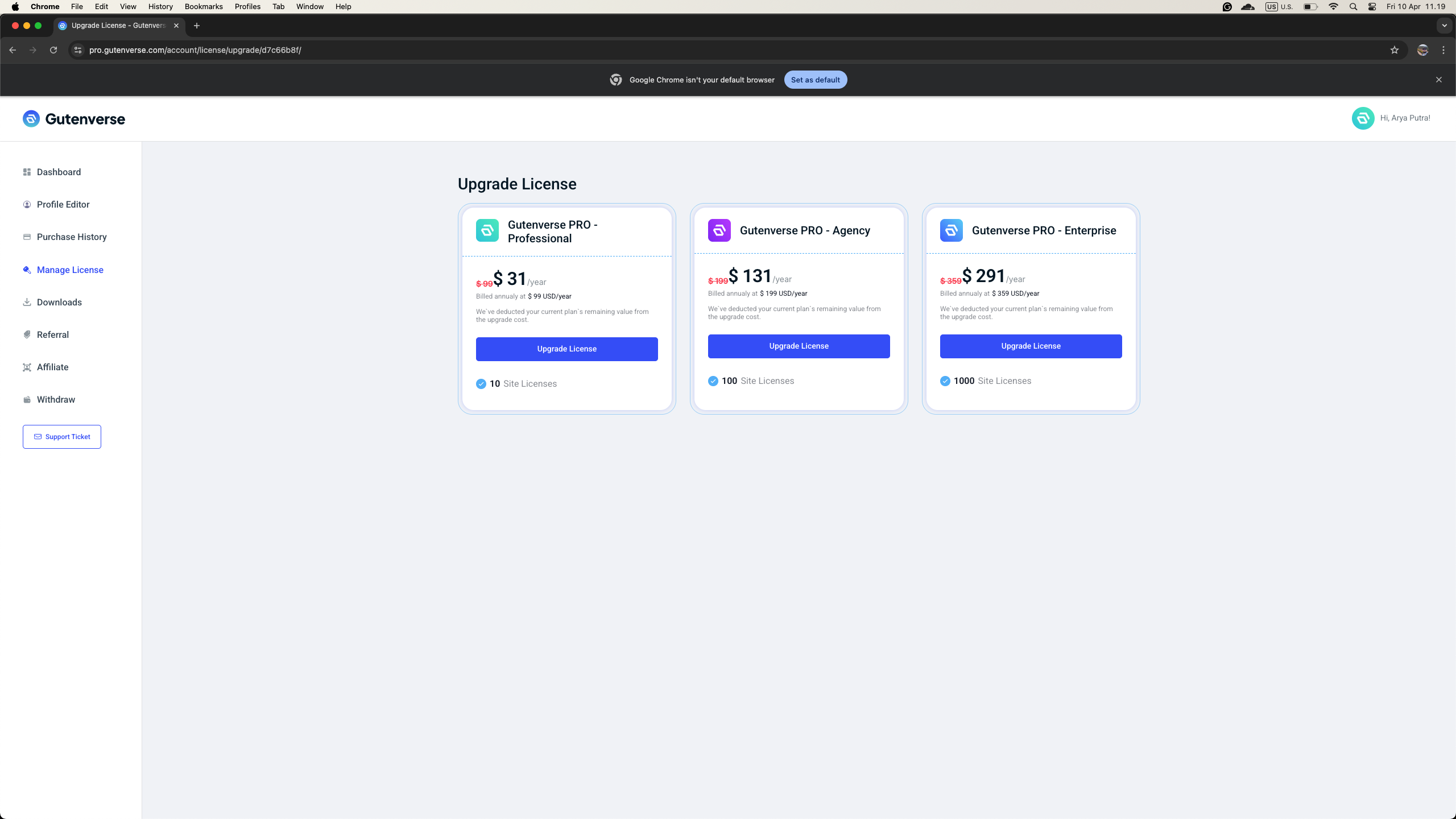
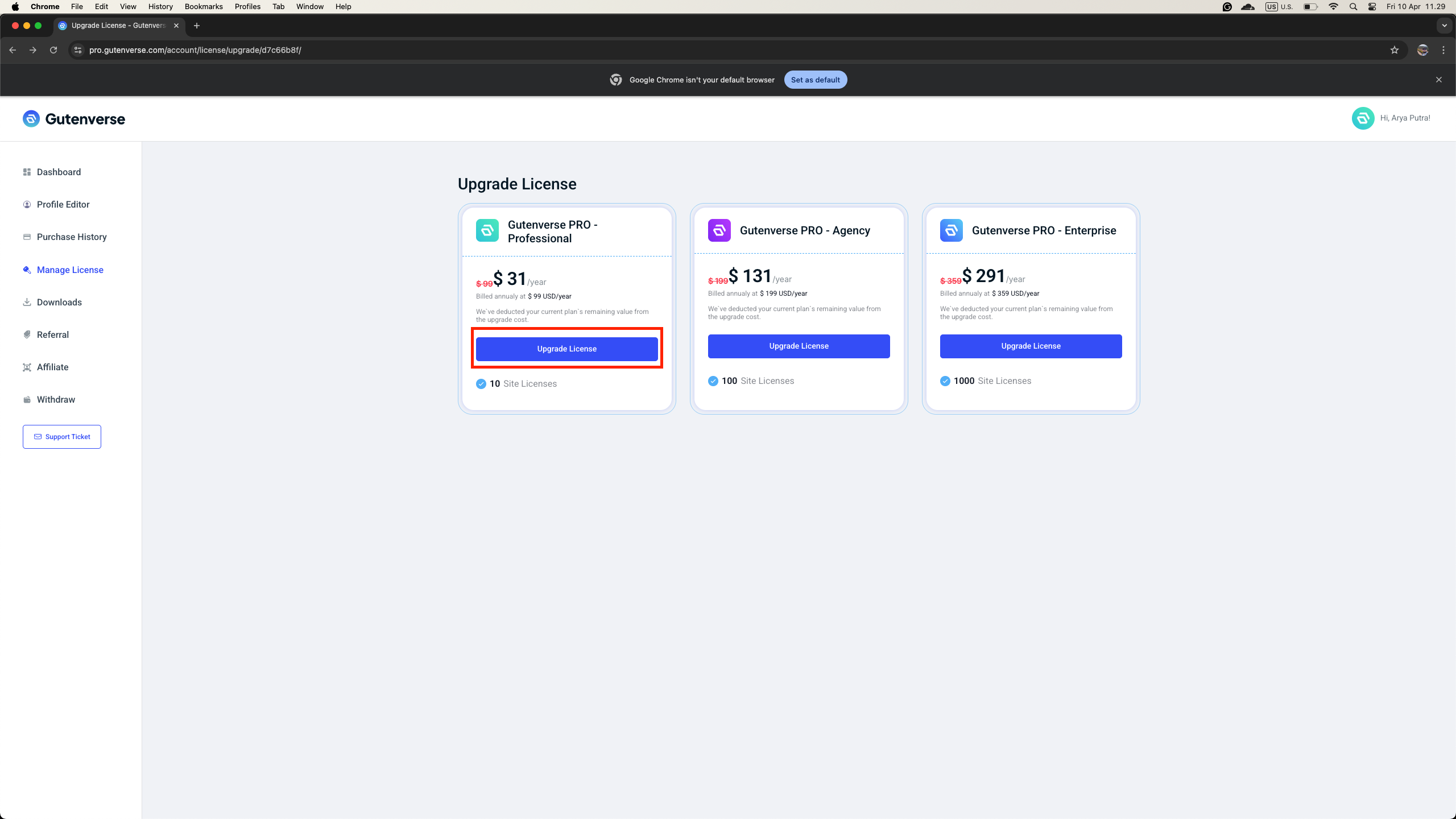
4. Choose the upgrade plan you want
Click the “Upgrade License” button for the plan you would like to select.
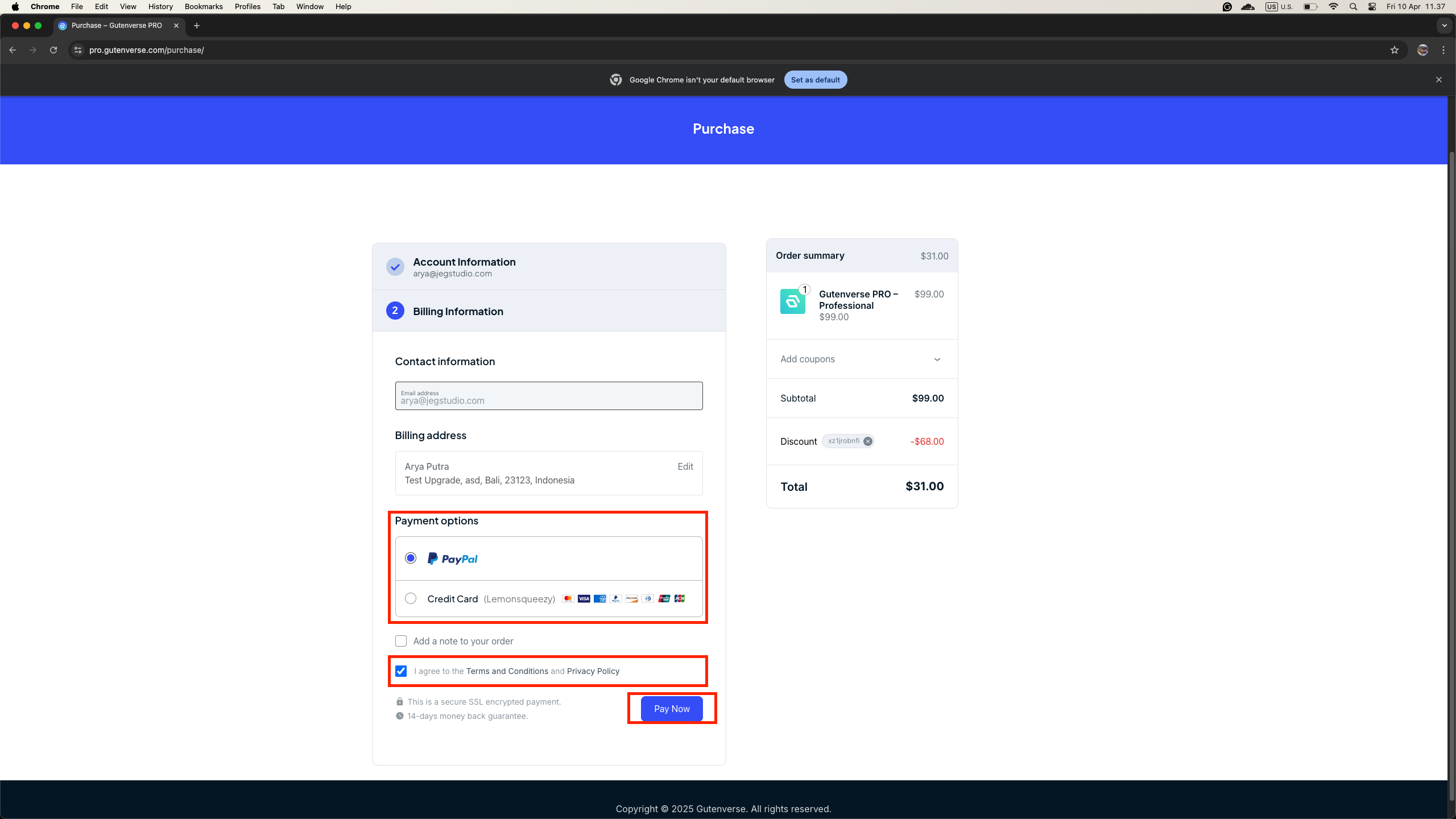
5. Finish Your Checkout
Next, select your preferred payment method. Please review and agree to our Terms and Conditions and Privacy Policy, then click “Pay Now” to proceed.
Once the payment is completed, your license will be upgraded automatically after the payment has been received and confirmed.
Important
If the discount isn’t showing at checkout, please repeat the steps from the beginning to generate a new coupon, as the current coupon may be outdated or no longer valid.