
















Most people spend hours choosing which projects to show in their portfolio. They write the descriptions, prepare the images, and make sure every detail looks good. But after all that, they often place everything into a basic image grid and call it done.
That is not always a bad thing. A simple grid can work. But if your gallery has no context, no filters, and no hover interaction, your best work can easily feel flat or forgettable. Visitors may scroll through the images, click one or two, and leave without really understanding what you do, what kind of projects you handle, or who you have worked with.
How you display your work matters. A well-structured gallery helps each project stand out. It gives visitors a clearer idea of what the project is, why it matters, and what they should do next.
In this guide, we will walk through how to create a gallery section on your WordPress portfolio page using WordPress block editor. You will also see a few different ways to set it up, depending on what you are trying to show.
Why The Gallery Layout Matters
A gallery is not just a place to display images. It plays an important role in how your portfolio page convinces the visitors.
When someone lands on your portfolio page, they usually try to answer a few questions quickly. What kind of work do you do? Is it relevant to their needs? Is the quality good enough? A well-organized gallery helps answer these questions right away. A poorly organized one makes visitors figure everything out by themselves. Most of the time, they will just leave.
There are a few things that make a gallery effective:
You don’t need a separate portfolio plugin for this. With the right tools, you can create a good gallery layout directly inside the WordPress block editor.
Option 1: Image Gallery
The Gutenverse Gallery block is a flexible option if you want to display many images on your portfolio page. It lets you create grid, masonry, or overlay layouts. You can also add hover effects, such as zoom or slide-in effects, and use category filters so visitors can sort your work by project type.
This approach works best for photographers, illustrators, visual artists, or anyone whose portfolio depends heavily on images. The filter option makes it easier for visitors to find the type of work they want to see without scrolling through the entire gallery.
How to Set It Up
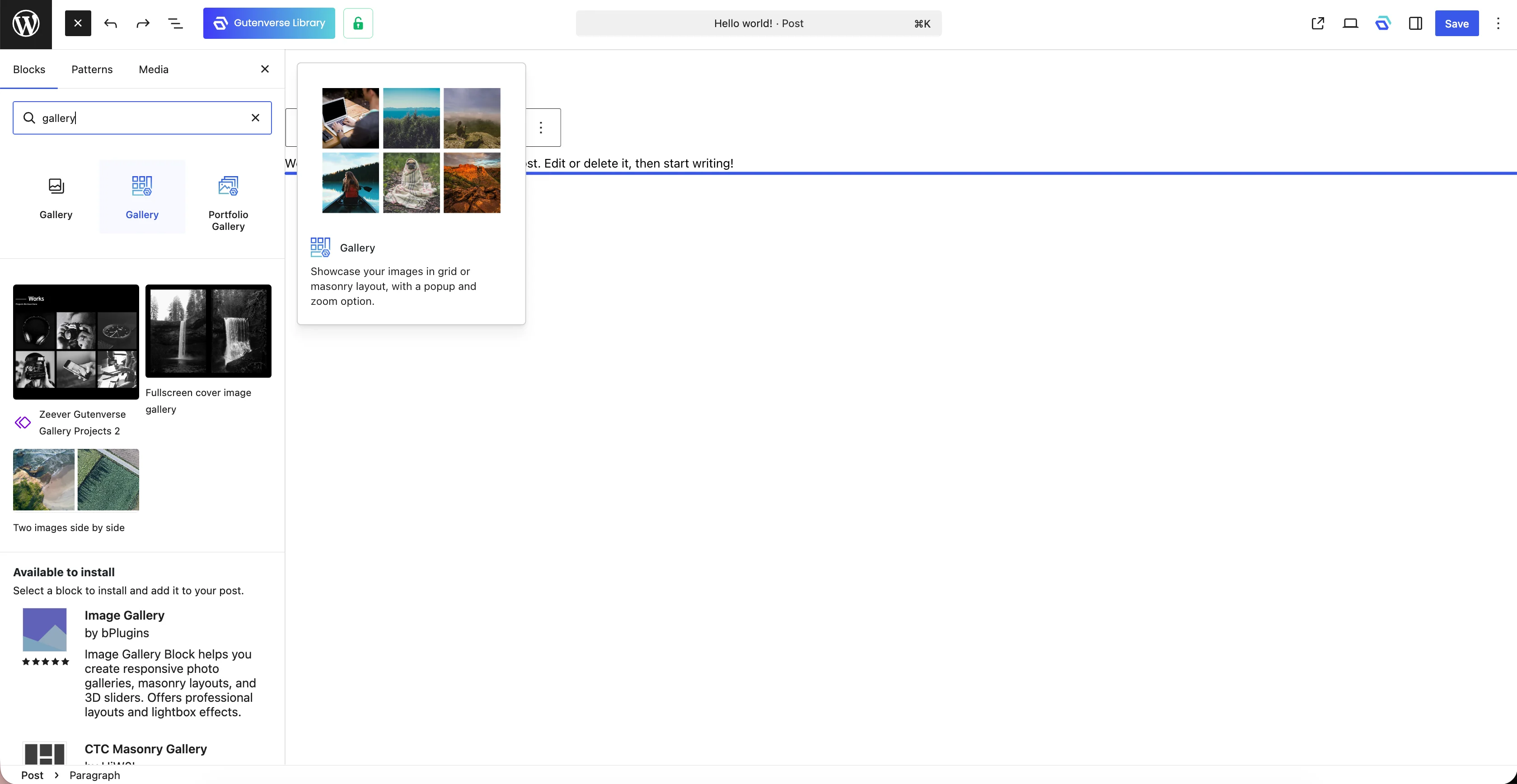
The overlay style is a good option if you have strong visuals. When visitors hover over an image, the project title and short description can appear on top of the image. This keeps the gallery clean while still giving visitors enough context about each project.
Option 2: Portfolio Gallery
The Portfolio Gallery block is made for projects that need more explanation. Instead of showing only a grid of images, it displays your work as project cards. Each card can include a project image, title, short description, hover effect, and an optional “view more” link that takes visitors to the full project page.
This approach works well for web designers, developers, architects, agencies, or anyone whose work needs more context. In many cases, the image alone is not enough. Visitors may need to know what the project was, who it was for, and what your role was.
How to Set It Up
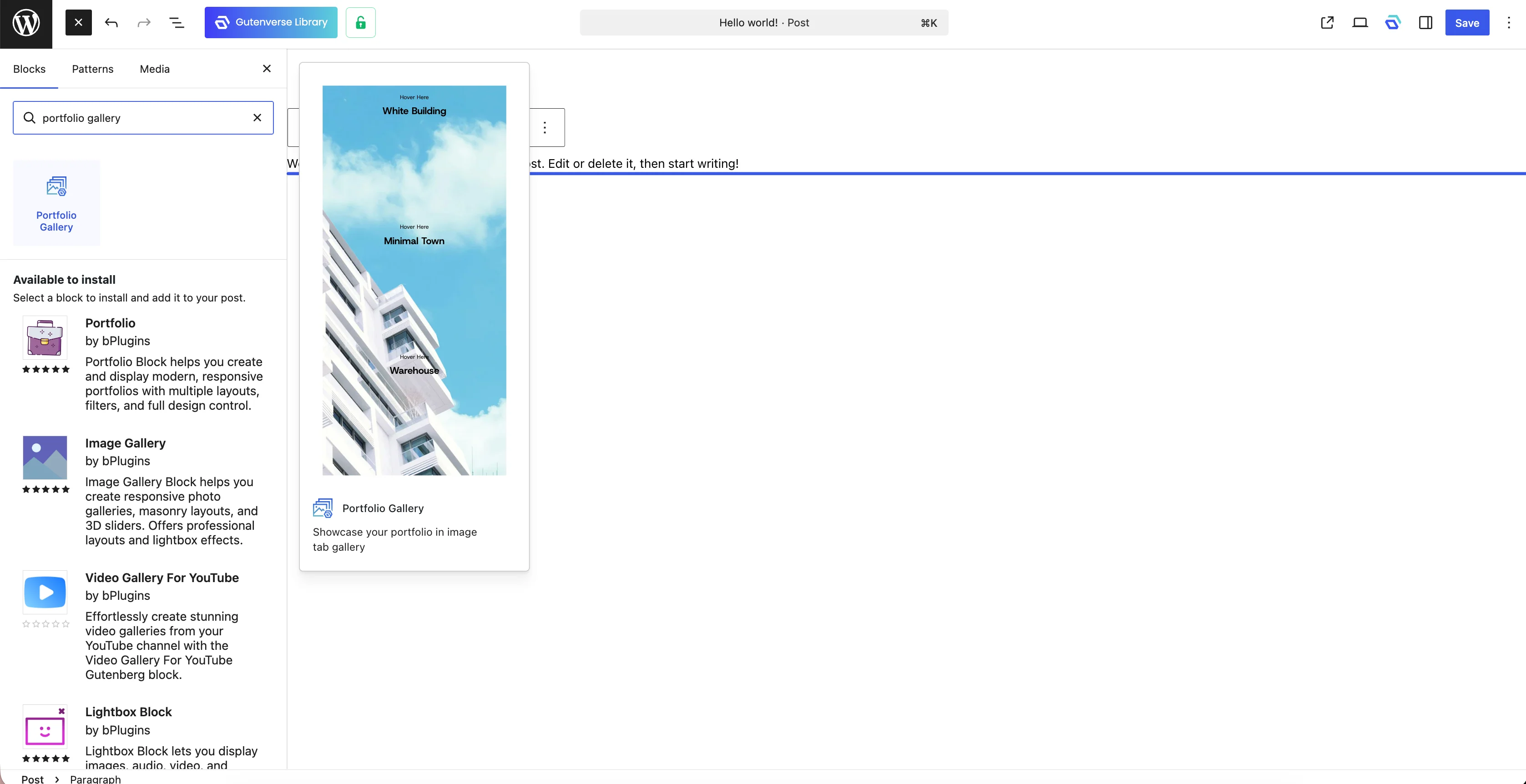
Each item can be edited directly in the editor. You don’t need to open another page just to update a project title or replace an image. Just click the item, make your changes, and you are done.
Option 3: Image Marquee
If you want to highlight your best work near the top of your portfolio page, you can use the Image Marquee block from Gutenverse PRO. This block creates a smooth scrolling strip of project images that moves across the screen.
This is not meant to replace your full gallery. It works more like a teaser. You can use it to show a few of your strongest visuals first, so visitors get a quick impression of your work before they scroll down and explore the full portfolio.
It also works well on a homepage as a Featured Work section. The moving image strip can catch attention and encourage visitors to click through to your full portfolio page.
You will need Gutenverse PRO to use the Image Marquee block. If you already have it installed, search for Image Marquee in the block inserter, add your images, then adjust the scroll speed and direction from the block settings. The full setup guide is at Showcase Your Work with Gutenverse Image Marquee.
Which Option Should You Choose?
Here is a quick way to decide:
Your need
Best option
You have many images and want visitors to browse by category
Gallery block
You want to show projects with titles, descriptions, and links
Portfolio Gallery block
You only want to highlight a few selected projects on your homepage
Image Marquee block
You want to combine everything on one portfolio page
Use Image Marquee block at the top, then put a full gallery below
Each option can work well, depending on what you want to show on your portfolio page. There is no single “best” choice for every website. You can choose the block based on the type of work you have, how many projects you want to display, and how much information you want to include for each item.
Make The Gallery More Informative
The block helps you handle the layout, but the content still matters. Here are a few things you can add to make each portfolio item more useful and easier to understand.
Final Thoughts
Your projects deserve more than a basic image grid. A well-structured gallery helps visitors understand what you do, find the work that is most relevant to them, and see each project as something intentional.
Start with Gutenverse Gallery block, Portfolio Gallery block, or even Image Marquee, depends on the type of work you want to show. All of them are free and work inside the WordPress block editor, so you can build a portfolio section without a complicated setup.
If you want a faster starting point, you can also explore the Gutenverse template library. It includes ready-made portfolio sections that you can import and customize in no time. We hope this post gives you a better idea of why adding a work gallery to your WordPress portfolio page matters.