














If you have just installed the Gutenverse plugin on your WordPress site, you might notice there are quite a lot of blocks to choose from. With over hundred options for designing the content, layout, posts, and forms, it can be a bit confusing to know where to begin, especially if you are new to the WordPress block editor.
The good news is, you don’t need to learn everything at once! Luckily, Gutenverse is made to be flexible, so as a beginner, you can start with a few basic blocks and build your site step by step. In most cases, just a small number of blocks is enough to create a clean and functional website.
In this guide, we will go through 10 free blocks that are good to start with. These blocks cover common needs like building sections, showing content, and helping visitors take action. You will also get a simple idea of how each block works and how you can use it on your own site.
Advance Heading
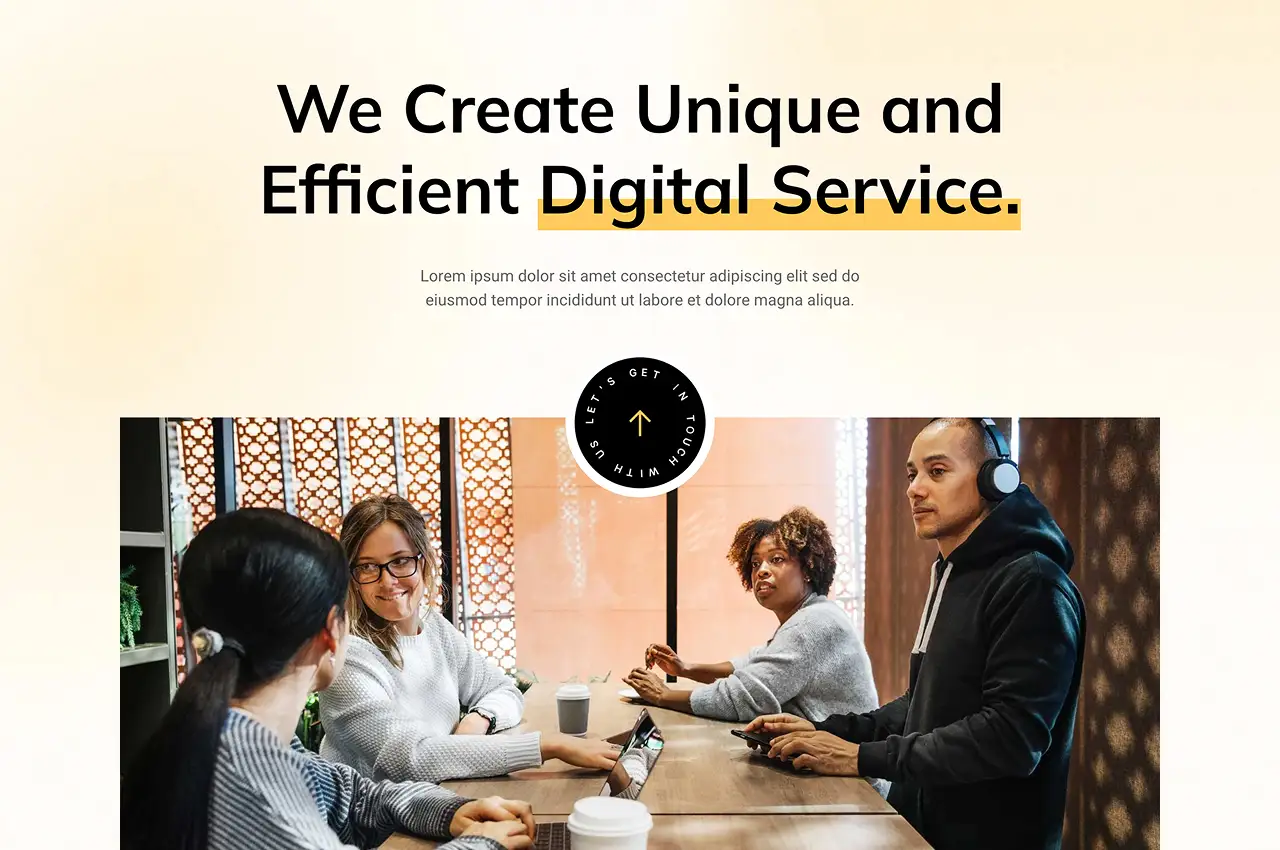
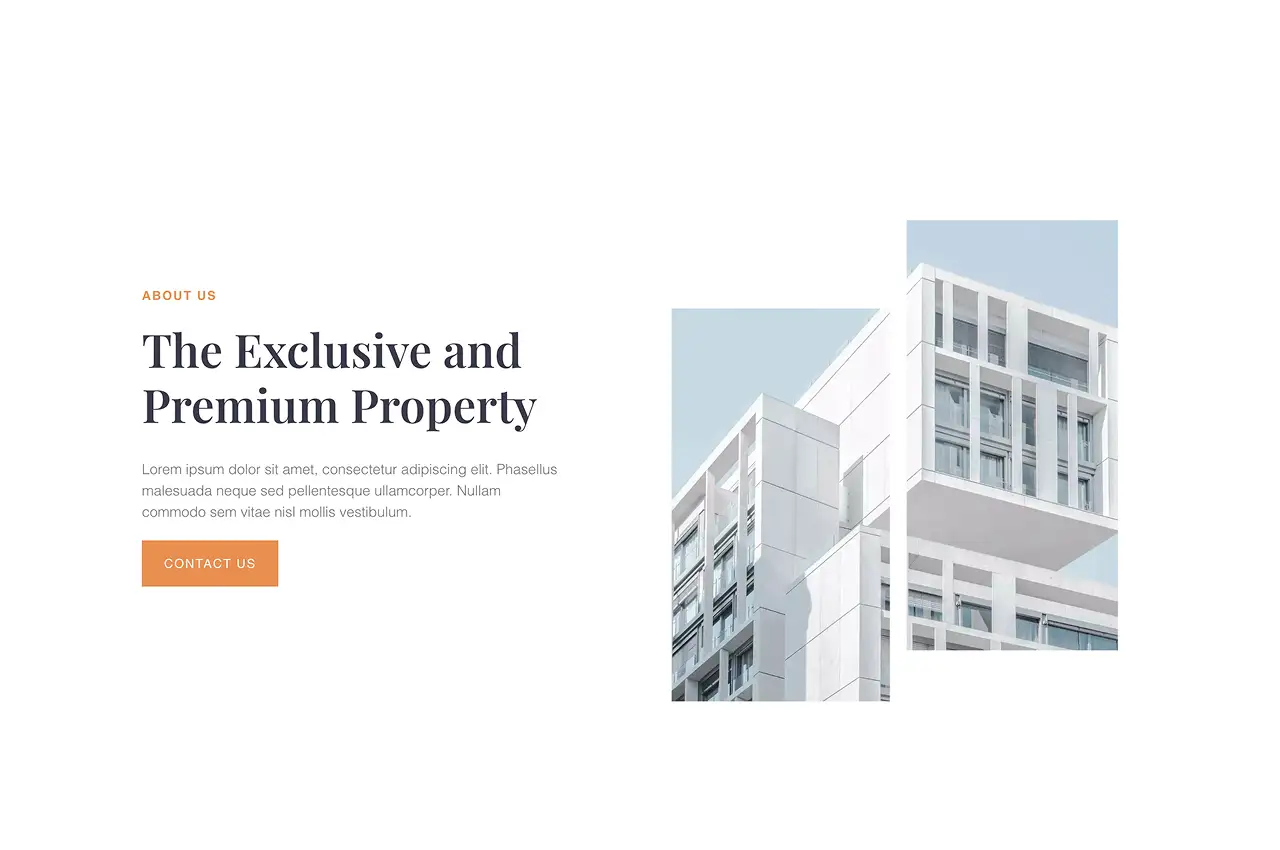
The Advance Heading block helps you create better-looking headings compared to the default WordPress option. You can adjust the text style, add gradient colors, and include small decorative elements without writing any code.
What makes it useful is how much control you get while keeping things simple. You can change fonts, apply different colors to parts of your text, and add small design details like lines or shapes under the heading. Even with just this block, your page can look more polished and professional.
What You Can Do With It

Icon Box
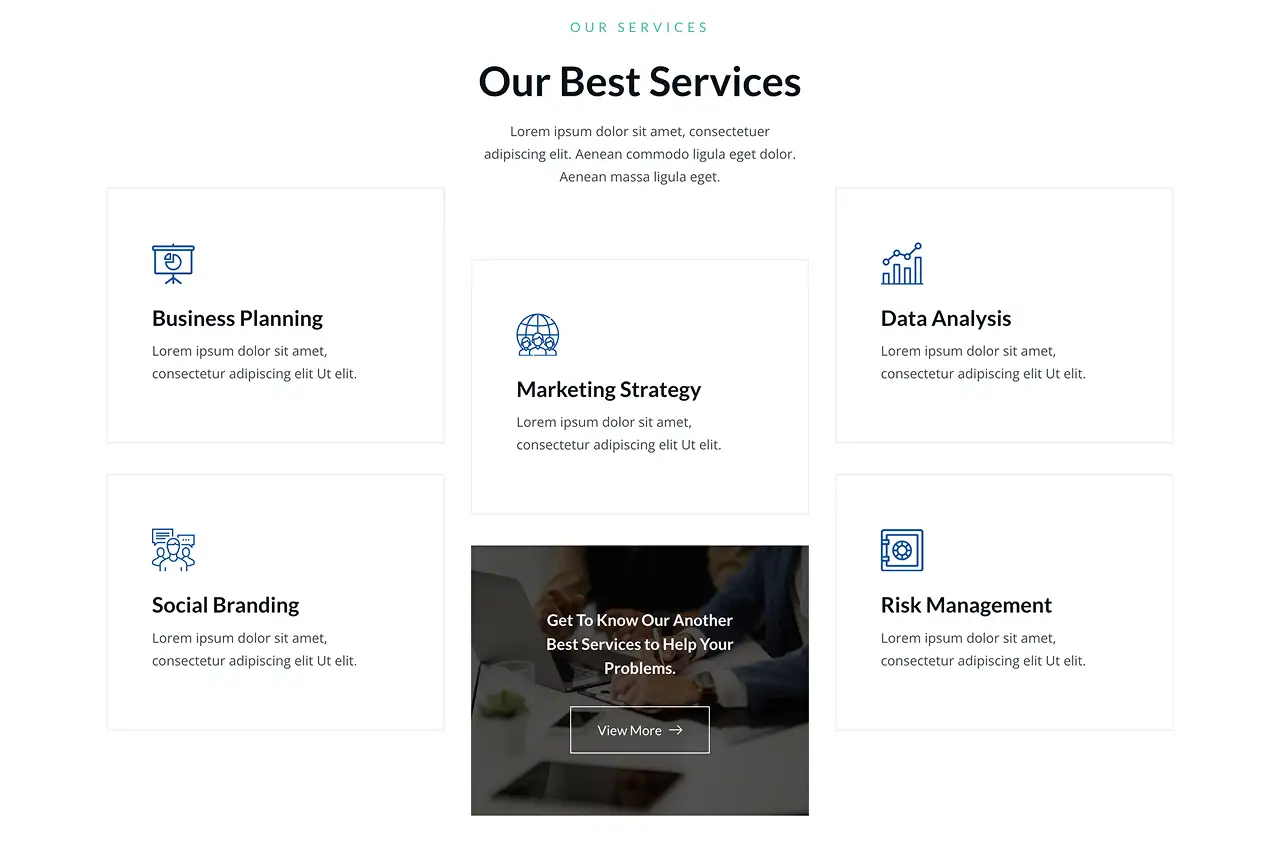
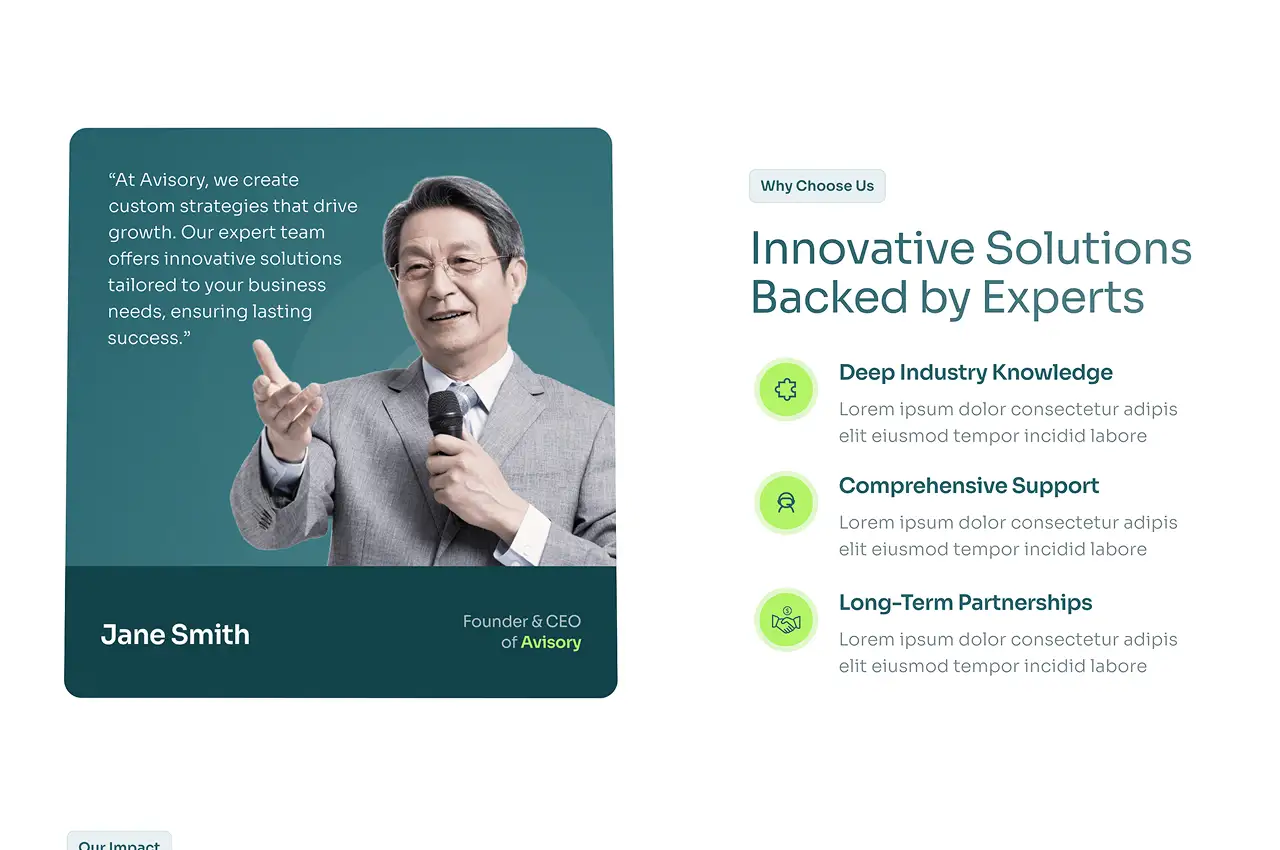
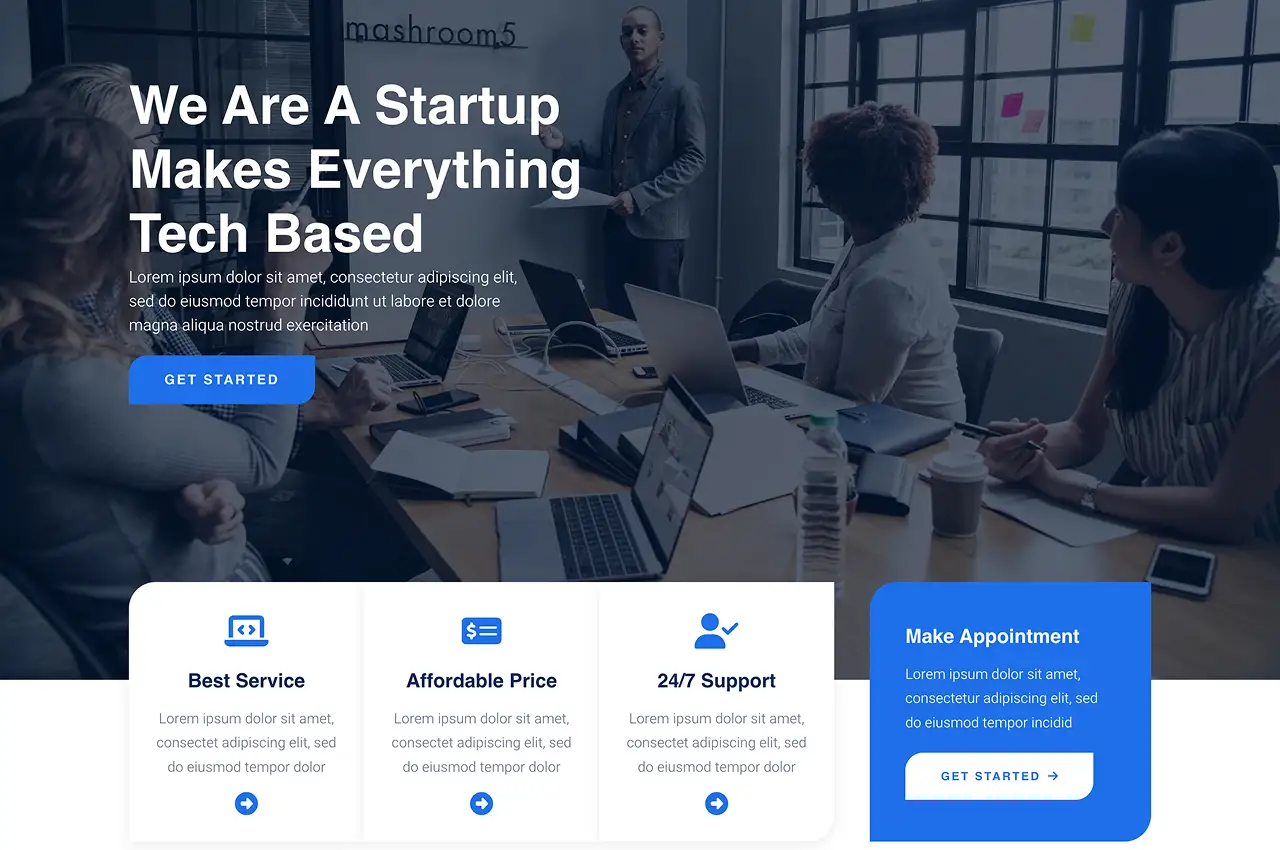
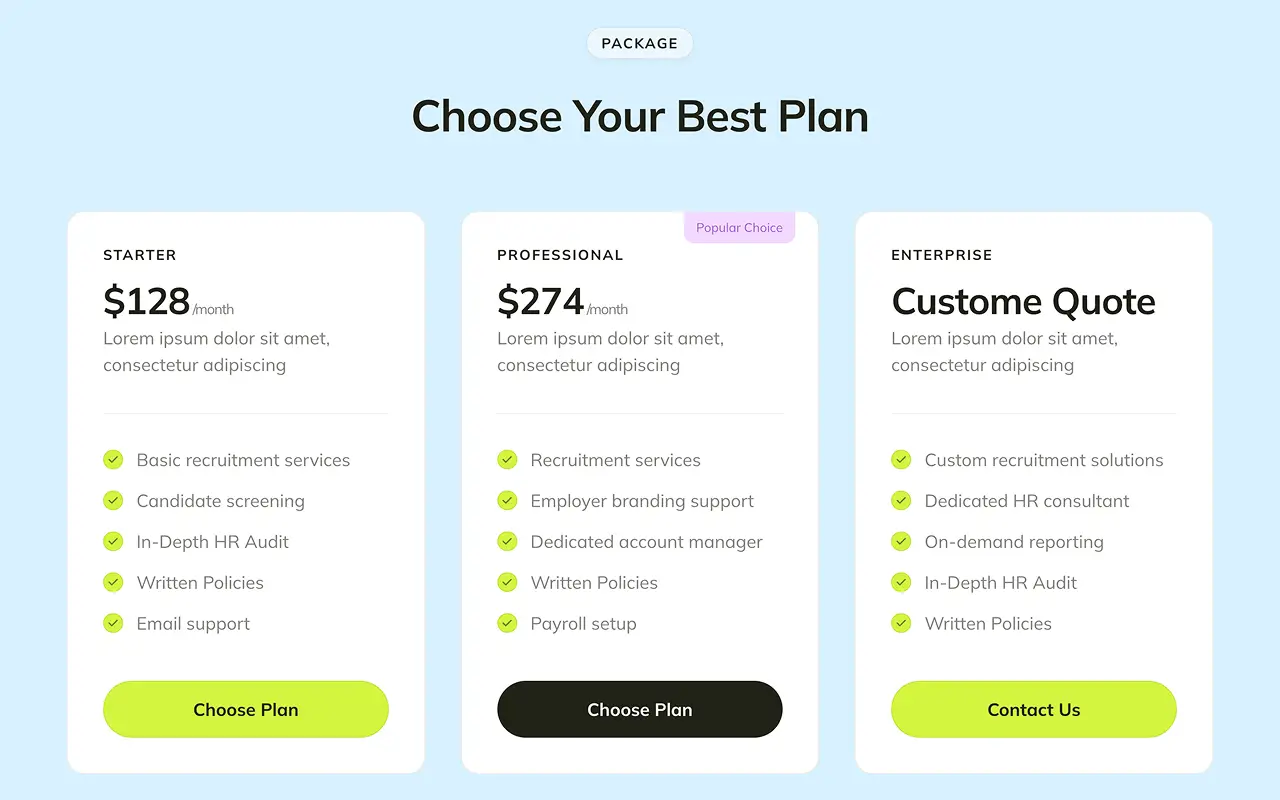
The Icon Box block combines an icon, a title, and a short description in one simple layout. It is great for showing services, features, or key benefits in a way that is easy to read at a glance. Instead of using long paragraphs, you can break your content into smaller sections that are clearer and easier to understand.
It also comes with a large collection of icons, so you can easily find one that fits your content. You can adjust the icon’s color, size, and position to match your site’s design. Whether you are showing a few services or several features, this block helps you present everything in a clean and organized way.
What You Can Do With It
Testimonials
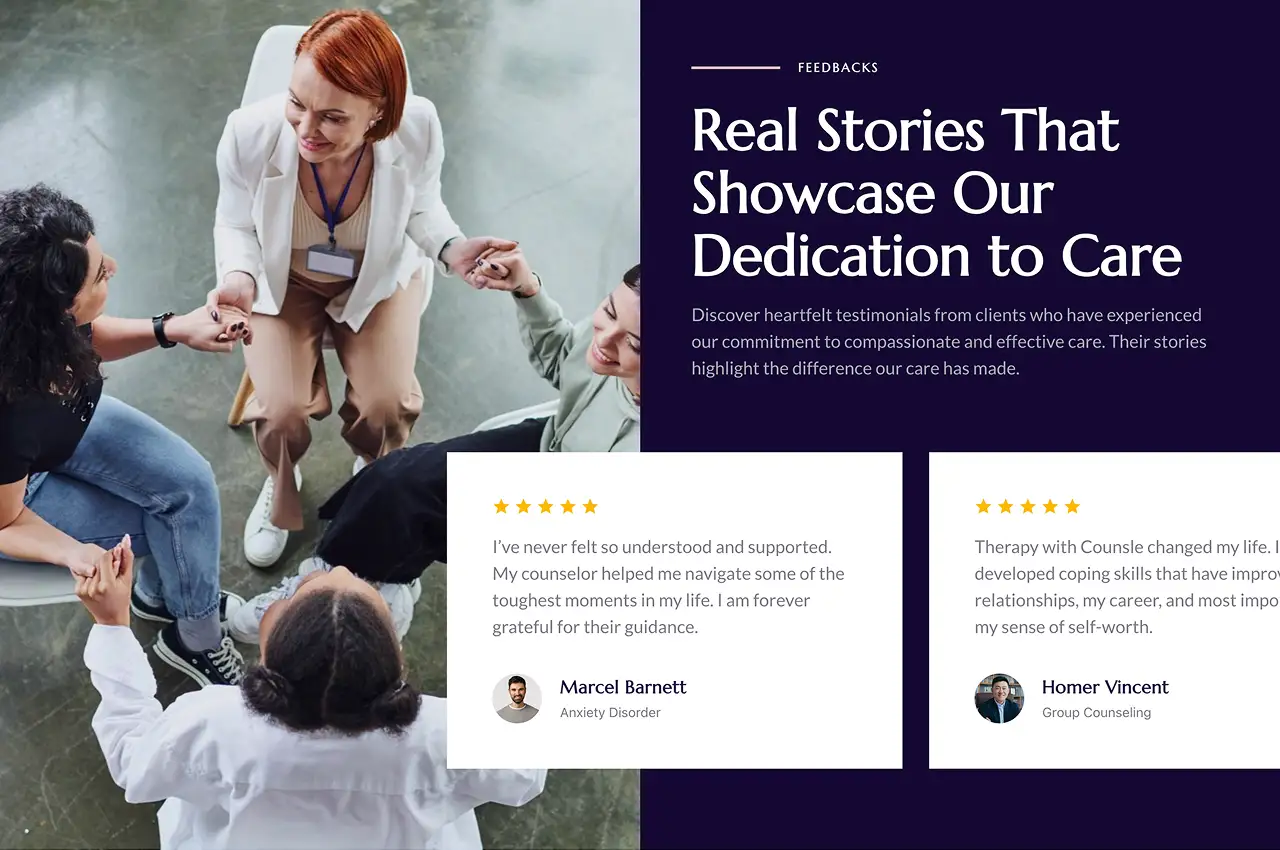
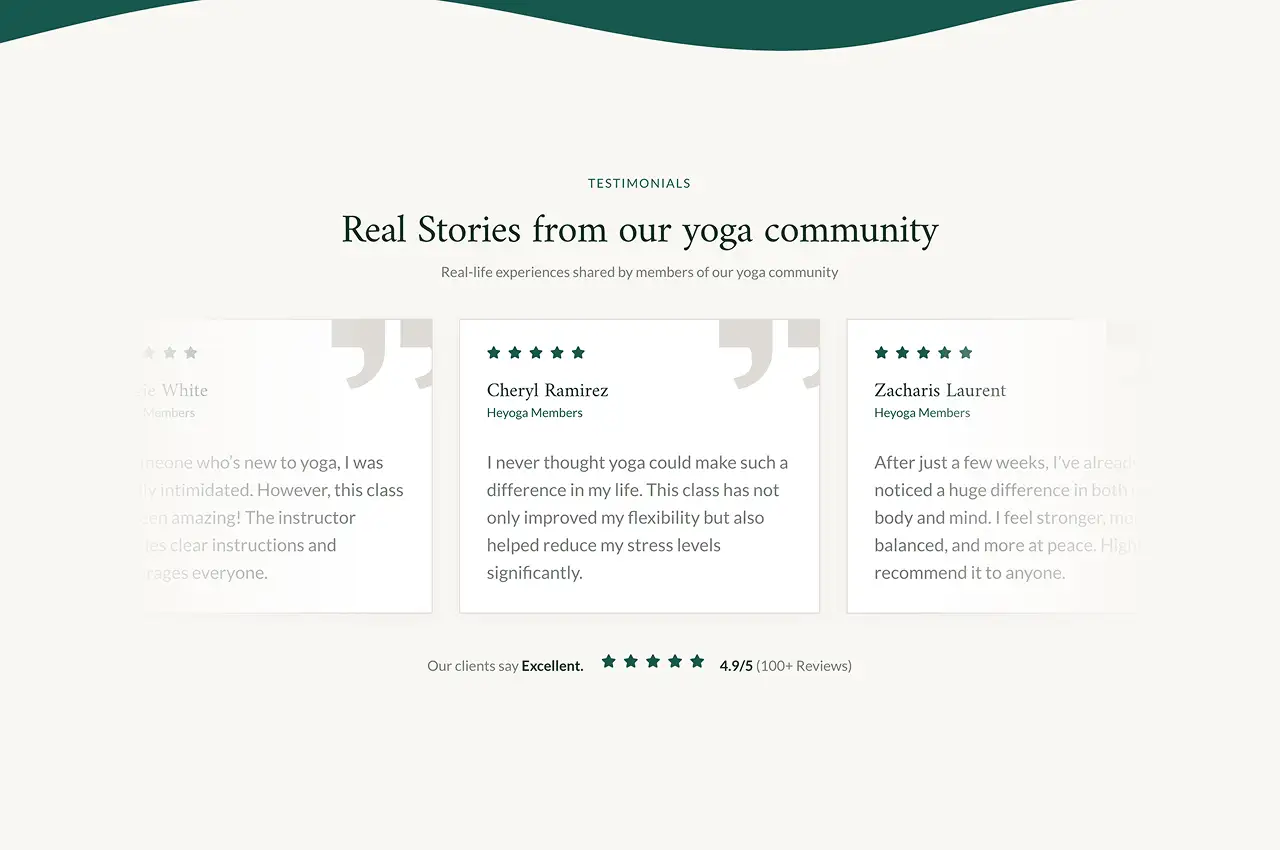
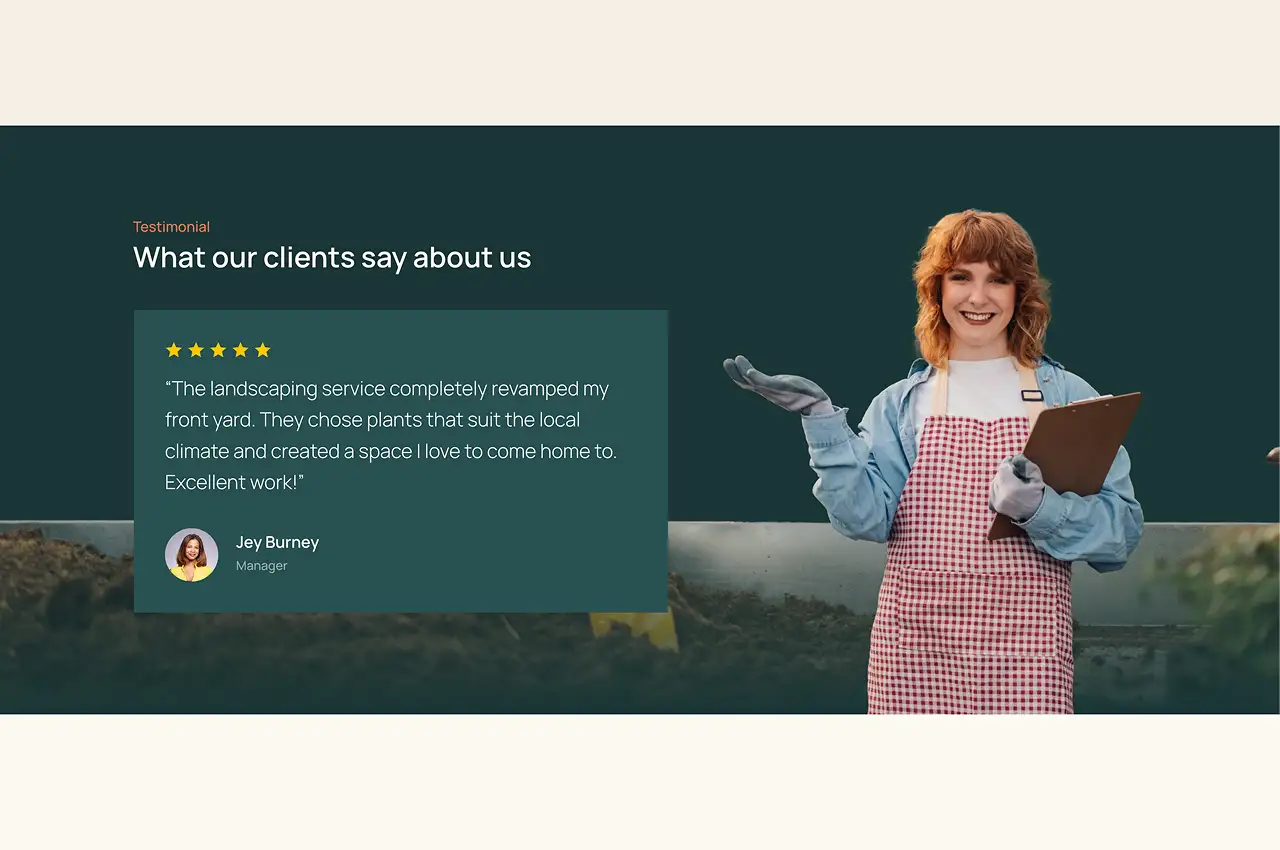
Showing feedback from real customers is one of the easiest ways to build trust, and the Testimonials block helps you do that quickly. You can add quotes along with names, photos, roles, and star ratings, all directly from the WordPress block editor without any coding.
For beginners, this block makes it easy to add credibility to your site. You just enter the content, adjust the layout if needed, and you are good to go. Whether you are building a site for a service, small business, or product, adding testimonials can help visitors feel more sure about choosing what you offer.
What You Can Do With It
Accordions
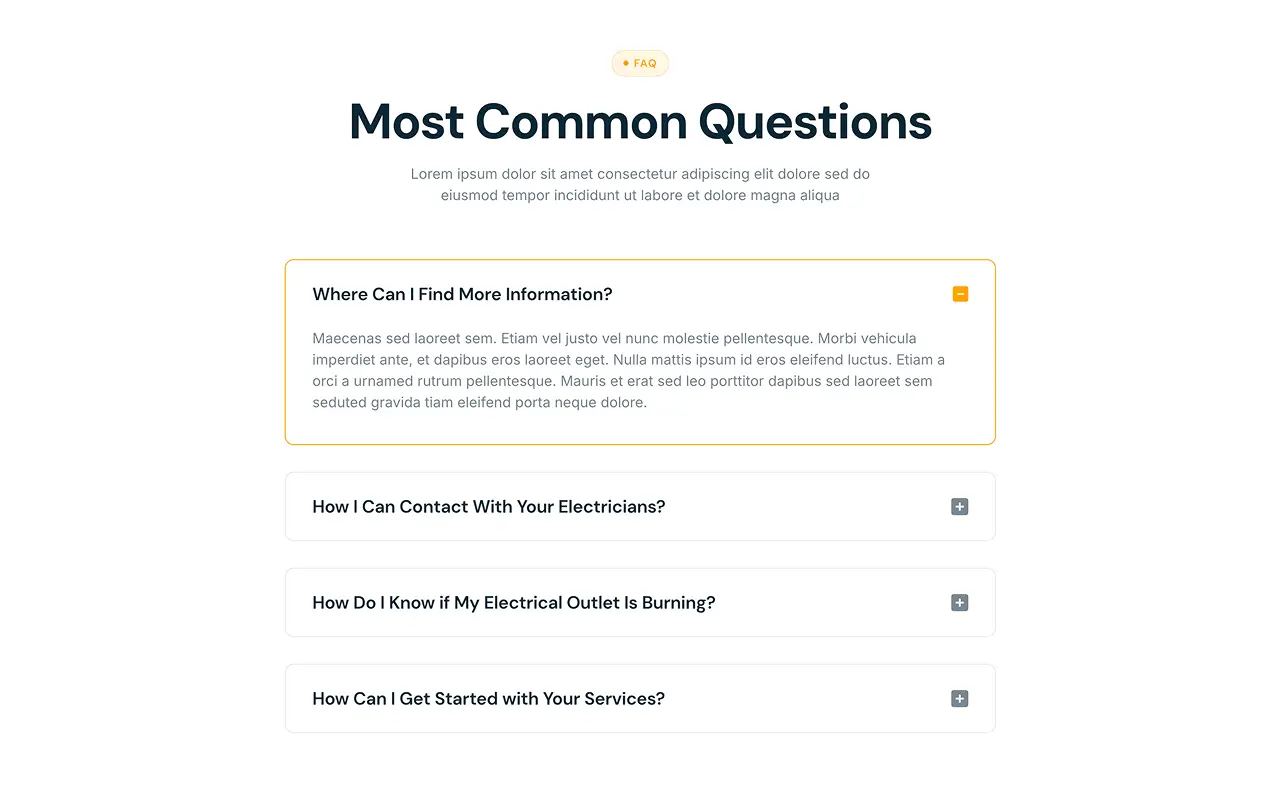
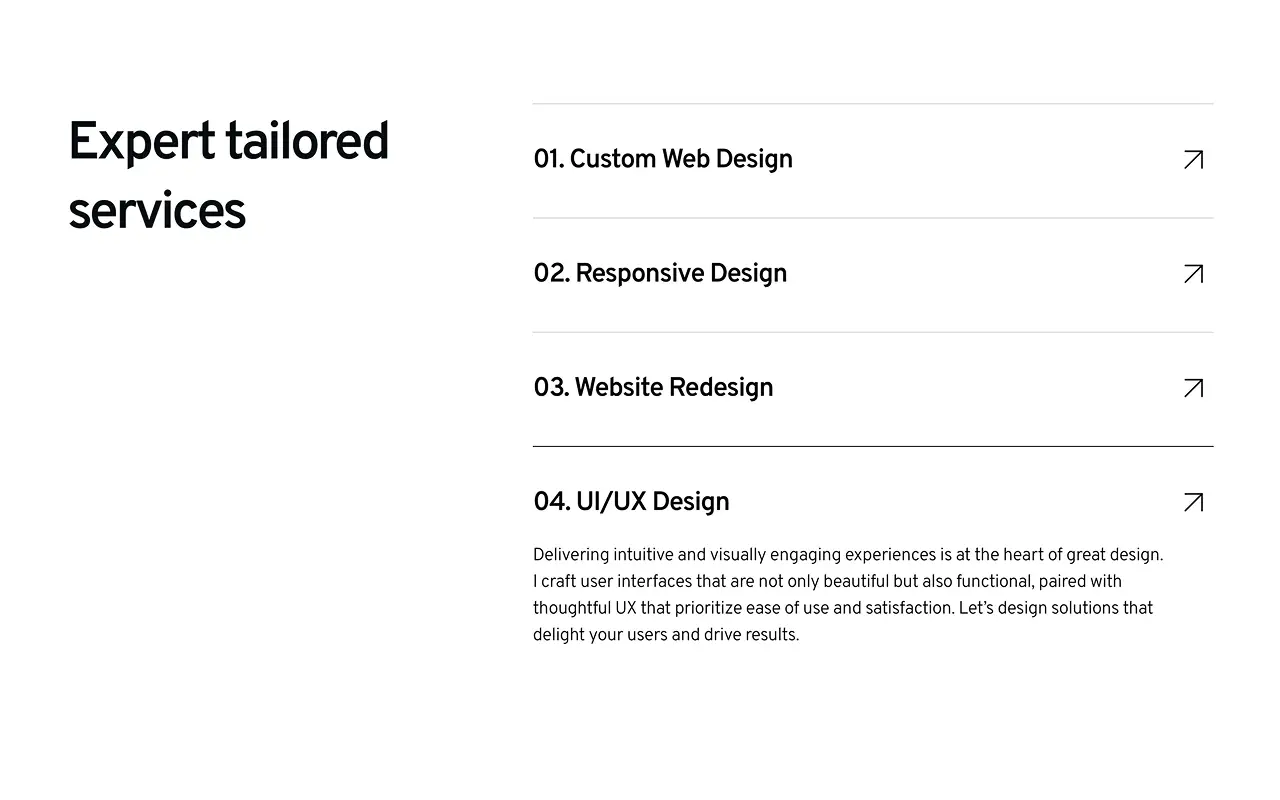
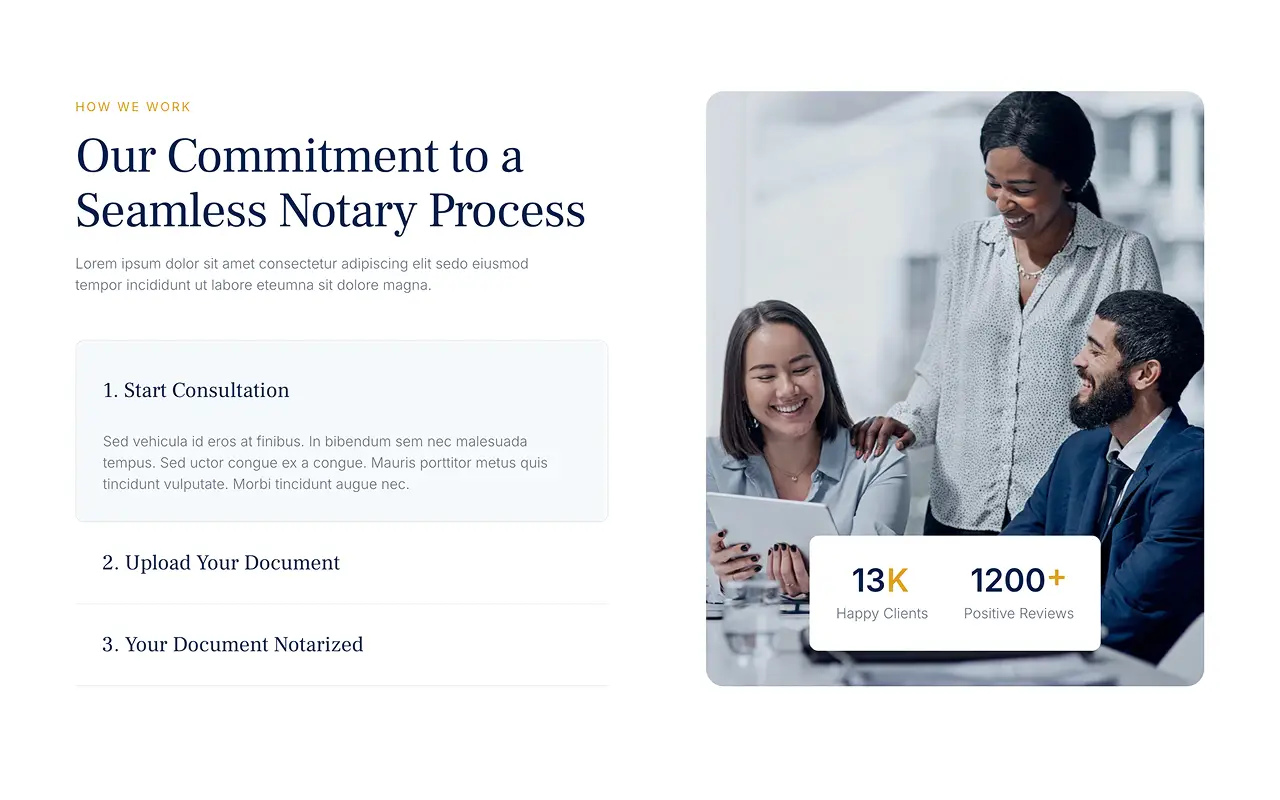
The Accordions block lets you organize content into sections that can be expanded or collapsed. It is useful for FAQ pages, step-by-step guides, or any page with a lot of information. Instead of showing everything at once, it helps keep the page clean and easier to read.
This block works well for pages that usually have a lot of content, like product details, support pages, or service explanations. By showing only the section titles first, visitors can open the parts they want to read. This makes the page easier to navigate and less overwhelming.
What You Can Do With It
Button
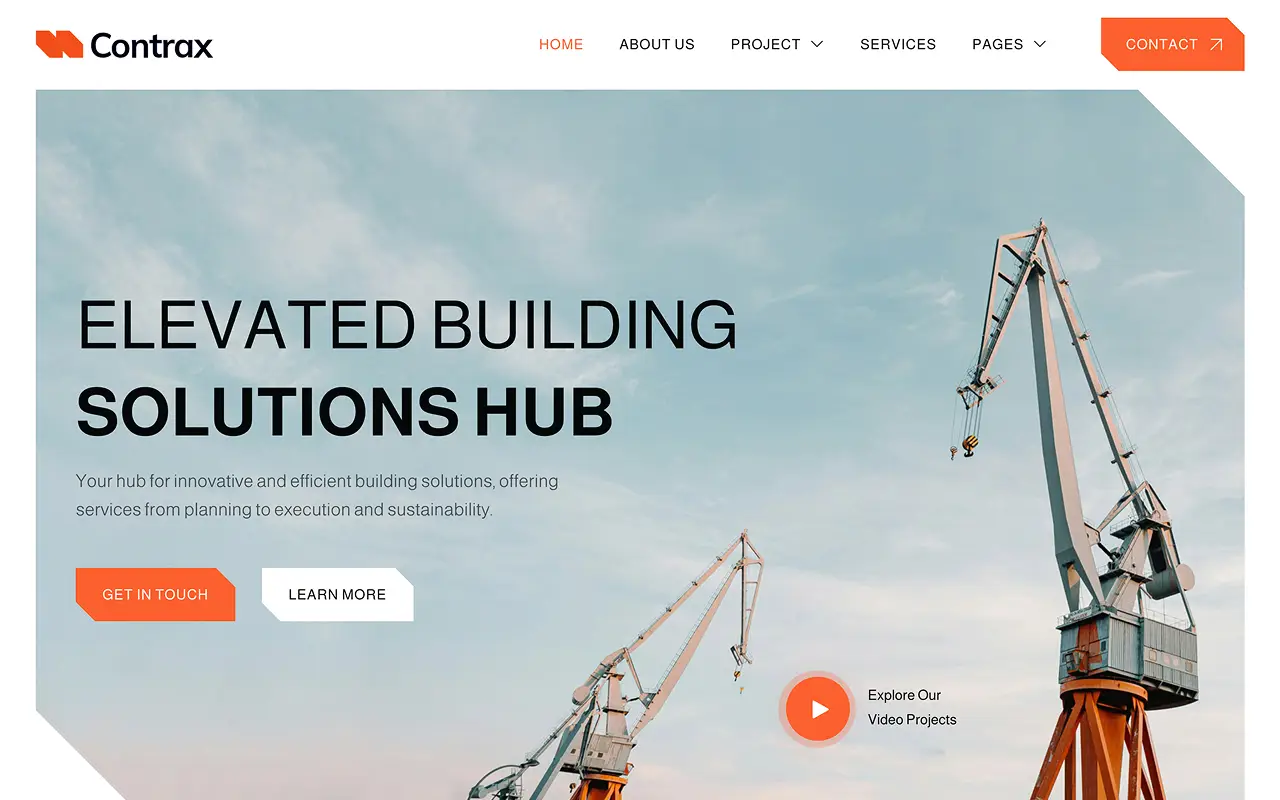
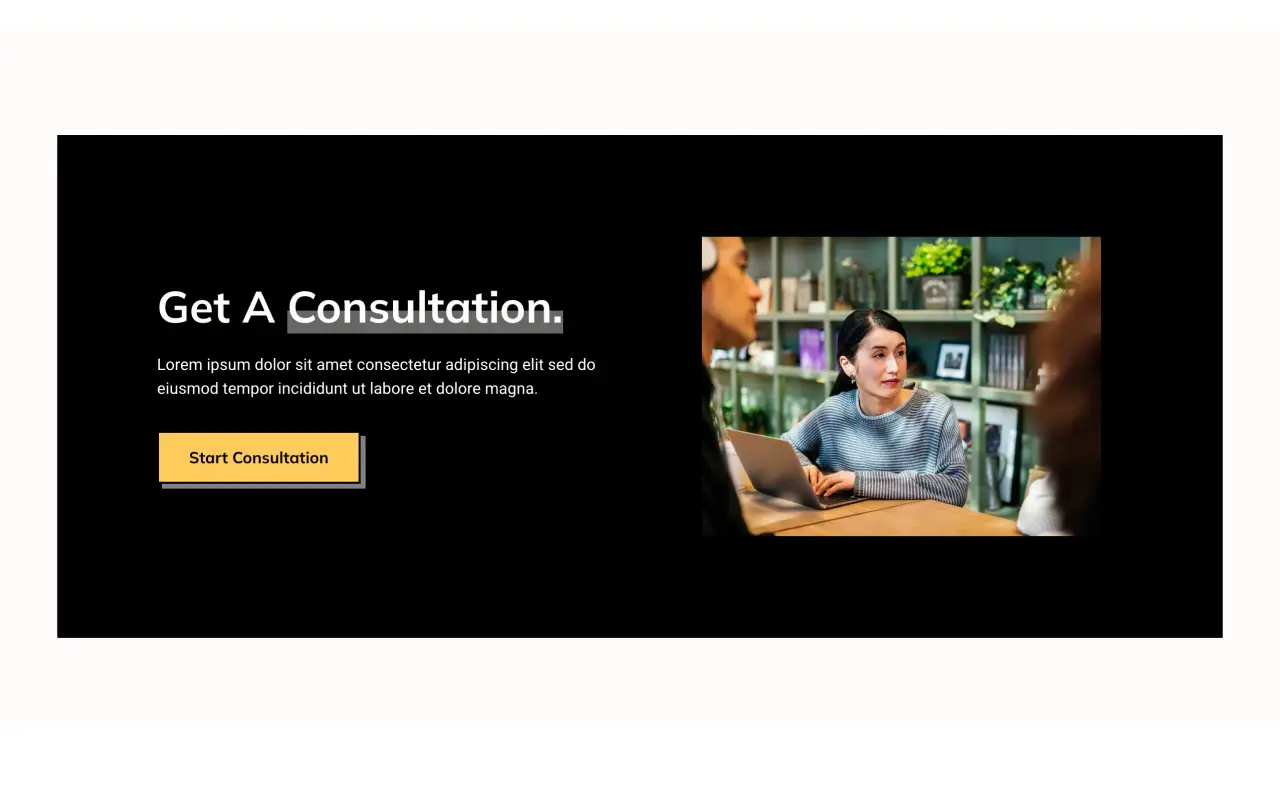
Every website needs clear Call to Action, and the Button block in Gutenverse gives you more options than the default WordPress button do. You can use gradient colors, add hover effects, include icons, and adjust the size to fit your design. A well-designed button can help guide visitors to take the next step instead of leaving the page.
For beginners, this is one of the most important blocks to learn because it is used on almost every page. Whether you are linking to a contact form, pricing page, download, or product, a clear button helps direct visitors where to go next. Gutenverse makes it easy to style your buttons so they match your site without needing any custom CSS.
What You Can Do With It
Gallery
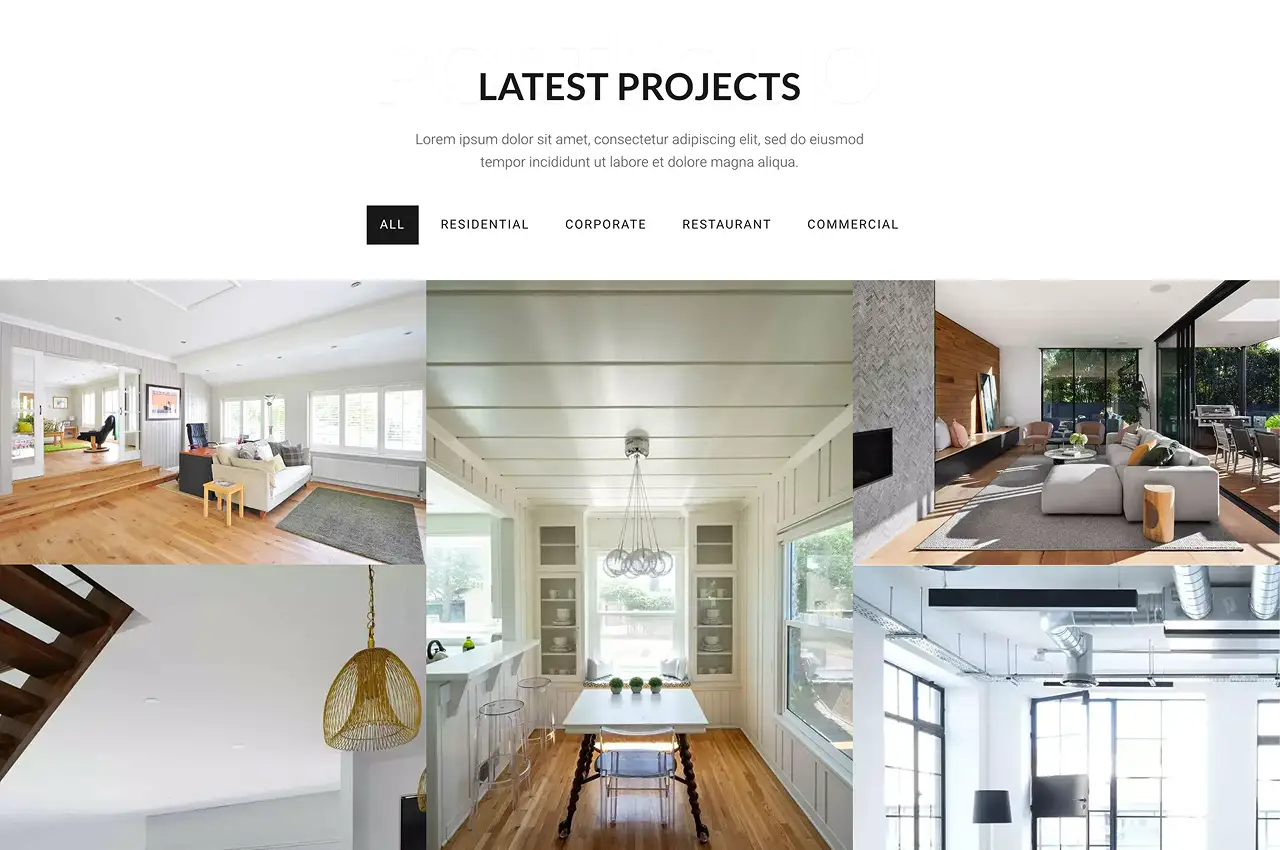
The Gallery block lets you display multiple images in a clean grid layout. It also includes a lightbox feature, so visitors can click on an image to view it in full size without leaving the page. This makes it a great choice for portfolios, product showcases, or event galleries where the visuals matter.
For beginners, this block is very easy to use and gives instant results. Instead of showing images one by one, you can turn them into a well-organized layout in just a few clicks. The layout also adjusts automatically to different screen sizes, so your gallery looks good on every device without extra work.
What You Can Do With It

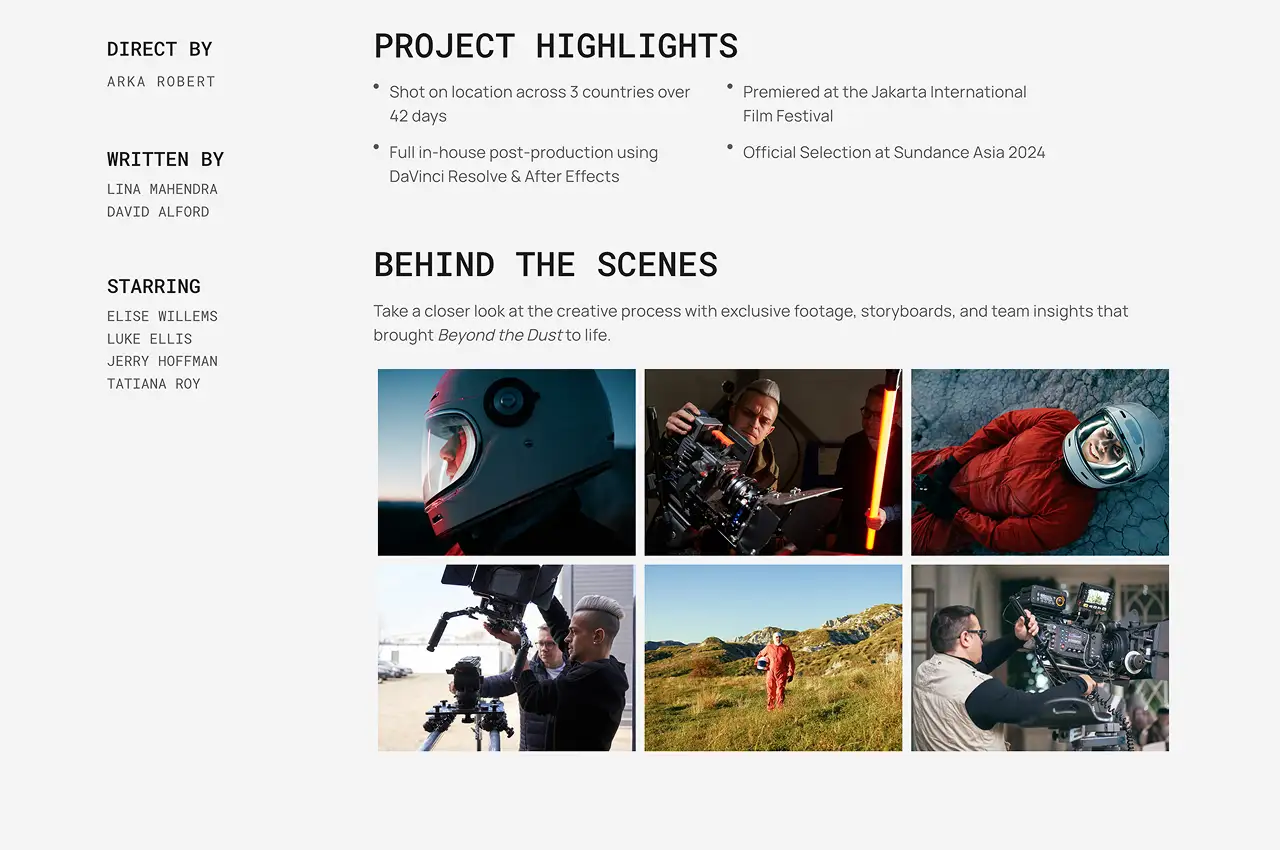
Logo Slider
The Logo Slider block lets you display a row of logos that move across the screen. This is useful for showing clients, partners, or brands you have worked with, and it can help make your site look more trustworthy.
For beginners, this block is easy to set up and gives a nice visual result right away. You only upload the logos, adjust the speed and spacing, and the block handles the animation on its own. Whether you are showing off past clients, trusted partners, or tools you work with, the Logo Slider communicates credibility in a compact and visually engaging way.
What You Can Do With It
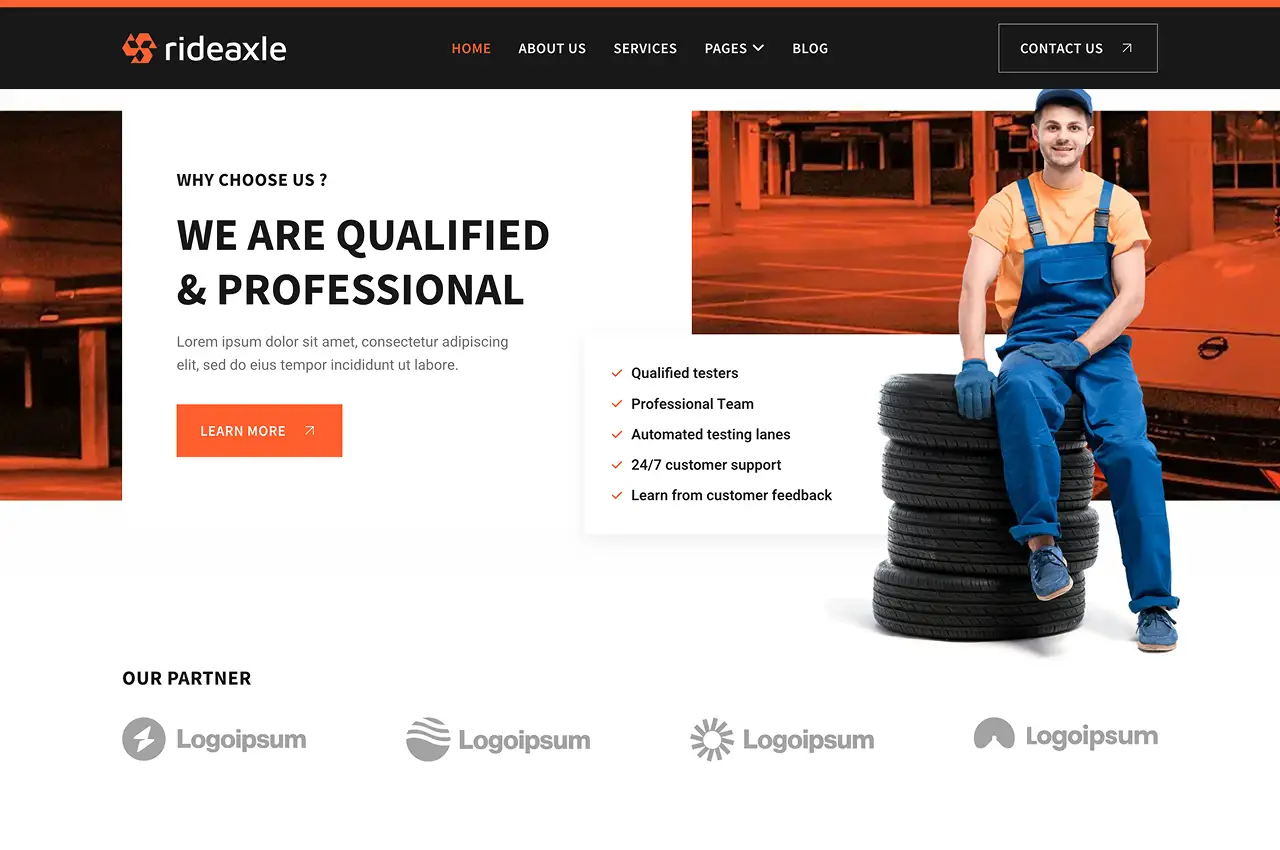

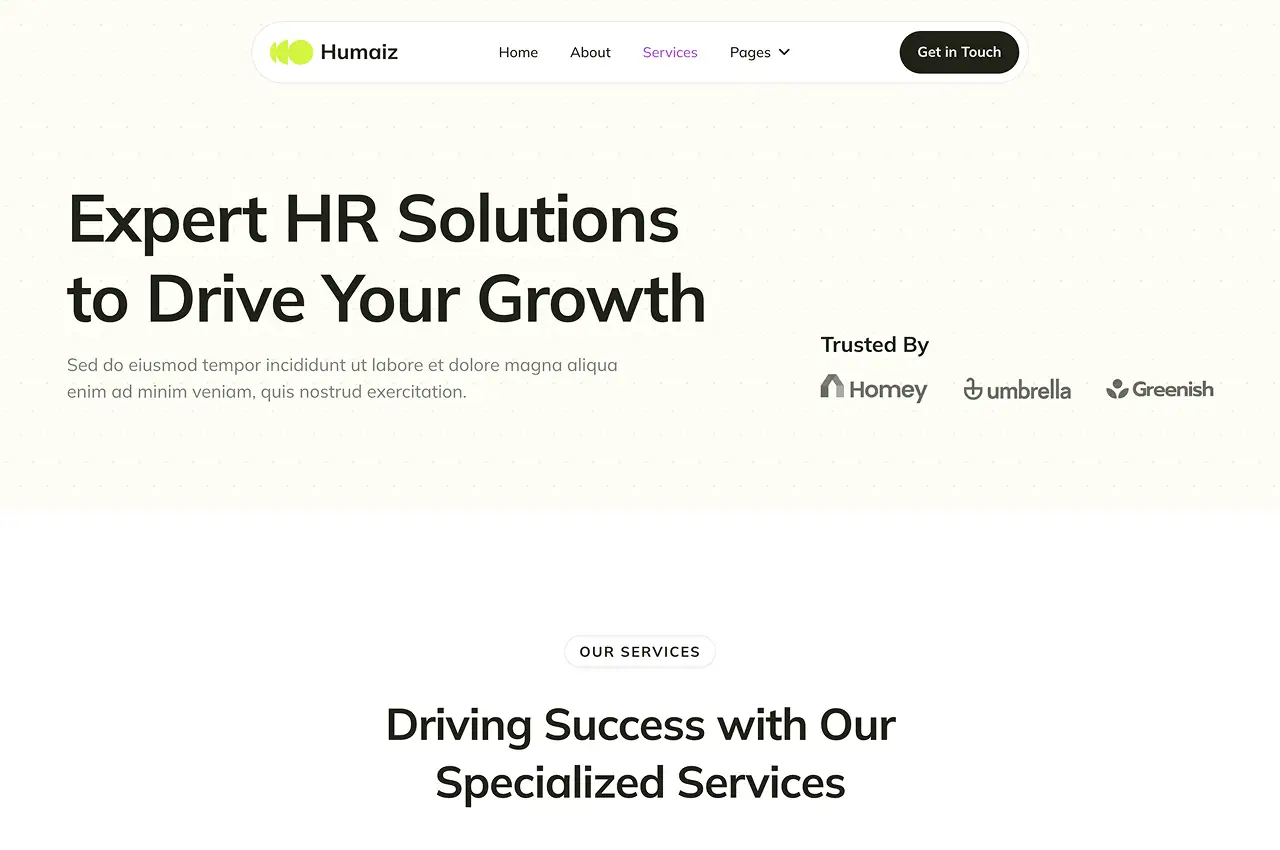
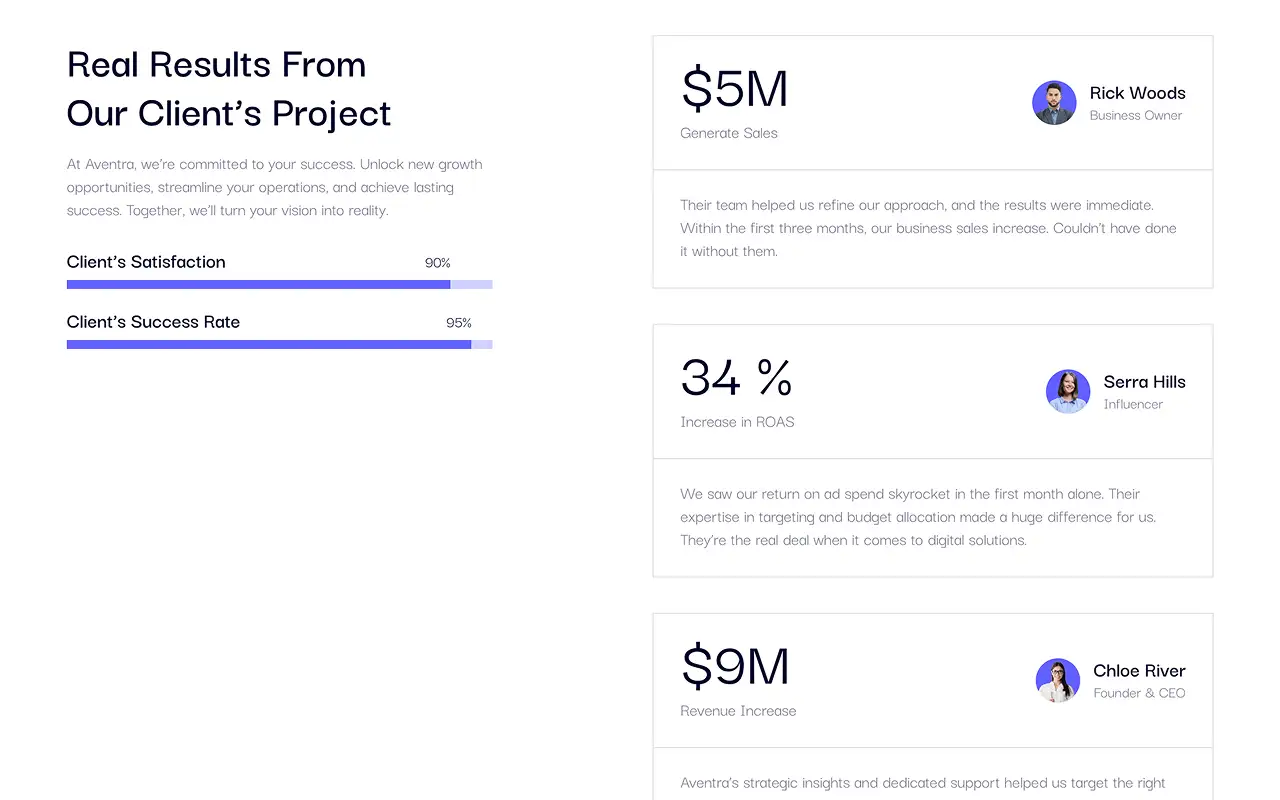
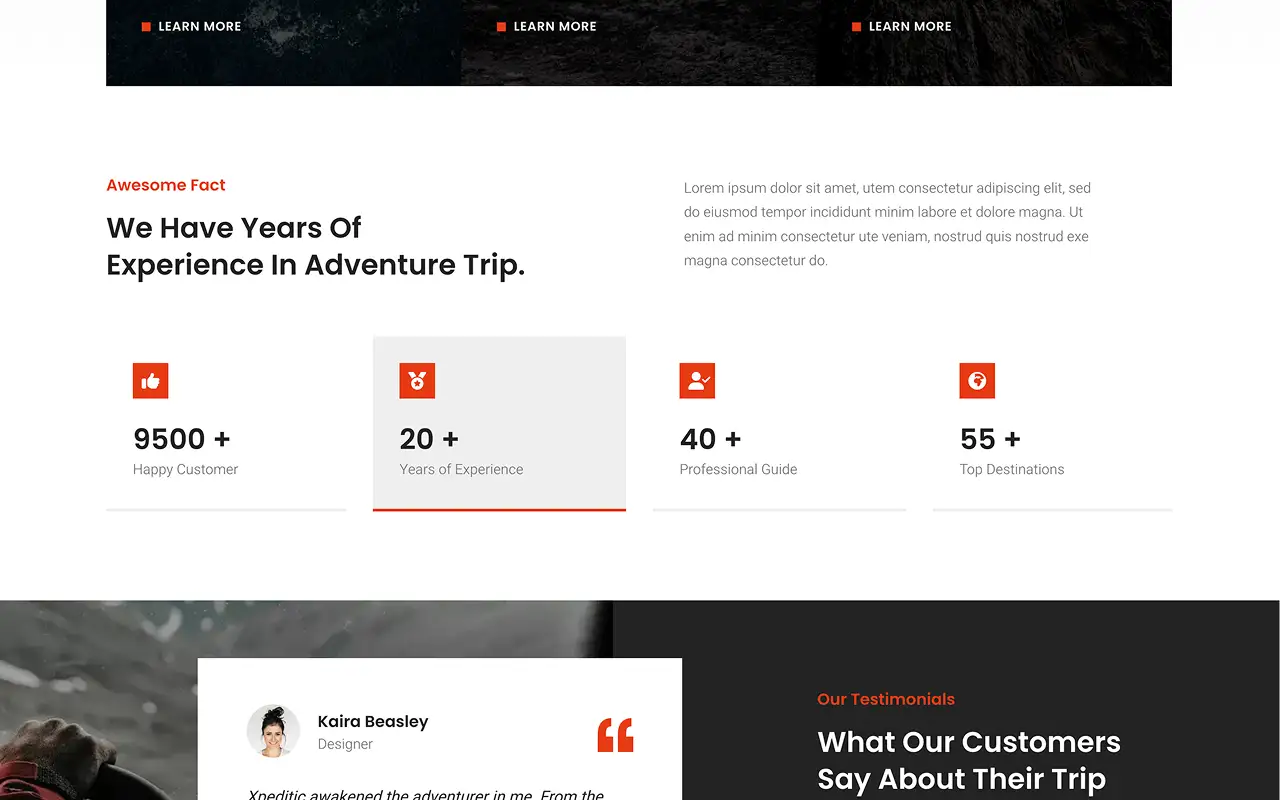
Fun Fact
The Fun Fact block helps you show numbers in a more engaging way. It uses a simple animation where the number counts up when it appears on screen. This makes it great for showing stats, milestones, or key numbers that you want people to notice quickly.
This block works well for business or portfolio sites where numbers can support your message. Instead of just saying “we have helped many clients,” you can show something like “500+ clients served” with a counting effect. It is a simple way to make your content feel more convincing.
What You Can Do With It
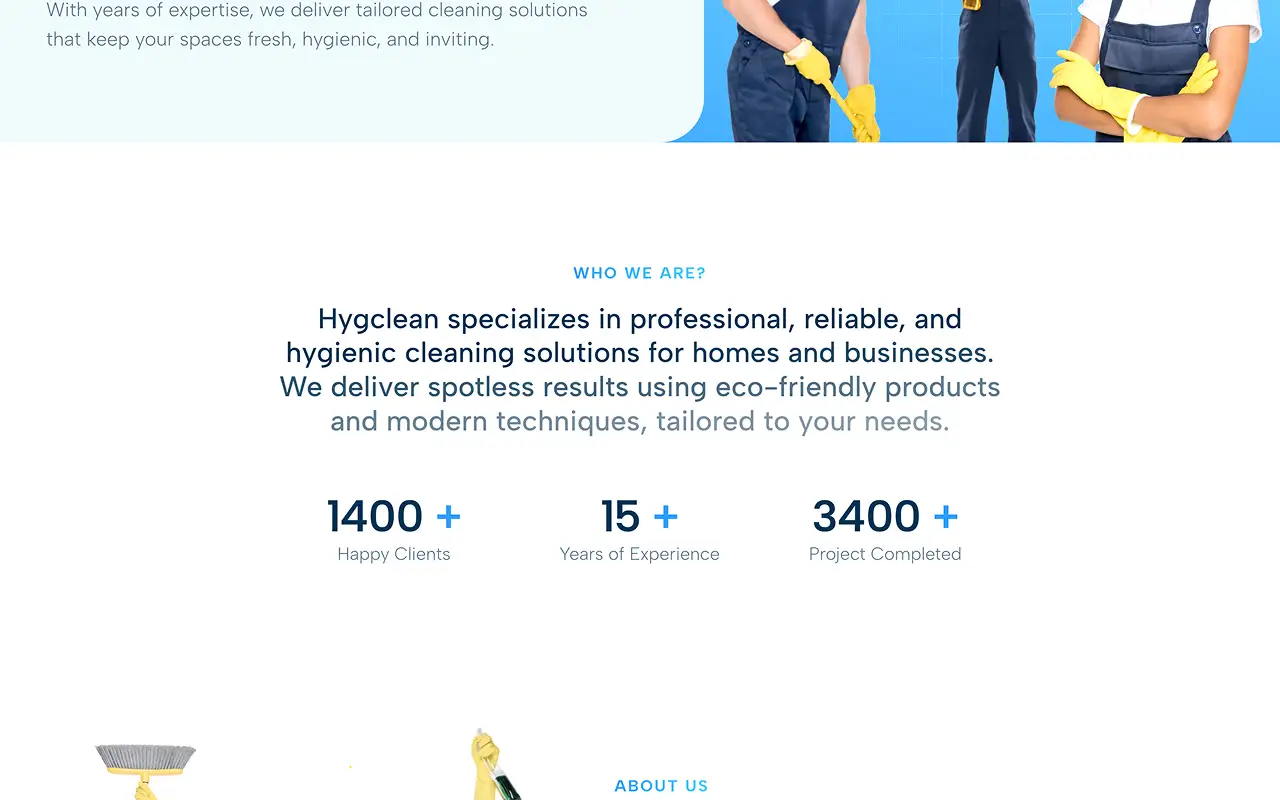
Post Block
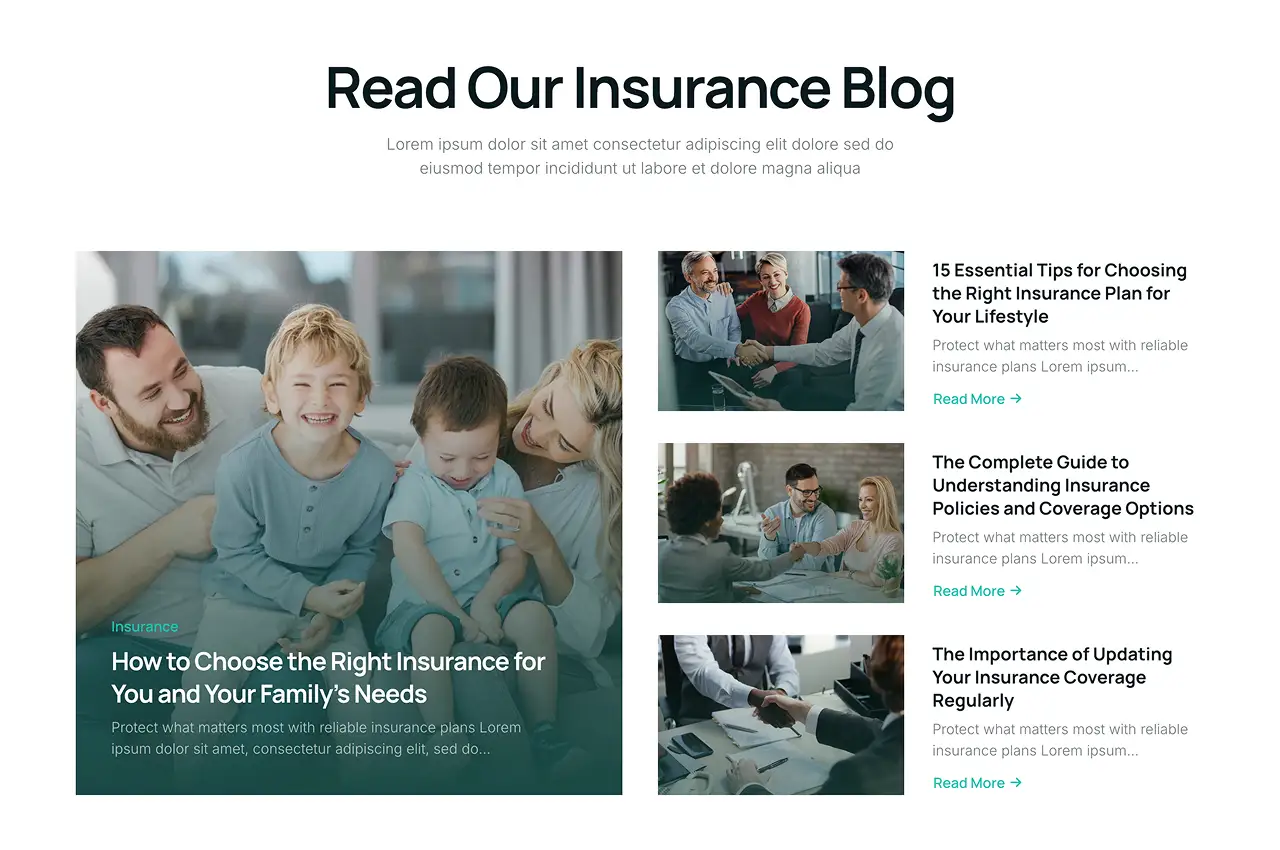
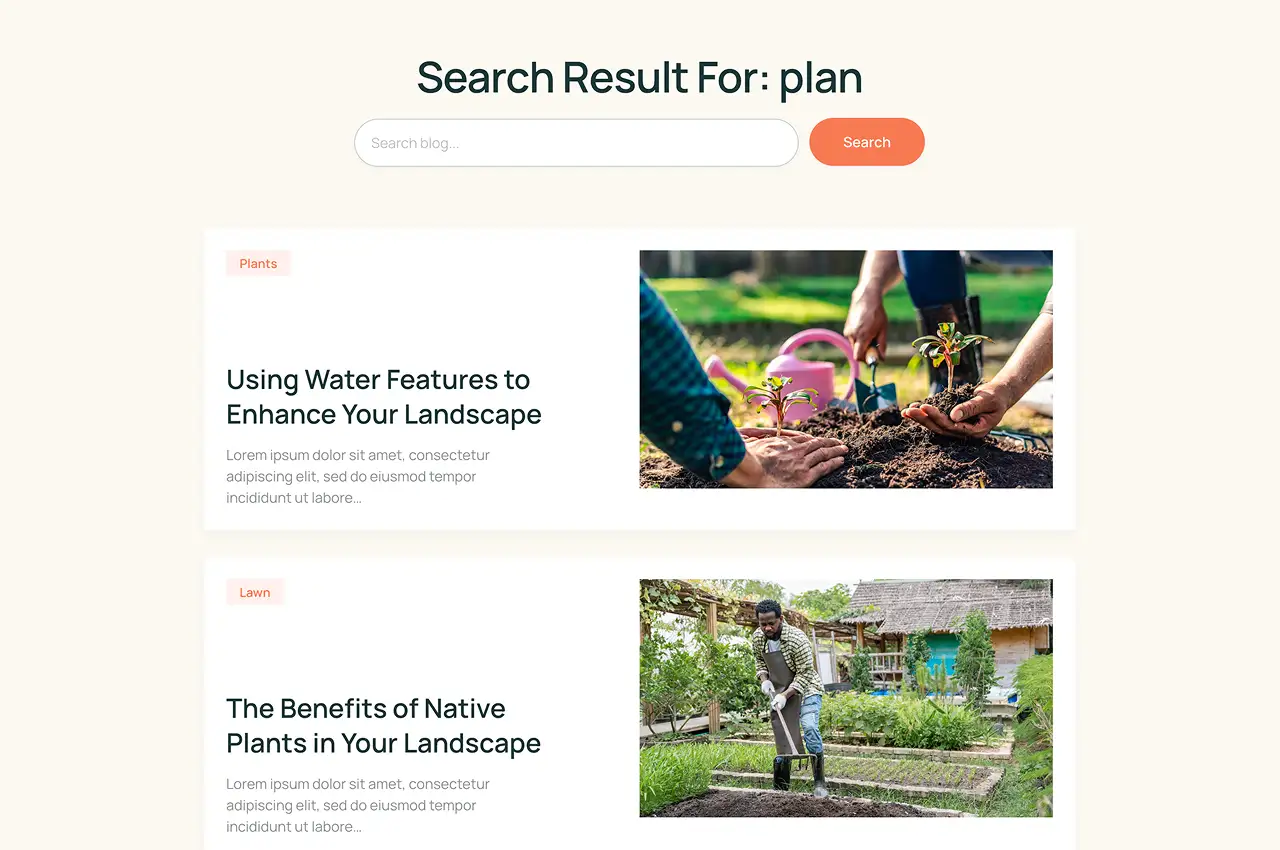
If your site has a blog or news section, the Post Block helps you display your latest posts automatically. You can show them in a grid, list, or card layout, and choose how many posts to display or which category to show. Once it is set up, it will update on its own every time you publish a new post.
For beginners, this block saves a lot of time. You do not need to update your homepage manually whenever you add new content. Just set it once, and it will keep your page up to date automatically. This makes it a great block to use if you plan to publish articles regularly.
What You Can Do With It
Animated Text
The Animated Text block lets you display different phrases in the same heading by switching them one after another. It is a simple way to show more than one message without adding extra text to the layout.
It works well on the top section of your page where you want to quickly explain what you offer. Instead of picking just one line, you can rotate a few key points in place. It keeps your heading clean while still giving visitors more context.
What You Can Do With It
Ready to Start Building Yours?
Getting started with Gutenverse doesn’t require learning every block in the library. These 10 free blocks will cover the majority of what most beginner websites need, from compelling homepages to fully functioning blog sections. You can build something great just by using these.
As you get more familiar with how the WordPress block editor works, you can explore other blocks and features at your own pace. If later you need more advanced options, you can upgrade to Gutenverse PRO for additional blocks like Image Marquee, Mega Menu, Advance Tabs, and more.
The best thing you can do right now is to simply start. Install the plugin, open a page, and begin experimenting with the blocks one by one. The controls are simple, so you can explore without worrying about messing things up.
Download Gutenverse plugin for FREE here and start creating your own WordPress site effortlessly!