















Last Update: November 25, 2025
This is a place to manage all your block patterns of your current active theme. Please make sure each pattern on each of your theme projects have different slug names. There are two ways to create a pattern, using the Theme Builder or directly from the Editor/Page.
Create Pattern from Themes Builder
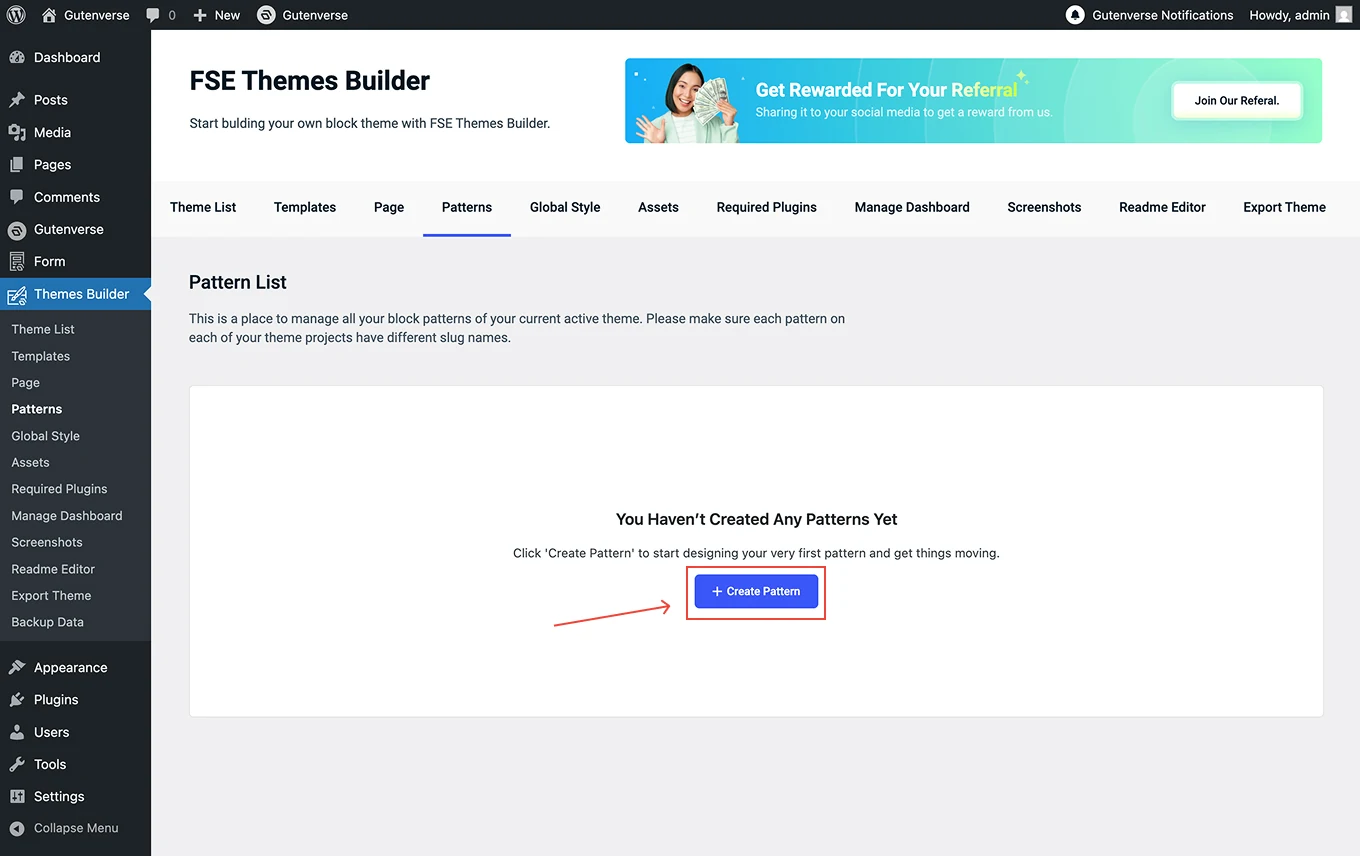
You can go to Dashboard -> Themes Builder. Then click on the menu Patterns:
1.
Inside the menu Patterns, Click the Create Pattern button to create a new pattern.
2.
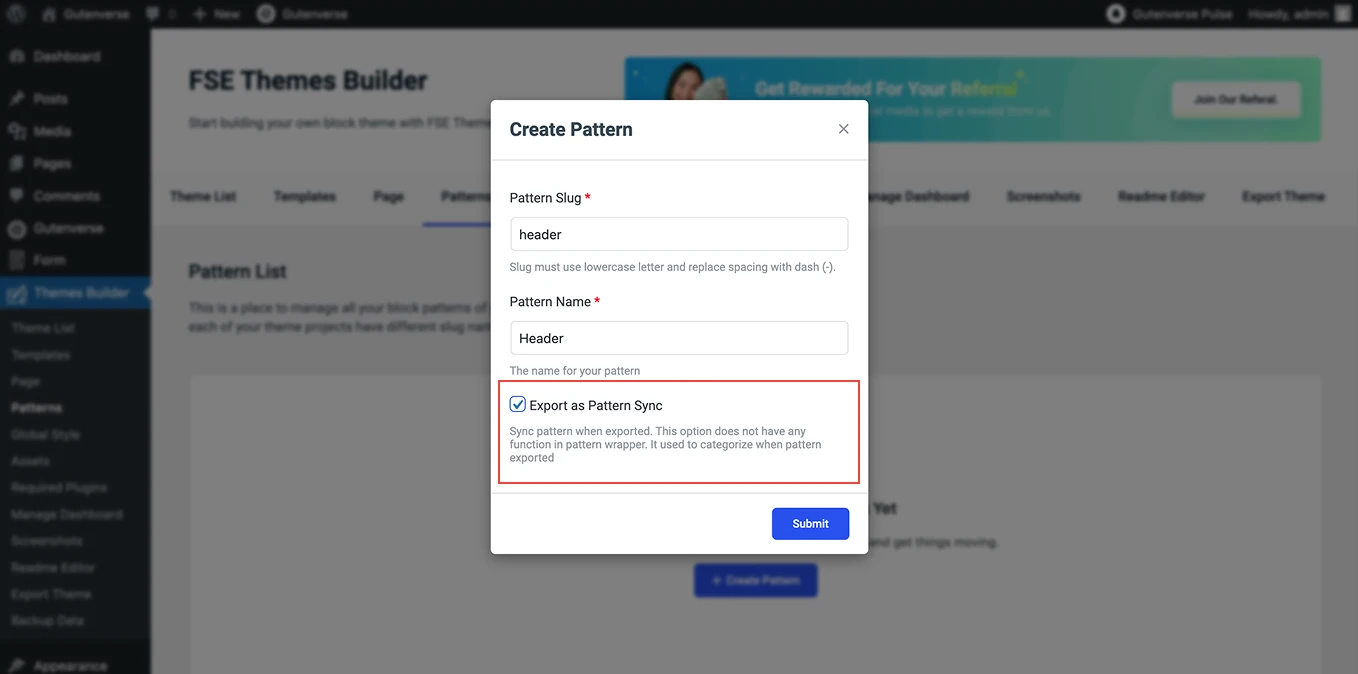
After clicking the Create Pattern button, a popup window will display, as shown in the image.
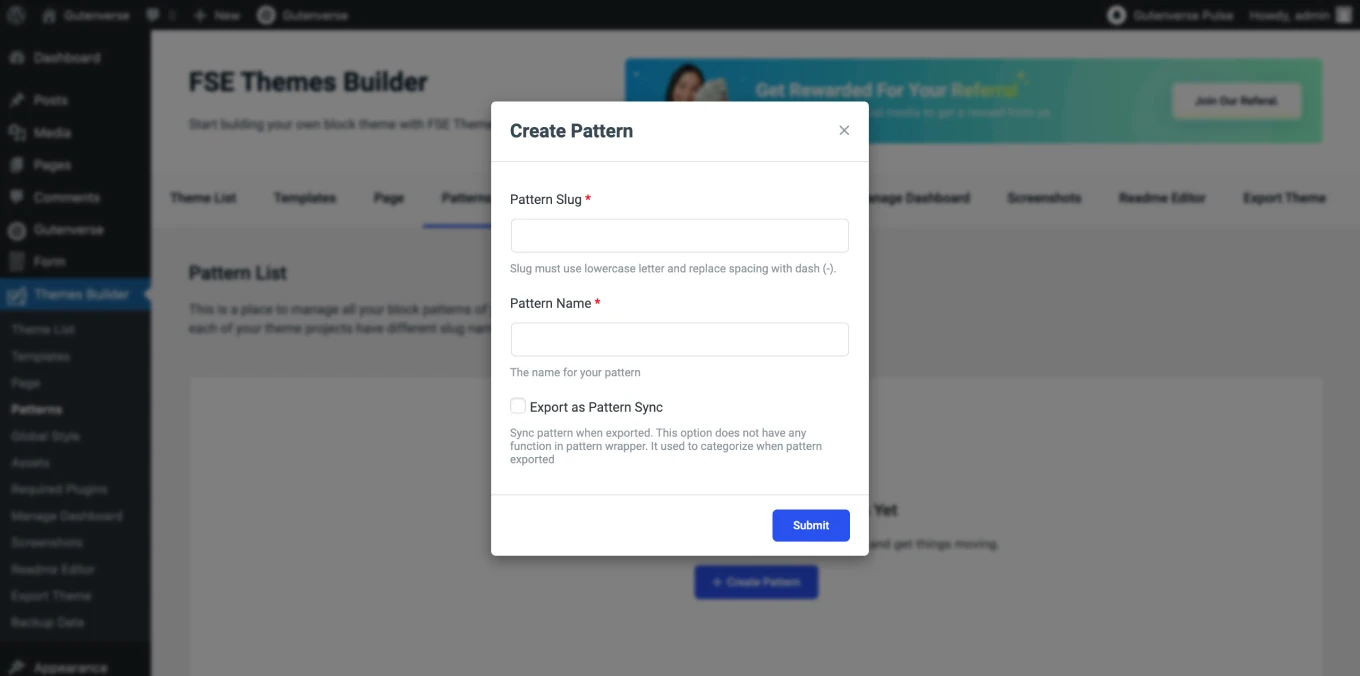
The popup contains the following fields:
3.
If the pattern will be used across multiple pages (e.g., header, footer, etc.), checklist the Export pattern as sync option. This ensures that the pattern is synchronized on all pages or templates, so when you update the content, you only need to make changes once, and it will automatically update on all pages using the same pattern.
4.
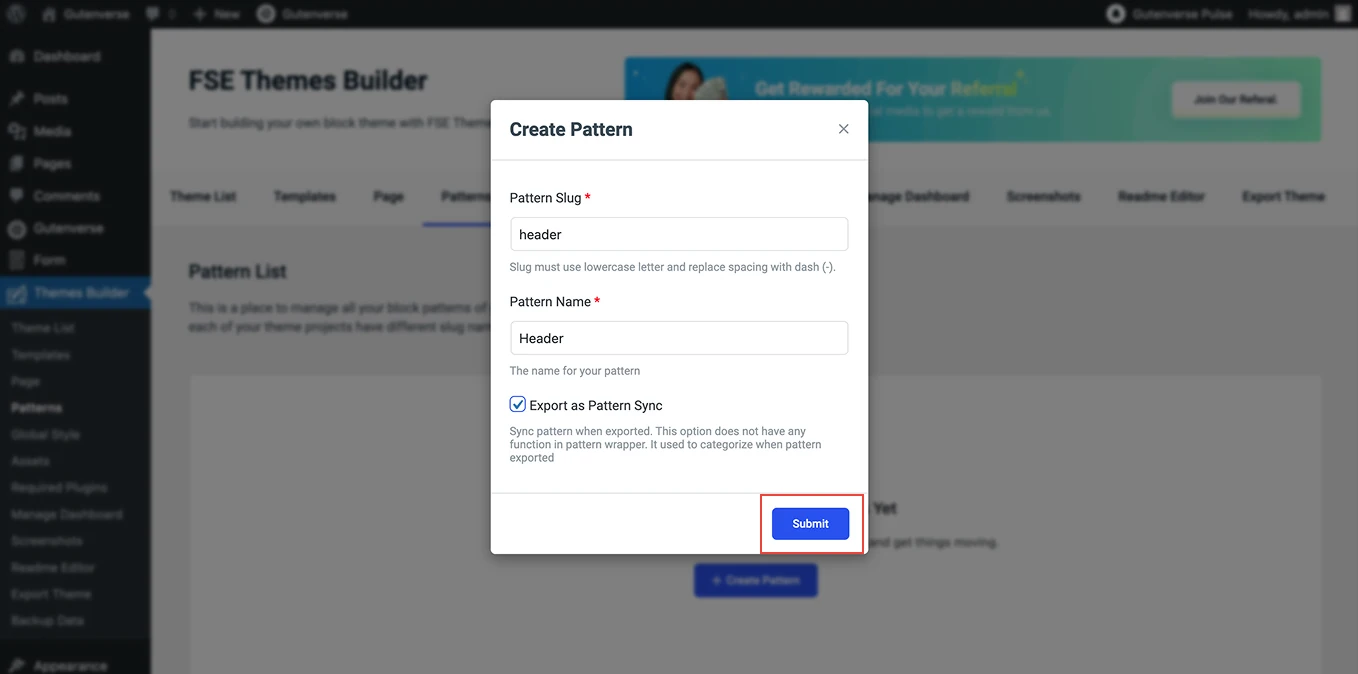
After filling in all the fields, click the Submit button.
5.
After the Submit button is clicked, a display like this will appear.
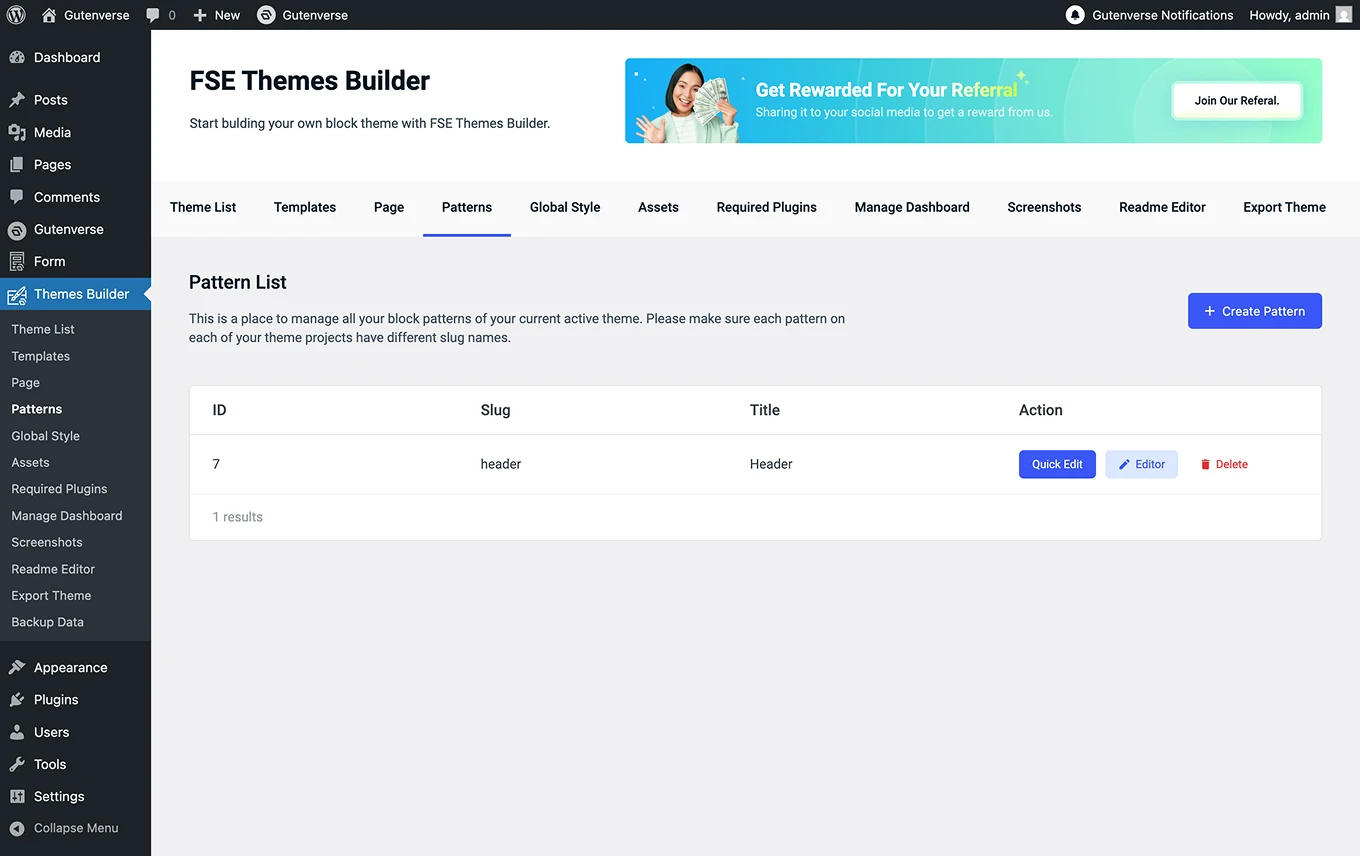
The pattern list includes several available actions:
Create Pattern from Editor
You can go to Pages or go to the Editor.
1.
Once inside the editor, click the Plus (+) icon, then under the Blocks tab, select the Pattern Wrapper block.

2.
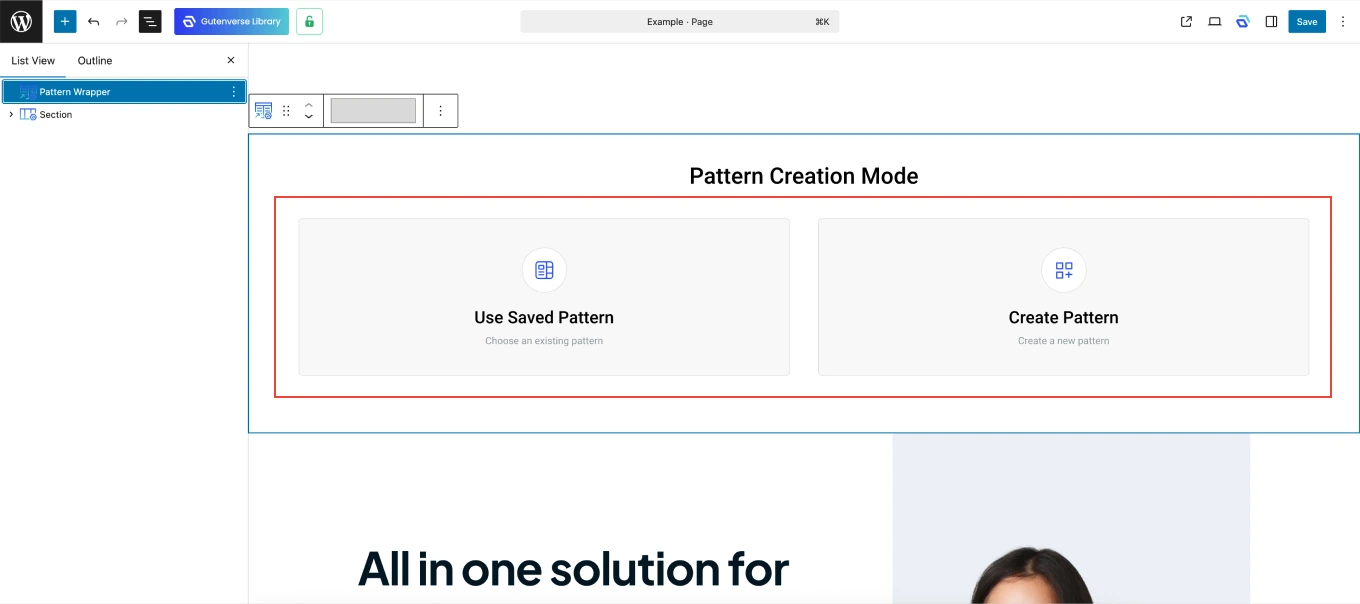
After adding the Pattern Wrapper block, you’ll see a screen like this:
3.
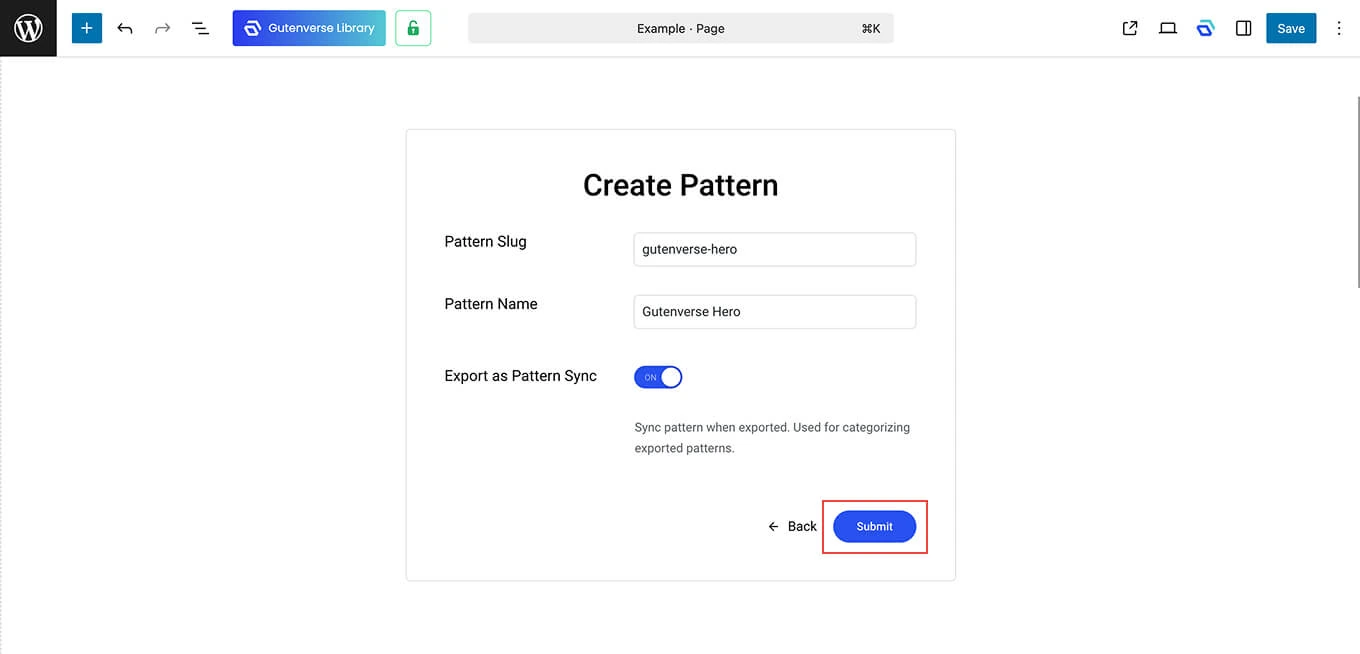
Choose Create Pattern, and a popup will appear like the one shown below.
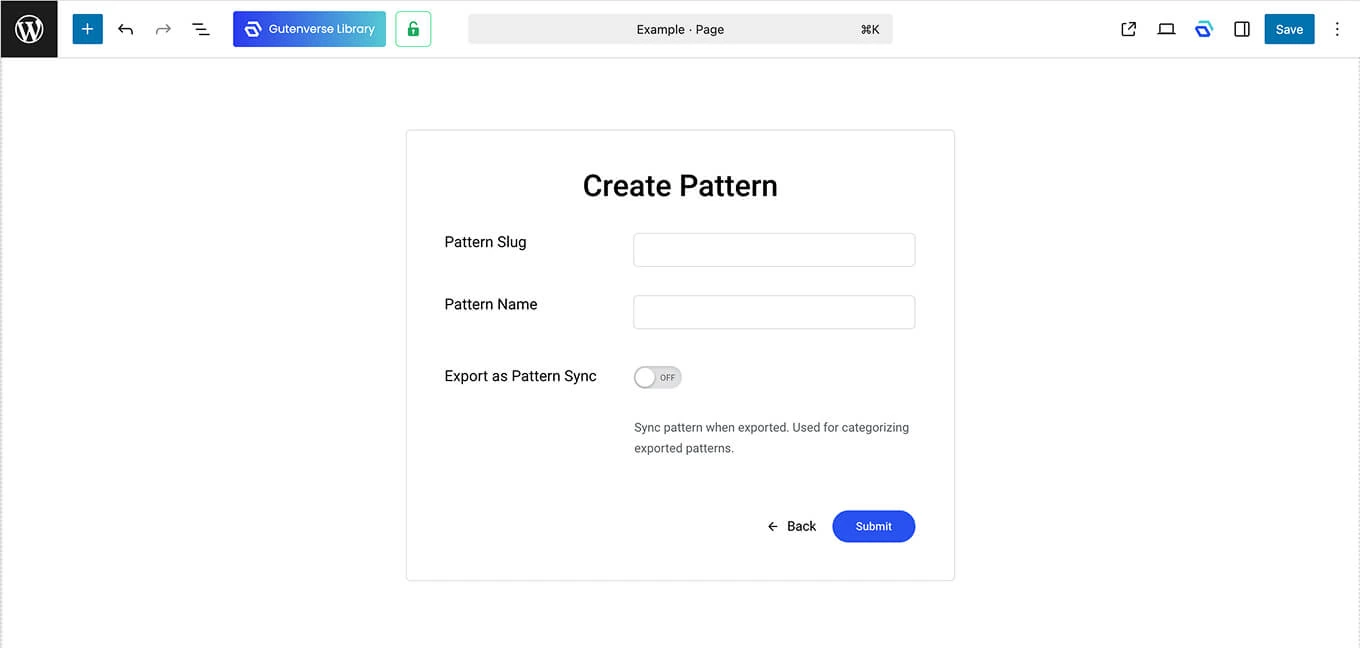
Inside the popup, you’ll find three fields: Pattern Slug and Pattern Name.
4.
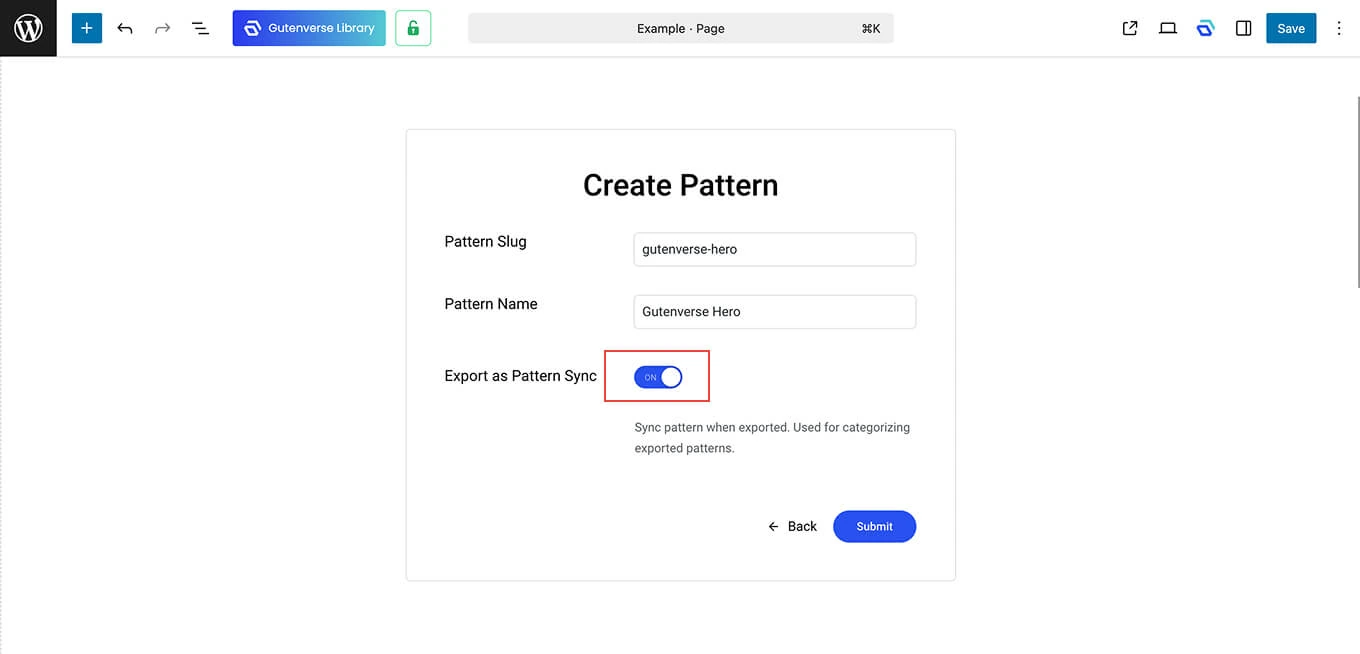
If you want the pattern to be used across multiple pages (for example header, footer, or other shared sections), toggle Export as Pattern Sync to ON. This option ensures that the pattern stays synchronized across all pages, meaning if you update the pattern in one place, the changes will automatically apply to all pages using the same pattern.
5.
After filling in all the fields, click the Submit button, then move your desired section inside the Pattern Wrapper block.