













Last Update: November 25, 2025
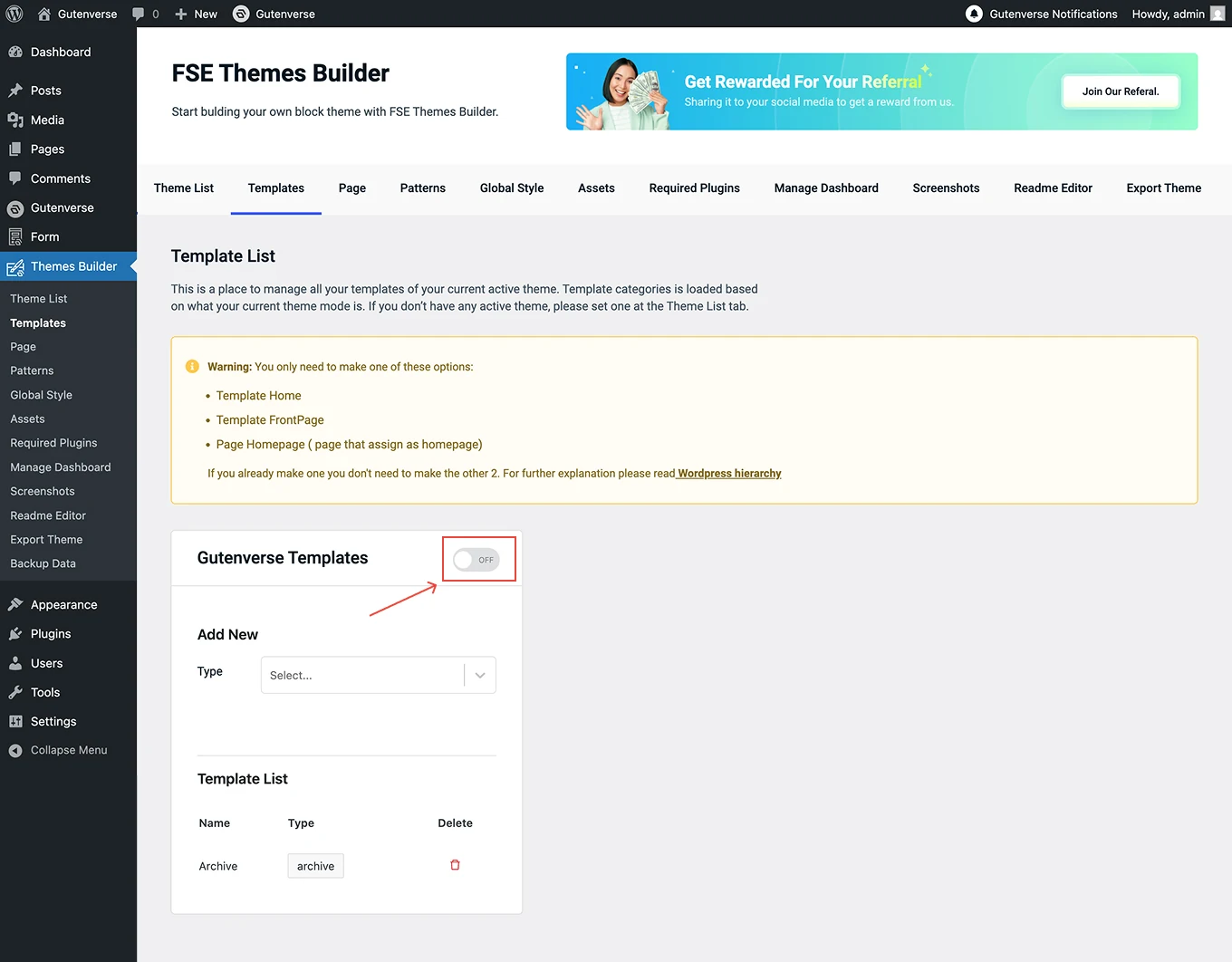
This is a place to manage all your templates of your current active theme. Template categories is loaded based on what your current theme mode is. If you don’t have any active theme, please set one at the Theme List tab.
How to Create Templates
You can go to Dashboard -> Themes Builder. Then click on the menu Templates:
1.
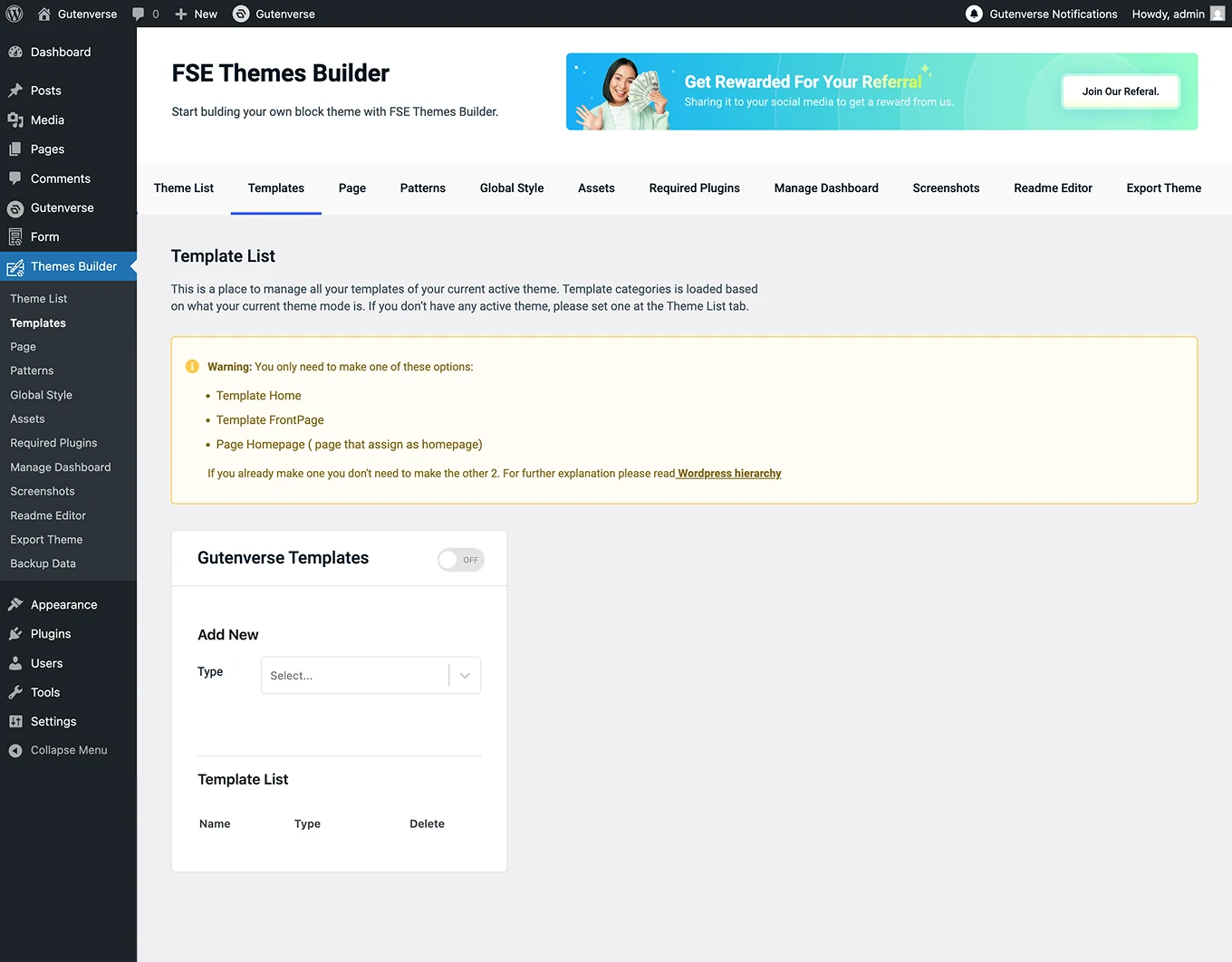
Inside the menu Templates, a Template List will immediately appear as shown below.
2.
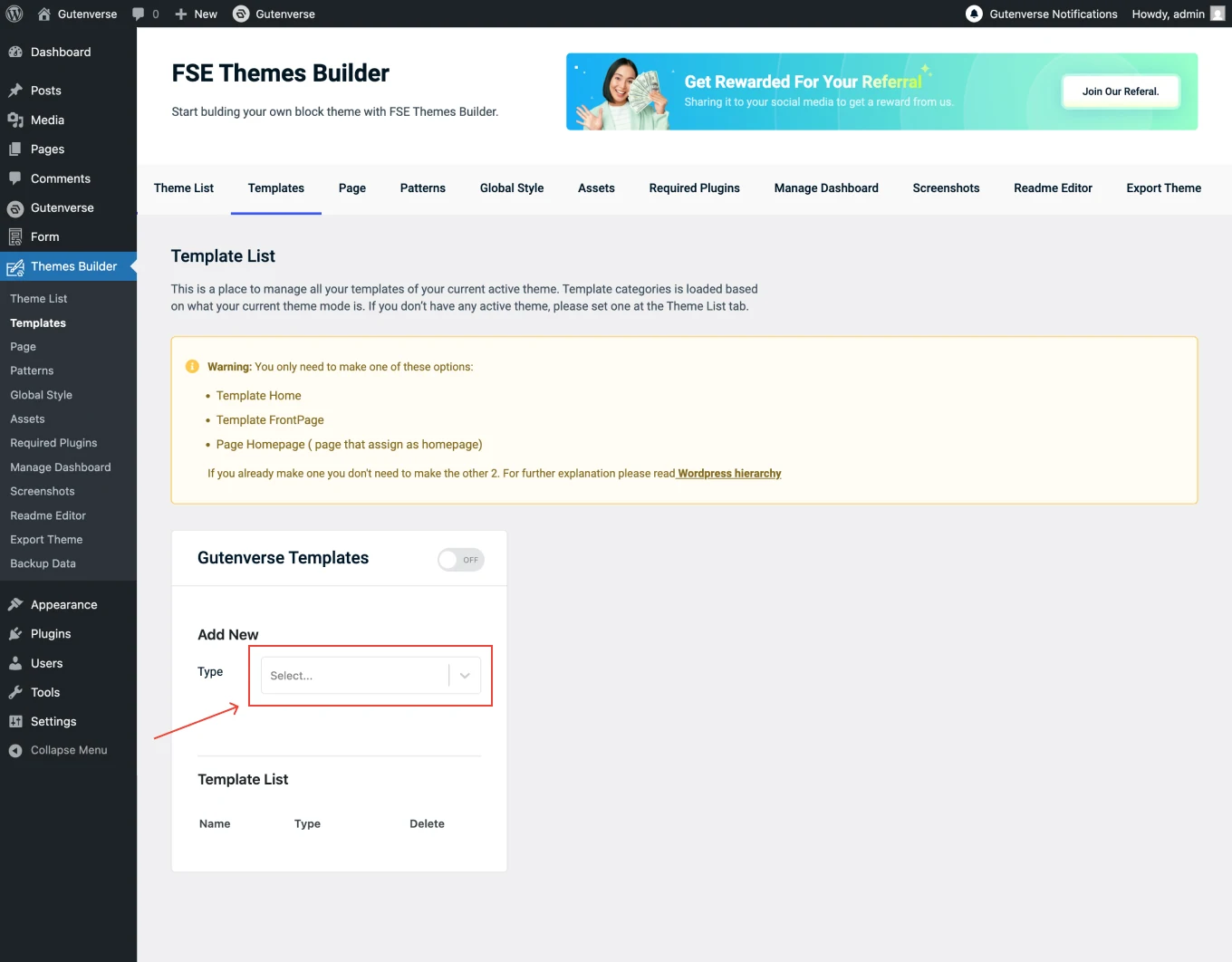
To add a new template, simply click on Form Select Type and choose the template you’d like to include. Make sure to pick a template that aligns with the requirements of the theme you’re building.
3.
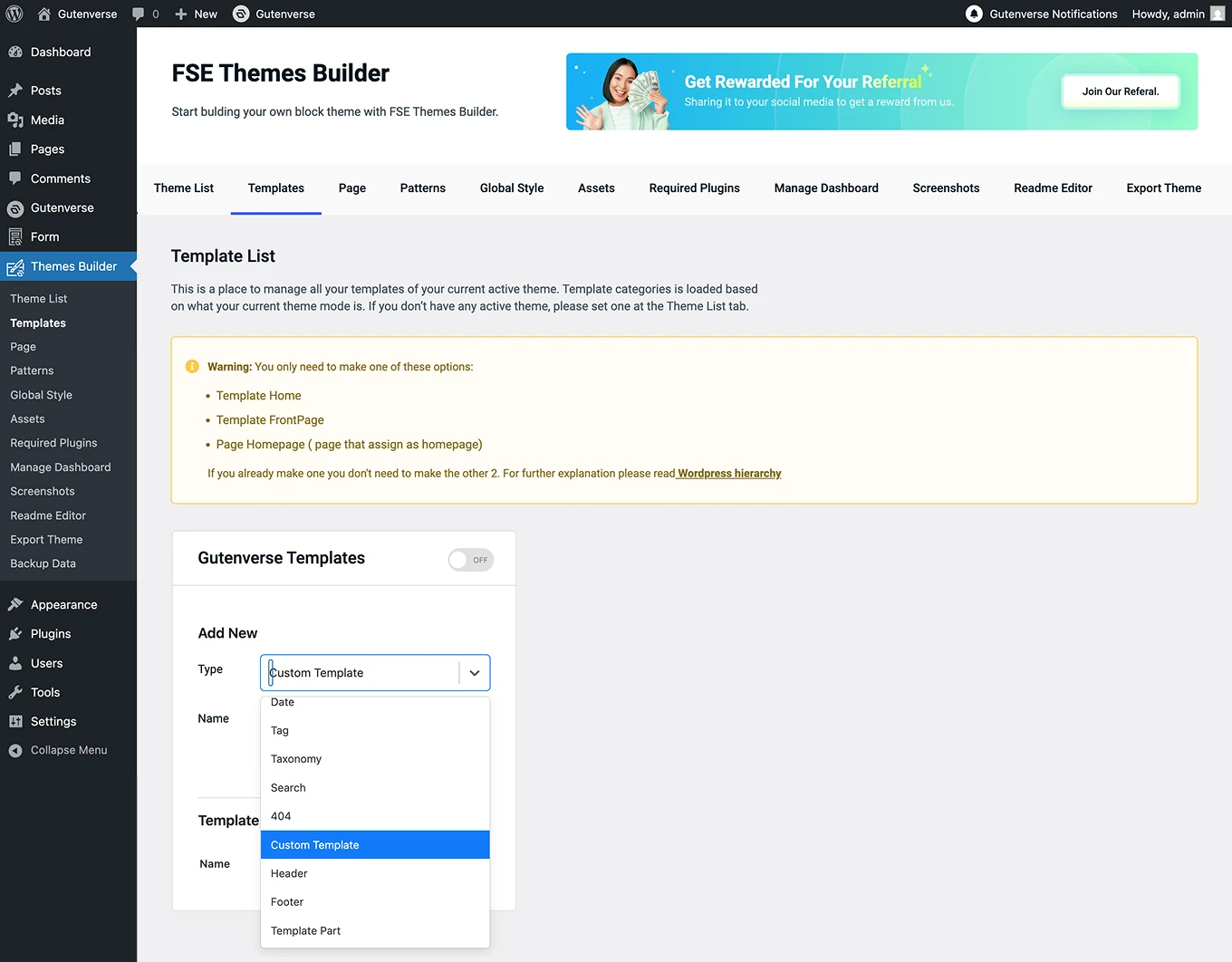
In the Form Select Type there is a custom template option, this custom template is usually used for additional templates other than the basic WordPress template (index, archive, search, 404, etc.). The additional templates are like Blank Canvas, Inner Page website, or variation style of existing templates.
4.
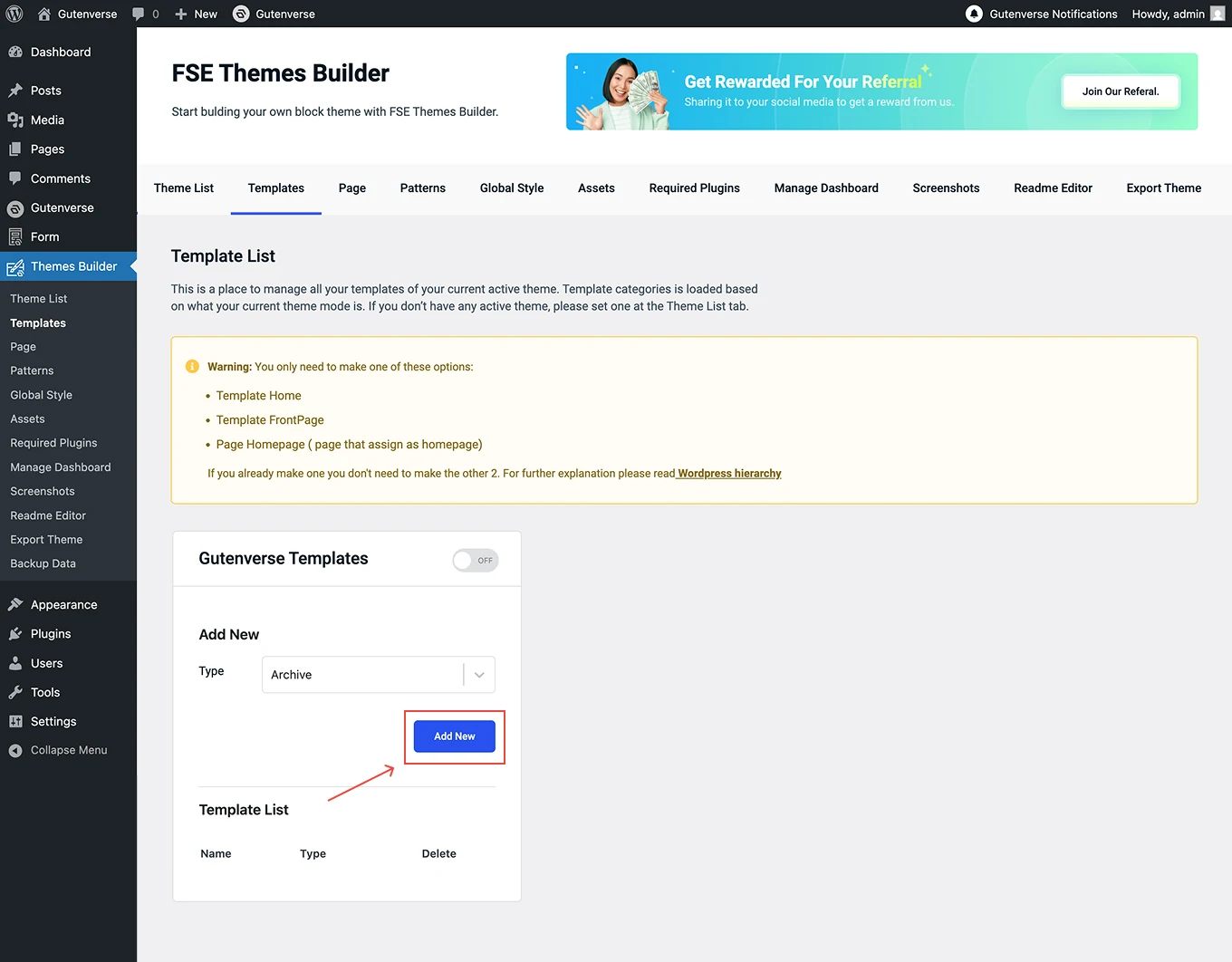
After selecting Template Type, click the Add New button.
5.
Once you click the Add New button, the selected template will be displayed below it.
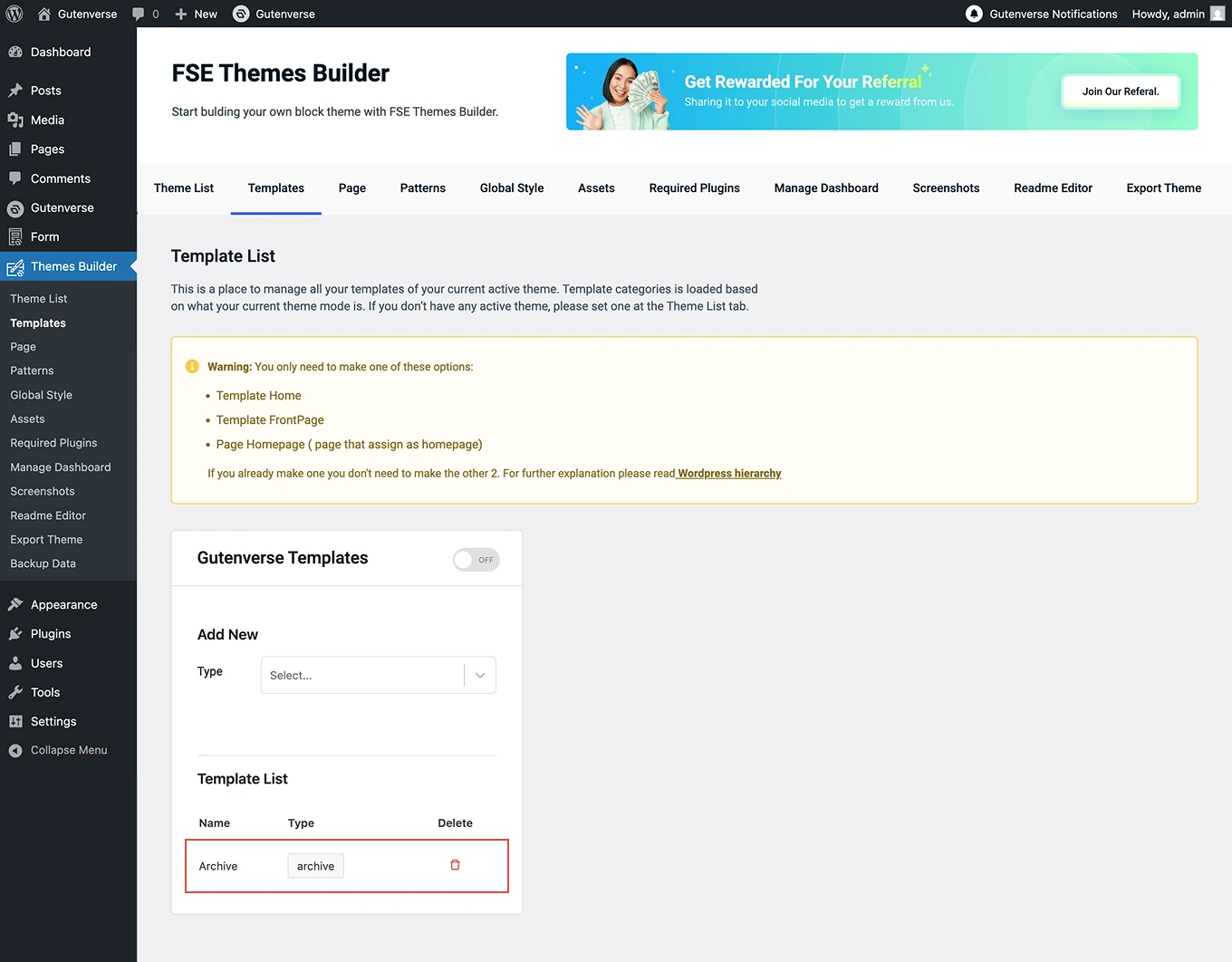
Follow the same steps above if you’d like to add an another template.
6.
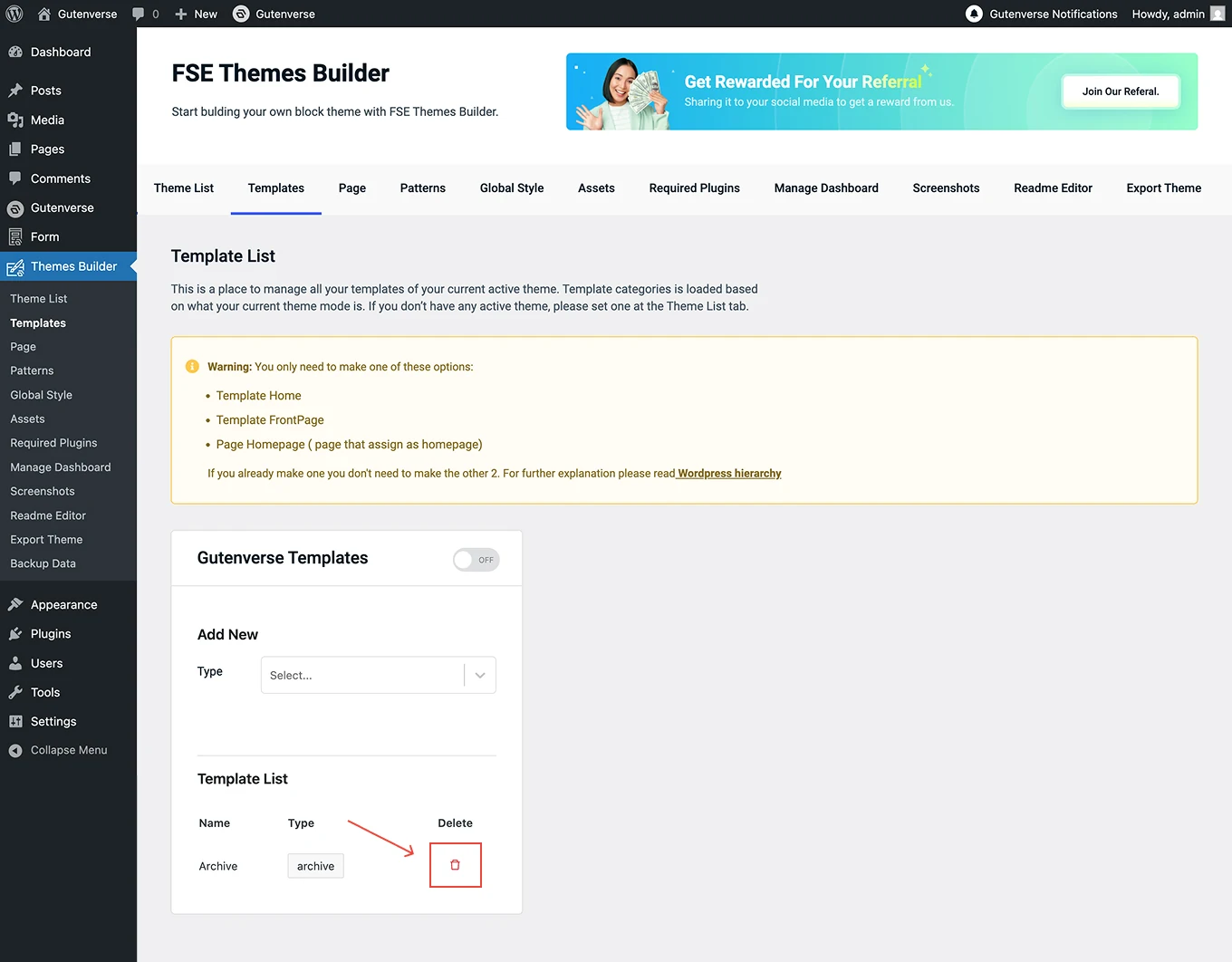
To remove an added template, simply click the trash icon in the action menu.
7.
If this toggle is set to ON, the basic WordPress templates such as Archive, Search, Page, 404, and others will work immediately without needing to export the theme first. However, if the toggle is still OFF, those basic WordPress templates will not function within the theme builder environment — they will only start working after the theme has been exported.