














Creating a small business website may sound like a big project, especially if you have never built one before. You may think you need to learn code, hire a developer, or spend weeks figuring out design tools before your website can go live.
The good news is, it doesn’t have to be that complicated! With WordPress, you can build a clear and useful small business website even without technical skills. You just need the right structure, the right content, and tools that let you design your pages visually.
In this guide, we will show you how to create a small business website with WordPress without coding. You will learn what pages your website needs, what content to include on each page, how to use ready-made templates, and how Gutenverse can help you build faster inside the WordPress Block Editor.
Why WordPress Works Well for Small Business Websites
WordPress is a useful platform for small businesses because it gives you more control over your website. You can add new pages, update your text, publish blog posts, change images, and improve your site as your business grows.
You also don’t have to rely only on social media profiles or marketplace pages. Those platforms are helpful, but they may not always present your business the way you want. With a website, you have one main place where people can clearly learn about your business and what you offer.
For a small business, this can be very useful. A simple website can answer common questions before customers even contact you, such as:
If those answers are easy to find, people are more likely to take the next step.
What You Need Before You Start
Before building the website, prepare the basic things first. This will make the process much easier.
1. A Domain Name
Your domain is your website address, such as yourbusiness.com. Try to choose something short, easy to spell, and close to your business name.
If your exact business name is not available, you can add a simple word like studio, shop, agency, services, or your location.
2. WordPress Hosting
Hosting is where your website files live. Many hosting providers offer one-click WordPress installation, which is helpful if this is your first website.
For a small business website, you don’t need the most expensive hosting plan at the beginning. Start with a reliable WordPress hosting plan, then upgrade later if your traffic grows.
3. A Clear Business Description
Before opening the editor, write a simple description of your business. This doesn’t need to be perfect.
You can use this format: We help [type of customer] with [main problem or need] by offering [product or service].
For example:
This simple sentence can help you write your homepage headline, service section, and call-to-action text.
4. Photos and Basic Brand Assets
Prepare a few images and brand assets before you start building. Real photos are usually better than generic stock images, especially for local service businesses, restaurants, studios, salons, shops, and creative businesses.
Here are some useful assets to prepare:
You can always replace images later, but starting with a small folder of real assets helps the website feel more personal.
Pages Every Small Business Website Should Have
Your first website does not need many pages. It needs the right pages.
For most small businesses, start with these:
You can add more pages later, such as blog posts, FAQs, pricing, portfolio, testimonials, or booking pages.
Homepage: Make the First Message Clear
Your homepage is the front door of your website. When someone visits it, they should quickly understand what your business does and what they should do next.
A simple homepage can include:
Try not to start with a vague headline like “We Bring Your Vision to Life.” It may sound nice, but it does not explain what your business offers.
Use something more specific, such as:
Clear words are better than clever words, especially when someone is visiting your website for the first time.
Services or Products Page: Explain What You Offer
Your services or products page should help people understand what they can buy from you.
If you offer services, explain each service in simple terms. Don’t only list the service name. Add a short explanation of who the service is for and what is included.
For example:
Website Setup
For small business owners who need a simple website. This includes homepage setup, contact page setup, basic SEO fields, and a mobile layout check.
Monthly Website Care
For business owners who want help keeping their website updated. This includes content updates, plugin checks, and small design adjustments.
If you sell products, organize them into clear categories. Add good product photos, short descriptions, and important details such as size, material, delivery area, or customization options.
The goal is not to write a very long sales page. The goal is to make your offer easy to understand.
About Page: Build Trust
Your about page does not need to be long. It only needs to help visitors feel that there are real people behind the business.
You can include:
For small businesses, trust is very important. People often choose a local business because they feel comfortable with the person, team, or story behind it.
Contact Page: Make the Next Step Easy
Your contact page should be simple and easy to use. Do not make visitors search for a way to reach you.
Include the contact details, such as:
If you use Gutenverse Form, you can build a form directly inside the editor using the Form Builder block. The documentation for how to build a form explains the basic workflow, including how to add input blocks and set up the form settings.
For a basic contact form, you can start with:
How to Build the Website Without Coding with Gutenverse
Now that you know what your website needs, you can start building it in WordPress.
Here is a beginner-friendly workflow you can follow.
Step 1: Install WordPress
Most hosting providers offer a WordPress installer inside their hosting dashboard. Follow the setup steps, create your admin login, and then open your WordPress dashboard.
Once you are inside WordPress, you can manage your pages, blog posts, themes, plugins, and settings from one place.
Step 2: Install Gutenverse
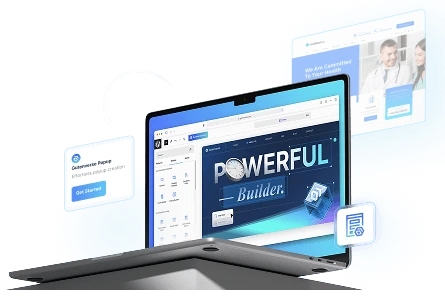
After your WordPress is ready, install Gutenverse in your WordPress dashboard. Gutenverse adds more blocks, design options, and templates to the WordPress Block Editor, so you can build your website visually without using a separate page builder.
The free version includes 45+ blocks and 600+ template sections. This gives beginners more flexibility when creating and customizing pages directly inside the editor.
Step 3: Choose a Block-Friendly Theme
Next, choose a theme that works well with the WordPress Block Editor or Full Site Editing. This will make it easier to customize your pages, header, footer, templates, colors, and typography without coding.
A good small business theme should be:
Gutenverse also has many block themes you can use as a starting point. You can explore them on the Gutenverse theme list and choose a theme that fits your business type, style, and website needs.
Step 4: Customize the Theme Pages
After activating your theme, start by editing the pages and templates that come with it. Many block themes already include useful layouts for pages like Home, About, Services, and Contact.
This makes the process easier because the basic structure is already there. You only need to adjust the content, images, colors, and buttons based on your business.
You can customize the theme pages directly inside the WordPress Block Editor, so you do not need to touch any code.
Step 5: Use the Template Library for Extra Sections
Besides the theme itself, you can also use the Gutenverse Template Library inside the WordPress Block Editor when you want to add or customize sections.
This is helpful when you need an extra section that is not included in your theme, or when you want to replace a section with a different design.
For example, you can use the Template Library to add:
After importing a section, replace the demo text and images with your own business content.
Step 6: Replace Demo Content with Real Business Details
This is the step that makes the website feel like yours. You can go through each section and replace:
Step 7: Add Clear Buttons
Every important page should have a clear next step. This is called a call-to-action.
Common button text includes:
Choose one main action for each page. If you add too many different buttons, visitors may feel unsure about what to do next.
For a small business homepage, a simple button like “Contact Us” or “Get a Quote” is usually enough.
Step 8: Check the Mobile Version
Many people will visit your website from their phone. Before publishing, always check how your website looks on mobile.
Look for simple issues such as:
If your website is easy to read and use on mobile, you are already doing better than many small business websites.
Common Mistakes to Avoid
When building your first small business website, try to avoid these common mistakes.
Using Too Much Text on the Homepage
Your homepage should guide visitors, not overwhelm them. Keep the text short and easy to scan. If you need to explain something in more detail, move it to your service page, product page, or FAQ section.
Hiding the Contact Button
If you want visitors to message you, book a service, or request a quote, make sure your contact button is easy to find.
Add it near the top of the page and repeat it near the bottom, so visitors always know what to do next.
Using Only Stock Photos
Stock photos can be useful when you are just starting, but real photos usually build more trust.
If possible, use real product photos, workplace photos, project photos, team photos, or behind-the-scenes images. These can make your website feel more personal and believable.
Making the Website Too Complicated
You don’t need every feature on the first day. Start with the pages and sections that help customers understand your business and contact you easily.
You can always add animations, popups, blog posts, advanced forms, or other features later.
Not Checking the Mobile Version
Always check your website on a phone before publishing. A website may look good on desktop, but that does not matter much if the mobile version is hard to read or use.
FAQ
Yes. You can create a small business website without coding by using WordPress, the Block Editor, a block-friendly theme, and ready-made templates. Gutenverse can also help by adding more blocks and template sections inside the WordPress editor.
Yes. WordPress is a good choice for small business websites because it is flexible and easy to expand. You can use it for service pages, product pages, portfolios, blogs, landing pages, and contact pages. You can start with a simple website first, then add more pages later.
Not always. The WordPress Block Editor can already handle many website layouts, especially when you use a block-friendly theme and a Gutenberg block plugin like Gutenverse. This lets you build pages using blocks, patterns, and templates without a separate page builder.
A small business website can start with a homepage, services or products page, about page, and contact page. After that, you can add other pages or sections such as testimonials, FAQs, portfolio, pricing, or blog posts.
Yes. Templates are helpful because they give you a ready-made layout to start with. You can browse the Gutenverse Template Library, choose a section or page layout, and then replace the demo text, images, buttons, and contact details with your own business information.
Yes. Gutenverse has a free version with 45+ blocks and 600+ free template sections. Users can upgrade to Gutenverse PRO to access more advanced blocks, premium templates, advanced animations, forms, popups, mega menu, custom fonts, conditional display, and priority support.
Final Thoughts
Your first website does not have to be perfect. It just needs to be clear, useful, and ready to publish. The most important thing is to help visitors understand your business and know what to do next.
If your business currently depends only on social media, a simple website can give customers one clear place to learn about you, trust your business, and contact you when they are ready.
Start with the main pages first: a clear homepage, a simple service or product page, a short about page, and an easy contact page. Use real photos if you already have them, write in simple and direct words, and make sure your website is easy to read on mobile.
You can always improve the design, add more sections, publish blog posts, or update the content later. A website can grow together with your business, so you do not need to build everything on the first day.
By using WordPress with Gutenverse, you can build directly inside the editor, use ready-made templates when needed, and customize your pages without coding. This makes it easier to start small and keep improving your website over time.
We hope this post gives you a clearer idea of how to create your own website for your small business.