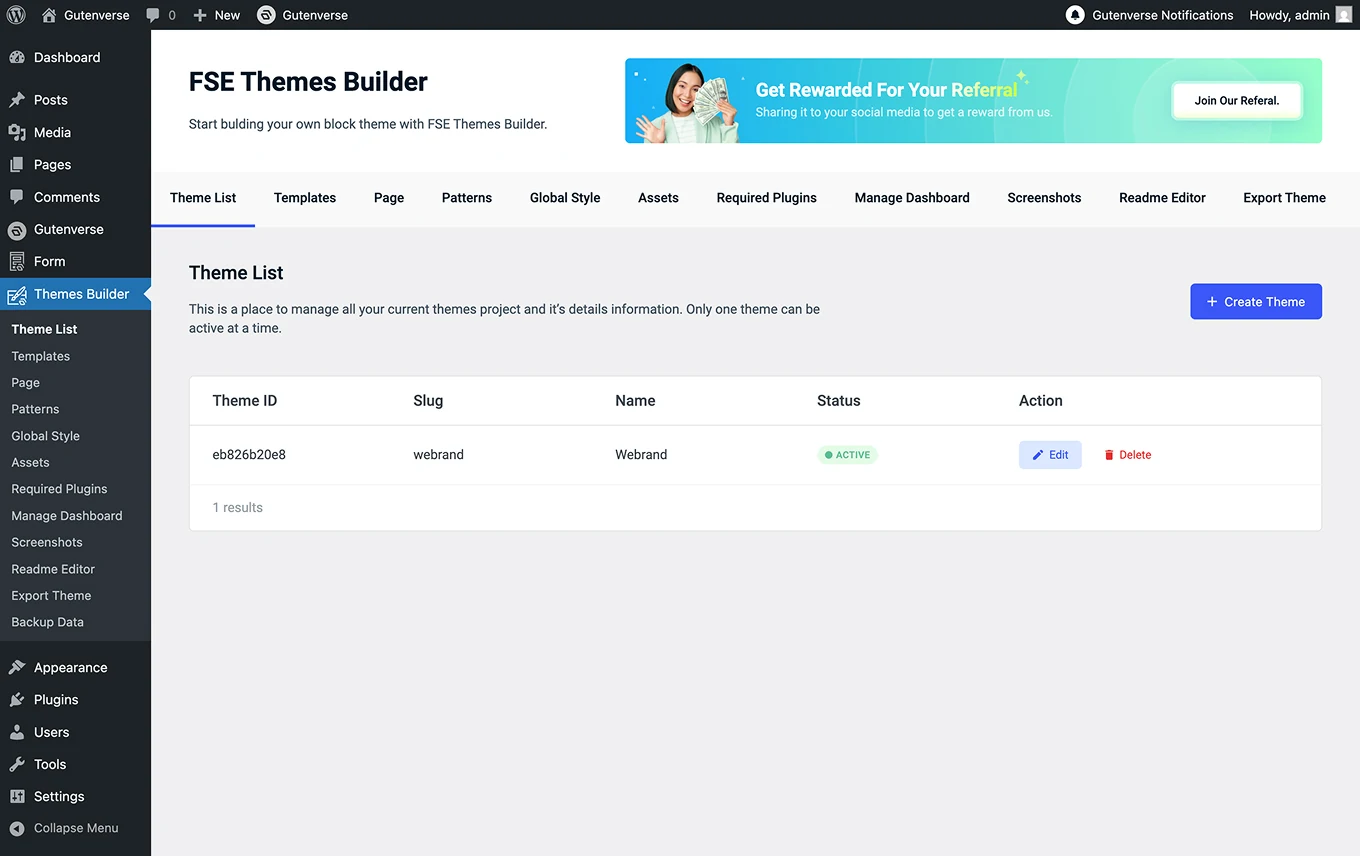














This is a place to manage all your current themes project and it’s details information. Only one theme can be active at a time.
How to Create Theme List?
You can go to Dashboard -> Themes Builder. Then click on the menu Theme List:
1.
Inside the menu Theme List, Click the Create Theme button to create a new theme.
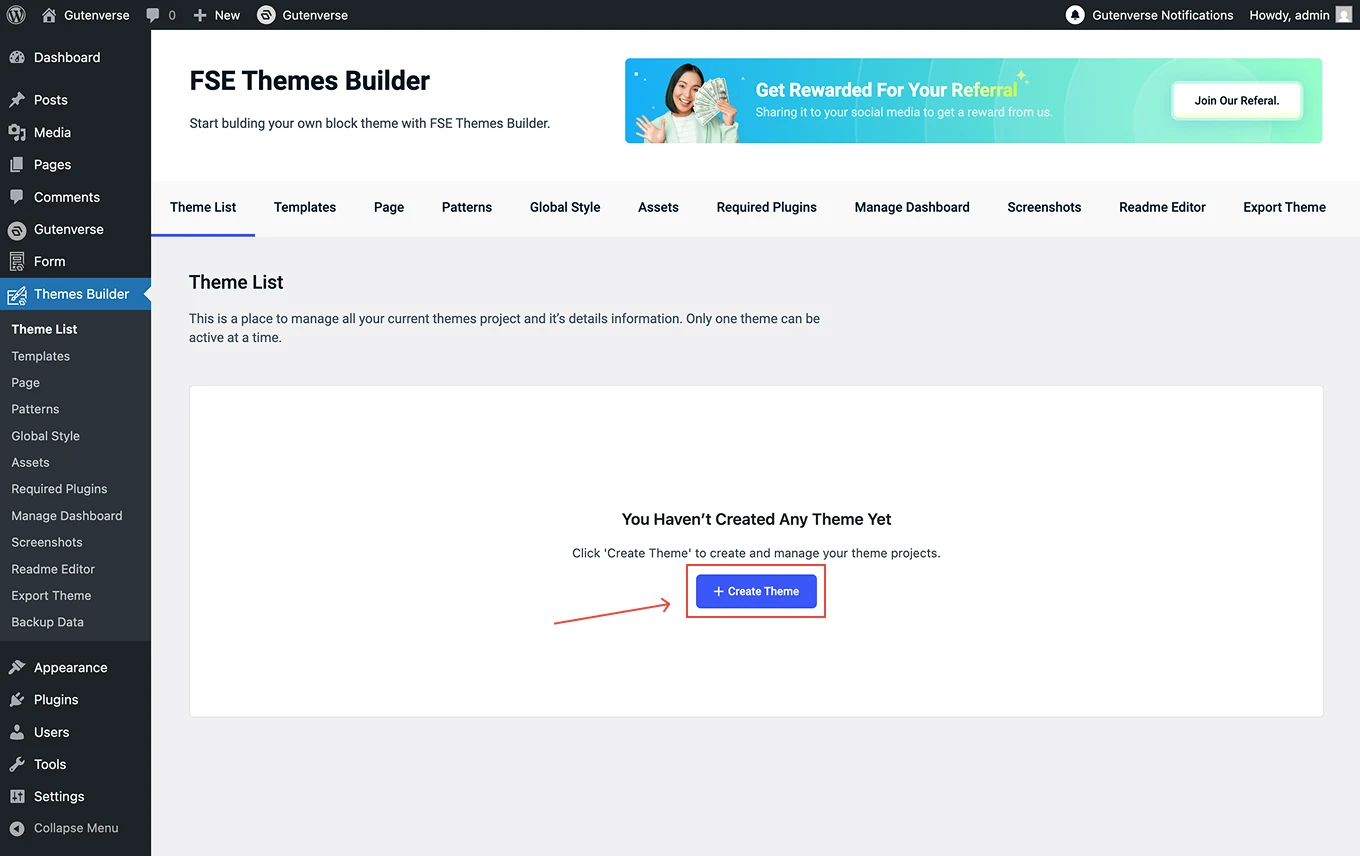
2.
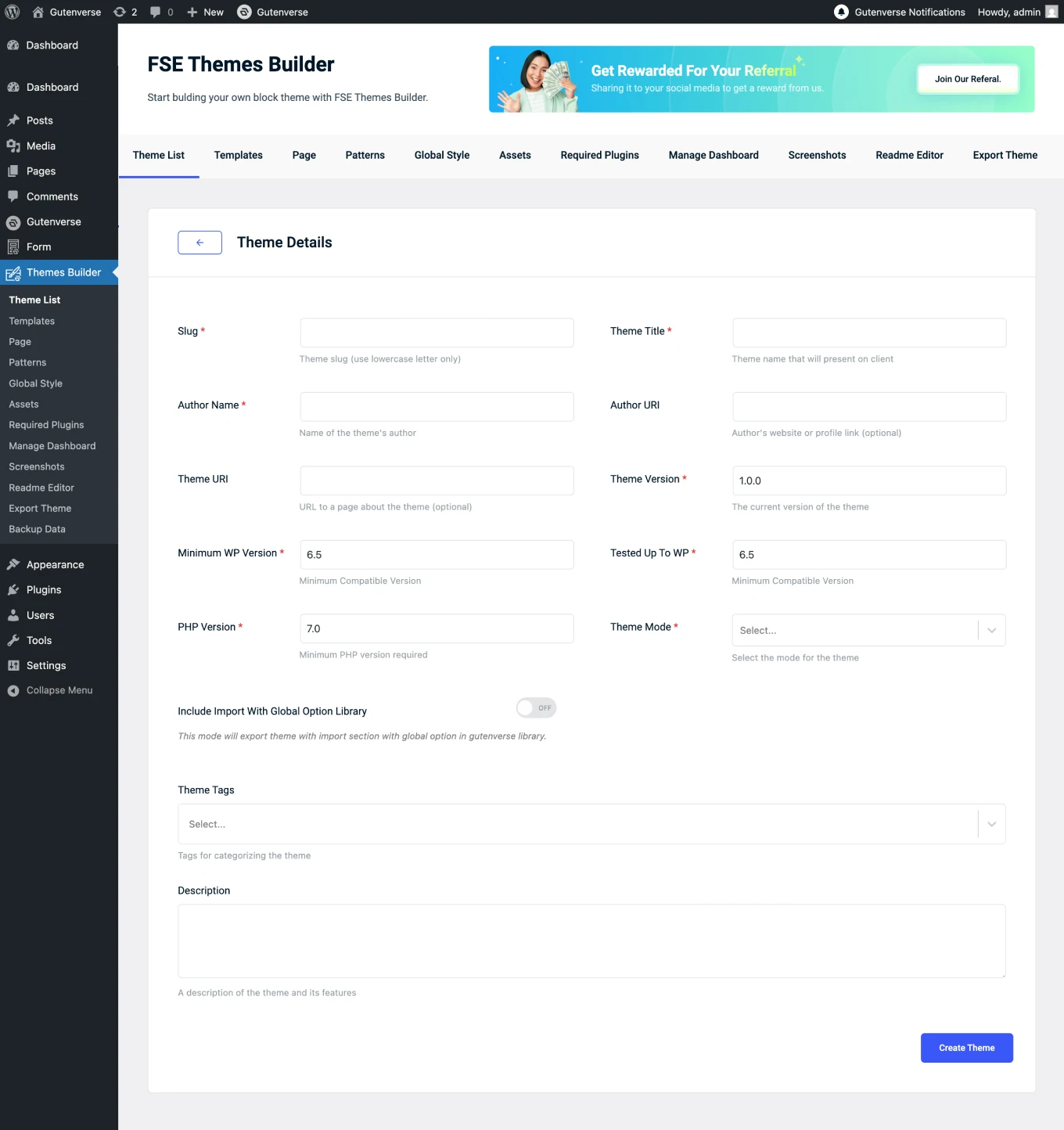
After clicking the Create Theme button, the Theme Details display will appear, which contains information fields regarding the theme that will be created. Enter data according to the information from the theme you created.
3.
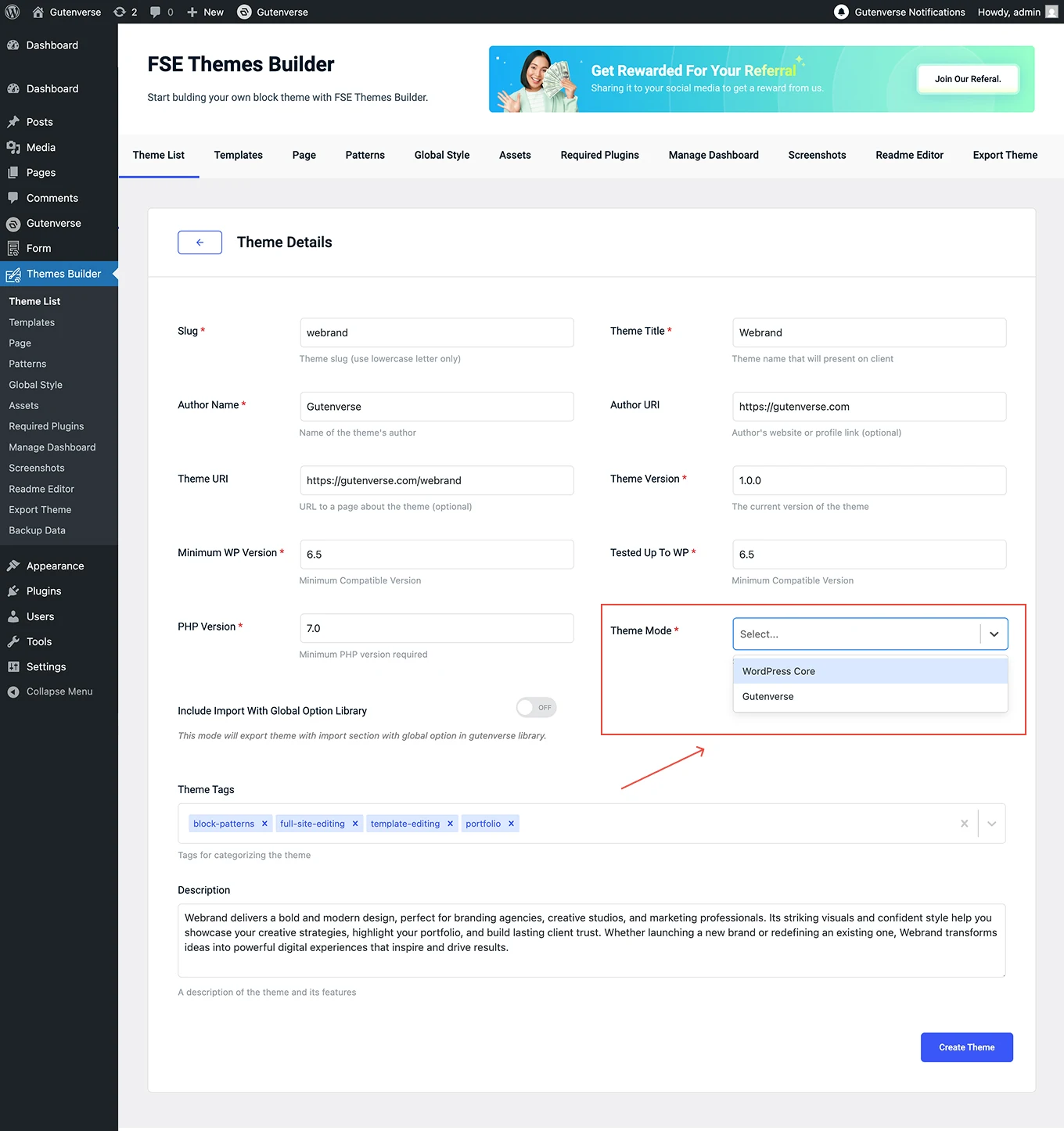
On the field Theme Mode, You can choose the theme mode according to your needs:
4.
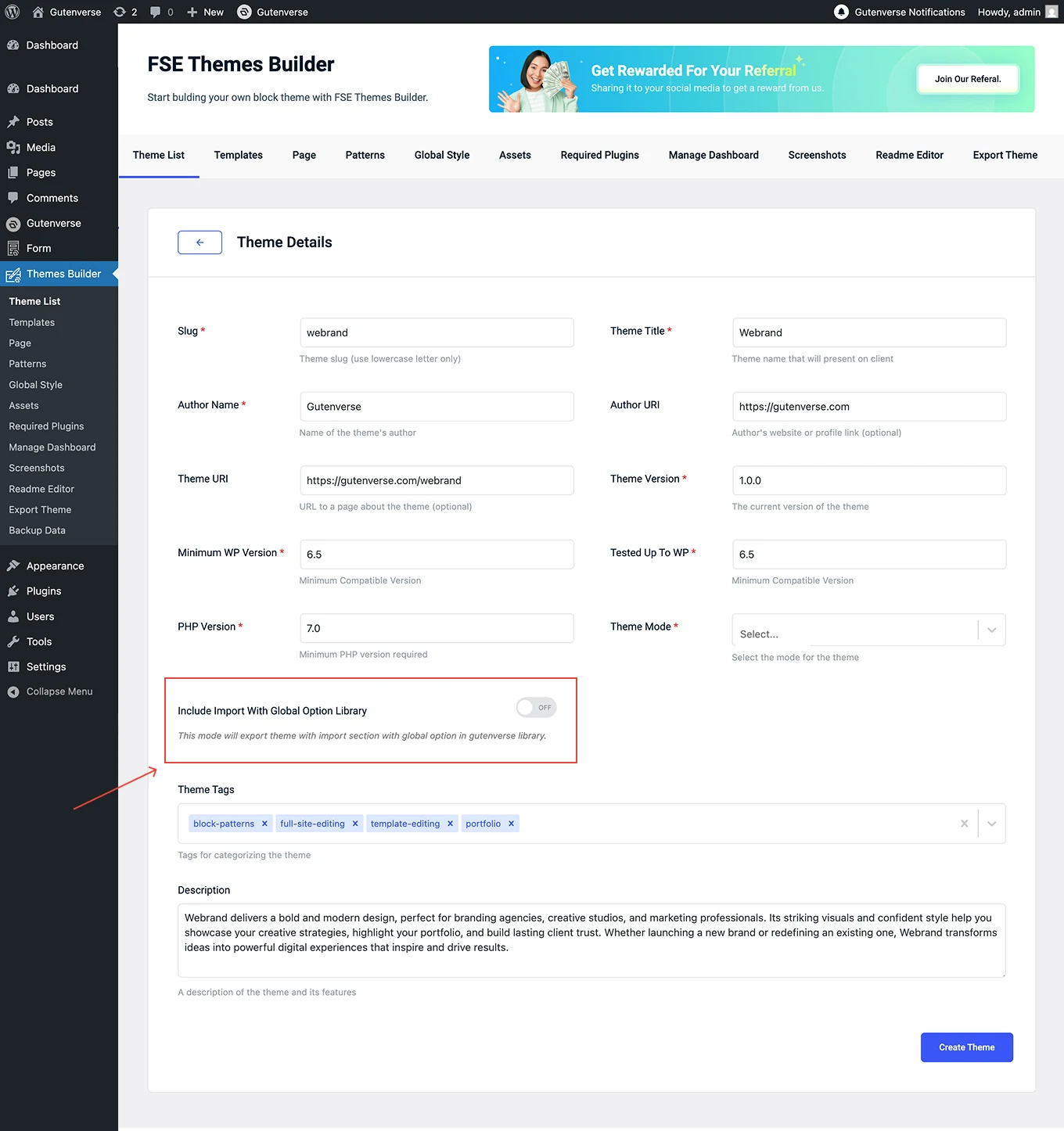
If the Import with Global Option Library toggle is set to ON, the default global colors and fonts will be added directly to your global list. If you have previously set the toggle to ON and then switch it OFF, the global items that were already added will not be removed automatically. So please make sure to review this setting carefully.
5.
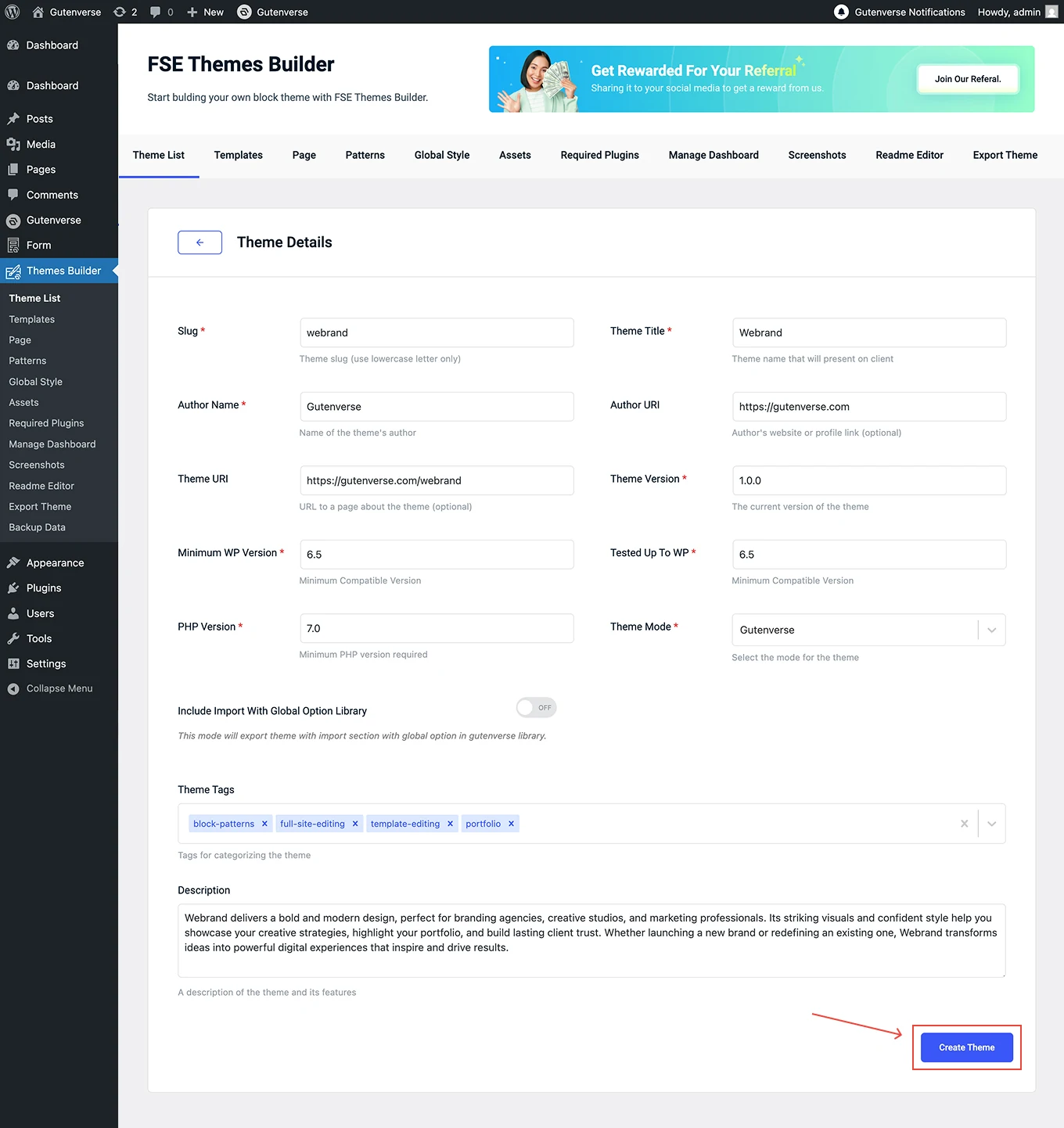
After you have completed all the fields, click the Create Theme button in the bottom right corner.
6.
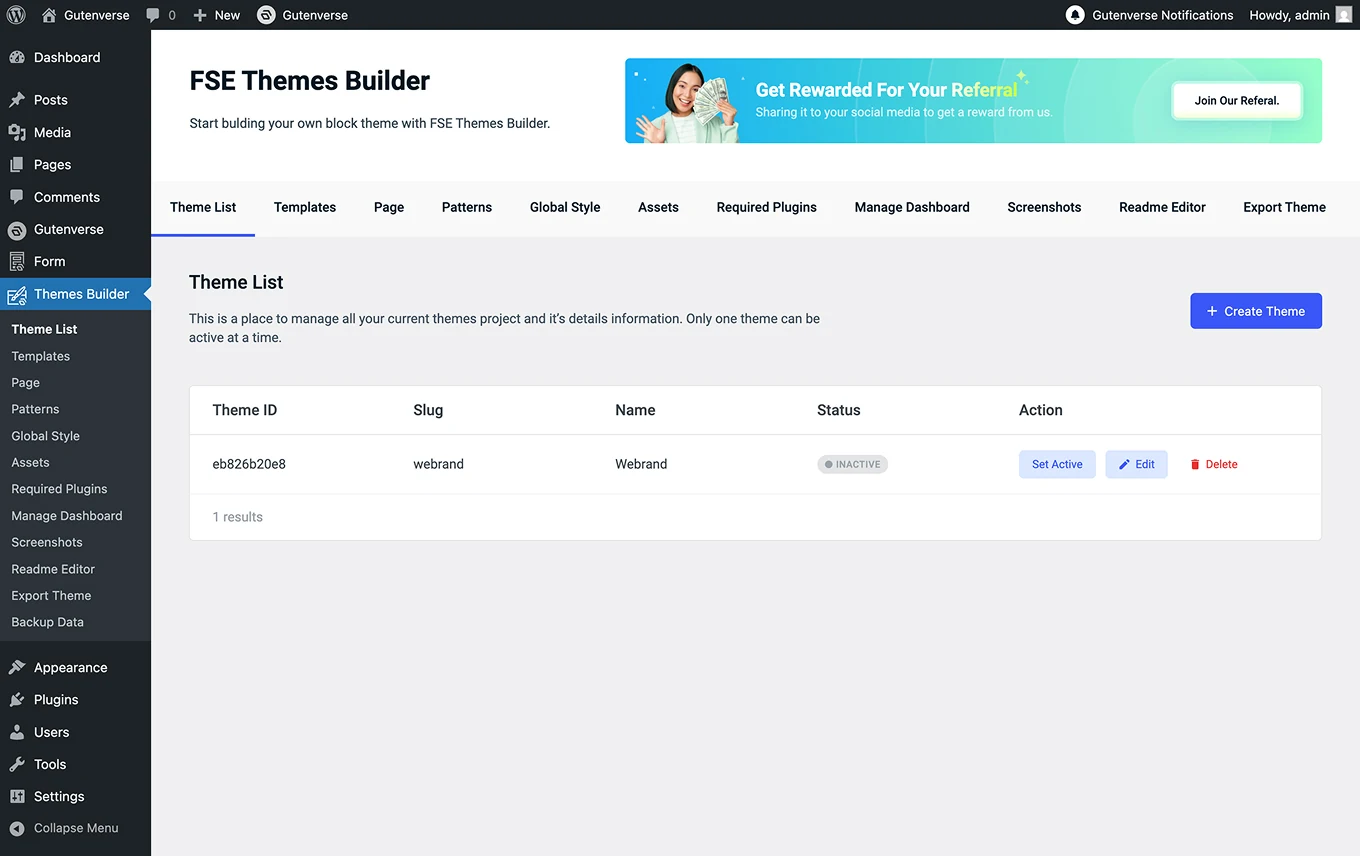
After the Create Theme button is clicked, a display like this will appear.
7.
In this section, you’ll find a Set Active button that allows you to enable the theme you’ve created earlier. This step is essential because, when adding templates later, you’ll need to select an active theme to associate them with.
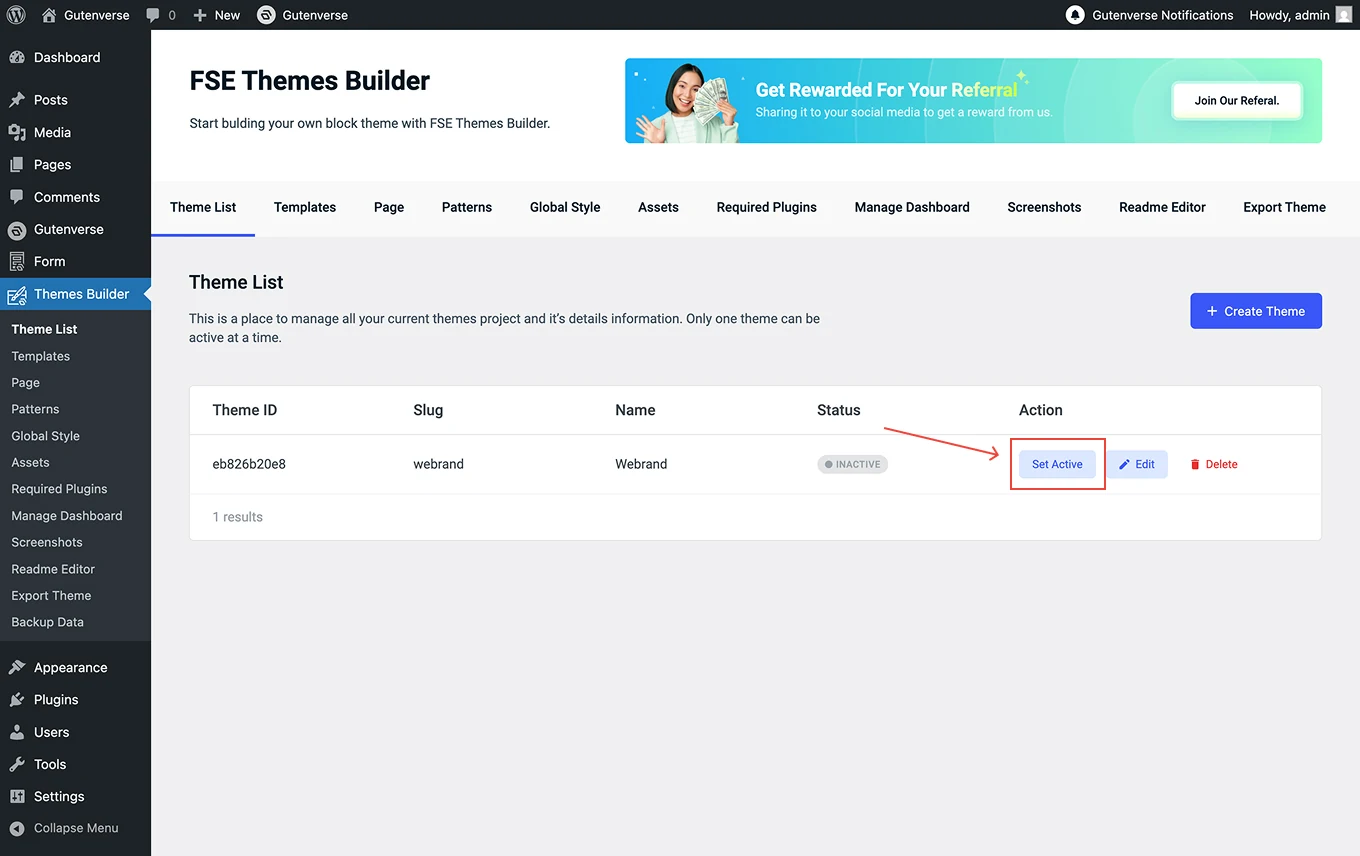
8.
After you click Set Active, a popup will appear for confirmation — then click Switch.
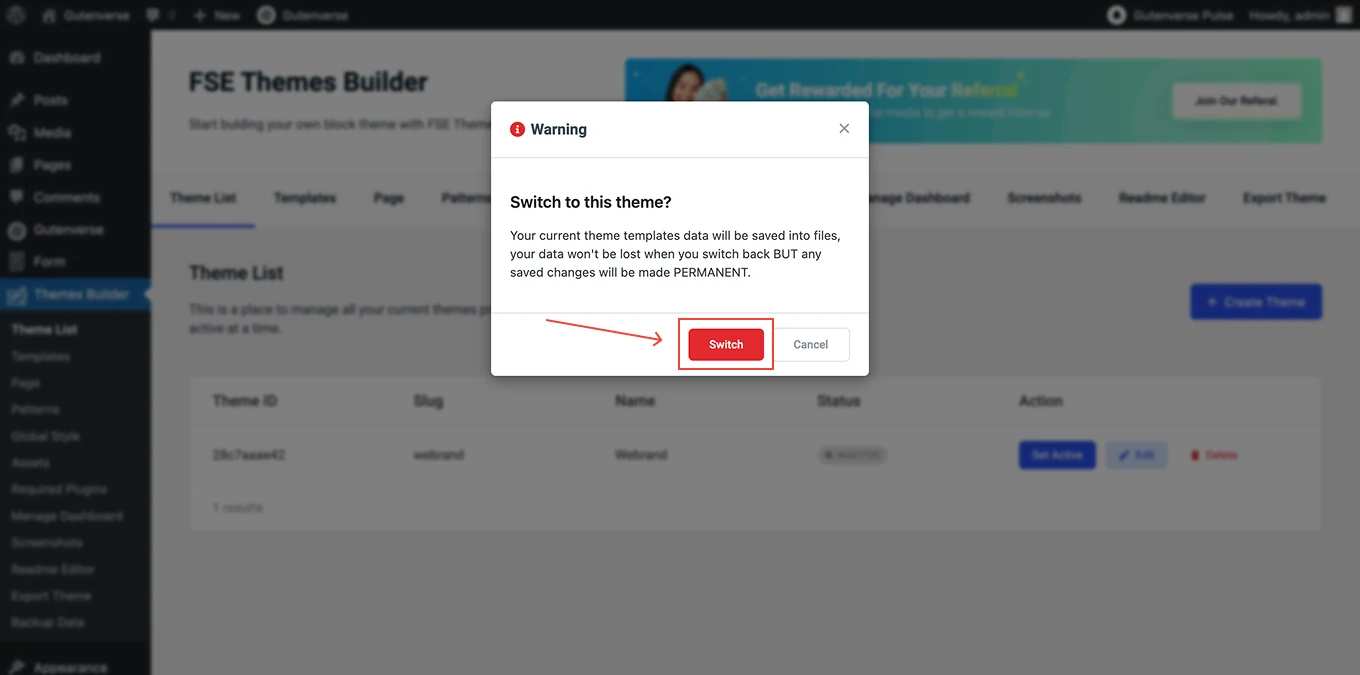
9.
After clicking Switch, you’ll see a screen like this. Congratulations! You have successfully created your theme list.