












 Things to Know


We respect your privacy and won’t spam you.
Plastic Surgery WordPress Block Theme - Quinnie
Designed for plastic surgery practices and aesthetic clinics.

Introducing Quinnie
Quinnie is a WordPress block theme for plastic surgery practices and aesthetic clinics, combining elegant neutral styling with prominent treatment photography. Present your aesthetic practice and treatment information with a calm, consistent identity. Built with Full Site Editing (FSE) and Gutenverse, it gives you a visual starting point that you can adapt to your own brand.
The Quinnie preview uses cosmetic procedure and clinic-service sections alongside doctor introduction and consultation presentation. The design also includes appointment enquiry and clinic pricing navigation. Adapt these sections to your own material in the WordPress block editor with Gutenverse PRO, replacing sample details and connecting enquiry buttons to your actual workflow.
Who This Theme Is For
Quinnie is designed for plastic surgery practices and aesthetic clinics. The demo focuses on cosmetic procedure and clinic-service sections, making it a useful starting point when these subjects are central to your website. Compare the doctor introduction and consultation presentation with the content you plan to publish before choosing this design.
Pages and Layouts
The Quinnie live demo links to Home, About Us, Services, Appointment, Pricing, Our Doctor, FAQ, Blog, Single Post, and Contact. Quinnie's demo brings together cosmetic procedure and clinic-service sections, doctor introduction and consultation presentation, and appointment enquiry and clinic pricing navigation.
Start by adapting the cosmetic procedure and clinic-service sections to your own content. Update prices, inclusions and package descriptions together so visitors see the same offer throughout the site. Connect the appointment or response layout to the booking or enquiry workflow you actually use. Customise Quinnie in the WordPress block editor with Gutenverse PRO. The live preview shows the design; check the importer separately for the layouts available to your edition.
Things to Know
A quick overview of the demo content, requirements, customization options, and other details to help you get the most from your setup.
What’s Included in the Import?
Quinnie includes page-import files containing block layouts, sample text and demo image references. Importing a selected layout adds that sample content; image downloads depend on the referenced files being available.
For the design overview, see Pages and Layouts. A menu definition is included; review the imported links and assign your navigation after import. The theme supplies its style defaults; importing content does not configure your own logo, contact details or connected services.
Requirements & License
Use Quinnie with WordPress and activate Gutenverse, Gutenverse Form and Gutenverse Companion. Access to this premium design requires an eligible Gutenverse account and license for the selected theme.
See Theme Information for the version requirements and, where applicable, eligible plans. Gutenverse Companion supplies this theme’s extensions and import workflow. Gutenverse Form provides the form blocks used by this design.
Editing & Customisation
Edit Quinnie’s site templates and shared header/footer through Appearance → Editor. Edit the imported page content in the WordPress block editor, then select individual Gutenverse blocks to change their text, imagery, spacing and responsive settings.
For Quinnie, start with the cosmetic procedure and clinic-service sections, then replace the sample material in the doctor introduction and consultation presentation. Review the appointment enquiry and clinic pricing navigation and their destinations after importing. Test the finished page on desktop, tablet and mobile, and check any forms or external links you connect.
Is Quinnie Right for Your Website?
Choose Quinnie if you need a design centred on cosmetic procedure and clinic-service sections. Compare its doctor introduction and consultation presentation and appointment enquiry and clinic pricing navigation with your own content, image proportions and preferred enquiry path.
Patient records, consultation scheduling and treatment payments require separate systems. Supply your own treatment information and imagery suited to the design.
Key Features
- Cosmetic procedure and clinic-service sections
- Doctor introduction and consultation presentation
- Appointment enquiry and clinic pricing navigation
- Demo navigation: Home, About Us, Services, Appointment, and Pricing
- WordPress block editing with Gutenverse PRO
Global Features
Bring your website to life with visual WordPress block editor, flexible layouts, and design controls that help you make it your own.
- Visual WordPress Block EditingBuild and edit pages with Gutenverse blocks in the WordPress editor. See your changes as you shape your website.
- Responsive Layout ControlsFine-tune layouts for desktop, tablet, and mobile to keep your content clear and easy to explore across screen sizes.
- Make It Your BrandPersonalise colours, typography, backgrounds, and spacing to create a consistent look that reflects your business or creative style.
- Easy Template ImportStart with a prebuilt website design, import the available template content, then personalise the text, images, and styling to make it your own. Template availability depends on your theme and plan.
- Flexible Blocks and SectionsCombine and rearrange blocks to present your services, showcase your work, and build pages around the content your visitors need.
- Room to Grow with PROExtend your website with Gutenverse PRO for advanced design controls, dynamic content, and more powerful forms and popup options.
How To Use This Theme
Purchase Quinnie as a standalone theme, then install it in WordPress and customise the available demo with Gutenverse.
- Choose a purchase option above and review its license terms. Download the theme ZIP from the account used for your purchase.
- In WordPress, go to Appearance → Themes → Add New → Upload Theme. Upload the theme ZIP and activate it.
- Install and activate the plugins required by the selected demo, then follow the setup instructions supplied with your purchase.
- Open the demo importer or template library provided by the theme and Gutenverse. Find the available design for Quinnie and review its required plugins before importing.
- If demo import is available, install the plugins listed for that demo, choose the content and settings you need, and start the import. Keep the window open until it finishes. You can also build pages directly with blocks.
- Open Appearance → Editor to customise the site templates, navigation, and styles available in your theme. Edit individual pages under Pages, then replace the sample text, images, and logo with your own.
- Set your homepage and menus, check links and forms, and preview the website on desktop, tablet, and mobile before publishing your changes.


Nursera is a WordPress block theme for home care providers, senior care services, and private nursing agencies. Create a clear introduction to your care…
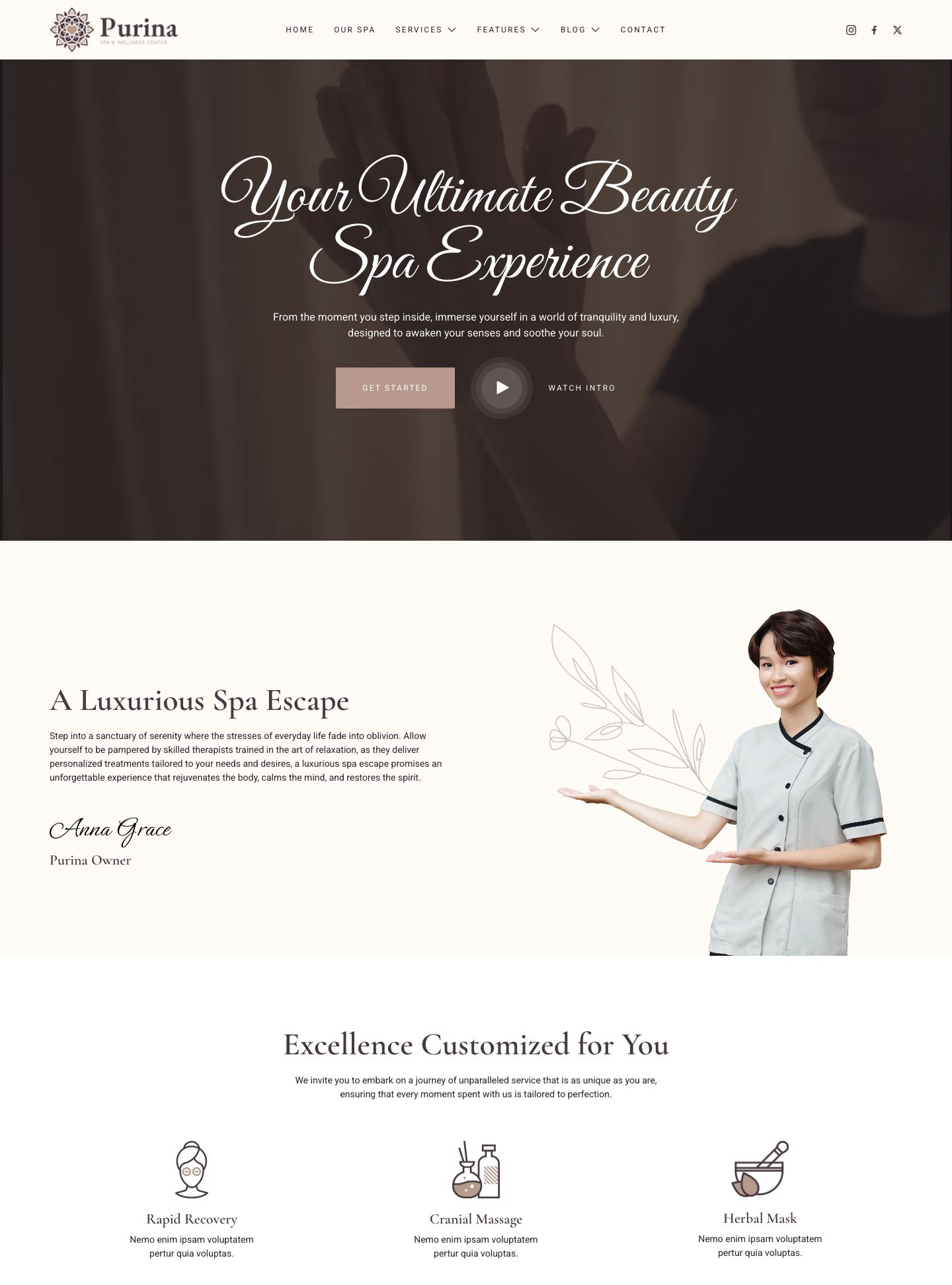
Purina is a WordPress block theme for spas, massage studios, and wellness centers, featuring soft cream tones, elegant typography, and calming treatment imagery. Introduce…
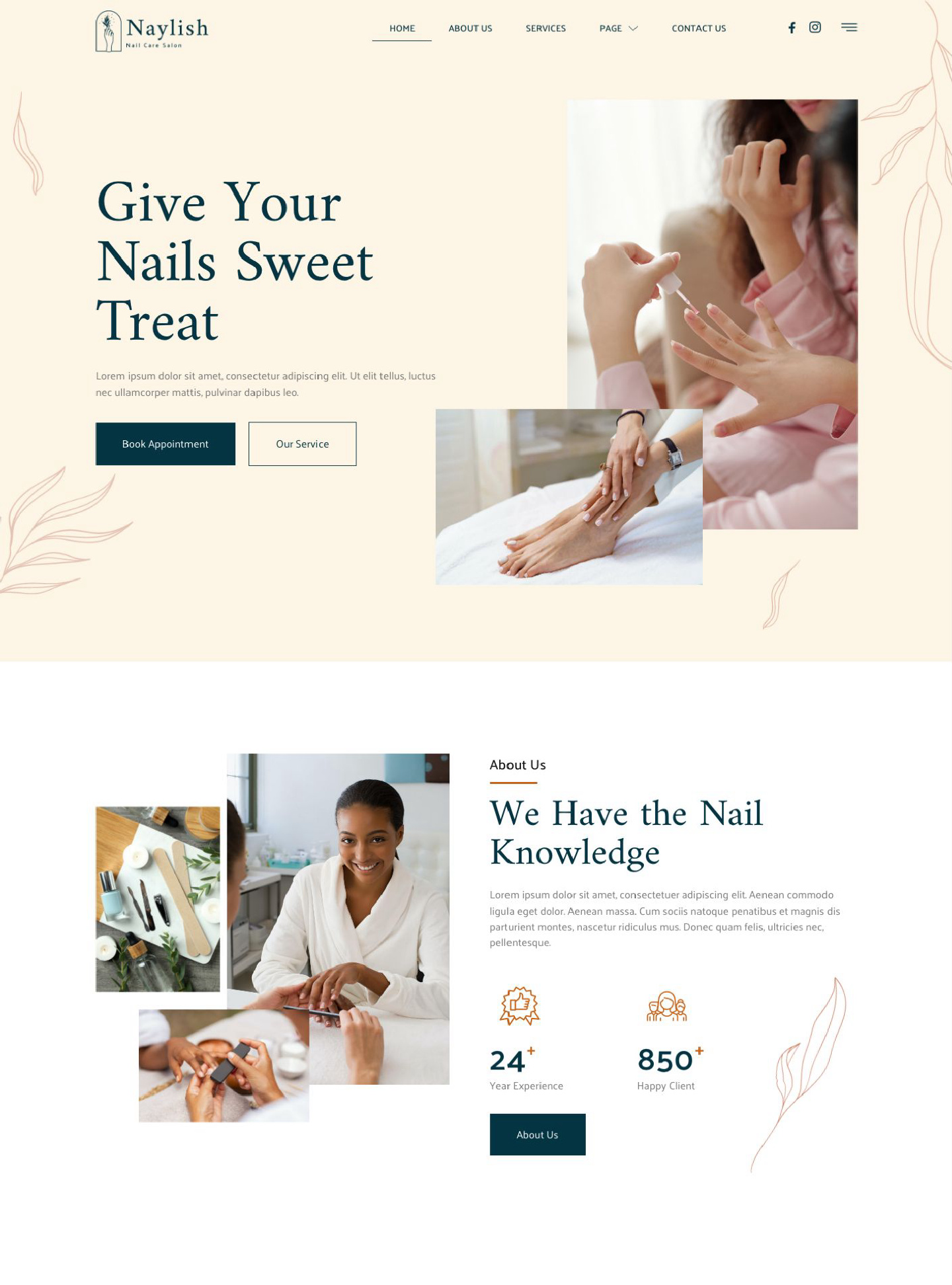
Naylish is a WordPress block theme for nail salons and beauty studios, featuring soft cream backgrounds, refined botanical details, and elegant treatment photography. Introduce…