















Client logos may look like a small section on a website, but they can help build trust. They show the brands you have worked with, the partners behind your project, or the sponsors connected to your business.
The problem is, displaying logos in a plain row can sometimes feel too static, especially on a modern homepage.
That is where the Gutenverse Logo Slider block can help. It lets you display client, partner, sponsor, or brand logos in a cleaner and more dynamic way, directly inside the WordPress block editor. You can create a more polished logo section without needing a separate page builder.
In this guide, we will look at what the Logo Slider block is, when to use it, and how to make your logo section feel natural on your WordPress website.
What Is the Gutenverse Logo Slider Block?
The Gutenverse Logo Slider block is a WordPress block that lets you display multiple logos in a sliding layout. Instead of placing all logos in a static grid, you can show them in a moving section that looks cleaner and more engaging.
This block works well on many types of pages, such as homepages, landing pages, portfolio websites, agency websites, event pages, and business profiles.
With this block, you can customize styles and settings such as arrows, dots, autoplay speed, border styles, divider lines, rounded corners, hover shadow effects, and more.
Also, you can use this block to show:
Why Logo Sections Is Important
A logo section is not just decoration. It can be one of the quickest ways to build trust with visitors.
When someone visits your website for the first time, they may wonder: Is this business real? Have other people worked with them? Can I trust them with my project, event, purchase, or subscription?
Logos can help answer those questions quickly. They show that your business, project, or brand has worked with others before. A Logo Slider also helps present that proof in a cleaner way, especially when you have many logos to show.
It Keeps the Page Clean
If you only have three logos, a simple row may be enough. But when you have six, eight, or more logos, the section can start to look crowded.
A slider lets you show more logos without making the page feel too full. Visitors can still see the brands, while the layout stays neat and easy to scan.
It Adds Movement Without Overwhelming the Page
Not every section needs a big animation. Sometimes, a subtle sliding effect is enough to make the page feel more active.
The Logo Slider block adds movement to a section that usually feels static. When used carefully, it can catch attention without distracting visitors from your headline, offer, or call to action.
It Makes the Section Feel More Intentional
A plain row of logos can sometimes look like it was added at the last minute. Small design details like borders, divider lines, dots, arrows, rounded corners, and hover shadows can make the section feel more polished.
This matters because brand logos are part of your credibility. When the section looks clean and well-designed, the proof feels stronger and more convincing.
Where to Use a Logo Slider on Your Website
The best place to add a Logo Slider depends on what the logos represent.
If the logos show your clients or trusted companies you have worked with, place the slider near the top of your homepage, usually after the hero section. This helps new visitors see your credibility early.
If the logos show sponsors or partners, place the slider close to the section that explains the event, organization, or collaboration. This gives the logos more context and makes them easier to understand.
If the logos show press mentions, you can place them near testimonials, case studies, or a short “featured in” section. This helps visitors understand that the logos support your reputation.
For portfolio websites, a Logo Slider can also work well between project sections. It gives the page a short visual break while still showing useful proof.
How to Add the Gutenverse Logo Slider Block
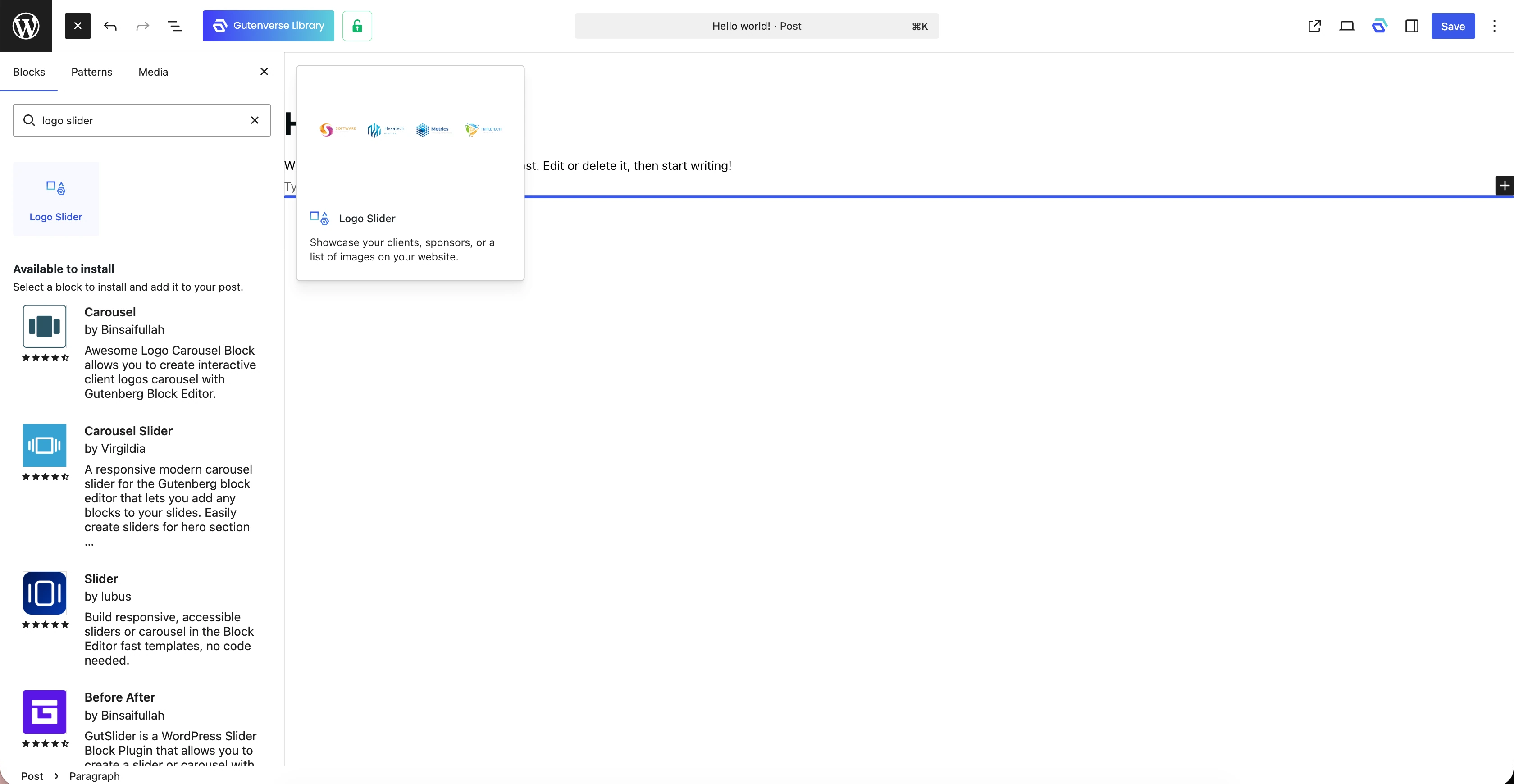
Before you start, make sure Gutenverse plugin is installed and active on your WordPress site. You can install it from the Gutenverse plugin page on WordPress.org or follow the Gutenverse installation guide first.
Once Gutenverse is ready, open the page where you want to display your logos. This can be your homepage, landing page, about page, portfolio page, or any custom page you are building with the WordPress block editor.
Then, follow these steps:
Logo Slider Styles You Can Try
The Logo Slider block gives you several ways to display logos. This is useful because every website has a different design style. Some websites need a simple logo section, while others may need more visual details to make the section stand out.
1. Simple Slider with Arrows
This style is a good choice if you want the logo section to look clear and familiar. The arrows help visitors understand that they can move through more logos, while the design still stays simple.
You can use this style on agency websites, business homepages, or service pages where the logo section supports the main content without taking too much attention.
2. Logo Slider with Dots
Dots help visitors see their position in the slider. This works well when you have several groups of logos and want the section to feel easier to follow.
Dots are also common on mobile layouts, so this style can make the slider feel more familiar on smaller screens.
3. Border-Wrapped Logo Slider
Borders help each logo look more organized. This is useful when your logos have different shapes, sizes, colors, or visual weights.
For example, one logo may be wide and light, while another may be tall and bold. Adding a border around each logo can make the whole section look more balanced.
4. Slider with Divider Lines
Divider lines are a softer alternative to full borders. They separate each logo without making every item look boxed in.
This style works well for minimal websites, consulting pages, portfolios, and corporate layouts where you want the section to look clean but still structured.
5. Rounded Border Layout
Rounded borders can make the logo section feel softer, friendlier, and more modern. This style is a good fit for creative studios, SaaS websites, personal brands, and businesses with a more relaxed visual style.
Try to match the corner style with the rest of your website. If your buttons and cards use rounded corners, rounded logo frames will usually feel more natural too.
6. Hover Shadow Effect
A hover shadow adds a small interactive detail when visitors move their cursor over a logo. It can make the logo item feel clickable, or simply give the section a bit more depth.
Use this effect carefully. A soft shadow can make the section feel polished, but a strong shadow may make it look too busy.
Tips to Make Your Logo Slider Look Better
A Logo Slider is simple, but the small details matter. These tips will help the section look more professional.
Use Clean Logo Files
Try to use logo files with transparent backgrounds if possible. This makes the logos fit better with your page and avoids those unwanted white boxes around them.
If your logos have different colors, check how they look on your website background first. Some logos may be hard to see, especially if they are too dark or too light, so you can add a border, a light box, or a soft background behind them to make each logo easier to read.
Keep Logo Sizes Consistent
Brand logos usually come in different shapes. Some are wide, some are square, and some have tall icons or symbols.
Before uploading them, try to place each logo on the same canvas size. This helps the slider look more balanced, even when the logo shapes are different.
Do Not Make It Move Too Fast
Autoplay can make the logo section feel more active, but the speed needs to be clear enough for visitors to notice each logo. If it moves too fast, the logos are easy to miss. If it moves too slowly, the section may feel like it is barely moving.
Choose a speed that gives each logo enough time to be seen. A Logo Slider should help build trust on the website, not make visitors feel rushed.
Give the Section Enough Space
Logos need enough space around them. If the section is too tight, even good logo files can look messy.
Add enough spacing above and below the slider so the section feels cleaner and easier to notice. This also helps it avoid looking like it was squeezed between other blocks.
Check the Mobile View
A Logo Slider that looks good on desktop may not look the same on mobile. The logos can become too small, too close together, or harder to read.
Use Gutenverse responsive styling options to review the section on desktop, tablet, and mobile. The responsive styling documentation can help you choose breakpoints and adjust the design for different screen sizes.
Final Thoughts
A logo section does not need to be complicated to work well. It just needs to be clear, easy to read, and placed nicely on the page.
With the Gutenverse Logo Slider block, you can turn a simple row of logos into a cleaner and more engaging section inside the WordPress block editor. Whether you are building a homepage, agency website, portfolio, event page, or partner section, this block helps you show trusted brands without taking up too much space.
Start with a few logos, adjust the layout, and check how it looks on desktop and mobile. Once the spacing, speed, and style feel right, your Logo Slider can become a small detail that makes the whole page feel more professional.